
A WordPress staging site is a private clone of your live website where you test changes before anyone else sees them. The safest first move: back up your site, then create a staging copy using your host’s built-in tool if you have one, or a plugin like WP STAGING if you don’t. The single rule that saves the most headaches: never push a full database from staging to live without a plan for what that overwrites.
Before you touch anything, run through this:
- Confirm you have a current, off-server backup of both files and database
- Check whether your host’s staging tool overwrites the live database on push, or lets you pick tables
- Note down every change you make on staging so you can push selectively instead of blindly
Key Takeaways
A safe staging-to-live workflow depends on backing up files and database together, pushing selectively instead of overwriting, and verifying caches, permalinks, and transactions immediately after every push.
| Point | Details |
|---|---|
| Back up before anything | Take a fresh, off-server backup of files and database right before any staging work or push. |
| Match the method to the risk | Use host-native staging for simple sites, plugin tools like WP STAGING for control, manual subdomains for custom hosts. |
| Avoid full database overwrites | Prefer files-only pushes, table-level restores, or merge deployments on any site with live order or comment activity. |
| Verify immediately after push | Flush caches, test checkout or forms, and check Search Console for new crawl errors. |
| Get agency support for high-risk pushes | Webby Website Optimisation manages WordPress maintenance and staging workflows for active local service business sites. |
Table of Contents
- What Does a Staging Site Actually Copy?
- Host Tools, Plugins, or Manual Setup: Which Staging Method Fits?
- How Do You Set Up a WordPress Staging Site?
- What Should You Check Before Pushing Staging to Live?
- Verifying a Live Push: What to Check and What Breaks
- Backup and Rollback: What to Save Before You Push
- Does a Staging Site Perform Differently Than Your Live Site?
- Why Staging and Live Settings Often Don’t Match, and How to Fix It
- What Can’t You Fully Test on a Staging Site?
- What Site Managers Get Wrong About Staging
- Get Agency-Managed Staging and Deployment Support
- Frequently Asked Questions
- Sources
What Does a Staging Site Actually Copy?
Every WordPress site is really two things: the files (themes, plugins, media, core code) and the database (posts, pages, orders, comments, widget settings, user accounts). A staging clone typically duplicates both, but the database is where the real risk lives. It’s the part that changes every minute your live site runs.
That distinction drives every decision you’ll make later. You need staging when you’re updating plugins or themes with a history of breaking things, changing WooCommerce settings or checkout flow, rebuilding a page layout, or fixing a bug you can’t safely test on a live storefront. Skipping staging for these tasks is how a five-minute plugin update turns into three hours of downtime.
Staging matters most anywhere customers transact or submit data; this is crucial for businesses managing workflows with Field Service Management Software for UK Trades to ensure seamless service.
- Plugin and theme updates, especially anything touching payment or form logic
- WooCommerce price changes, shipping rule edits, or checkout redesigns
- Full page or template redesigns
- Emergency fixes you don’t want to debug live
Every hour a live store shows a broken checkout is lost revenue. Staging exists to keep that risk off the production site.
Host Tools, Plugins, or Manual Setup: Which Staging Method Fits?
You have four real options, and picking the wrong one for your situation is the most common staging mistake site managers make.
- Host-native staging. Most managed WordPress hosts now offer one-click staging, and it’s usually the fastest, least error-prone option for straightforward pushes. The catch: push behavior varies wildly between hosts. Some let you choose files-only or selective pushes; others overwrite the entire live database the moment you click “push,” which is disastrous if you’ve taken new orders since cloning. GoDaddy’s managed hosting, for instance, documents exactly what its push does and doesn’t touch. Read that documentation before you rely on it.
- Plugin-based staging. When your host doesn’t offer staging, a plugin fills the gap. WP STAGING clones your live site into a staging copy, and its Pro version adds push-to-live with selective push, meaning you can choose which tables move instead of dumping the whole database. The free version creates a clone in a subdirectory but doesn’t include that selective push, which matters once you’re managing an active store.
- Manual staging via subdomain. Setting up a subdomain, copying files over, and importing a database dump gives you total control, and it’s often required on custom or self-managed hosting where no staging tool exists. This is also where
wp search-replacewith the--preciseflag becomes essential for handling serialized data correctly. - Local development environments. Tools running on your own machine are built for coding and rapid iteration, not final client-facing review. Use local for writing and testing code, then push to a remote staging server for the last check before going live.
How Do You Set Up a WordPress Staging Site?
Follow these steps in order. Skipping the verification steps is where most staging mishaps start.
- Clone your site. Use your host’s staging button, a plugin clone feature, or manually copy files and export/import the database. Whichever method, confirm the clone finished without errors before touching anything.
- Update the staging URL. Run
wp search-replace 'yourlivesite.com' 'staging.yourlivesite.com' --precisethrough WP-CLI. The--preciseflag matters because WordPress stores serialized data (arrays and objects packed into strings), and a naive search-and-replace corrupts that data silently. - Block search engines from indexing staging. Go to Settings > Reading and enable “Discourage search engines from indexing this site,” or add HTTP authentication in front of the whole staging environment. Both matter; the setting alone can be bypassed by a direct link.
- Restrict access. Limit staging to admins and developers only, ideally behind HTTP basic authentication so a stray URL doesn’t expose unfinished work publicly.
- Take a fresh, off-server backup of the live site immediately before you plan any push. Not yesterday’s backup. A new one, stored somewhere other than the server itself.
Pro Tip: Bookmark your staging login separately from your live site login. Site managers routinely edit the wrong environment because both dashboards look identical at a glance, and that single mistake causes more accidental live-site damage than any plugin bug.
What Should You Check Before Pushing Staging to Live?
Pushing staging to live is not one action. It’s a decision between overwriting everything and merging selectively, and picking the wrong one on an active site is how orders and comments vanish.
Run this preflight before any push:
- Take a full, verified backup of the live site’s files and database
- Put the live site into maintenance mode so no new orders or form submissions land mid-push
- Write down every change made on staging so you know exactly what should move
- Test the push itself on a disposable clone first, not directly on production
The safest approach depends on what changed. Files-only pushes work well for theme and code updates that don’t touch the database. Table-level restores let you move specific WordPress tables (options, posts) without touching customer or order data. Merge or event-based deployment, where a tool tracks and replays only the specific changes, is the gold standard for active WooCommerce stores but requires Pro-tier tooling to pull off.
A full database push is only acceptable when nothing has happened on the live site since you took the staging snapshot; a marketing brochure site updated once a month is a fine candidate, an active store processing orders around the clock is not.
Verifying a Live Push: What to Check and What Breaks
Before you even push, resync your staging copy from current production so you’re testing against the live site’s actual state, not a week-old snapshot. Then, immediately after the push, work through this list:
- Flush every cache layer: browser, plugin-level caching, and any CDN in front of the site.
- Check permalinks and SSL are functioning; a mismatched URL scheme after a push is one of the most common post-launch faults.
- Run a real transaction: submit a contact form, or if it’s a store, walk through checkout with a test order.
- Check Google Search Console for new crawl errors in the days following the push.
If something breaks, the usual suspects are serialization errors from a URL replacement that skipped the --precise flag, cached URLs pointing back to the staging subdomain, or a PHP version mismatch between staging and production environments. WP Depth’s push guide walks through fixing each of these without a full re-clone.
Backup and Rollback: What to Save Before You Push
A complete backup means both the database and the files, and WordPress’s own developer documentation is clear that skipping either one leaves you with a partial, unusable restore point.
Keep to this minimum:
- Store backup copies off-server, in cloud storage separate from your hosting account
- Take a fresh backup immediately before any push, on top of your regular scheduled backups
- Test your restore process occasionally, not just when you’re in a crisis
- Know your one-click rollback path; tools like UpdraftPlus offer selective restore options so you can roll back specific tables instead of the whole site if a push goes wrong
Why Trust This Guide, and When Should You Hire Help?
Webby Website Optimisation builds and maintains WordPress sites for local service businesses daily, which means staging pushes are routine work, not a once-a-year gamble.
- Case studies showing traffic and ranking gains after site rebuilds
- A Website Built In A Day offering for fast, structured rebuilds
- Ongoing WordPress maintenance packages covering updates and staging
Hire an agency when you’re running an active WooCommerce store, pushing high-risk changes, or simply don’t have in-house technical staff to manage the rollback plan if something fails.
Does a Staging Site Perform Differently Than Your Live Site?
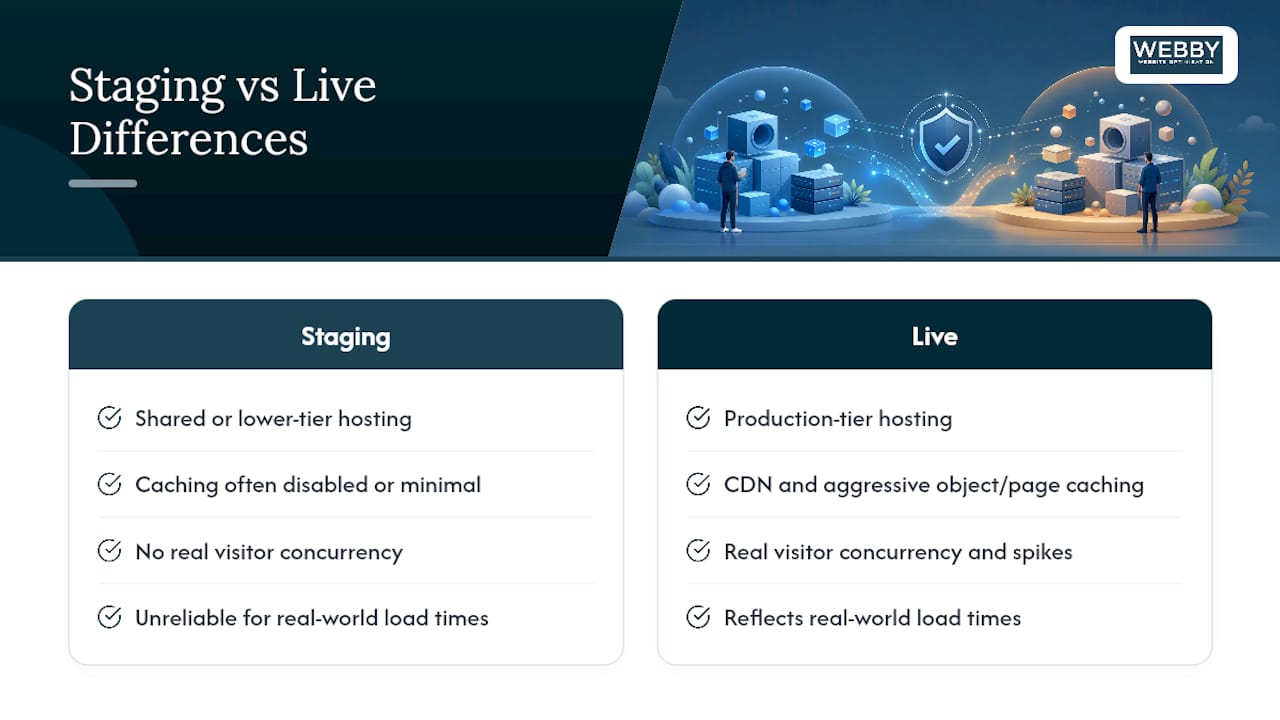
Yes, and the direction of that difference trips people up. Staging environments often run on shared or lower-tier server resources compared to your production hosting plan, which means a page that loads fine on staging can behave differently once real traffic and caching layers are involved on live.
The bigger issue is what staging doesn’t replicate. Live sites usually sit behind a content delivery network, aggressive object caching, and page caching tuned over time. Staging environments frequently run with caching disabled or minimal, since developers need to see changes immediately rather than a cached version from ten minutes ago. That means a speed test on staging tells you almost nothing about real-world load times on production, and testing “site speed” changes on staging is one of the more common wastes of time in a staging workflow.
What staging speed testing IS good for: catching plugin conflicts, database query problems, and PHP errors that would slow things down regardless of caching. A poorly optimized database query is slow everywhere; a missing CDN is only a live-site problem.
Traffic load is the other gap. Staging never sees real visitor concurrency, so it can’t reveal how your server handles a genuine traffic spike or a checkout rush. If speed and load capacity matter for a change you’re testing, budget a brief, controlled real-traffic test window on live, with monitoring in place, rather than trusting staging’s numbers alone.
Why Staging and Live Settings Often Don’t Match, and How to Fix It
Staging and live environments drift apart in ways that quietly break pushes, and most of it comes down to configuration nobody wrote down.
PHP version is the most common culprit. If staging runs PHP 8.1 and your live server is still on 8.0, a plugin that works perfectly on staging can throw fatal errors the moment it’s live. Check both environments’ PHP versions before every push, not just once when you set staging up.
Plugin and theme versions need to match too. It sounds obvious, but staging clones can drift out of sync with live if you’ve updated a plugin on production directly during an emergency fix while staging sat untouched. Before any push, diff the active plugin list and versions between the two environments.
Environment-specific settings deserve their own checklist:
wp-config.phpconstants, especiallyWP_DEBUG, should be off on live and can stay on for staging- API keys for payment gateways, email services, and third-party integrations often need separate staging credentials, not live ones
- Cron jobs and scheduled tasks should generally be disabled on staging so they don’t fire duplicate emails or trigger live-connected actions
- File permissions and server-level redirects (particularly
.htaccessrules) sometimes get lost in a clone and need manual reapplication
The fix for most of this is a written environment checklist you run through before every push, not a one-time setup you assume stays accurate.
What Can’t You Fully Test on a Staging Site?
Staging has real limits, and pretending otherwise is how site managers get blindsided after a push looks clean.
Payment gateways are the biggest one. Most gateways, Stripe and PayPal included, require you to use sandbox or test-mode credentials on staging rather than live keys, which means you’re testing the checkout flow, not a genuine transaction against your real merchant account. A test-mode success doesn’t guarantee your live payment configuration is correct.
Third-party integrations behave similarly. Email marketing platforms, CRM webhooks, shipping rate APIs, and analytics tracking often either don’t fire correctly on a staging domain or, worse, fire live and send real emails to real customers because nobody switched the integration to test mode. Before testing any integration on staging, confirm explicitly whether it’s pointed at a sandbox or a live account.
Webhooks are a particular hazard: services like payment processors or CRMs sometimes ping URLs based on domain, and a staging clone with the same webhook secrets as production can trigger duplicate or conflicting events on the live account.
Search engine behavior can’t be tested on staging at all, by design, since you’re actively blocking indexing. And any feature depending on real user volume, load balancing under traffic, or geographically distributed CDN behavior simply won’t reveal its real-world behavior in a low-traffic, single-environment staging setup. Staging tells you the code works. It can’t always tell you the integration is safe.
What Site Managers Get Wrong About Staging
Most staging advice treats the clone as the hard part. It isn’t. The push is where sites break, and the conventional wisdom that “test it on staging first” is enough advice badly undersells how a full database overwrite can silently erase a day’s worth of live orders that arrived after you took the snapshot.
The single biggest gap I see: site managers plan the clone in detail and treat the push as an afterthought, a button click at the end of a long checklist. It deserves the opposite weight. A files-only push or a selective table restore takes a few more minutes to set up than a full overwrite, and that time is the cheapest insurance available in this entire workflow.
Prioritize this order: backups first, a written list of exactly what changed on staging second, and only then the push method itself. If you’re running an active WooCommerce store and you don’t have someone who can confidently answer “what does our push actually overwrite,” that’s the moment to bring in outside technical help rather than find out the hard way.
Get Agency-Managed Staging and Deployment Support
Webby Website Optimisation is the alternative to piecing together staging tools and hoping the push goes smoothly. Instead of juggling plugin settings, WP-CLI commands, and a backup you hope is current, you get a team that runs this workflow for local service businesses as standard practice.
If your site is a simple brochure page, some of the DIY methods above will serve you fine. But if you’re running an active WooCommerce store, managing customer forms, or simply don’t have the internal time to babysit a push window, that’s exactly the gap Webby Website Optimisation fills. Ongoing WordPress maintenance packages cover staging, updates, and safe deployment as part of regular site care, so you’re not reinventing this checklist every time a plugin needs updating. For businesses considering a full rebuild instead of ongoing patchwork fixes, the Website Built In A Day service delivers a fresh, properly structured site without months of back-and-forth.
If you’d rather have a specialist team handle your next major update, request a website audit or consultation and get a clear plan for how your site should be built, tested, and pushed live safely.
Frequently Asked Questions
What is a WordPress staging site used for?
A staging site lets you test plugin updates, theme changes, or WooCommerce edits on a private clone before they affect your live visitors or customers.
Can I create a staging site for free?
Yes. The free version of WP STAGING creates a subdirectory clone, though it lacks the selective push-to-live features found in the Pro version.
Will pushing staging to live overwrite my orders?
It can, if you run a full database push and new orders arrived after you cloned staging. Use files-only pushes or selective table restores on any active store.
How do I stop staging sites from showing up in Google?
Enable “Discourage search engines from indexing this site” under Settings > Reading, and add HTTP authentication for a second layer of protection.
What’s the difference between staging and a local development environment?
Local environments run on your own machine and suit coding and quick iteration; staging runs on a server and is meant for final review before going live.
Why did my site break after pushing staging to live?
The usual causes are a URL search-and-replace that skipped serialized data, leftover cached URLs pointing to staging, or a PHP version mismatch between environments.
Sources
For CLI commands and backup order, see WordPress’s backup documentation and the WP STAGING plugin page for setup specifics.
- WP STAGING – WordPress Backups, Restore, Migration & Clone
- Backing up your WordPress site — WordPress Developer Resources
- WordPress staging to production guide — InstaWP
- How to Push WordPress Staging to Live Safely | WP Depth
- How to safely push changes from WordPress staging to live – TeamUpdraft
Recommended
If this post raised some questions feel free to ask me a question