
A website that is not maintained slowly stops earning its keep. Plugins fall out of date, a contact form quietly stops sending, a backup fails without anyone noticing, and the enquiries you paid to attract go nowhere. The fix is a fixed routine: a short list of tasks, each with its own frequency, from daily automated checks to a yearly review. This checklist is built for owners of local service businesses. It covers what to do, how often, and where each task tends to go wrong, with a full WordPress backup and restore routine in the middle. If you would rather hand the whole routine to a team, our WordPress maintenance plans start at $59 per month.
TL;DR
- Split upkeep by frequency: automated checks daily, form and speed tests weekly, links and statistics monthly, content and design quarterly, and a full review yearly.
- Updates and backups are the two tasks that protect the business. Apply security updates promptly and keep backups stored away from your hosting account.
- A backup only counts once you have restored it somewhere safe and seen your forms, bookings and logins work.
- Test the pages that make you money (quote form, phone button, booking flow) every week, because a broken one costs you leads silently.
- Write each task down with an owner and a date. A checklist nobody is assigned to does not get done.
Table of Contents
- Why upkeep matters more for a service business
- The checklist by frequency
- Updates: the task that protects you most
- A WordPress backup strategy that works
- Restoring WordPress from a backup
- What this costs, and when to hand it over
- Make the checklist stick
- Our view on website upkeep
- Hand the routine to Webby
- FAQ
- Sources
Why upkeep matters more for a service business
For a plumber, accountant or physio, the website is mostly a lead machine. Visitors arrive from Google, read a page, and either call or fill in a form. Anything that breaks that path costs real jobs, and you rarely hear about it, because the lost customer simply rings the next business on the list.
Maintenance has three jobs: keep the site secure, keep it working, and keep it current enough that Google and customers trust it. The checklist below is organised by how often each task needs to happen, because that is how you will actually run it.
The checklist by frequency
Daily (automated)
You should not do these by hand. Set them up once and read the alerts.
- Uptime monitoring. A service pings your site every few minutes and emails or texts you if it is down. Without it, you learn about an outage from a customer.
- Security scanning. An automated scan for malware and suspicious file changes.
- Database backups. For most small business sites, a daily copy of the database (where enquiries, orders and page content live) is the sensible baseline.
Weekly (15 to 30 minutes)
- Test every form. Submit your contact, quote and booking forms yourself and confirm the email arrives in the inbox that matters. Check the spam folder too. Forms fail after plugin updates, mail setting changes and expired email credentials, and nothing on the page looks wrong when they do.
- Check the phone number and call buttons on your phone. Tap them. A mobile visitor who cannot call you in one tap often leaves.
- Apply updates. Update WordPress core, plugins and your theme. Security fixes are the reason. Read the next section before doing this on a live site with no backup.
- Check your file backups. Confirm the latest backup ran and landed where it should.
- Glance at your search and traffic data. A sudden drop in visits or enquiries is easier to fix when you spot it in a week rather than a quarter.
- Run a speed test on your homepage and your top service page, on mobile.
Monthly (about an hour)
- Find and fix broken links. Dead links to deleted pages or old suppliers frustrate visitors and waste your page authority.
- Review the security scan results, including failed login attempts and user accounts. Remove accounts for people who have left, and make sure every remaining admin uses a strong, unique password.
- Look at your statistics. Which pages bring enquiries, which bring only visits, and which have stopped getting traffic? Note two things to improve.
- Review Google Search Console for crawl errors, mobile problems and pages that have dropped out of results.
- Check that your business details are consistent: address, hours, phone, service areas and prices on the site match your Google Business Profile.
- Check for legal requirements. Update your privacy policy and terms when you start collecting new data or using new tools.
Quarterly (two to three hours)
- Refresh content on your key pages. Update service descriptions, testimonials, photos and prices. Pages that still describe last year’s offer undermine trust.
- Review the design on mobile and desktop. Open the site on a real phone, not only a resized browser window.
- Re-test everything that touches revenue: checkout, payment gateway, booking calendar, live chat, CRM connections.
- Review on-page SEO for pages that matter: titles, descriptions, headings and internal links. If you want a second pair of eyes, our Website Audit is a $1,250 one-off.
- Run a full restore test (details below).
Yearly
- Audit plugins. Delete anything inactive, and replace anything abandoned by its developer. Every plugin you keep is something that must be updated and could be a way in.
- Renew domains, SSL certificates and licences well ahead of expiry. Put the dates in a calendar with a reminder 60 days out.
- Review hosting. Check your plan still fits your traffic and that the server software version is supported.
- Audit all content. Merge or remove thin and outdated pages, and redirect them properly.
- Review your goals. Is the site still built for the services you most want to sell?
If you want a ready-made view of upkeep sorted by frequency to compare against your own, this upkeep schedule by frequency is one way to see how others lay it out.
Updates: the task that protects you most
Outdated software is the most common way small business sites get compromised, and it is also the most common way a site breaks: an update to one plugin clashes with another. Both risks are managed by the same habit, update regularly and always have a recent backup first.
The Victorian Government’s insurer publishes guidance based on the Australian Government’s Essential Eight security framework. It sets a target of patching extreme-risk vulnerabilities within 48 hours. That standard is written for government bodies, but it shows how seriously a serious vulnerability is treated: days, not months.
WordPress itself helps. According to the WordPress developer documentation, new installations since version 5.6 have automatic updates enabled for minor and major core releases, while older installations keep the earlier behaviour unless an administrator changes it. Plugins and themes are usually only updated automatically when you switch that on. So “WordPress updates itself” is only partly true, and your plugins are where most of the risk sits.
A safe update routine:
- Confirm a fresh backup exists.
- Update one group at a time: core first, then plugins, then the theme.
- Check the homepage, your top service page and your main form straight after.
- If something breaks, restore from the backup, note which update caused it, and fix it before trying again.
Where sites go wrong is step 3. Owners update, see the homepage load, and move on, while the quote form is quietly broken. This is also where a maintenance provider earns its fee: we apply updates and check that the pages that bring in work still function. Our Monthly Updates plan is $123 per month.
A WordPress backup strategy that works
A backup strategy answers three questions: what is copied, how often, and where the copies live.
What to back up
A WordPress site has two parts. The files include your theme, plugins and the uploads folder with your images and documents. The database holds your pages, posts, settings, form entries and orders. A good backup captures both. A copy of only one will not rebuild the site.
How often
The right frequency depends on how fast your site changes. A brochure site for a tradie that is edited monthly needs less than a site taking bookings or orders daily. A sensible baseline for most small business sites is a daily database backup and a weekly file backup, plus an extra backup immediately before any major change such as a redesign, a plugin overhaul or a PHP version upgrade. Sites that take payments or bookings should back up the database more often, because losing a day of orders is expensive.
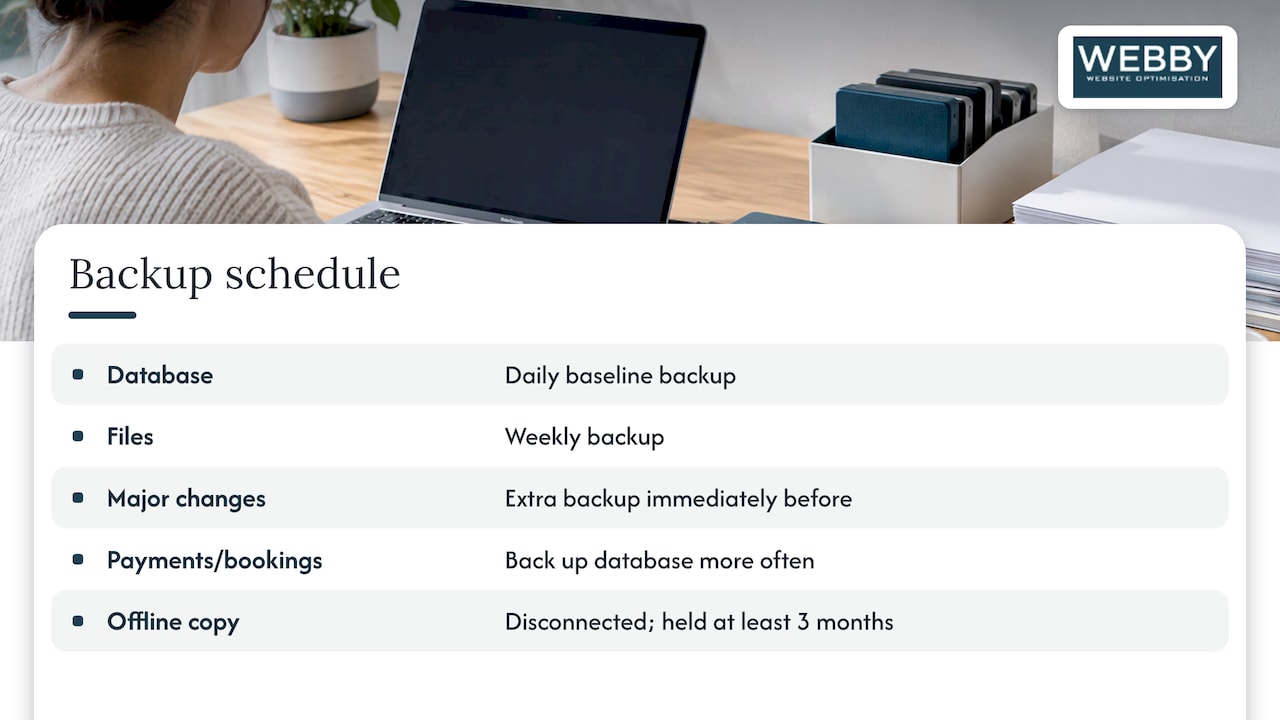
For comparison, the Essential Eight guidance mentioned above calls for daily backups of important new or changed data, kept disconnected from the live system and held for at least three months. The idea of an offline, retained copy translates directly to a small business site: ransomware and hacks often reach backups stored in the same place as the site.
Where the copies live
The widely used 3-2-1 rule is easy to apply:
- 3 copies of your data (the live site plus two backups)
- 2 different types of storage (for example, your host’s backup system and a cloud storage account)
- 1 copy offsite, away from your hosting account
The last point is the one most often skipped. If your only backups sit in the same hosting account as the site, then a suspended account, a compromised server or a billing problem can take the site and the backups together.
How to back up a WordPress site
There are three common routes, and most businesses end up using two of them together:
- Your host’s backups. Most Australian hosts offer scheduled backups. Find out how often they run, how long they keep copies, and how you restore them.
- A backup plugin that sends full copies to external cloud storage on a schedule you set.
- A manual export of the files and database before major changes, so you have a known-good point to return to.
None of these is complete until the offsite copy exists and a restore has been tested.
Restoring WordPress from a backup
The restore is the part that matters when something goes wrong, and it is the part nobody practises. A backup that reports success can still fail: files missing, a database export cut short, or a restore that works only on a server configuration that no longer exists.
Run this drill once a quarter, and always after changing hosts or making big changes:
- Pick a recent backup and note its date and where it is stored.
- Restore it to a staging site, a private copy of your website, never over the live one. Many hosts offer staging at a click.
- Check the content. Pages, images, downloads and the media library should all be present.
- Test the business functions: contact and quote forms, checkout or booking flow, member logins, and any connection to your CRM or email platform.
- Check the plugins and performance. Confirm everything is active, load a few pages, and look for error messages.
- Confirm you can log in as an admin.
- Record the result: the backup date, where it came from, what worked and what failed. Then delete the temporary copy.
A restore is complete when the site does its job, not when the homepage loads. The usual failure points are missing uploads, an incomplete database export, a mismatch between the PHP or plugin versions on the new and old server, and the absence of any routine for checking. The drill above catches all four.
If you do have to restore on a live site after a problem, restore the most recent clean backup, change all admin passwords, update everything, and then run through your weekly checks before telling customers things are back to normal.
What this costs, and when to hand it over
Most owners can handle the weekly and monthly checks themselves for a while. The tasks that tend to slip are the technical ones: staged update testing, restore drills, security clean-ups and performance work. That is when upkeep becomes a time cost taken from running the business.
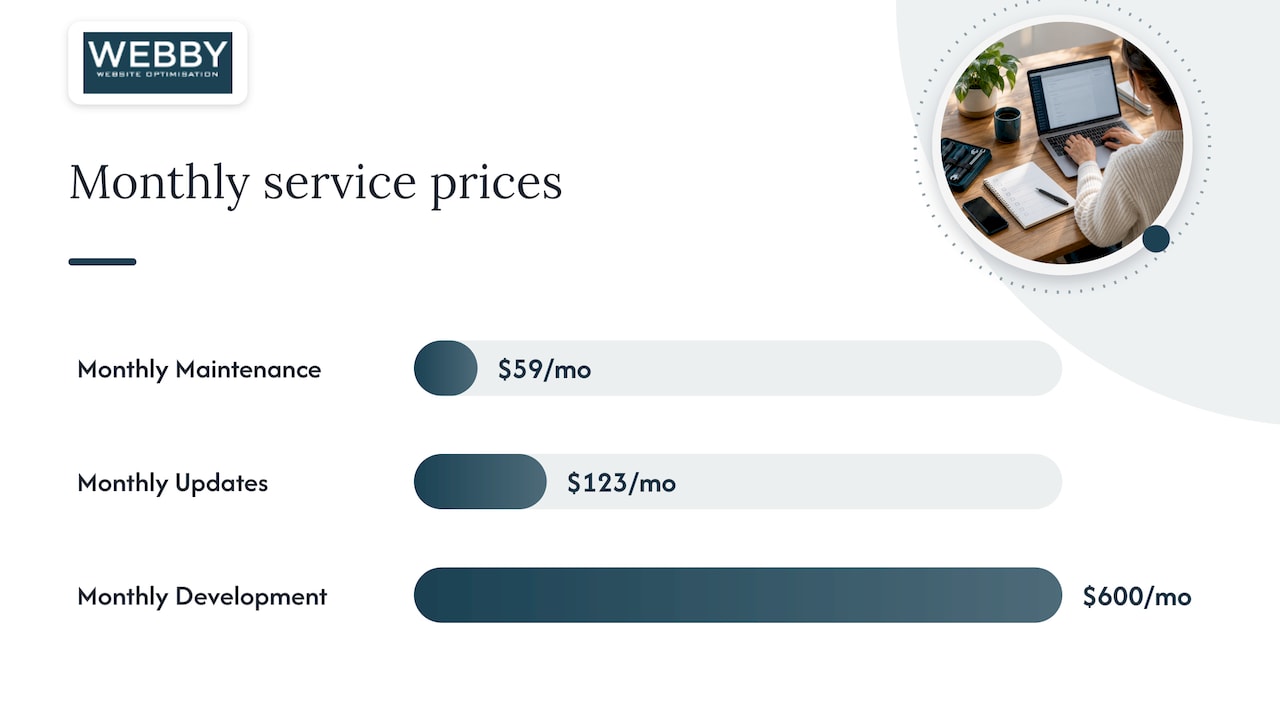
Our published monthly rates are:
| Plan | Price |
|---|---|
| Monthly Maintenance | $59 per month |
| Monthly Updates | $123 per month |
| Monthly Development | $600 per month |
| Emergency Services | $120 per hour |
The plan overview is on our WordPress maintenance packages page. For a wider look at how providers structure this work, see our guides to WordPress site maintenance services and choosing the right provider.
Make the checklist stick
A checklist works when it is small enough to finish. Use this setup:
- Put the weekly tasks in your calendar as a recurring 20-minute slot, the same time each week.
- Assign each task to a named person, even if that person is you.
- Keep a simple log: date, task, result, anything to follow up. When something breaks, the log tells you what changed.
- Review the list each quarter and cut tasks that never produce a finding.
The small business site that survives is rarely the most sophisticated one. It is the one where someone checked the forms last Tuesday.
Our view on website upkeep
Most of the sites we are called in to fix did not fail because of one big mistake. They failed because several small jobs were skipped for a year: updates, backups that nobody had ever restored, a form that stopped sending.
We think upkeep should be treated like servicing a work vehicle. You do not wait for it to break down on a job. For a local service business, we think the website is the first thing a new customer sees, so the weekly form test and the quarterly restore drill are cheap insurance on the enquiries it brings in.
That is why we publish clear monthly maintenance rates and offer emergency help by the hour. Owners should be running their business, and the routine should be handled by someone who does it every day.
Steve Doig
Hand the routine to Webby
If you want this checklist run for you, our WordPress Help & Support service covers maintenance, updates, development and emergency fixes for local businesses. Monthly Maintenance is $59 per month, and Monthly Updates is $123 per month. If you are not sure where your site stands, a Website Audit at $1,250 one-off is the place to start, and you can compare everything on our services page.

To see where your site is losing visitors before you commit to anything, you can claim a free website audit.
FAQ
How often should I do website maintenance?
Automated checks such as uptime, security scans and database backups run daily. Do form tests, updates and speed checks weekly, then link checks and statistics reviews monthly. Content and design reviews are quarterly, and plugin, domain and hosting reviews happen yearly. Sites that take bookings or payments should test those paths weekly or more often.
What is the minimum maintenance a small business website needs?
If you do only three things, do these: apply updates regularly, keep automated backups with one copy stored away from your hosting account, and test your contact form every week. These cover the security, recovery and lead-flow risks that cost small businesses the most.
How do I restore WordPress from a backup?
Restore the backup to a staging copy first, not the live site. Check that pages, images and plugins are intact, test your forms and booking or checkout flow, and confirm you can log in as an admin. Once it all works, restore to the live site. Record what you tested.
How much does website maintenance cost?
It depends on the scope. Our published plans run from $59 per month for Monthly Maintenance to $123 per month for Monthly Updates and $600 per month for Monthly Development, and urgent fixes are $120 per hour.
Sources
- Improving Cyber Maturity with Essential Eight (VMIA, July 2025)
- Upgrading WordPress (WordPress developer documentation)
- Maintenance schedules by frequency (Hopper)