
Enable multi-factor authentication, force HTTPS, apply any outstanding patches, and run a fresh backup today. Those four actions alone close the vulnerabilities that account for the vast majority of small-site compromises. Most attacks on small business websites are automated and opportunistic; bots probe for weak credentials, outdated plugins, and unencrypted connections around the clock. Fixing the basics first is the fastest way to protect your online business before anything else.
Day 1 checklist (complete these within 24 hours):
- Enable MFA on every admin account, your email, and your domain registrar
- Force HTTPS sitewide and confirm your TLS certificate is valid and auto-renewing
- Apply any critical patches or confirm automatic updates are on
- Run a full site backup and store a copy offsite (cloud storage or external drive)
- Change any default admin usernames (rename “admin”) and rotate weak passwords
- Check that your admin login URL is not publicly indexed or exposed
For no-cost help getting started, CISA’s cyber hygiene services offer free vulnerability scanning and tools built specifically for small and medium-sized businesses. The FCC and SBA also publish free planning resources you can use today.
Key Takeaways
Protecting a small business website comes down to four non-negotiable controls: MFA, automatic patching, tested backups, and a WAF, applied consistently and verified on a schedule.
| Point | Details |
|---|---|
| MFA stops most account takeovers | Enable multi-factor authentication on every admin account, email, and domain registrar before anything else. |
| Patching closes the door bots walk through | Automatic updates for CMS core, plugins, and themes eliminate the vulnerabilities automated attacks rely on. |
| Backups only matter if you test them | Run daily database backups with offsite copies and verify a full restore works at least once per quarter. |
| Free government tools go unused | CISA offers no-cost vulnerability scanning; the FCC Small Biz Cyber Planner generates a custom security plan in 15 minutes. |
| Webby Website Optimisation covers the full stack | WordPress design, maintenance, and security hardening for local service businesses, with updates and backups built in. |
Table of Contents
- What does a small business website security checklist look like?
- How do you harden your website platform against attacks?
- How do your network and devices affect your website’s safety?
- Why do passwords and MFA matter more than anything else?
- How should you handle backups and encryption for your site?
- What should you do when your site gets compromised?
- What security questions should you ask a host or vendor?
- Which free U.S. government tools can you use right now?
- Security is a business function, not a one-time setup
- Your website security deserves the same attention as your business license
- Sources
What does a small business website security checklist look like?
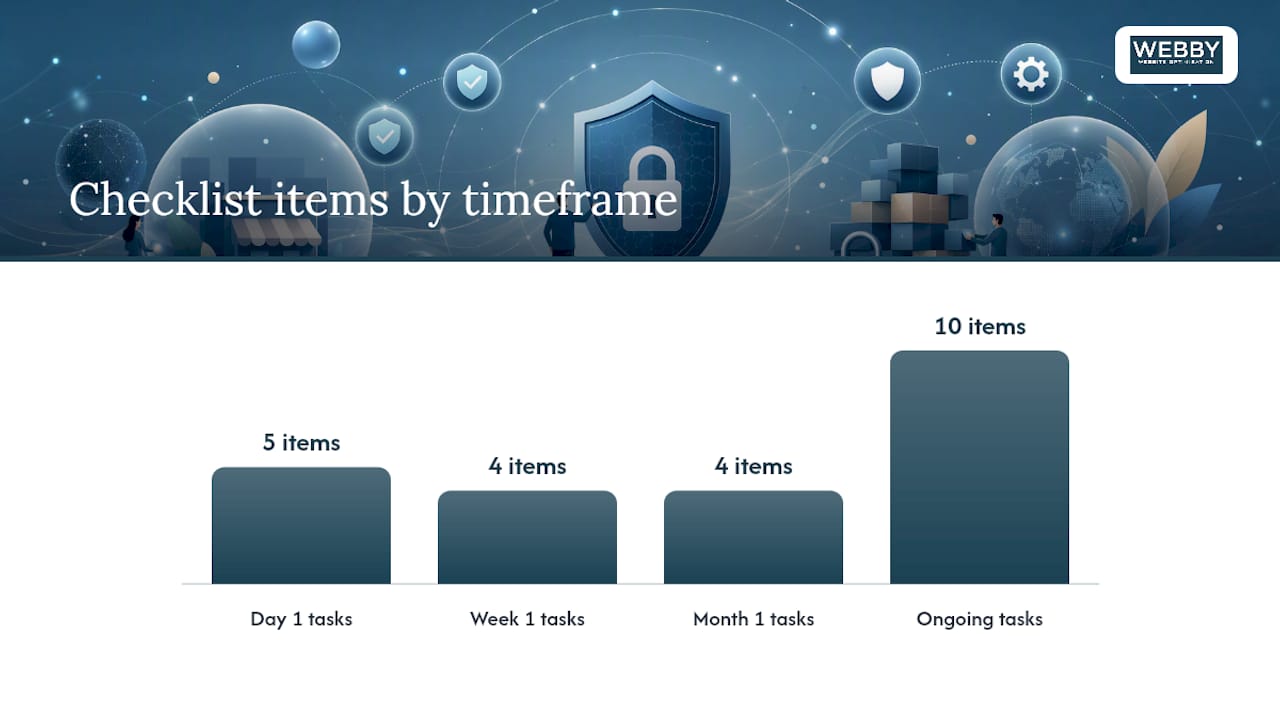
A checklist only works when it’s ordered by impact, not alphabetically or by how easy the tasks feel. The plan below maps to real time constraints: what you can do today, what takes a week, what needs a month, and what you schedule forever.
Day 1 priorities
- Enable MFA on all admin accounts, email, and your domain registrar
- Force HTTPS and verify your SSL/TLS certificate is valid
- Run an immediate full backup and copy it offsite
- Rename default “admin” usernames and reset any weak or reused passwords
- Check whether your CMS admin path (e.g., /wp-admin) is exposed in search results
Week 1 priorities
- Enable automatic updates for your CMS core, themes, and plugins, or schedule weekly patching
- Remove unused plugins, themes, and user accounts
- Install or enable a web application firewall (WAF) through your host or a managed option
- Turn on basic malware scanning through your host or a security plugin
Month 1 priorities
- Set a backup retention policy: keep at least 30 days of restore points with one offsite copy
- Configure SPF, DKIM, and DMARC records for your domain email to stop spoofing, as the FTC recommends
- Run a basic vulnerability scan using CISA’s free scanning service or a reputable tool
- Audit third-party scripts and tracking pixels on your site; remove anything you don’t recognize
Ongoing (schedule these)
- Monthly: run a malware scan, review failed login alerts, check for plugin/theme updates
- Quarterly: audit user permissions, rotate service credentials, test a backup restore
- Annually: review your incident response plan and run a phishing simulation with staff
The SBA recommends treating employee training and system inventory as part of your ongoing plan, not a one-time event.
Pro Tip: When hiring a contractor or web developer, hand them this checklist and ask them to confirm in writing which items they’ll handle. A reputable provider will check off Day 1 and Week 1 items before launch.
How do you harden your website platform against attacks?
The specific steps depend on your platform, but the goal is the same: reduce every unnecessary entry point an attacker could use.
TLS and HTTPS
Check that your certificate is valid, covers all subdomains you use, and auto-renews. In your hosting control panel or CMS settings, force all traffic to HTTPS and remove any HTTP fallback. A site that still serves pages over HTTP is flagged by browsers and by Google Search Console.
WordPress
WordPress powers a large share of small business sites, and its attack surface is mostly plugins and themes. Keep core, themes, and every plugin updated. Delete anything you haven’t used in the last 90 days — inactive plugins still run code. Install a security plugin such as Wordfence or Solid Security (formerly iThemes Security) for login protection, file integrity monitoring, and basic firewall rules. Move your login URL away from the default /wp-admin path and limit login attempts.
Hosted builders and Shopify
On hosted platforms, you own less of the stack, which means fewer patching responsibilities but still real risks. Audit every third-party app you’ve installed; remove unused ones. Review any custom code or injected scripts carefully. Your host handles server patching, but you’re responsible for the apps and integrations you add.
Custom-built sites
Custom sites require the most owner attention. Keep server software, frameworks, and dependencies updated. If you’re on a VPS or dedicated server, OS patching is your responsibility unless you’re on a managed plan. Schedule dependency audits at least monthly.
WAF and rate limiting
A web application firewall filters malicious traffic before it hits your site. Many managed hosts include one; if yours doesn’t, Cloudflare’s free tier provides a basic WAF and DDoS protection. Enable rate limiting on login pages and contact forms to slow credential-stuffing and spam attacks.
Security headers and content security policy
Security headers tell browsers how to handle your content and reduce cross-site scripting (XSS) risks. Check yours at securityheaders.com. The most important ones to add: Content-Security-Policy, X-Frame-Options, X-Content-Type-Options, and Strict-Transport-Security. Your developer can add these in your server config or via a plugin.
Forms and third-party scripts
Add Google reCAPTCHA or hCaptcha to every public form. Restrict file upload types to only what your business needs. Audit every external script and pixel on your site quarterly; a compromised analytics script can silently redirect your visitors.
Pro Tip: Test all plugin updates and theme changes on a staging site before pushing to production. After any significant change, run a quick malware scan. Most managed hosts offer one-click staging environments.
How do your network and devices affect your website’s safety?
A compromised laptop that has admin access to your site is as dangerous as a compromised server. Device and network security are part of small business cybersecurity, not a separate topic.
Router and Wi-Fi settings:
- Use WPA3 if your router supports it; WPA2-AES is the minimum acceptable standard
- Change the router’s default admin password immediately after setup
- Create a separate guest network for visitors and IoT devices; never let them share your main business network
- Disable remote management on your router unless you specifically need it
Remote access:
- Use a VPN when accessing your site’s admin panel from outside the office, especially on public Wi-Fi
- Prefer your cloud hosting provider’s admin console over direct server SSH where possible; it adds an authentication layer
- Never access admin systems from a shared or public computer
Endpoint protection:
- Enable automatic OS updates on every business laptop and desktop
- Turn on full-disk encryption (BitLocker on Windows, FileVault on Mac)
- Install reputable antivirus or endpoint detection software on all business devices
- Use separate user accounts for work and personal use; never run daily tasks from an administrator account
Staff and access hygiene:
- Remove system access for departing employees the same day they leave
- Avoid shared admin accounts; every person who touches your site should have their own login
- Keep a simple inventory of who has access to what, and review it quarterly
Why do passwords and MFA matter more than anything else?
Credential theft is the most common entry point for small-site compromises. A strong password policy combined with MFA stops the majority of account takeover attempts cold.
Passwords and a password manager
Every account that touches your website needs a unique, randomly generated password of at least 16 characters. Reusing passwords across accounts is the single fastest way to lose access after a data breach elsewhere. Use a password manager such as Bitwarden (free tier available), 1Password, or Dashlane to generate and store credentials. The manager itself should be protected with a strong master password and MFA.
Multi-factor authentication
MFA requires a second proof of identity beyond a password. Enable it on your CMS admin account, your hosting control panel, your domain registrar, your email, and any cloud service that touches your site. For the highest protection, use a phishing-resistant method: a hardware security key (YubiKey, Google Titan) or a passkey. These are immune to phishing attacks that can intercept SMS codes or authenticator app one-time passwords. CISA specifically recommends moving toward phishing-resistant MFA wherever your platform supports it.

For most small business owners, an authenticator app (Google Authenticator, Authy, or Microsoft Authenticator) is a practical starting point and far better than SMS codes, which can be intercepted via SIM-swapping.
How to verify MFA is actually enforced: Log out of your admin account in a private browser window and attempt to log in. If you’re not prompted for a second factor, MFA is not active. Check your hosting panel and CMS settings separately; they often have independent MFA settings.
Least privilege
Create a separate user account for every person who needs site access. Assign only the permissions they need for their role: a content editor doesn’t need database access. Remove the default “admin” username on WordPress and replace it with something non-obvious. Audit permissions quarterly and remove accounts for anyone who no longer works with you.
Pro Tip: If an employee loses their MFA device, have a recovery process ready before it happens: pre-generated backup codes stored securely, or a secondary MFA method on file. Scrambling to recover access after a lockout is stressful and can push people toward insecure workarounds.
How should you handle backups and encryption for your site?
A backup you’ve never tested is a backup you can’t trust. The goal isn’t just to have copies; it’s to know exactly how long a restore takes and to have practiced it at least once.
Backup cadence and storage
- Back up your database daily. For most small sites, this is where all your content, orders, and customer data live.
- Back up your files (themes, plugins, uploads) daily if your site changes frequently, or weekly for mostly static sites.
- Keep at least 30 days of restore points.
- Store at least one copy offsite: a cloud storage service (Amazon S3, Backblaze B2, Google Cloud Storage) or a separate hosting account.
RPO and RTO for small businesses
Recovery Point Objective (RPO) is how much data you can afford to lose; Recovery Time Objective (RTO) is how long you can afford to be down. For most small service businesses, an RPO of 24 hours and an RTO of 4 hours is a reasonable target. Daily backups satisfy a 24-hour RPO. Knowing your restore process in advance is what determines your RTO.
Immutable and air-gapped backups
An immutable backup cannot be modified or deleted after it’s written, which means ransomware can’t encrypt it. Many cloud storage services offer object lock or versioning features that approximate this. An air-gapped copy is physically disconnected from your network. For most small businesses, a monthly copy to an external drive stored off-premises is a practical air-gap.
Encryption at rest
Encrypt stored customer data. If you’re on a managed host, ask whether their storage is encrypted at rest. For laptops that hold site backups or customer files, full-disk encryption (covered in the network section) handles this. TLS covers data in transit; encryption at rest covers data sitting on a drive.
Test restore checklist
- Download a recent backup to a local machine or staging environment
- Restore the database and files to a test installation
- Verify the site loads correctly and key functions work (forms, checkout, login)
- Record the time the restore took from start to finish
- Schedule this test quarterly
Pro Tip: The NIST Cybersecurity Framework organizes recovery as a distinct function alongside identification, protection, detection, and response. Treating recovery planning as its own task, not an afterthought, is what separates businesses that survive an incident from those that don’t.
What should you do when your site gets compromised?
Speed matters more than perfection in the first hour. The priority is containment, then investigation, then recovery.
Incident response checklist:
- Put the site in maintenance mode or take it offline to stop ongoing damage
- Change all credentials immediately: CMS admin, hosting panel, FTP/SFTP, database, email
- Preserve your logs before doing anything else: copy access logs, error logs, and note timestamps and IP addresses
- Restore from the most recent clean backup (one that predates the compromise)
- Identify the root cause before going live again: check for backdoors, unauthorized admin accounts, and injected code
- Scan the restored site with your security plugin or a service like Sucuri SiteCheck
- Notify affected customers if personal data was exposed
Logging and monitoring basics
Enable access logs on your hosting account. Set up alerts for repeated failed login attempts and unexpected file changes. Google Search Console will flag your site if Google detects malware or phishing content. Check it monthly even if nothing seems wrong.
Who to report to
- CISA: Report incidents at cisa.gov/report and request information sharing support. CISA’s free services include post-incident guidance for small businesses.
- FTC: File a report at ReportFraud.ftc.gov, especially if customer data was exposed. The FTC’s cybersecurity guidance also covers your notification obligations.
- IC3 (Internet Crime Complaint Center): Report internet crimes, including ransomware and fraud, at ic3.gov.
Pro Tip: Copy and preserve your logs before restoring from backup. Once you overwrite the compromised environment, the forensic evidence is gone. Even a simple text file with timestamps, IP addresses, and what you observed is useful if you later need to file a report or work with a security professional.
When to call a professional: if you can’t identify the root cause, if customer payment data may have been exposed, or if the same compromise recurs after a restore, bring in a security responder. Incident response work from a reputable firm is often charged by the hour at rates that vary widely depending on the provider, though some managed security providers include incident response in their monthly plans.
What security questions should you ask a host or vendor?
The fastest way to evaluate a hosting provider’s security posture is to ask a short list of direct questions before you sign anything.
Questions to ask every host or vendor:
- Is TLS/SSL included and auto-renewed, or is it an add-on?
- Do you apply automatic security patches to server software, or is that my responsibility?
- What are your backup policies: frequency, retention period, and restore SLA?
- Do you provide a WAF, and is it included or extra?
- Do you support MFA for the hosting control panel?
- What is your incident response process if my site is compromised?
- Do you support SPF, DKIM, and DMARC configuration for domain email?
- Can you provide your breach history and how past incidents were handled?
Red flags to walk away from:
- No automatic patching and no clear answer on who handles it
- No backup guarantee or no ability to restore from a specific point in time
- No MFA option for the admin panel
- Vague or dismissive answers about past security incidents
- No WAF option at any price point
Hosting types and what to expect
Shared hosting is the lowest cost option. You share server resources with other sites, which increases risk if a neighbor site is compromised. Patching is usually handled by the host for server software, but CMS and plugin updates are your responsibility. WAF and backups vary widely by provider.
VPS or managed VPS gives you a dedicated slice of a server. Unmanaged VPS means you handle OS patching yourself. Managed VPS means the host handles it. Confirm which you’re getting in writing.
Fully managed WordPress hosting (platforms built specifically for WordPress) typically includes automatic core and plugin updates, daily backups, a WAF, and staging environments. This is the most hands-off option for WordPress owners and usually the best fit for small service businesses.
Cloud managed services (AWS, Google Cloud, Azure with managed configurations) offer the most control and the most responsibility. Appropriate for businesses with technical staff or a retained IT contractor.
Budget guidance: basic shared hosting with TLS typically costs a low monthly fee. Managed WordPress hosting with WAF and daily backups is generally priced higher, varying depending on features and providers. For most small service businesses processing customer data, managed WordPress hosting is worth the difference.
Which free U.S. government tools can you use right now?
Several federal agencies offer no-cost resources that most small business owners have never heard of. These are worth bookmarking.
- CISA Cyber Hygiene Vulnerability Scanning: CISA will scan your internet-facing systems for known vulnerabilities at no cost. Request a scan at cisa.gov/cyber-hygiene-services. You’ll receive a weekly report with findings and remediation guidance. This is one of the most underused resources available to small businesses.
- CISA SCuBA (Secure Cloud Business Applications): SCuBA provides configuration baselines and assessment tools for cloud productivity suites like Microsoft 365 and Google Workspace. If your business runs on either platform, SCuBA helps you verify your settings match federal security baselines. Available at cisa.gov/scuba.
- FCC Small Biz Cyber Planner 2.0: This free tool at fcc.gov/cyberplanner lets you answer a short questionnaire about your business type and size, then generates a customized cybersecurity plan with prioritized recommendations. It takes about 15 minutes and produces a document you can hand to a contractor.
- FTC Cybersecurity Resources: The FTC’s small business cybersecurity page covers risk management frameworks, email authentication setup, and data breach response. Practical, plain-English guides with no jargon.
- NIST Small Business Cybersecurity Resources: NIST’s dedicated small business page maps your activities to the Cybersecurity Framework (CSF) 2.0, covering governance, identification, protection, detection, response, and recovery. The CSF is the closest thing the U.S. has to a universal security checklist.
- SBA Cybersecurity Guidance: The SBA’s cybersecurity page links to risk assessment templates, free training events, and vulnerability scanning resources. The SBA also runs local workshops through its Small Business Development Center (SBDC) network.
Security is a business function, not a one-time setup
The most common mistake small business owners make with website security isn’t skipping MFA or ignoring patches. It’s treating security as a project with a finish line.
A compromised site doesn’t just cost you recovery time. It costs you search rankings, customer trust, and potentially regulatory exposure if customer data was involved. Google can delist a site flagged for malware within hours. Rebuilding that visibility takes months. The businesses that avoid this aren’t necessarily more technical; they’ve just built a maintenance rhythm that catches problems before they escalate.
The practical reality for most small business owners is that you have two options: automate as much as possible (managed hosting, automatic updates, scheduled backups with tested restores), or retain someone to handle it for you. Trying to do it manually without a schedule almost always means it doesn’t get done.
When does it make sense to hire help? When your site processes payments or stores customer data, when you’ve had a compromise you couldn’t fully explain, or when the time you spend on maintenance is worth more than what a retained plan costs. A reputable WordPress maintenance plan typically covers updates, backups, uptime monitoring, and security scanning. Expect to pay $50–$200/month for a credible managed plan from a provider who can show you what they do and when.
The monthly and quarterly cadence isn’t complicated: scan, patch, test a restore, review access. That’s it. The businesses that get hit hardest are the ones that set it up once and assumed it would stay secure.
Your website security deserves the same attention as your business license
Most small business owners who’ve had a site compromised say the same thing afterward: they knew they should have done more, but they didn’t know where to start or who to trust. Webby Website Optimisation works with local service businesses to build and maintain WordPress sites that are properly hardened from day one, with automatic updates, daily backups, and security monitoring built into every website design and development engagement.
A security audit covers your TLS configuration, admin access controls, plugin inventory, backup verification, and a scan for existing vulnerabilities. Before you hire anyone, ask the questions from the vendor guide above: backup SLAs, patching policies, incident response support. Check references. A provider who can’t answer those questions clearly isn’t the right fit.
To find out where your site stands, contact Webby Website Optimisation for a site review and get a clear picture of what needs attention.
Sources
- Secure Your Business – CISA
- Cybersecurity for Small Businesses | Federal Trade Commission
- Small business cyber resources | NIST
- Strengthen your cybersecurity | SBA
- Cybersecurity for Small Businesses | Federal Communications Commission