
Yes, you can link Google Ads and Google Analytics 4, and you can start the process from either platform. Open GA4 Admin, go to Product links, and click Google Ads links, or open Google Ads, click Tools, then Data manager, and select Connect product. Before you click anything, confirm you have Admin or Editor access, because linking alone will not let you bid on GA4 events until you mark them as key events and import them as conversions.
TL;DR:
- Linking Google Ads and GA4 requires Admin or Editor access on GA4 and Admin rights on Google Ads, with auto-tagging enabled for accurate GCLID tracking.
- Proper setup involves marking key events as conversions, which is necessary for effective bidding, remarketing, and reporting to work correctly.
- Account ownership scope, permissions, and correct event firing are common issues that can delay or block successful linking or conversion import.
- Testing GCLID survival through redirects and verifying event firing before linking prevents data gaps and attribution issues.
- Starting with one high-value event to track before expanding helps maintain bid stability and signal quality for automated campaigns.
Table of Contents
- Why link Google Ads with GA4 in the first place
- Before you begin: permissions, auto-tagging, and technical checks
- Step-by-step: link from GA4 (Admin, Product links, Google Ads links)
- Step-by-step: link from Google Ads (Tools, Data manager, Connect product)
- Import conversions: mark key events and create Google Ads conversion actions
- Verify, edit, or unlink: checking your settings after setup
- Troubleshooting checklist: common failures and fixes
- What to prioritize first when setting this up
- How Webby can help you get this right the first time
- Sources
- FAQ
Why link Google Ads with GA4 in the first place
Linking connects two halves of the same story: what happened before the click and what happened after it. Once the accounts are joined, you can trace a visitor from the ad they clicked through to what they did on your site or app, then to whether they converted. That full customer-cycle view is the reason linking a GA4 property to Google Ads exists in the first place, and it changes how you make decisions about campaigns.
The practical payoffs fall into three buckets:
- Better bidding signals: you can build Google Ads conversions directly from GA4 events, so Smart Bidding optimizes toward actions that actually matter to your business.
- Sharper remarketing: GA4 audiences, built from real site behavior, can be imported into Google Ads for retargeting instead of relying on broad demographic guesses.
- Combined reporting: GA4 engagement metrics show up inside Google Ads reports, so you can compare ad spend against actual site behavior in one place.
Linked accounts unlock conversion creation, audience import, and cross-platform reporting in a single step, according to Google’s own linking documentation, which is why it is usually the first technical task worth doing after launching a campaign.
Before you begin: permissions, auto-tagging, and technical checks
Linking fails more often from access problems than from technical bugs, so check these first.
- You need Editor or Admin access in GA4 and Admin access in the Google Ads account you’re linking.
- If you plan to import conversions later, you’ll separately need the Marketer role or higher in GA4, since linking and importing are gated by different permissions.
- Turn on auto-tagging in Google Ads if it isn’t already on, then click through an ad yourself and check that the GCLID parameter survives any site redirects.
- Confirm which GA4 property and data stream you intend to link, and check the Events list to make sure the events you care about are actually firing.
- If you operate through a manager account, understand that linking at that level can expose data across every child account underneath it, which is not always what you want for client work.
Pro Tip: Click one of your own ads on a phone before you link anything. If the landing page redirects even once, check whether the GCLID is still in the URL when the page finishes loading.
Skipping the permissions check is the most common reason a link request sits pending for days. If someone on your team requested the link but doesn’t have Admin rights on the Google Ads side, GA4 will show the link as unapproved until an actual admin signs off.
Step-by-step: link from GA4 (Admin, Product links, Google Ads links)
Starting inside GA4 works well when you manage the Analytics property and just need to attach an ads account to it.
- Open your GA4 property and click Admin in the bottom left.
- Under the Product links column, click Google Ads links, then click Link.
- Choose the Google Ads account, or manager account, you want to connect, using credentials with Admin access on the Ads side.
- Confirm settings, including whether to enable Personalized advertising by default, then continue.
- If prompted, enable auto-tagging for the linked account so click IDs get passed correctly.
- Choose whether to import audiences and app and web metrics into Google Ads reporting.
- Review the summary screen and click Submit to finish.
This sequence mirrors the official Google Analytics linking steps, which also note that:
- You can link multiple Google Ads accounts to a single GA4 property.
- A manager (MCC) account link can apply visibility down through child accounts, so check scope before confirming.
- The personalized advertising toggle affects whether GA4 signals feed remarketing lists, separate from the conversion-import setting you’ll configure later.
Once submitted, don’t expect instant results. Google Ads data typically starts appearing in GA4 reports within a few hours, but full availability, including audiences and imported metrics, can take up to 48 hours. If you check the Google Ads links screen the next morning and see a status of “Active,” the connection itself is done, even if some report tabs are still catching up.
Step-by-step: link from Google Ads (Tools, Data manager, Connect product)
If you spend most of your time in Google Ads and rarely open GA4, this path lets you finish the entire link without switching tools.
- In Google Ads, click the Tools icon (the wrench) in the top right.
- Under Setup, select Data manager.
- Click + Connect product, then choose Google Analytics (GA4) & Firebase.
- Select the GA4 property, or Firebase project, that you have Edit access to.
- Toggle whether to import audiences, app metrics, and web engagement metrics.
- Click Confirm, then Activate to complete the link.
This route is documented in the same Google Ads product linking guide that covers the GA4-side steps, and the underlying link is identical no matter which side you start from.
A few things worth knowing before you click Activate:
- The toggle for app and web metrics import sits on the same confirmation screen as the audience import toggle, so review both before finishing.
- If your Google Ads account sits under a manager account, the linked GA4 property will often show up as available to other accounts in that hierarchy, which matters for agencies managing multiple clients.
- Data manager also lists other product connections in one place, so it’s a convenient screen to audit everything a given Ads account is tied to.
Whichever side you start from, the result is the same underlying connection. Pick whichever interface you’re already comfortable navigating, since there’s no functional advantage to one path over the other.
Import conversions: mark key events and create Google Ads conversion actions
Linking the accounts does not, by itself, give Google Ads anything to bid on. You have to explicitly tell GA4 which events matter, then bring those events into Google Ads as conversion actions.
Start in GA4:
- Go to Admin > Events, find the event you want to track (a form submission, a purchase, a phone click), and toggle Mark as key event.
- Once marked, go to Advertising > Conversion management in GA4, or use the Import conversions flow inside Google Ads, to pull that key event in as a conversion action.
You’ll need the Marketer role or higher in GA4 to complete an import, which is a separate permission from the Editor or Admin access needed to create the link itself, according to Google’s guide on creating conversions from GA4 events.
Historical data does not backfill. Once you import a key event as a conversion, tracking starts from that point forward, so don’t expect last quarter’s form submissions to suddenly populate your Google Ads conversion column.
This manual step exists on purpose. Linking is bi-directional and shares data both ways, but Google will not let a raw link silently start influencing live bids. You have to deliberately mark and import events, which protects you from accidentally handing automated bidding a signal you never meant to use.
Verify, edit, or unlink: checking your settings after setup
Once a link is active, you’ll occasionally need to check it, change a setting, or remove it entirely.
- In GA4: go to Admin > Product links > Google Ads links to see every connected account, its status, and its settings.
- In Google Ads: go to Tools > Data manager > Manage & link, then find Google Analytics (GA4) & Firebase to view or edit the connection.
- You can toggle personalized advertising and auto-tagging after the fact without rebuilding the link from scratch.
- Unlinking removes conversion imports and audience sharing going forward, but it does not delete historical data already recorded in either platform, so it’s a reasonable step if you’re consolidating accounts or fixing a link that was set up against the wrong property.
Check these screens periodically, especially after a Google Ads account restructure or an agency handover, since ownership changes are a common reason a previously working link quietly stops sharing data.
Troubleshooting checklist: common failures and fixes
Most linking problems trace back to one of four causes.
- Events aren’t showing up. Check the Realtime or Recent events report in GA4 before you even think about marking anything as a key event. If the event isn’t firing, no amount of linking will fix it.
- Conversions won’t import. Confirm you actually have the Marketer role in GA4, that the event is marked as a key event, and that auto-tagging is switched on for the linked Google Ads account.
- GCLID keeps disappearing. This usually comes from a redirect or a URL-stripping rule on your landing page. Click your own ad, watch the URL as the page loads, and fix the redirect chain if the parameter drops out, a problem Google Ads support flags as a frequent hidden cause of attribution gaps.
- Permissions block the link. If the link sits pending, someone without Admin access likely initiated it. Have an actual account admin approve or redo the request.
Pro Tip: If a conversion looks broken after 48 hours, don’t keep tweaking settings. Run the page through Google’s Tag Assistant first, since a missing or duplicated tag is a more common culprit than a linking mistake.
When none of these fixes work, it’s worth auditing the full tag setup rather than the link itself, since a redirect problem can sit upstream of both platforms and quietly break attribution for weeks. Broken conversion flows are also a frequent hidden cause behind a website that gets traffic but no leads.
What to prioritize first when setting this up
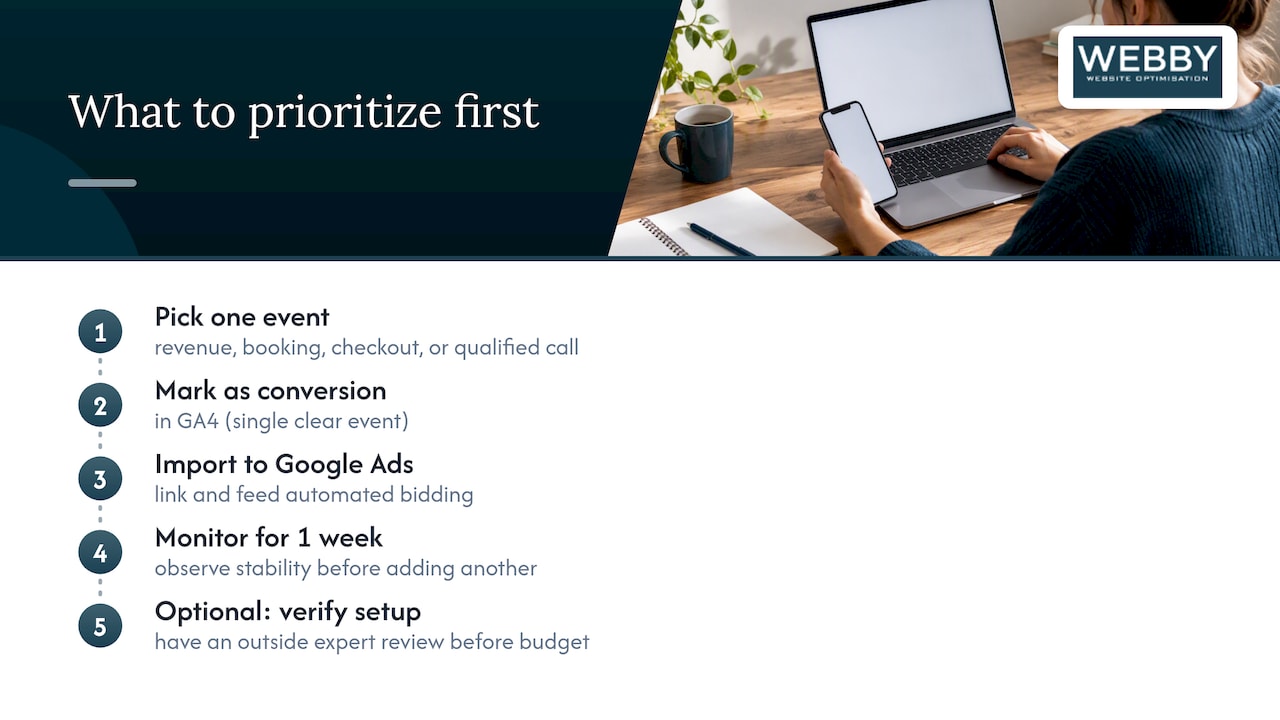
Most small businesses over-complicate this by marking a dozen events as key events on day one and wondering why bidding gets unstable. Start with one event that clearly represents revenue, a booking, a completed checkout, a qualified phone call, mark it, import it, and watch it for a week before adding a second. Best-practice guidance on GA4 to Google Ads conversions backs this up: linking is infrastructure, not a finish line, and signal quality matters more than signal volume when you’re feeding an automated bidding system.
If you’d rather have someone verify the setup before you trust it with real budget, that’s a reasonable ask for an outside pair of eyes.
— Steve Doig
How Webby can help you get this right the first time
Setting this up correctly the first time saves you weeks of chasing bad data later. Our Website Audit checks tag integrity, confirms which events are actually firing, and verifies that your GCLID survives every redirect on your site before we touch a single conversion setting. For businesses that want the whole thing handled end to end, from tracking setup through ongoing campaign management, the End-to-End Growth Engine™ folds GA4 and Google Ads configuration into a broader growth program instead of a one-off task.
A typical audit covers:
- Verifying that key events fire correctly and match what you expect to see in reports.
- Marking the right events as key events and importing them as Google Ads conversions.
- Testing GCLID retention across your actual landing pages, not just a generic homepage.
If your WordPress site needs script or tag adjustments to make any of this work, our WordPress Help & Support plans start at $59 AUD per month for ongoing maintenance. Get in touch to have us check your setup before you scale ad spend on top of it.
Sources
For the technical steps themselves, Google Ads’ product linking guide and Analytics Help’s linking instructions are the primary references. For sites that need to insert tag code manually, WordPress site owners often use the Insert Headers and Footers plugin to add scripts safely without editing theme files.
- GA4 Product linking: Link Google Analytics 4 properties and Google Ads – Google Ads Help
- Google Ads to GA4 conversions best practices (AdsWervE)
FAQ
How do I link Google Ads to Google Analytics 4?
Open GA4 Admin, click Product links, then Google Ads links, and follow the prompts to connect an account with Admin access. You can also start from Google Ads by clicking Tools, then Data manager, then Connect product, and choosing Google Analytics (GA4) & Firebase, as described in Google’s linking guide.
What does linking Google Ads and Google Analytics actually do?
It lets Google Ads pull in GA4 events to create conversion actions, import GA4 audiences for remarketing, and display GA4 engagement metrics inside Google Ads reports. The official documentation confirms this covers reporting and audience sharing, not automatic bidding on unmarked events.
Why aren’t my GA4 conversions showing up in Google Ads?
The most common causes are an event that was never marked as a key event, missing Marketer-role permissions, or a GCLID that gets stripped by a site redirect. Check the event in GA4’s Recent events report first, then confirm the conversion import steps were completed correctly.
How to link Google Ads account linking?
Go into the account you want to connect, whether that’s Google Ads or GA4, and use the built-in linking screen rather than a third-party tool. In Google Ads that’s Tools, then Data manager, and in GA4 it’s Admin, then Product links, as Google outlines.
Is $20 a day a reasonable Google Ads budget?
There’s no universal right answer, since it depends heavily on your industry’s cost per click and how many conversions you need to make bidding decisions reliable. A small budget can still work well if it’s paired with clean conversion tracking, since accurate GA4 conversion data matters more to bidding performance than raw spend alone.