
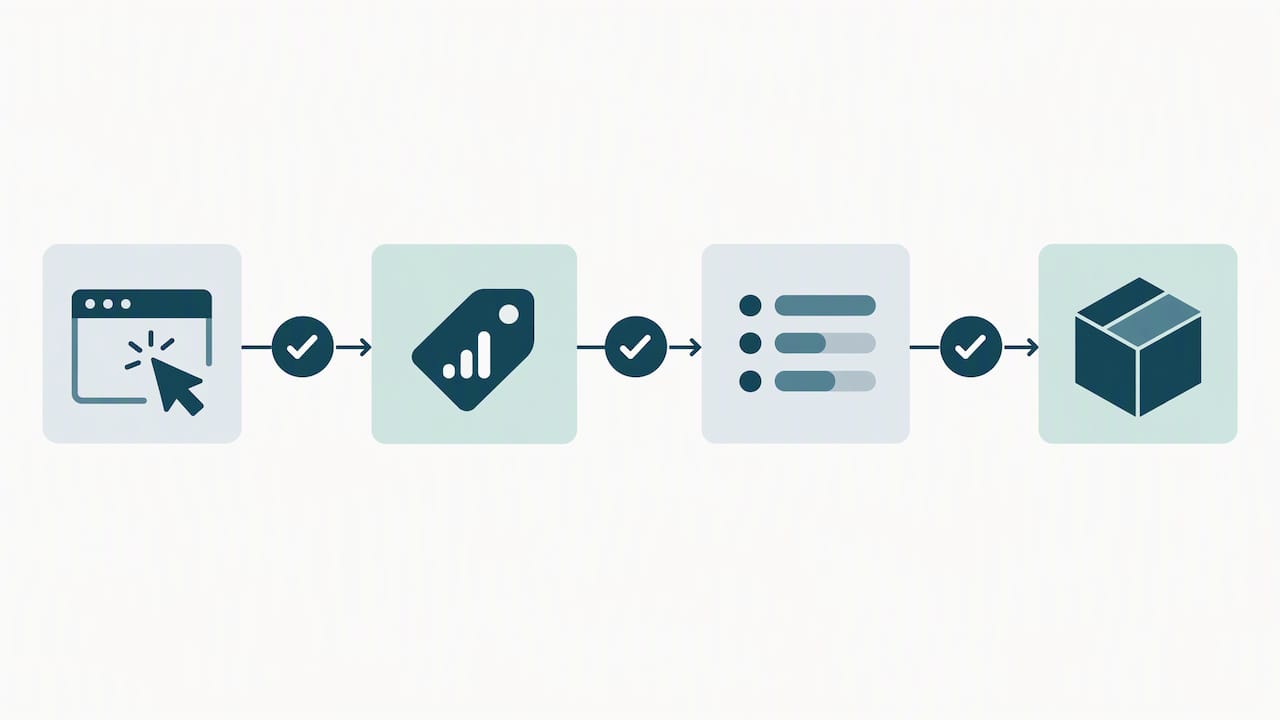
The correct way to handle GA4 conversion setup is to send an explicit GA4 event for the action you care about, mark that event as a key event in GA4, verify it fires correctly in DebugView, and, if you run Ads, import the key event into Google Ads. Simple sites can often rely on GA4’s built-in “create without code” flow, while anything with dynamic forms or AJAX submissions needs Google Tag Manager for reliable results.
TL;DR:
- Use GA4’s no code event builder for confirmation page redirects; AJAX forms need a GTM dataLayer signal sent only after success.
- Send dynamic details such as transaction IDs and purchase amounts through custom events, using numeric values and a separate currency parameter.
- Mark verified events as key events, choose Once per event for purchases and leads, and remember that setting changes affect future data only.
- Before importing a GA4 key event into Google Ads, link both accounts, enable auto tagging, and confirm you have edit access on both.
- Test tags in GTM Preview and confirm event names and parameter values in DebugView, including failed submissions and mobile behavior, before publishing.
Table of Contents
- How to create and register conversion events in GA4
- Setting up GA4 event tags and triggers in Google Tag Manager
- Enhanced measurement vs GTM: choosing the right form tracking method
- Marking key events, counting methods, and sending value parameters
- Importing GA4 key events into Google Ads
- Verifying your GA4 conversion setup before you trust it
- Where to view conversion reports and what to track weekly
- A hands-on checklist from fixing broken conversion setups
- Prioritizing reliable signals over chasing every micro-interaction
- How we can help you get GA4 conversion tracking right
- FAQ
- Sources
How to create and register conversion events in GA4
GA4 gives you two ways to create events, and picking the right one depends on how your site behaves. Start in Admin → Events → Create event, where you’ll find a Create without code option that lets you define an event based on existing parameters, like a page view that matches a specific URL.
For a thank-you page that loads after a form submission, matching on page_view plus the URL path is often the fastest route to a working conversion. This works well when your form redirects to a dedicated confirmation page and doesn’t rely on AJAX to show a success message.
When you need dynamic values, such as a transaction ID, purchase amount, or currency, “create without code” won’t cut it. You’ll need to send a custom event with code, either through your developer’s implementation or through Google Tag Manager, so that parameters like transaction_id and value travel with the event itself.
Naming matters more than it seems. GA4 and Google Ads both expect recognizable event names, so standard choices like generate_lead or purchase make your reports and future audits far easier to read than something improvised.
A few practices make GA4 event setup less error-prone:
- Use lowercase, underscore-separated event names (
generate_lead, not “Generate Lead” or “leadSubmit”). - Send numeric values without currency symbols, and pair them with a separate
currencyparameter. - Avoid creating near-duplicate events for the same action across different pages; consolidate where you can.
- Document each event’s purpose somewhere your team can reference later, since GA4’s interface doesn’t do this for you.
Once an event exists, you’ll choose a counting method that determines how repeated triggers are counted within a session. This setting applies only to data collected after you save it, so changing it won’t rewrite history, a detail worth remembering before you assume a report looks wrong.
Setting up GA4 event tags and triggers in Google Tag Manager
Google Tag Manager gives you more control than the GA4 interface alone, particularly for forms that don’t reload the page. The workflow follows a consistent pattern once you’ve done it a couple of times.
- Create a Constant Variable holding your GA4 Measurement ID, then reuse that variable across every GA4 event tag in the container instead of retyping the ID each time.
- Build a new GA4 Event tag, reference the Measurement ID variable, and set the Event Name field to something standard, like
generate_lead. - Choose a trigger that matches how the form actually behaves: a Page View trigger for thank-you-page redirects, a Form Submit listener for traditional forms, an Element Visibility trigger for success messages that appear without a URL change, or a Custom Event trigger tied to a
dataLayer.push. - For AJAX-based forms that don’t reload or redirect, the most dependable method is a developer-triggered
dataLayer.pushfired only on confirmed success, paired with a GTM custom event trigger that listens for it. This sidesteps fragile DOM selectors and avoids counting failed attempts as successful conversions. - Create Data Layer Variables inside GTM for any parameters you want to pass along, such as
form_typeorvalue, so they map cleanly into your GA4 event tag.
Before publishing, run through GTM’s built-in form variables, since enabling them can simplify how you capture field-level data without extra custom code, according to Analytics Mania’s walkthrough.
Pro Tip: Always test in GTM Preview mode before publishing, and check the Variables tab for every tag that fires, not just the Tags tab, since a missing variable value is a common cause of broken conversions.
A short publish checklist helps: confirm the tag fires on the right trigger, confirm the Measurement ID variable resolves correctly, confirm parameters populate with real values, and only then publish the container.
Enhanced measurement vs GTM: choosing the right form tracking method
GA4’s enhanced measurement automatically tracks form_start and form_submit events with no code required, and it’s turned on by default for new data streams. This is genuinely useful for simple contact forms that submit normally and redirect to a new page, since GA4 captures the interaction without you lifting a finger.
The trouble starts with anything more complex. Enhanced measurement can miss or miscount interactions on AJAX-based forms, single-page applications, or forms that reveal a success message without changing the URL, since GA4 has no reliable way to confirm the submission actually succeeded, according to MeasureSchool’s testing. Practitioners also note that complex or AJAX forms often need a custom GTM dataLayer implementation to avoid false positives or missed submissions entirely.
A practical decision checklist:
- If your form reloads the page or redirects to a thank-you URL, enhanced measurement is usually sufficient.
- If your form submits via AJAX or shows a message without a URL change, build a GTM listener or
dataLayer.pushinstead. - If you’re already running a custom GTM implementation, consider disabling enhanced measurement form tracking to avoid duplicate events during testing.
- If you can’t verify how the form behaves technically, check with whoever built the site before assuming either method works.
GA4’s enhanced measurement captures form interactions automatically, including form_id, form_name, and form_destination parameters, with no development work required. That convenience comes at the cost of reliability on anything beyond a standard form submission, which is exactly where a GTM-based approach earns its keep.
Marking key events, counting methods, and sending value parameters
Once your event is firing correctly, open Admin → Events, find the event, and toggle it as a key event. This is what tells GA4 (and eventually Google Ads) that the event represents something you consider a conversion. GA4 automatically marks certain ecommerce events like purchase as key events, and you can mark additional events yourself up to the limit your property allows, per Google’s documentation.
- Choose Once per event for actions like purchases or lead form submissions, where every occurrence should count separately.
- Use Once per session mainly for legacy goals migrated from Universal Analytics, since Google’s counting method guidance explains that defaults depend on how the event was originally created.
- Send a numeric
valueparameter along with an explicitcurrencyparameter whenever the conversion has a dollar figure attached, since Google Ads’ value guidance notes this is what allows accurate reporting and bidding later. - Remember that counting method changes and new key event flags apply only to data collected going forward, not retroactively.
Importing GA4 key events into Google Ads
Before you can import a key event, your Google Ads and GA4 accounts need to be linked, and auto-tagging should be enabled on the Ads side so click data passes through correctly. We’ve covered the linking steps in more detail in our guide to linking Google Ads and GA4 if you haven’t done this yet.
- In Google Ads, go to Tools → Conversions → Create new conversion, then choose Import and select Google Analytics 4 properties.
- Select the key event you want to import; it needs edit-level access on both platforms to appear in the list.
- Review which settings carry over automatically. Counting method and attribution window typically inherit from GA4, and Google’s import documentation confirms that some of these settings can’t be edited after the fact inside Ads.
- Set GA4’s counting method and value parameters correctly before you import, since getting this right at the source avoids feeding incorrect signals into Ads bidding later.
Verifying your GA4 conversion setup before you trust it
Never treat a newly built event as working until you’ve watched it fire. DebugView, found under GA4’s Admin section, shows events in real time once you enable debug mode through Tag Assistant, GTM Preview, or a debug_mode parameter, according to Google’s DebugView documentation.
- Turn on GTM Preview mode and load the page where your event should fire, then confirm the correct tag appears under the Tags Fired column.
- Switch to GA4 DebugView, filter by your debug device, and confirm the event name and parameters match what you expect, not just that an event appeared.
- Test more than the happy path: submit successfully, submit with an error, try it on mobile, and check that parameter values like
transaction_idandvaluepopulate correctly every time. - Filter out your own test traffic in GA4’s data filters once verification is complete, so QA activity doesn’t pollute real conversion counts.
Pro Tip: Run your QA matrix across at least one desktop and one mobile browser; responsive forms sometimes trigger differently on touch devices, and that gap only shows up when you test it directly.
Where to view conversion reports and what to track weekly
Once key events are flowing correctly, GA4 surfaces them in a few places worth checking regularly. The standard reports section includes a conversions view, and the Advertising → Conversions report breaks down performance by campaign once Ads is linked.
- Use GA4 Explorations to combine key events with source and medium, which reveals which channels actually drive the action you’re tracking rather than just traffic volume.
- Pull conversion data into Looker Studio if you want a shared dashboard that blends GA4 with Ads spend for a fuller picture.
- Track conversion rate, conversion value, conversions by source, and time-to-conversion as a baseline set of KPIs, since these four numbers catch most problems early, a point echoed in general guidance on website KPI tracking.
- Build a simple weekly check, even a five-minute glance at conversion counts by source, so a tracking break or a sudden drop in leads gets caught within days, not months.
Conversion data only earns its keep when you act on it. If a particular channel shows a high conversion rate, that’s a signal to shift budget or content effort toward it; if time-to-conversion is unusually long, your lead nurturing or page content may need a second look.
A hands-on checklist from fixing broken conversion setups
Working through GA4 implementations for local service businesses, a recurring pattern shows up: enhanced measurement looked like it was tracking form submissions, but the business’s actual form used AJAX and never reloaded the page, so GA4 was recording form_start events without ever confirming a real submission. Switching to a dataLayer.push on confirmed success, paired with a GTM custom event trigger and a DebugView verification pass, brought reported leads back in line with what the business’s CRM was actually recording.
A short checklist keeps this kind of gap from happening again:
- Confirm one Measurement ID variable is used consistently across every GA4 tag in the container.
- Standardize event names before building tags, not after.
- Map every dataLayer variable explicitly rather than assuming GTM will infer it.
- Verify every event in DebugView before calling the setup finished.
- Walk through the Ads import checklist only after GA4 counting and values are confirmed correct.
Prioritizing reliable signals over chasing every micro-interaction
The instinct to track every click and scroll usually produces noisier reports, not better ones. A handful of correctly verified key events beats a dozen half-trusted ones, which is why conservative event naming and a genuine DebugView check matter more than tracking breadth.
Small businesses with straightforward sites can often manage GA4 setup themselves using the steps above. Once AJAX forms, multiple conversion paths, or Ads bidding decisions enter the picture, bringing in someone who does this daily tends to save more time than it costs.
— Steve Doig
How we can help you get GA4 conversion tracking right
If your conversion data doesn’t match what your CRM or sales team is actually seeing, that mismatch is worth running down before it skews another month of ad spend. Our Website Audit covers exactly this kind of technical check, including GA4 and GTM configuration, high-priority fixes, and a clear list of what to address first.

For businesses that want tracking, site performance, and lead generation handled together rather than piecemeal, our End-to-End Growth Engine™ folds conversion tracking into a broader optimization approach built around what local service businesses actually need. Reach out and we’ll walk through what’s currently set up on your site and what needs fixing first.
FAQ
What is GA4 in Google Analytics?
GA4, or Google Analytics 4, is the current version of Google’s analytics platform, built around events rather than the sessions-and-pageviews model used by its predecessor, Universal Analytics. It tracks user interactions as discrete events, which you can then mark as key events to represent conversions like form submissions or purchases.
What do you primarily learn when setting up conversions for a Google Ad?
Setting up conversions for Google Ads mainly tells you which campaigns, keywords, and ads actually drive the actions you care about, not just clicks or impressions. Importing a GA4 key event into Ads lets Ads use that data for bidding and reporting, with counting and attribution settings inherited from GA4.
How do I set up Google Analytics?
Setting up Google Analytics starts with creating a GA4 property and a data stream for your website, then installing the GA4 tag either directly or through Google Tag Manager. From there, you configure events for the actions you want to measure, mark the relevant ones as key events, and verify everything in DebugView before relying on the reports.
How do I set up conversion tracking methods?
Conversion tracking in GA4 generally follows one of two paths: GA4’s built-in “create without code” tool for simple cases like thank-you page views, or a Google Tag Manager implementation with dataLayer pushes for dynamic or AJAX-based actions. Whichever method you choose, mark the resulting event as a key event and confirm it fires correctly in DebugView before importing it into Google Ads.