
If you run a small business website in Australia, aim for WCAG 2.2 Level AA. WCAG is the international standard for making web content usable by people with disability. Australia’s disability discrimination law applies to anyone providing goods or services online, and the Australian Human Rights Commission points to WCAG as the benchmark. You don’t need to be an expert to start. Most of the work is a handful of fixes you can check and make in a few weeks.
This guide explains what WCAG is, what the law says, which level to target, what usually goes wrong on small business sites and how to work through the fixes in a sensible order.
TL;DR
- WCAG (Web Content Accessibility Guidelines) is the shared technical standard for accessible websites. The Australian Human Rights Commission recommends aiming for WCAG 2.2 Level AA.
- The Disability Discrimination Act makes discrimination in providing goods and services unlawful, and that includes digital goods and services. It is not limited to large companies.
- The usual problems are simple ones: missing image descriptions, weak color contrast, forms and menus that don’t work with a keyboard, and videos without captions.
- Run an automated scan first, then test by hand. Automated tools cannot catch every error.
- Fix the pages that earn you enquiries first: home, services, contact, booking and checkout.
Table of Contents
- What WCAG is, in plain words
- Does WCAG apply to a small business in Australia?
- Which WCAG version and level should you aim for?
- The accessibility problems we see most often on small business sites
- How to check your own website
- A practical fix-it order for a small budget
- Why accessibility is good business as well as good practice
- Our perspective
- How Webby can help
- FAQ
- Sources
What WCAG is, in plain words
WCAG is a set of recommendations from the W3C, the body that sets international web standards. It describes how to make web content and digital services usable by people with disability, including people who are blind or have low vision, are deaf or hard of hearing, have limited movement, or have cognitive disability. For an Australian business it is the main technical framework for accessible digital content, and it is the one regulators and government agencies refer to.
WCAG 2.2 is built around four principles and 13 guidelines, each with testable success criteria. The principles are often shortened to POUR:
- Perceivable: people can take in your content, for example through text descriptions of images and captions on video.
- Operable: people can use your site with a keyboard, a switch device or a touch screen, not only a mouse.
- Understandable: the language is clear, and forms give clear instructions and error messages.
- Robust: the code works with browsers and assistive technology such as screen readers.
Digital NSW uses the same four-part framing and lists alt text, keyboard access, plain language and assistive-technology compatibility as practical examples. That is a good mental model for a small business: most of WCAG is about doing ordinary things carefully.
Does WCAG apply to a small business in Australia?
The short answer is that the law applies to you, and WCAG is how you show you are taking it seriously.
The Disability Discrimination Act 1992 (DDA) makes disability discrimination unlawful when providing goods and services, and the Commission’s current guidance confirms this covers digital goods and services. The Commission’s earlier advisory notes explain that the DDA covers online information and services and expects equal access where it can reasonably be provided. They also name WCAG as a benchmark for assessing website accessibility.
Two points matter for owners:
- Size is not an exemption. Business Queensland states that anyone providing goods or services over the internet must make website information accessible to people with disability, including information in images and videos.
- The guidelines are not a law of their own. The Commission’s guidelines are not legally binding and should be read together with the DDA and state and territory anti-discrimination laws. In practice that means WCAG is the yardstick, and the law is what makes the yardstick matter.
If you have a specific legal concern, such as a complaint you have received, speak to a lawyer who handles discrimination law or contact the Australian Human Rights Commission. This article is practical guidance, not legal advice.
Which WCAG version and level should you aim for?
Aim for WCAG 2.2 Level AA. Here is why.
The three levels
WCAG has three conformance levels. Level A is the minimum. Level AA includes all the Level A and AA criteria. Level AAA includes everything. Most countries that use WCAG in policy aim for Level AA, and the same source notes that W3C encourages using the latest version when you build or update a site.
AAA is not a realistic target for a whole small business site, and the standard itself doesn’t expect it. AA is the sensible line.
The version
The Centre for Accessibility Australia reports that Australia formally adopted WCAG 2.2 Level AA as a minimum in April 2025, replacing WCAG 2.0, which had been the recommendation since 2014. The NSW Government likewise recommends WCAG 2.2 at minimum AA. The same centre explains that mainstream organizations are expected to meet Level AA, and that WCAG 2.2 is a good default because it covers both desktop and mobile.
What changed along the way: WCAG 2.1 added support for alternative input such as touch screens, and WCAG 2.2 adds support for people with cognitive disability. If you built your site years ago against 2.0 or 2.1, you are not starting over. You are closing a gap.
| Level | What it means | Typical use |
|---|---|---|
| A | The minimum | A starting point only |
| AA | All A and AA criteria | The target for most business websites |
| AAA | All A, AA and AAA criteria | Specific content where it is achievable |
The accessibility problems we see most often on small business sites
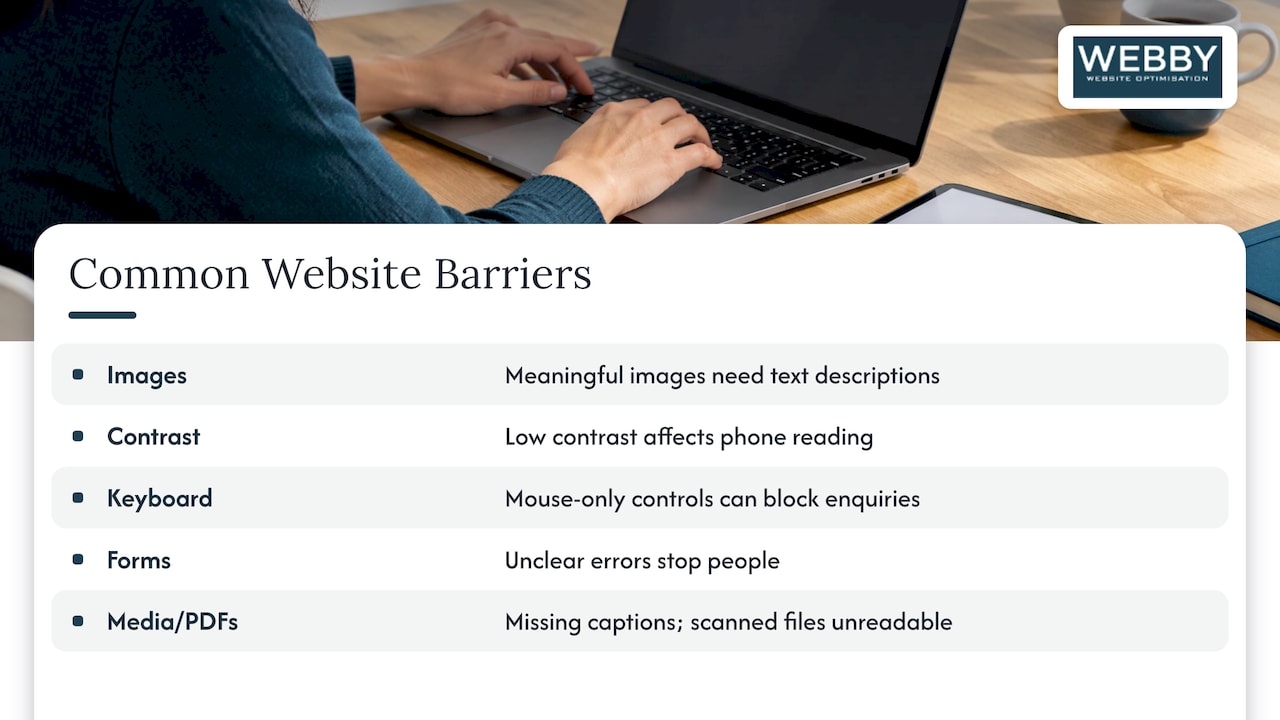
The Australian Human Rights Commission lists the issues worth checking: keyboard navigation, missing text descriptions, multimedia without captions or transcripts, insufficient contrast, autoplay, scanned text and PDF-only content. On local service business sites, these show up in predictable places.
Images with no description. Logos, team photos, before-and-after galleries and icons that carry meaning need a short text description so a screen reader user knows what they are. Decorative images should be marked so they are skipped.
Low contrast. Light gray text on white, or white text over a photo, is the classic one. It affects people with low vision, but also anyone reading a phone screen in bright sun.
Menus, pop-ups and forms that only work with a mouse. If someone cannot tab to your quote form, open your menu or close a cookie banner with the keyboard, they cannot enquire. That is a lost lead as well as an accessibility failure.
Forms without clear labels or errors. A field that shows only placeholder text, or an error message that says “invalid” with no explanation, stops people at the last step.
Videos with no captions, and PDF-only information. Price lists, brochures and menus that exist only as scanned images or PDFs are unreadable for many assistive tools. Put the information on a web page too.
Autoplaying media. Sliders and background videos that start on their own and can’t be paused are a barrier for people with cognitive or attention difficulties and for screen reader users.
How to check your own website
You can do a first pass this week without any specialist tools. Digital NSW recommends running an automated scan, then testing manually across keyboard navigation, headings, links, images, multimedia and contrast, and using assistive technologies on different devices and browsers. It also points out that automated tools cannot identify all potential errors.
A simple routine:
- Scan your key pages with a free automated checker. Treat the result as a list of leads, not a pass or fail mark.
- Put the mouse away. Use Tab, Shift+Tab, Enter and Escape to move through your home page and contact form. Can you see where you are? Can you reach everything? Can you submit?
- Check headings. Each page should have one clear main heading, then sub-headings in order. Screen reader users jump between headings to scan a page, as sighted users do.
- Read your links out of context. “Click here” and “read more” tell nobody where they lead.
- Zoom to 200% in your browser and view the site on a phone. Does anything overlap or disappear?
- Try a screen reader on one page. Your phone has one built in, and a few minutes shows you more than any report.
- Check video and audio for captions or a transcript.
Write down what fails, who it would affect and how many pages it appears on. That list becomes your plan.
A practical fix-it order for a small budget
You don’t need to fix everything at once. The Commission’s guidance on improving accessibility for consumers with disability recommends practical steps such as text descriptions for images, captions or transcripts, keyboard access, sufficient contrast, plain-language content, accessible document alternatives and offering phone or email support. Here is how we would sequence them for a local service business.
Step 1: Fix the path to an enquiry
Start with the pages where a customer becomes a lead: home, main service pages, contact, booking and checkout. Make sure the menu, forms and buttons work by keyboard, labels are visible, and errors explain what to correct.
Step 2: Fix what is cheap and sitewide
Contrast and font settings usually live in your theme, so one change fixes every page. The same goes for focus outlines (the visible marker that shows where the keyboard is) and link styling.
Step 3: Describe images and caption video
Go through images on your key pages and add descriptions that say what the image shows or does. Add captions to any video you control.
Step 4: Replace PDF-only and image-only content
Anything important in a PDF, such as pricing, service areas or terms, should also be available as page text.
Step 5: Write plainly
Short sentences, familiar words and clear instructions help everyone, including people with cognitive disability and people reading in a second language.
Step 6: Offer another way in
Show a phone number and an email address prominently. The Commission recommends alternative support channels, and for a service business this costs nothing and is a good habit anyway.
Step 7: Build it into maintenance
Accessibility slips when new pages, plugins and images are added. Make a quick check part of publishing. Our guide to website accessibility in Australia goes deeper on the practical side, and our overview of web management services covers how ongoing care keeps a site in good shape.
Why accessibility is good business as well as good practice
An inaccessible site turns people away without telling you. The Commission notes that accessible websites and apps let people with disability use goods and services they otherwise could not access. For a plumber, an accountant or a physio, that means a customer who can’t book, can’t read your prices or can’t complete the contact form simply goes to the next business.
Many of the fixes also improve the experience for everyone: readable text on a phone in sunlight, forms that are easy to finish, clear headings that make a page easy to skim. We see accessible, clear, fast pages and conversion going hand in hand, so we treat accessibility as part of building a site that turns visitors into customers. We would not promise any ranking effect from accessibility work alone; the evidence for that is not settled, and the customer benefit is reason enough.
Our perspective
Most small business owners we speak to first hear about WCAG from a worried email or a competitor’s footer badge. The reaction is usually to look for a quick fix, such as an overlay widget, or to ignore the issue until it goes away.
Our view is simpler. Accessibility is part of build quality. When we design and maintain WordPress sites for local service businesses in Perth, Fremantle and Melville, the things that matter for accessibility are the same things that matter for results: clear structure, readable text, fast pages, forms that work on every device and content that says what it means. A site built that way is easier to use, easier to maintain and easier to improve.
The practical approach is to treat WCAG 2.2 AA as a target you move toward in stages, not a switch you flip. Fix the enquiry path first, set good defaults in the theme, then keep the standard alive through regular maintenance. That is affordable for a small business, and it is far cheaper than a rebuild later.
If you would like a second pair of eyes on your site, we are happy to look at it with you and talk through what to do first.
Steve Doig
How Webby can help
If you would rather hand this to someone who works on small business WordPress sites every day, our Website Audit is a one-off review for $1,250 AUD that gives you a clear picture of where your site stands and what to fix first.
For ongoing care, our Monthly Maintenance plan is $59 AUD per month, and the same page covers our Monthly Updates plan ($123 AUD per month), Monthly Development plan ($600 AUD per month) and emergency help at $120 AUD per hour. If you are planning a new site, our website design and development service is where to start, and you can also read our practical guide to small business web design.
FAQ
Is WCAG compliance mandatory for small businesses in Australia?
WCAG itself is a set of recommendations, not a statute. The DDA, however, makes disability discrimination unlawful in providing goods and services, including online, and the Commission treats WCAG as a benchmark. Small size does not exempt you, so working toward WCAG 2.2 AA is the safe and sensible course.
Which WCAG level should my small business meet?
Aim for Level AA of WCAG 2.2. It is the level the Australian Human Rights Commission recommends and the one government bodies such as Digital NSW use. Level A alone is a bare minimum, and AAA is not expected for whole sites.
Can an automated tool tell me if my site is compliant?
No. Automated scans are a useful first step, but they cannot identify all potential errors. Follow the scan with manual checks of keyboard use, headings, links, images, video and contrast, ideally including a test with a screen reader.
Where should I start if my website has many problems?
Start with the pages that bring in enquiries: your home page, service pages, contact form and any booking or checkout flow. Make those usable by keyboard, readable and clearly labeled, then work outward through the rest of the site.
Does my PDF price list need to be accessible?
Yes, if customers rely on it. Scanned or image-only PDFs are a known barrier, so publish the same information as page text and, where you keep PDFs, offer an accessible version. Also give a phone or email contact for anyone who needs the information another way.
Sources
- Standards and Guidelines on digital accessibility, Australian Human Rights Commission
- Digital accessibility guidelines for disability 2025, Australian Human Rights Commission
- World Wide Web Access: Disability Discrimination Act advisory notes, Australian Human Rights Commission
- Improve your website, Business Queensland
- Website Accessibility, Centre for Accessibility Australia
- Australia formally adopts WCAG 2.2 Level AA, Centre for Accessibility Australia
- What is the WCAG Standard?, Centre for Accessibility Australia
- Basics, Digital NSW
- Accessibility testing, Digital NSW
- Accessibility Toolkit, Vision Australia
- Access for all: Improving accessibility for consumers with disability, Australian Human Rights Commission