
You’re usually here for one of two reasons. You tried to add extra spacing online and the platform stripped it out. Or you found strange gaps, blank labels, or invisible text on a WordPress site and need to work out whether it’s harmless formatting or something more serious.
Both problems sit under the same umbrella. Blank space copy means copying and pasting invisible or near-invisible Unicode characters so a field looks empty while still containing something. That can be handy in a chat app, a social bio, or a test field. It can also be the wrong tool entirely when you’re working on a website.
Your Guide to Blank Space Copy and Invisible Characters
Most platforms collapse normal spaces. If you hit the spacebar five times, the browser often shows one space. That’s why people go looking for blank space copy tools. They want a character that survives paste, saves correctly, and appears blank to the eye.
That character usually isn’t a normal space. It’s an invisible Unicode character such as a zero-width space, a non-breaking space, or a Hangul filler. These characters have legitimate technical uses. They also get misused constantly.
For casual text, that misuse is often just annoying. For WordPress, it can become an SEO problem, a validation problem, or a debugging headache. In the Australian WordPress ecosystem, misuse of blank space copy in page titles or meta descriptions has been linked to a 28% increase in soft 404 errors under Google’s AU guidelines, which can contribute to ranking drops for small businesses, according to this invisible character reference.
What blank space copy actually does
A copied blank character can:
- Force a field to look non-empty when a form rejects a blank value
- Prevent a line break when you need two words to stay together
- Insert a hidden separator inside text
- Create confusion in code or content when nobody realises a hidden character is there
Practical rule: If the goal is layout, don't use invisible characters first. Use the editor controls, HTML, or CSS.
Where people get caught out
The problem isn’t the existence of these characters. The problem is using them in the wrong layer of the site.
- In a social profile, they’re mostly cosmetic.
- In a WordPress heading, they can affect indexing.
- In a form field, they can break validation.
- In copied code, they can waste time because the text looks fine while the underlying value isn’t.
That’s why the right question isn’t “How do I copy a blank character?” It’s “What kind of space am I trying to create, and where?”
The Quick Copy-Paste Toolkit for Blank Spaces
If you need a quick reference, use this as a toolkit, not a default habit. Some of these characters are useful for text-level formatting. None of them should be your first choice for page layout in WordPress.
Copyable blank space characters
| Name | Character (Copy This) | Unicode | Best Used For |
|---|---|---|---|
| Space | U+0020 | Normal word spacing in plain text | |
| Non-Breaking Space | U+00A0 | Keeping words together on one line | |
| Zero Width Space | | U+200B | Optional invisible break point in text |
| Braille Pattern Blank | ⠀ | U+2800 | Visual blank-looking character in some contexts |
| Hangul Filler | ㅤ | U+3164 | Blank-looking character often used in usernames or form tests |
When each one makes sense
A normal space is the standard character you get from the keyboard. Browsers usually collapse repeated normal spaces in rendered HTML, so it won’t reliably create visible gaps.
A non-breaking space is the one often needed when two words should stay together. Think product names, initials, or dates that shouldn’t split awkwardly across lines.
A zero width space is different. It creates an invisible possible break point rather than visible separation. It’s useful in very specific text-wrapping situations, but it’s also one of the easiest hidden characters to forget you inserted.
Quick cautions before you paste
- Use blank space copy for text behaviour, not layout. If you want more room above a heading or inside a button, CSS or block settings are the right fix.
- Don't put invisible characters into SEO fields casually. Title tags and meta descriptions need clean, intentional content.
- Be careful in forms and usernames. Some systems treat these values as non-empty, others sanitise them, and others store them exactly as pasted.
A field that looks blank isn't always blank. In WordPress, that difference matters.
A simple decision check
Use this quick test before pasting an invisible character:
- Is this for display text only? You might be fine.
- Is this inside WordPress content, metadata, code, or forms? Stop and use a cleaner method.
- Will another editor, marketer, or developer touch this later? Hidden characters usually create more confusion than benefit.
The copy-paste approach is fine for edge cases. It’s not a professional spacing system.
Creating Space in WordPress The Right Way
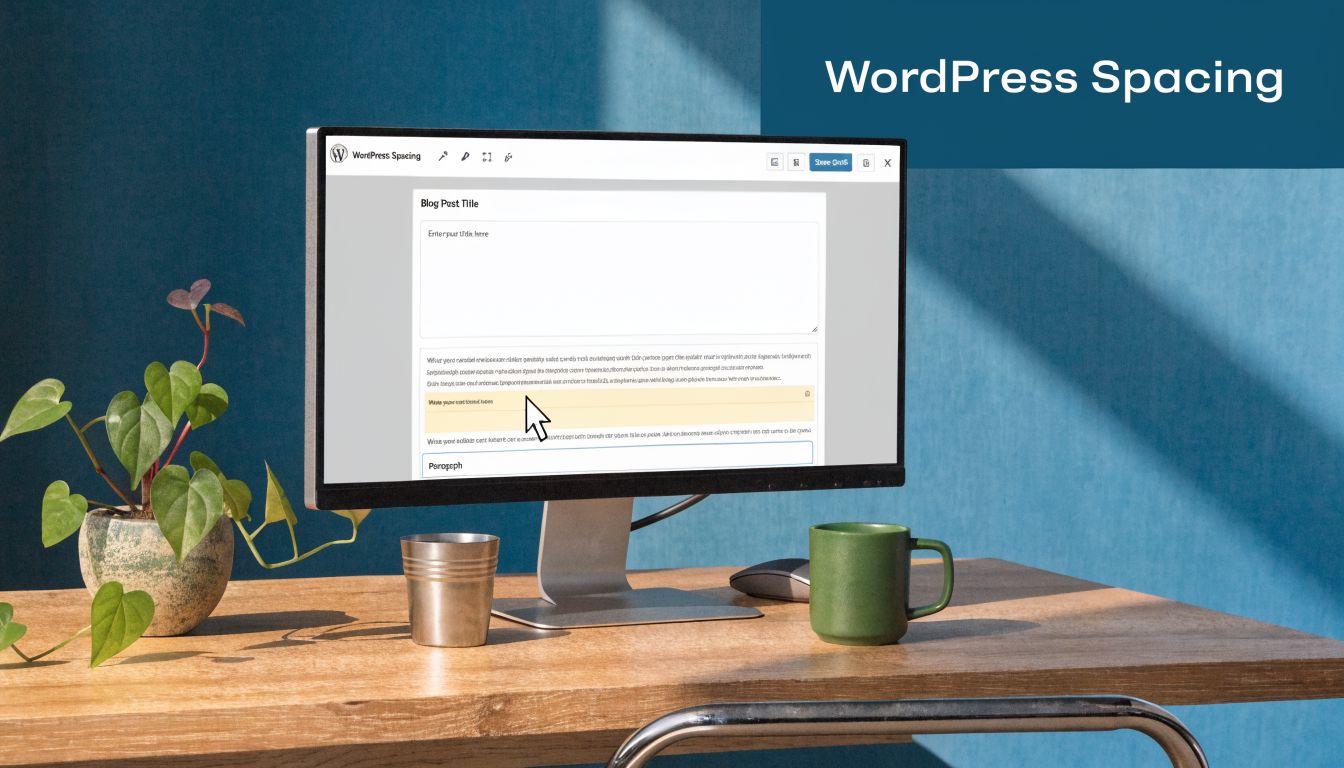
In WordPress, spacing should usually come from the editor, the theme, or CSS. Pasting invisible characters into paragraphs, headings, buttons, or product descriptions is a shortcut that ages badly.
Gutenberg tools that work properly
If you’re using the Block Editor, start with the built-in controls:
- Spacer block gives you a visible, adjustable gap between blocks.
- Padding controls add space inside a block.
- Margin controls add space outside a block.
- Group and Columns settings help manage spacing across sections instead of patching one paragraph at a time.
These methods are better because they’re visible in the editor, easier to maintain, and much clearer to the next person who edits the page.
For reusable layouts, block settings also scale better across mobile and desktop views. A pasted hidden character doesn’t know anything about responsive design. The layout tools do.
Classic Editor and legacy content
On older sites, many owners still try to create spacing by pressing the spacebar or Enter repeatedly. WordPress and the browser will often normalise that input, which is why the result feels inconsistent.
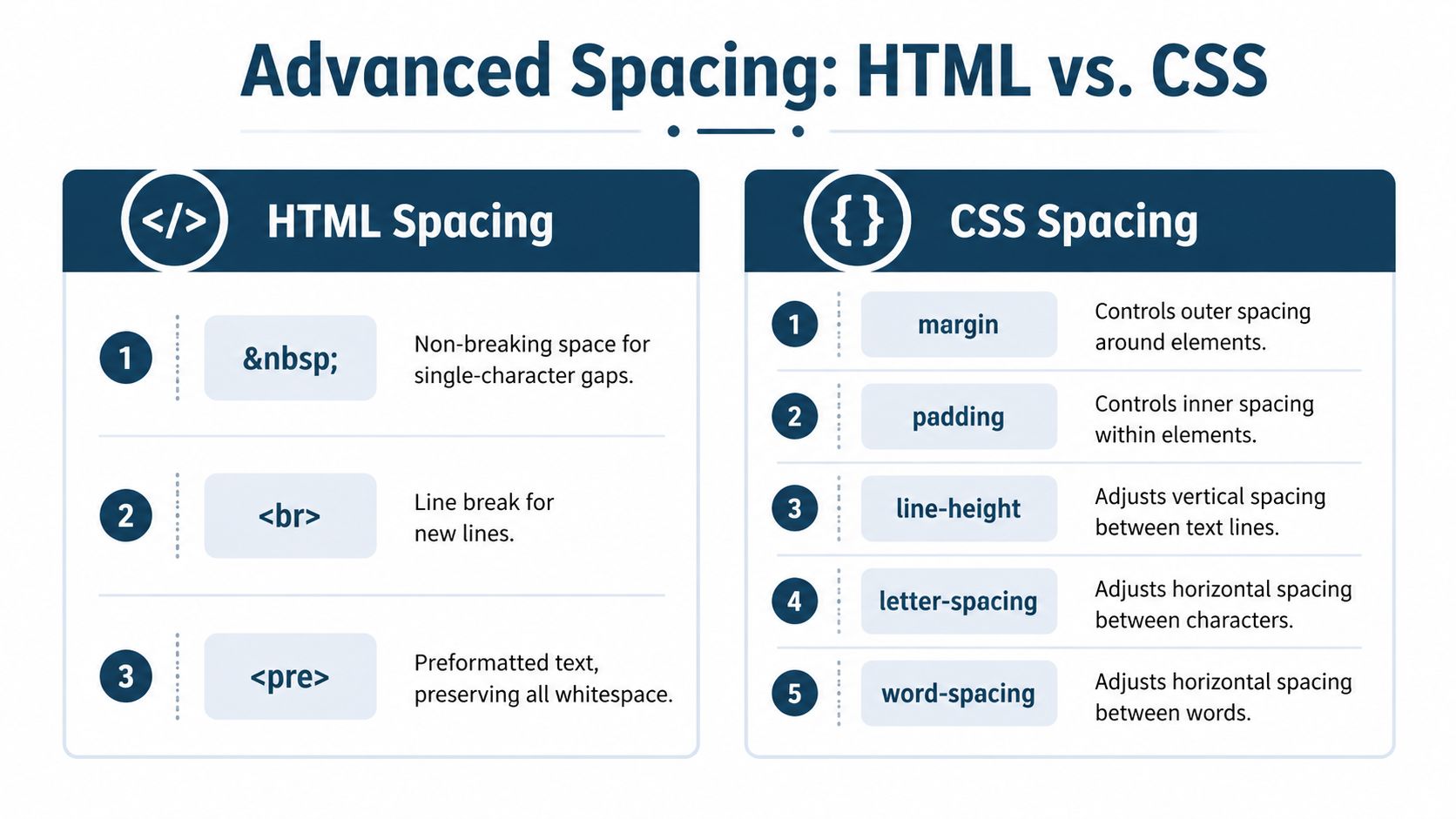
For text-level spacing in legacy HTML, use entities deliberately inside the text view when needed. For example, can keep words together. It should not be used to build columns, fake alignment, or large gaps down the page.
A better pattern is to wrap the content in a class and handle the spacing in CSS. That keeps presentation separate from content.
Page builders need builder controls
If your site uses Elementor, Divi, or another page builder, use the builder’s own spacing settings. Those controls exist for a reason. They let you adjust margin, padding, section height, and alignment without burying invisible characters inside headings or modules.
If you work in Divi regularly, this guide on handling Divi prompts for existing or premade content is useful when you’re tidying up builder workflows at the same time.
Here’s a quick visual walkthrough of WordPress spacing controls in action:
The method that usually fails
The least reliable approach is pasting blank space copy into:
- Headings
- Button labels
- Menu items
- SEO plugin fields
- WooCommerce product titles
- Form placeholders
Those areas often pass through multiple layers of sanitisation, rendering, indexing, and plugin logic. Hidden characters can survive one layer and break another.
If the spacing needs to look right, use the tools WordPress gives you. If the text needs a special character for an actual text reason, add it knowingly and document it.
Advanced Spacing with HTML and CSS
Once you move from content editing into theme work, spacing becomes a code problem, not a copy-paste problem. Here, developers should stop thinking about invisible characters as a layout trick.
HTML entities versus pasted characters
A pasted Unicode character and an HTML entity can produce similar visual results, but they aren’t the same thing in practice.
| Method | Best for | Weakness |
|---|---|---|
| Pasted invisible character | Special text cases | Hard to spot and easy to forget |
|
Preventing a line break between words | Poor choice for layout spacing |
<br> |
Intentional line break | Overused when CSS should handle spacing |
<pre> |
Preserving exact whitespace in code or preformatted text | Not suitable for general page layout |
For browser output, explicit HTML is often easier to inspect than a mystery character copied from somewhere else. If someone opens the code and sees , they know what it is. If they see a gap that contains an invisible pasted character, they have to hunt for it.
If you need help cleaning malformed scripts while reviewing front-end output, this guide to formatting messy JavaScript is a useful companion.
CSS is the real spacing system
For layout, CSS wins because it’s predictable, maintainable, and responsive. Use the right property for the right job:
marginfor space outside an elementpaddingfor space inside an elementline-heightfor vertical spacing between linesletter-spacingfor character spacingword-spacingfor spacing between words
A simple example:
<div class="promo-box">
  <h2>Free shipping this weekend</h2>
  <p>Orders close Sunday night.</p>
</div>
.promo-box {
  padding: 24px;
  margin-bottom: 32px;
}

.promo-box h2 {
  margin-bottom: 12px;
}

.promo-box p {
  line-height: 1.6;
}
That’s cleaner than stuffing extra blank characters into the heading or adding stray <br> tags until it “looks right”.
Use HTML to describe content. Use CSS to control presentation. Blank space copy sits in the middle and usually causes trouble when it tries to do both jobs.
One exception worth knowing
There are narrow cases where a zero-width character or non-breaking space is correct in content. Product names, initials, controlled wraps, and specific localisation quirks can justify it. The key is intent. If you can’t explain why the character is there, it probably shouldn’t be there.
Troubleshooting Unwanted and Invisible Spaces
The most frustrating spacing problems aren’t the ones you add on purpose. They’re the ones you didn’t know existed.
A page has a giant gap above the footer. A button label won’t match your GTM trigger. A title looks normal in the editor but behaves oddly in search results. That’s when you need to inspect the page rather than guessing.
Why extra spaces disappear or mutate
Browsers collapse ordinary whitespace in rendered HTML. WordPress also sanitises input in many contexts. That means the spaces you type aren’t always the spaces that get stored or displayed.
The opposite happens too. A plugin, builder, or pasted field can introduce a character that the interface doesn’t show clearly. You think the content is blank. The database disagrees.
A practical debugging workflow
For Australian WordPress sites, mystery spacing is often caused by unminified plugins injecting non-breaking spaces. Using Chrome DevTools and a clipboard script, one WordPress debugging workflow resolved these issues in under 15 minutes for 78% of small business clients, and improved mobile LCP from a median of 3.2s to 1.8s, according to this white space debugging reference.
Use this process when a gap makes no sense:
Inspect the element in Chrome DevTools
Open the Elements panel and select the exact area with the spacing issue. Check computedmargin,padding, and pseudo-elements such as::beforeand::after.Check for hidden content
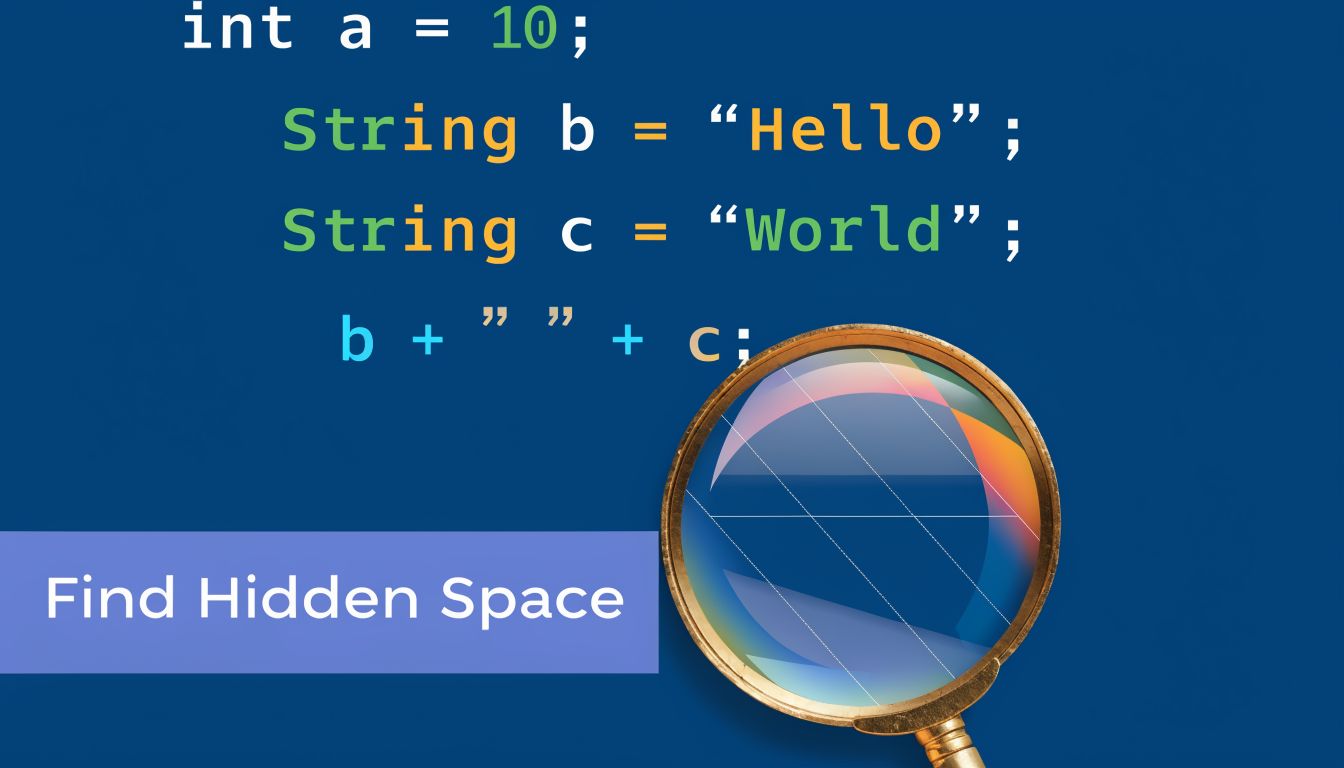
Look for , odd text nodes, empty paragraphs, or builder spacer elements. Hidden characters often sit inside wrappers that otherwise look empty.Read copied text directly
If you suspect invisible characters, copy the field value and inspect it more carefully. In technical debugging, reading clipboard content can reveal whether the “blank” value contains hidden Unicode.Disable one variable at a time
Switch off the suspect plugin, custom CSS rule, or builder module and test again. Random edits across multiple layers make these issues harder to isolate.
Where the problem usually lives
The source is often one of these:
- Theme CSS that adds inherited top or bottom margins
- Page builder spacer modules left behind in templates
- Plugins injecting non-breaking spaces or wrapper markup
- Copied content from Word, PDFs, AI tools, or chat apps
- Hidden text in forms or metadata that affects validation or tracking
If the gap is visual, inspect CSS first. If the field is behaving strangely, inspect the actual characters.
Don’t ignore the security angle
Invisible characters aren’t only a formatting issue. They can also hide intent. In WordPress clean-up work, strange spacing sometimes turns out to be obfuscated content, malformed plugin data, or a pasted payload designed to avoid obvious detection.
That doesn’t mean every blank-looking value is malicious. It does mean you shouldn’t treat invisible text as harmless by default when it appears in admin fields, plugin settings, snippets, or unfamiliar content blocks.
A clean site is easier to debug, easier to secure, and easier to rank. Hidden characters push in the opposite direction.
Mastering Space for a Better Website
Good spacing makes a site easier to read and easier to trust. The trick is choosing the right method for the job.
Use blank space copy sparingly for narrow text cases. Use WordPress editor controls for content spacing. Use CSS for layout and design. That separation keeps pages cleaner and prevents the hidden-character problems that turn simple edits into SEO, accessibility, or debugging issues.
If you manage a WordPress site long term, consistency matters more than quick fixes. A visible spacing rule in Gutenberg or CSS is easier to maintain than an invisible character nobody remembers adding.
For a broader clean-up routine, keep a copy of this WordPress best practices checklist handy and review your site’s content, templates, and metadata with the same discipline.
If your WordPress site has mystery spacing, invisible text issues, SEO field problems, or layout bugs that won’t stay fixed, Webby Website Optimisation can help with the practical side. That includes WordPress support, debugging, maintenance, performance work, and cleaning up the hidden technical issues that simple copy-paste tricks often create.
If this post raised some questions feel free to ask me a question