

Learning how to back up a WordPress website means copying its two core components—the files and the database—and storing them somewhere safe and separate from your live site. It's your absolute, non-negotiable insurance policy against things going wrong.
To do it right, you need to save both the files (which include your themes, plugins, and all your uploaded images) and the database (the home of your posts, pages, user comments, and settings). You can handle this automatically with plugins, get your hands dirty and do it manually, or leave it to a managed service.
Why a Solid Backup Strategy Is Your Ultimate Safety Net
Before we get into the how, let's talk about the why. For any Australian business, a website backup isn't just another item on the to-do list; it’s a critical part of your business continuity plan. Think of it like insurance for your physical storefront, but for your digital presence.
Your website represents a huge investment of time, money, and creative effort. It’s where your content lives, your brand shines, and your revenue is generated. Without a reliable backup, all of that hard work is constantly one wrong click away from disappearing.
Real-World Risks and Their Consequences
It’s easy to think "it won't happen to me," but the reality is that things break. Imagine you update a popular plugin, and suddenly your site goes down, greeting visitors with the infamous "white screen of death." Or maybe a team member accidentally deletes a key product page right before a big sale. These aren't hypothetical scenarios; they happen to businesses every single day.
Without a recent backup, the fallout can be disastrous:
- Lost Revenue: Every minute your site is down, you're losing money. This is especially true for e-commerce stores.
- Damaged Reputation: A broken or inaccessible site makes you look unreliable and erodes the trust you've built with your customers.
- SEO Penalties: Significant downtime or lost content can tank your search engine rankings, undoing months or even years of hard work.
In Australia, home to 1.54% of the world's live WordPress websites and ranking #11 globally, consistent backups are a lifeline. WordPress vulnerabilities recently jumped 34% to 7,966 in total, and with only 74.3% of them patched, thousands of sites are left wide open.
A backup isn't just a copy of your data; it's a recovery plan. It's the one thing that stands between a minor inconvenience and a catastrophic business failure.
More Than Just a Technical Task
Ultimately, figuring out how to back up your WordPress website is a strategic business decision. It's about building resilience into your digital operations. To really grasp the importance of protecting your digital assets, this guide on What Are Backups and Why Your Business Needs Them is a great read.
Sticking to proven methods is the best way to protect your investment. You can find more practical advice in our guide on the WordPress best practices checklist.
Picking the Right WordPress Backup Method for Your Business
Deciding how to back up your WordPress website isn't a one-size-fits-all deal. Honestly, the best approach really boils down to your technical confidence, how often your site changes, and your budget. Getting this right means your backup strategy will actually work for you in the long run, not just be another task you forget about.
Let's walk through the main options you have: user-friendly plugins, getting your hands dirty with manual backups, and letting experts handle it with a managed service. Each one has its place, and what's right for a local cafe in Perth will be different from what a busy online store in Melbourne needs.
Comparing WordPress Backup Methods
To help you figure out which path to take, I've put together a quick comparison of the most common approaches. This should give you a clear, at-a-glance view of where each method shines and where it might fall short.
| Method | Best For | Pros | Cons |
|---|---|---|---|
| Backup Plugins | Most business owners, bloggers, and small to medium sites. | Easy to set up and automate; integrates with cloud storage; cost-effective. | Can sometimes slow down the site; quality varies between free and premium options. |
| Manual Backups | Developers and tech-savvy owners who want total control. | No performance impact from plugins; no ongoing cost; full control over files. | Prone to human error; time-consuming; easy to forget and fall behind. |
| Managed Services | E-commerce stores, high-traffic sites, and businesses that need maximum uptime. | Completely hands-off; backups are verified and secure; expert help with restores. | Higher cost as it's part of a premium service or maintenance plan. |
Choosing the right method is about balancing convenience, control, and cost. For most people, a good plugin hits the sweet spot, but for a business where downtime means lost revenue, a managed service is an easy decision.
Are Backup Plugins the Way to Go?
For the vast majority of business owners, a dedicated WordPress backup plugin is easily the most practical and reliable choice. These tools are built to automate the whole process, running quietly in the background on a schedule you set. No need to lift a finger.
The biggest win here is automation. You can set it and forget it, trusting that your site is being backed up daily or weekly without a second thought. Most of the good ones also connect directly with offsite cloud storage like Google Drive or Dropbox, which is a non-negotiable security step.
But there is a potential catch. A poorly coded or resource-hungry plugin can slow your website down, especially while it's running a backup. This is a huge reason to invest in a reputable, well-optimised plugin rather than grabbing the first free one you find.
Taking Control with Manual Backups
If you're comfortable poking around under the hood of your website, a manual backup gives you complete control. This approach means you’re directly accessing your server—usually through cPanel and an FTP client like FileZilla—to download a copy of your site’s files and export the database using phpMyAdmin.
The clear benefit is that you aren't relying on a third-party plugin, which means no performance worries or potential software conflicts. You know exactly what's being saved and where it's going.
The massive drawback, though, is human error. It’s incredibly easy to forget a scheduled backup, miss a crucial folder, or mess up the database export. Manual backups take time and discipline, making them a risky choice for busy websites that are updated frequently.
The "Done for You" Managed Service Approach
Your third option is to hand it all over to a managed service, either through your premium WordPress host or a dedicated support provider like us here at Webby. With this model, the entire backup process is handled for you by experts as part of a wider website care plan.
This is the most hands-off and bulletproof solution. Backups are typically taken daily, stored securely on separate infrastructure, and regularly tested to ensure they work. If disaster strikes, the restoration is managed for you, guaranteeing a fast and accurate recovery. Often, the technical details like understanding differential backup vs. incremental backup are handled seamlessly by these services.
The trade-off is the cost, as this is always part of a premium package. But for any business where website uptime is directly linked to revenue, the investment is a small price to pay for that level of security and peace of mind.
Your choice of backup method should align with your business's risk tolerance. For an e-commerce store, the cost of a managed service is minor compared to the potential loss from even an hour of downtime.
At the end of the day, the best backup method is the one you will actually use consistently. Whether it’s the automated convenience of a plugin, the direct control of a manual process, or the complete peace of mind from a managed service, pick the strategy that properly protects your most valuable digital asset.
Using Backup Plugins for Automated Peace of Mind
For most Australian business owners, the simplest and most dependable way to handle WordPress backups is to use a dedicated plugin. Honestly, it's a game-changer. These tools are built to put the whole process on autopilot, giving you a 'set and forget' system that works quietly in the background to protect your hard work. This approach minimises the risk of human error and frees you up to do what you do best—run your business, not fuss over server files.
The real magic of a good backup plugin is how it combines serious power with incredible simplicity. You don't need a technical background to set up a professional-grade backup strategy. In just a few minutes, you can have your entire site scheduled for regular backups, encrypted for security, and safely whisked away to an offsite location.
Setting Up Your First Automated Backup
Let's walk through a real-world example using one of the most trusted plugins out there, UpdraftPlus. While the dashboard might look a bit different on other plugins, the core concepts of scheduling, storage, and retention are universal. The aim here isn't just to install a tool, but to configure it for genuine peace of mind.
Once you’ve installed and activated the plugin from your WordPress dashboard, find its settings page. This is your mission control for your entire backup strategy. It’s where you’ll tell the plugin precisely what to back up, how often, and—most importantly—where to send the files.
I can't stress this enough: the single biggest mistake people make is storing backups on the same server as their website. If your server goes down or gets hacked, you lose everything—the site and your only way to recover it. You must, without exception, use offsite storage.
As you can see, the UpdraftPlus interface neatly separates file and database scheduling. This is brilliant because it lets you create a custom strategy that perfectly matches how your site is used.
Configuring Schedules and Offsite Storage
Your first job is to set up a smart schedule. A 'one-size-fits-all' approach simply won't cut it. Your backup frequency needs to mirror how often your website’s content actually changes.
- Database Schedule: This is the heart of your site—it holds all your posts, pages, comments, user data, and e-commerce orders. For any active blog or WooCommerce store, this needs to be backed up daily.
- Files Schedule: Your files, like themes, plugins, and media uploads, don't change as often. A weekly backup is usually more than enough for these.
Next, and this part is non-negotiable, you have to connect a remote storage location. Good plugins make this easy, integrating with all the major cloud services you already use.
- Google Drive
- Dropbox
- Amazon S3
- Microsoft OneDrive
Just pick your favourite service and follow the on-screen instructions to authorise the connection. This guarantees your backup files are immediately sent to a secure, independent location, completely separate from your web hosting. Given that the Australian web ecosystem accounts for 1.54% of global WordPress sites, it's a prime target for attacks. With plugins causing 89% of all known vulnerabilities, that offsite backup is your most reliable line of defence.
Managing Retention Rules to Save Space
A common worry I hear is that frequent backups will chew through cloud storage space. That's where retention rules come in. This setting simply tells the plugin how many recent backup sets to keep before automatically deleting the oldest ones.
A sensible retention policy I often recommend looks something like this:
- Daily Database Backups: Keep the last 14 copies. This gives you a solid two-week window to roll back to.
- Weekly Full Backups: Keep the last 4 copies. This provides a full month of restore points to choose from.
This simple setup stops your storage from getting clogged with ancient files while making sure you have a healthy range of recent backups available when you need them most. For more hands-on help, our extensive library of resources for our WordPress clients offers deeper insights.
By spending just a few minutes configuring these three key areas—scheduling, offsite storage, and retention—you graduate from merely having a backup tool to owning a robust, automated system that actively protects your business 24/7. It’s the difference between crossing your fingers and having a solid recovery plan.
Getting Your Hands Dirty: Manual Backups with cPanel and FTP
While plugins are fantastic for their set-and-forget convenience, sometimes you need to roll up your sleeves and take direct control. Knowing how to back up your WordPress site manually is a seriously powerful skill. It's your escape hatch if you're ever locked out of your admin area or dealing with a fussy hosting environment.
Think of this process as learning what your website is really made of. A WordPress site has two distinct parts, and you need both to have a working whole. It’s like a car: you’ve got the body and chassis (your files), and you’ve got the engine (your database). One is useless without the other. Backing them up is a two-step dance, and getting it right means you have a complete, restorable copy of your site.
The Two Halves of Your Website
Before you start clicking around, it's vital to grasp what you're actually saving. A manual backup isn't one big file; it's a two-part job.
- Your WordPress Files: This is the skeleton and skin of your site. It’s all your theme files, every plugin, your entire media library of images and uploads, plus the core WordPress software itself.
- Your WordPress Database: This is the brains of the operation. It's a structured collection of tables holding all your precious content—every blog post, page, user comment, and website setting. If you run an online store, all your product and order data lives here too.
The most common mistake I see people make is meticulously downloading their files but completely forgetting to export the database. That leaves them with a hollow shell of a website, with no content to show for it. You absolutely need both pieces.
Backing Up Your WordPress Files
To grab your site's files, you'll typically use either the File Manager in your hosting account's cPanel or a dedicated FTP client. File Manager is fine for a quick job, but for the reliability and stability needed to download thousands of files, a proper FTP client like FileZilla is the professional's choice.
Let's start with the cPanel File Manager, as it's the most direct route.
- First, log in to your hosting cPanel and find the File Manager icon.
- Navigate to your website's root directory. This is almost always a folder called
public_html. - Inside, you’ll see the familiar WordPress folders like
wp-admin,wp-content, andwp-includes. Select everything (a quickCtrl+AorCmd+Adoes the trick) and find the 'Compress' button. This will bundle everything into a single.ziparchive. - Once that process finishes, just select the new zip file and hit 'Download'.
Zipping everything up first makes the download much faster and more reliable. Just don't forget to delete that zip file from your server when you're done—it frees up space and is just good security practice.
If you’re ever in a real pinch, the single most important folder is wp-content. It holds your themes, plugins, and media uploads—all the stuff that makes your site unique. But honestly, always aim for a full backup. It’s the only truly safe bet.
Exporting Your Database with phpMyAdmin
With your files tucked away safely on your computer, it's time to get the database. The industry-standard tool for this, included with nearly every hosting plan, is phpMyAdmin. It's a direct interface for managing your site's database.
First, you need to know the exact name of the database your site is using. The easiest way to find this is by looking inside your wp-config.php file (located in your site's root directory). Open it up and search for a line that looks like this: define( 'DB_NAME', 'your_database_name' );. The name will be right there.
Got the name? Great. Now head back to cPanel.
- Open phpMyAdmin from your cPanel dashboard.
- In the left-hand sidebar, click to select the database you identified from your config file.
- Across the top of the main screen, click on the Export tab.
- You’ll see 'Quick' and 'Custom' export methods. Always, always choose Custom. It gives you crucial options that ensure the backup is reliable.
- In the 'Output' section, make sure the compression is set to gzipped. This dramatically shrinks the file size, which is a lifesaver for large sites.
- Check that the format is still SQL.
- Scroll to the bottom and click the Go button.
Your browser will now download a file ending in .sql.gz. That’s it—your entire database, ready to be stored alongside your zipped-up website files.
A manual backup puts you in the driver's seat. It's an essential skill that guarantees you can secure your website's data under any circumstance, independent of any plugin or service. It's your ultimate fallback plan.
By tackling these two separate processes—one for the files, one for the database—you're creating a perfect, complete snapshot of your website. Yes, it's a bit more involved, but the peace of mind that comes with this level of control is absolutely worth it.
Building a Bulletproof Backup and Restore Strategy
Look, just having a backup isn't enough. It's a start, but if you want to be able to sleep at night, you need a reliable strategy you can actually trust when things hit the fan. We're moving beyond the simple "click to back up" button here. A truly bulletproof strategy is a complete framework for scheduling, storing, and most importantly, testing your backups. This is what transforms a simple copy of your files into a genuine, business-saving safety net.
Without a clear plan, your backups can quickly become a disorganised mess—outdated, incomplete, or worse, totally useless when you need them most. The goal here is to build a system that runs like clockwork, giving you absolute confidence that you can recover from any disaster, whether it's a minor content hiccup or a catastrophic server failure.
This visual flow breaks down the core parts of a manual backup, showing how it’s always a two-part job: you have the tangible site files and the critical database information.
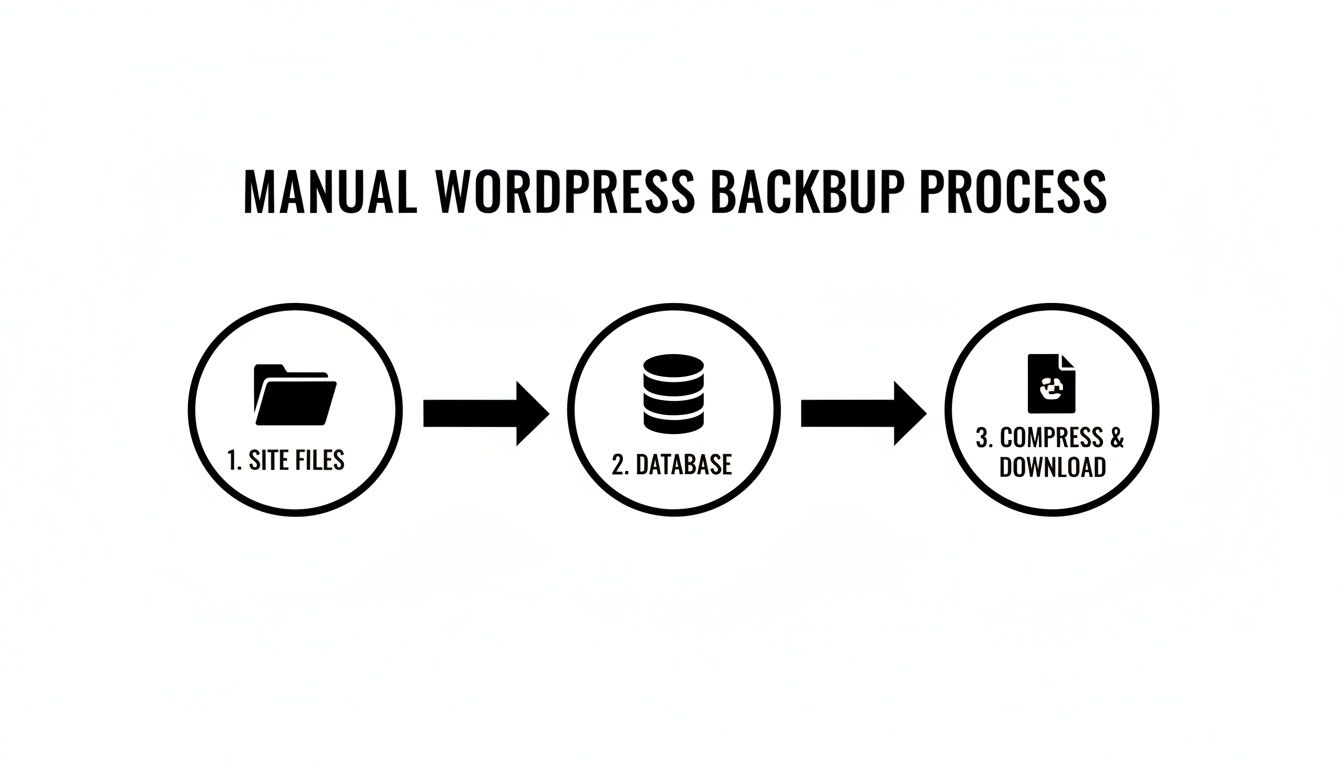
The key takeaway is simple: a complete backup always has two components. If you neglect either the files or the database, you've got an incomplete—and therefore unusable—copy.
The 3-2-1 Rule: The Gold Standard
In the world of data protection, the undisputed gold standard is the 3-2-1 backup rule. It’s a beautifully simple principle that is incredibly effective at minimising the risk of data loss. If you're serious about protecting your website, this isn't just a friendly suggestion; it's essential practice.
Here’s how it breaks down:
- Keep at least three copies of your data. That's your live website plus two separate backups.
- Store these copies on two different media types. Don't just save a backup to another folder on the same server. Use different storage, like your local hard drive and a cloud service like Google Drive or Dropbox.
- Make sure one copy is stored offsite. This is the most crucial part. Keeping at least one backup in a completely different geographical location protects you from localised disasters like an office fire, flood, or a server-wide meltdown at your hosting provider.
Adopting the 3-2-1 rule is the single most important step you can take to make your backup strategy resilient. It ensures that no single point of failure can wipe out your entire digital presence.
Creating a Sensible Backup Schedule
How often you back up your site should directly reflect how often it changes. A static brochure site updated once a quarter doesn't need the same aggressive schedule as a bustling online store processing orders every few minutes.
Let's look at a few real-world examples:
- Busy E-commerce Store: Daily full backups are the absolute minimum. For high-traffic WooCommerce sites, you should seriously consider real-time or hourly database backups to avoid losing precious order and customer data.
- Active Blog or Content Site: If you're publishing new articles a few times a week, a daily database backup paired with a weekly full-site backup is a solid, reliable approach.
- Brochure or Portfolio Site: For sites where content changes are rare, a full backup once a week is generally more than enough.
The best way to decide is to ask yourself one simple question: "How much data am I willing to lose and redo from scratch?" Your answer will tell you exactly how often you need to be backing things up.
An Untested Backup Is Not a Backup
I can't stress this enough. This is the one step almost everyone skips, and it's by far the most dangerous mistake you can make. Having gigabytes of backup files gives you a false sense of security if you've never actually tried to restore one.
Think about it: files can get corrupted during the download, or a backup process might finish with a silent error you never noticed. The only way to be 100% sure your safety net will actually work is to test it.
The best practice is to perform a trial restore on a staging site—a private clone of your live website. It's the perfect sandpit for this kind of critical test. This process verifies two things at once: that your backup files are complete and uncorrupted, and that you actually know the restoration procedure before you're in a high-stress emergency. For more complex setups, getting professional WordPress help and support can be invaluable for managing these vital tests.
Do yourself a favour and schedule a test restore at least once a quarter. It might feel like a chore, but that one hour of testing could easily save you days of panic and lost revenue down the line.
Your Top WordPress Backup Questions, Answered
When you get down to the nuts and bolts of backing up a WordPress site, a few common questions always pop up. Getting these sorted is key to building a backup strategy that actually protects your Australian business when you need it most.
How Often Should I Be Backing Up My Site?
This is the big one, and the honest answer is: it depends entirely on how often your site changes. There's no one-size-fits-all schedule, only what makes sense for you.
-
eCommerce Stores: If you're processing orders and updating customer details, daily backups are non-negotiable. Losing even a few hours of transaction data could be a disaster.
-
Active Blogs: For sites publishing new articles a few times a week, a daily database backup plus a full weekly backup is a great, solid routine. This captures your new content without using excessive storage.
-
Static Business Sites: If your site is more of a digital brochure and only gets updated every now and then, a weekly backup is usually more than enough.
Here’s the real rule of thumb I tell all my clients: figure out the maximum amount of work you’re willing to lose and have to redo from scratch. Your backup schedule needs to be more frequent than that timeframe.
What's the Difference Between a Full and a Database Backup?
Getting your head around this is crucial for a successful recovery. It’s the difference between your content and the framework that displays it.
A database backup is where all your content lives. We're talking every single post, page, comment, user profile, product, and order. It’s the lifeblood of your site.
A full backup, on the other hand, includes that database plus all of your website files. This means your themes, plugins, images, and the WordPress core itself. To bring a site back from the dead after a major issue, you absolutely need both.
Can I Just Rely on My Hosting Company's Backups?
Leaning on your host's backups as your only safety net is a gamble. While it's certainly better than having no backup at all, they're often designed for their own server-wide disaster recovery, not for quickly restoring your individual site.
Getting access can be a slow, painful process involving support tickets, and you might find the backup isn't as recent as you'd hope. It’s far, far better to have your own independent, off-site backup that you control directly. Think of your host’s backup as a last resort, not your first line of defence.
Don't leave your website's safety to chance. The expert team at Webby Website Optimisation offers fully managed, encrypted offsite backups as part of our comprehensive WordPress support plans. We'll handle all the technical heavy lifting so you can get back to focusing on your business. Secure your website with professional help today.
Article created using Outrank
If this post raised some questions feel free to ask me a question
Trackbacks/Pingbacks