
You’re probably in one of two spots right now. Either you’ve bought a domain at GoDaddy and want the fastest path to get WordPress live, or you already have a site somewhere else and you’re wondering whether moving it to GoDaddy is smart, risky, or just going to eat your weekend.
Both are reasonable questions.
It’s easy to find basic setup tutorials. Most of them show the happy path. Click install. Pick a theme. Launch. What they don’t usually tell you is where businesses get caught: choosing the wrong plan, underestimating migration risk, finding out renewal pricing is very different from the entry price, or learning too late that Australian visitors may feel the effect of server distance if the setup isn’t handled properly.
If you want to host wordpress site on godaddy, the process itself is manageable. The decision around which GoDaddy product to use, how to migrate safely, and how to test the result matters more than the one-click installer.
Choosing Your GoDaddy Hosting Plan Shared vs Managed
Most setup problems start here. Not with WordPress itself, but with buying the wrong hosting plan because the names sound close enough.
GoDaddy’s Shared Hosting and Managed WordPress Hosting can both run WordPress. That doesn’t mean they suit the same kind of website. Shared hosting is the budget path. Managed WordPress is the convenience path. For some businesses, the cheaper option is fine. For others, it creates maintenance work that costs more than the savings.
The practical difference
Shared hosting gives you a general-purpose hosting account where WordPress is one possible use. You usually get more flexibility at the hosting account level, but more responsibility sits with you. You’re handling more of the housekeeping, plugin compatibility checks, troubleshooting, and performance tuning yourself.
Managed WordPress is built around WordPress specifically. That usually means a cleaner setup process, WordPress-focused tooling, and hosting-level features designed around how WordPress behaves in production.
Practical rule: If your website generates leads, bookings, or online sales, don’t choose based on the cheapest first-year price alone.
Here’s the comparison that matters in day-to-day use.
| Feature | Shared Hosting | Managed WordPress Hosting |
|---|---|---|
| Best fit | Basic brochure sites, test sites, low-priority blogs | Business sites, marketing sites, WooCommerce stores, sites you want maintained more cleanly |
| Setup style | More general hosting environment | WordPress-specific environment |
| Maintenance load | More manual work falls to you | More of the WordPress-specific admin is handled for you |
| Performance tuning | Often depends on your own plugin stack and optimisation work | Usually better aligned to WordPress out of the box |
| Risk profile | More room for user error | Easier for non-technical owners, but still not hands-off |
| Who should avoid it | Owners who don’t want to troubleshoot hosting issues | Owners who need highly custom server control beyond the managed setup |
Where people get burned
The biggest mistake is treating introductory pricing as the ongoing long-term price. Many GoDaddy tutorials push low entry pricing, but AU-specific data from 2025 to 2026 shows renewals can rise to $25+/mo, and plugin or theme conflicts tied to auto-updates caused 22% downtime spikes for some users. The same data also notes that 31% of migrations to specialists were driven by hidden costs and frustration, according to this GoDaddy-connected pricing and migration context.
That doesn’t mean GoDaddy is automatically a bad choice. It means you need to buy with open eyes.
Which one usually makes sense
Choose Shared Hosting if:
- Your site is simple: A small brochure site, a temporary campaign page, or a basic blog can live there.
- You’re comfortable fixing issues: If a plugin update breaks styling or a form stops sending, you won’t panic.
- You’re cost-sensitive now: You understand the low starting price may not reflect later renewals.
Choose Managed WordPress if:
- Your site matters to the business: Leads, enquiries, checkouts, bookings, and search visibility all raise the stakes.
- You want less server tinkering: You’d rather focus on content and marketing than technical upkeep.
- You expect growth: Managed hosting tends to make more sense once the site is part of your operating system, not just a side asset.
If you’re comparing options beyond GoDaddy, it helps to review how managed WordPress hosting in Australia differs in practice, especially around support, update management, and local performance expectations.
A cheap plan that creates admin drag isn’t cheap. A managed plan that still needs careful oversight isn’t magic either. Pick based on business importance, not marketing labels.
Preparing Your WordPress Site for a Smooth Move
Migration failures usually come from rushing. Not from complexity.
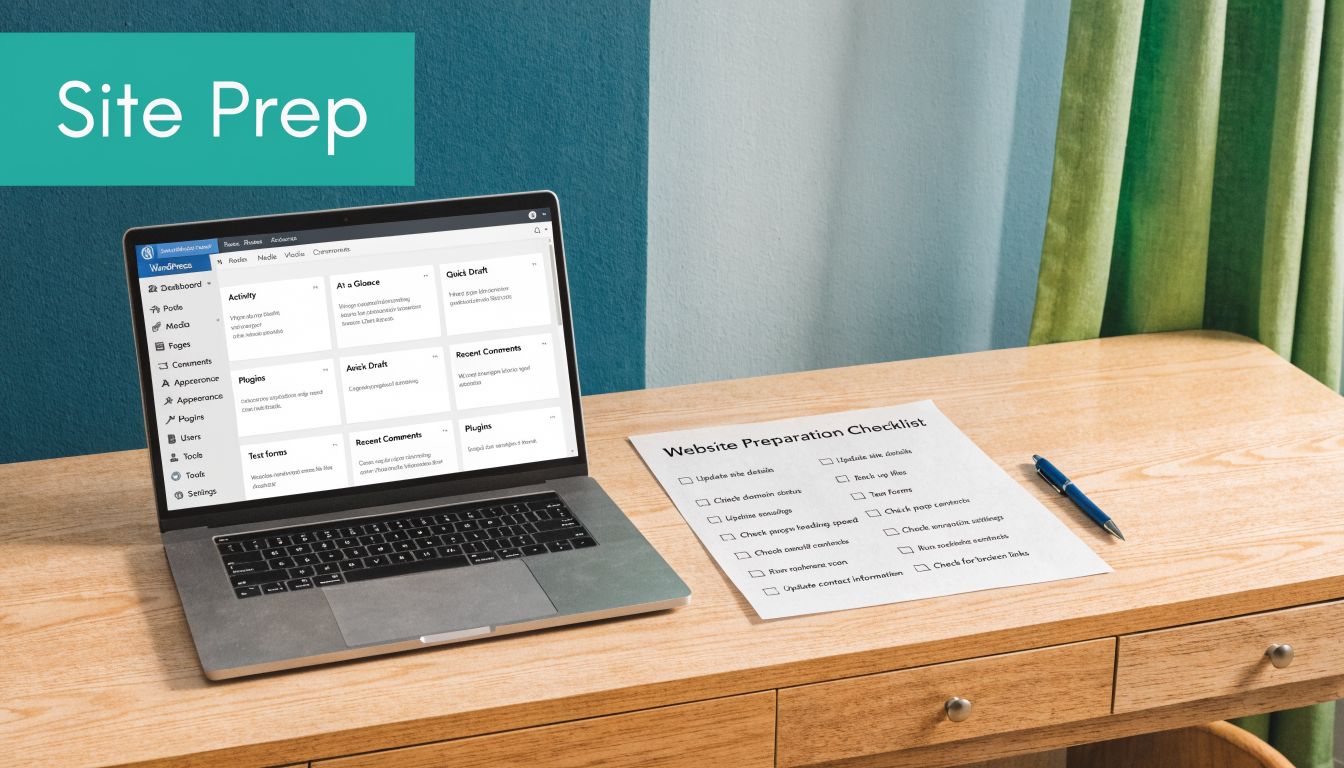
Before you move anything, make the site recoverable. That means a full backup, a cleanup pass, and a short audit of the parts most likely to break. This preparation is akin to checking your ropes before a climb. It’s boring right up until it saves you.
Back up the site properly
A proper WordPress backup includes two things: files and database. If you only have one, you don’t really have a full restore point.
UpdraftPlus is a practical option for many site owners because it handles complete backups without forcing you into a manual server workflow. If you prefer your current host’s backup tool, that’s fine too. What matters is simple: can you restore the site if the migration fails?
Create the backup, download a local copy, and label it clearly. Don’t trust vague file names when you’re tired and trying to roll back under pressure.
Clean before you move
A migration is the best time to stop carrying junk into the new environment. Old themes, deactivated plugins, bloated media libraries, and stale database overhead all make the move heavier and troubleshooting harder.
Do this before export:
- Delete unused themes: Keep the active theme and one fallback theme if you need it.
- Remove inactive plugins: If you’re not using it, it shouldn’t come along for the ride.
- Clear caching layers: Cached files can create confusing results after migration.
- Optimise the database: Clean out overhead, revisions, and leftovers from removed plugins if you know what you’re deleting.
A cleaner site is easier to migrate and easier to debug.
Audit the fragile parts
Some WordPress features break more often than pages and posts do. Check them before moving so you know whether a post-launch issue is new or pre-existing.
Make a short list:
- Forms that send enquiries or quote requests
- Checkout or cart flows if you run WooCommerce
- Membership or login areas
- SMTP or email delivery tools
- Redirect plugins and SEO settings
Also note any custom code snippets, tracking scripts, or third-party integrations that someone added directly into theme files. Those are easy to lose if the migration process isn’t disciplined.
This prep work doesn’t feel productive in the moment. It saves hours later.
Executing the Migration to Your GoDaddy Host
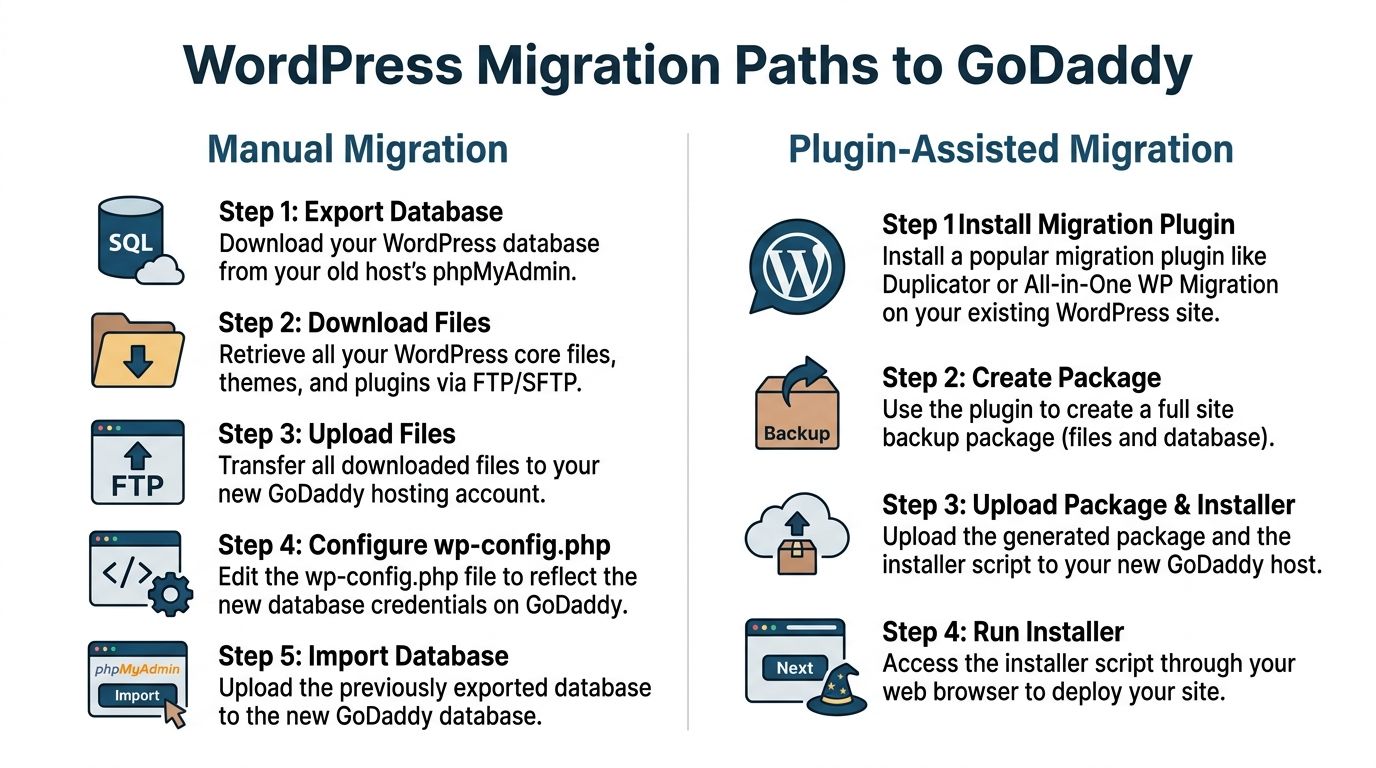
Once the site is backed up and cleaned, you’ve got three realistic paths. Start fresh with a new install. Use a migration plugin. Handle it manually through files and database tools.
For most business owners, the plugin method is the right call. It reduces the number of moving parts and lowers the chance of a missed file or misconfigured database connection. Manual migration is still useful, but it’s the pro route for custom setups and people who are comfortable working in hosting panels, FTP clients, and database tools.
Use the plugin method by default
All-in-One WP Migration and Duplicator are common choices. Either can work. The appeal is simple: package the site on the old host, import it into the new one, then run through the post-import checks.
A typical plugin-led migration looks like this:
Install the plugin on the current site
Add the migration plugin to the existing WordPress install.Create a complete export package
Include the database, themes, plugins, uploads, and media library.Prepare the new GoDaddy WordPress install
Set up a clean destination site on the new hosting account.Install the same migration plugin on the new site
This gives you the import target.Import the package
Upload the migration file and let the plugin replace the clean install contents.Log in again if prompted
Many migration tools will overwrite the temporary site credentials with the old site’s credentials.Save permalinks and test the site
This refreshes rewrite rules and resolves a surprising number of page-level issues.
Why this works for most sites
Plugin-based migration keeps the process inside WordPress. That matters because it reduces the number of opportunities to break path references, database credentials, or file permissions by hand.
It’s especially useful when the site is mostly standard WordPress: common themes, mainstream plugins, straightforward content structure, and no odd server-level customisations.
If you want a broader pre-flight process before moving any production site, this website migration checklist is a solid companion.
Don’t treat a successful import as the finish line. Treat it as the start of testing.
The manual method is for edge cases
Manual migration means you export the database, download the full WordPress files, upload them to GoDaddy, create or connect the new database, update the wp-config.php settings, and import the database through phpMyAdmin or the equivalent database tool.
Use manual migration when:
- The plugin approach fails
- The site is very large or unusual
- You need finer control over what moves
- You’re cleaning up a broken install during the move
The sequence is straightforward even if the work isn’t:
- Export the old database
- Download all WordPress files via FTP or SFTP
- Upload them to the new hosting account
- Create the destination database if needed
- Update
wp-config.phpwith the new database details - Import the old database
- Search and replace old URLs if necessary
- Test everything before pointing the live domain
The main risk with manual migration isn’t that the steps are secret. It’s that a small mistake in any one of them can leave you with a white screen, login loop, broken media paths, or a database connection error.
Starting from scratch on GoDaddy
If there’s no old site to move, the process is simpler. Use GoDaddy’s one-click WordPress installer, choose your domain or temporary setup option, complete the install, and log into the WordPress dashboard.
After that, skip the temptation to install a dozen plugins in the first hour. Set the basics first:
- Theme
- Permalinks
- User accounts
- Security plugin or host-level protections
- SEO plugin
- Backup system
- Caching approach, if appropriate for the hosting environment
A fresh install is cleaner than a migration, but the same rule still applies. Launching quickly is good. Launching without structure is expensive.
Finalising Setup DNS Configuration and SSL Activation
The files can be perfect and the migrated site can test beautifully, but no one sees it until the domain points to the new host. This is the stage where many owners get nervous because DNS feels abstract. It’s simpler than it looks.
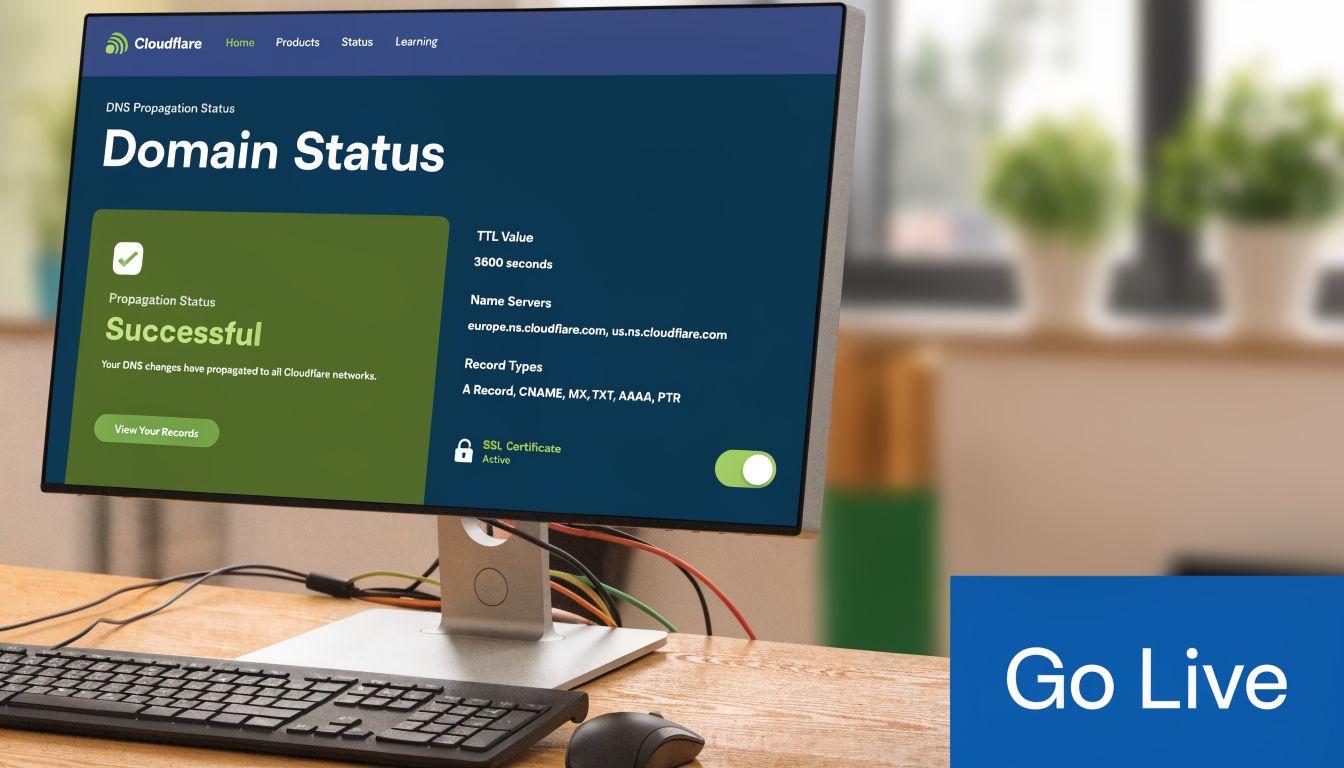
DNS is just the system that tells the internet where your domain should send visitors. When you host wordpress site on godaddy, you’ll either point the domain by changing nameservers or by updating specific DNS records such as the A record. Which method you use depends on where you want DNS management to live.
Nameservers or record updates
If you want GoDaddy to manage the full DNS zone, changing nameservers may make sense. If your DNS is already set up elsewhere and you want to keep email, subdomains, or other records exactly where they are, updating the A record is often the safer move.
Business owners often get into trouble when they switch nameservers without realising email or other services were tied to the previous DNS provider.
Use this rule of thumb:
- Change nameservers if you want an all-in-one GoDaddy-managed setup
- Change records only if you need to preserve an existing DNS configuration outside GoDaddy
Expect a transition period
DNS changes aren’t always instant. Some users will hit the old site for a while. Others will reach the new one sooner. During that window, avoid editing content on both environments or you’ll create version confusion.
A safe launch routine looks like this:
- Put the old site in a controlled state: Avoid new structural edits during cutover.
- Confirm the destination site works before switching DNS: Don’t point a live domain at an untested install.
- Check the domain from multiple networks or devices: This helps confirm the change is spreading as expected.
Turn on SSL before you call it done
SSL is not optional. It protects the connection, supports trust, and avoids browser warnings that can scare off visitors. Most GoDaddy plans include a free SSL option, but it still needs to be activated and verified properly.
If you’re not sure how GoDaddy’s certificate setup behaves in practice, this guide to a GoDaddy SSL certificate setup helps clarify the common sticking points.
Once the certificate is active, force the site to use https consistently. Then check for mixed content issues, which happen when secure pages still call old http assets like images, scripts, or stylesheets.
A visual walkthrough can help if you’re doing this for the first time.
Run the first live checks
Before you announce the new site, test the business-critical actions:
- Load the homepage and key landing pages
- Submit the contact form
- Log into user or admin accounts
- Test cart and checkout if relevant
- Check menus, images, and internal links
- Confirm the padlock appears and pages load securely
This is the stage where careful work pays off. The site might be live, but you’re still only one unchecked form away from a silent business problem.
Post-Launch Performance Checks and Troubleshooting
A migrated site that loads is not automatically a well-performing site. Once the domain is live, start measuring. Don’t guess.
GoDaddy Managed WordPress has shown strong benchmark results in optimised conditions, including 362ms average TTFB over 175,200 checks and 99.99% uptime in monitored testing, according to this GoDaddy Managed WordPress performance review. Those numbers tell you the platform can perform well.
That’s only half the story for Australian businesses.
The Australian performance issue
A site can benchmark well in broad testing and still feel slower to Australian users if the serving setup leans too heavily on distant infrastructure. Verified 2025 Pingdom tests showed some Australian sites on GoDaddy’s US servers averaging 2.5s load times, while ACCC data reported 28% of AU small businesses cite slow speed as a top reason for e-commerce abandonment. That’s why regional performance has to be treated as a business issue, not just a technical one, as noted in GoDaddy hosting context for Australian speed concerns.
If your traffic is mostly in Perth, Sydney, Melbourne, or regional Australia, user experience is shaped by where content is being delivered from and how well your CDN, caching, and asset optimisation are configured.
A fast admin dashboard doesn’t prove a fast customer experience.
What to check first
Use GTmetrix and Google PageSpeed Insights after launch. You’re looking for patterns, not vanity scores alone. Test the homepage, a service page, a blog post, and any conversion page such as a contact or product page.
Focus on:
- Time to first byte behaviour: Is the server responding promptly?
- Large images: Migration often carries old, oversized assets into the new setup.
- Render-blocking scripts: Marketing tags, sliders, and page builder extras are frequent offenders.
- Caching consistency: Make sure pages aren’t bypassing cache unnecessarily.
- CDN delivery: Static assets should be served efficiently for Australian visitors.
Common post-migration faults
The most common problems after moving a WordPress site aren’t dramatic. They’re small defects that break trust or conversions.
Mixed content warnings
This happens when the site is on SSL but some assets still load over insecure paths. Browsers flag it. Visitors see warnings or broken styling.
Fix it by updating old internal references and checking your WordPress Address and Site Address settings, theme settings, and any hard-coded asset URLs.
Database connection errors
If the site can’t talk to the database, the usual culprit is configuration. Check the database name, username, password, and host values in wp-config.php. This is one reason manual migrations demand care.
Broken permalinks
Pages return errors even though the content exists. Go to Settings > Permalinks in WordPress and resave the structure. It’s simple, and it often resolves route issues immediately.
Missing images or styling
This usually points to incomplete file transfer, wrong file paths, or old references left in the database. If only some pages are affected, inspect the media URLs and theme asset paths first.
What usually works
A practical optimisation pass after launch often includes:
- Verify caching is working as intended
- Enable or confirm CDN delivery
- Compress and resize oversized media
- Remove plugins that duplicate host-level features
- Retest key pages after every major change
If the site still feels slow for Australian users after that, the issue may be architectural rather than cosmetic. At that point, you’re no longer tweaking. You’re deciding whether the current hosting setup matches your audience.
When to Stop DIY and Call a WordPress Specialist
There’s nothing wrong with handling your own WordPress hosting if the site is small, the risk is low, and you’re comfortable fixing problems.
But there’s a line where DIY stops being efficient.
If your site generates revenue, captures leads, runs paid traffic, or supports a sales team, every migration decision carries business weight. A broken form, slow page, SSL warning, or plugin conflict isn’t just an annoyance. It can disrupt enquiries, sales, and reporting.
Call a specialist when one of these is true:
- You’re moving a live business site: Downtime or hidden breakage has real cost.
- You use WooCommerce or gated user areas: These setups have more failure points than standard brochure sites.
- You don’t know how to verify the migration properly: Launching without testing is where avoidable mistakes slip through.
- Performance for Australian users matters: If the audience is local, hosting and delivery choices need local thinking.
- You’re already stuck: White screens, login loops, SSL issues, broken email, or database errors usually get more expensive the longer they sit.
Professional help isn’t about capability. It’s about deciding where your time creates the most value.
A business owner doesn’t need to become a hosting technician to make a good hosting decision. You need enough understanding to choose the right path, avoid the common traps, and know when the technical work should move to someone who does it every day.
If you’d rather have an experienced team handle WordPress hosting decisions, migrations, speed issues, updates, repairs, and ongoing support, Webby Website Optimisation provides Perth-based WordPress help for businesses across Australia.