
You open your site to check an order, a lead form, or a campaign landing page, and all you get is 503 Service Unavailable.
That message lands badly because it feels vague and urgent at the same time. Customers can't buy. Staff can't log in. Ads may still be running. And if the site went down right after a plugin update or a traffic spike, you’re suddenly trying to solve a server problem while the business keeps moving.
The good news is that a 503 usually means the site isn't gone. It means the server is alive but can't handle requests right now. That distinction matters, because it changes the job from panic to triage. You don't need random fixes. You need the right checks, in the right order, without making the outage worse.
What a 503 Error Really Means for Your WordPress Site
A 503 Service Unavailable error means the server is still responding, but it cannot process the request at that moment. For a WordPress site, that usually points to a temporary capacity or application problem rather than a missing site or a broken domain.
A lot can trigger that state in real business conditions. A plugin update hangs halfway through. WooCommerce gets hit by a burst of checkout traffic. PHP workers get tied up by slow admin requests, scheduled tasks, or a misbehaving plugin. On Australian hosting, I also see 503s during short maintenance windows, upstream service issues, and resource limits on shared plans.
What the error usually tells you
The useful part of a 503 is what it rules out. The web server is reachable. DNS is usually fine. The site has not necessarily been deleted, hacked, or permanently taken offline.
That distinction changes the job from panic to triage.
The server is effectively saying, "I am here, but I cannot serve this request right now." Sometimes it recovers on its own within a minute. Sometimes it keeps failing until you remove the trigger. The hard part is that the same status code can come from very different causes, which is why random fixes waste time.
Common triggers include:
- Traffic or process overload that exhausts PHP workers, CPU, memory, or connection limits
- Maintenance mode during core, theme, or plugin updates
- Application failures in WordPress, PHP-FPM, the database layer, or caching services
- Security or firewall rules that block legitimate requests aggressively enough to return 503s
Why 503s cause bad recovery decisions
A 503 is frustrating because the message is generic. It does not tell you whether the problem started with hosting, WordPress, a specific plugin, or a recent change made ten minutes ago.
Under pressure, site owners often make three mistakes. They restore a backup before they know the fault. They disable multiple systems at once. Or they keep retrying heavy actions in wp-admin, which can put more load on an already struggling server.
The better approach is controlled isolation. Confirm the outage, check whether the host is already having trouble, then work through WordPress-specific causes in priority order. That is the difference between a ten-minute recovery and a long outage with fresh complications.
What matters for a WordPress business site
For most WordPress businesses, a 503 affects more than the homepage. It can block logins, checkout, form submissions, API calls, and admin actions. If you are running ads, processing bookings, or relying on WooCommerce, each minute matters.
The practical goal is simple:
- Restore access quickly if the cause is minor
- Identify whether the fault sits with hosting, server resources, or WordPress itself
- Avoid changes that make the incident harder to diagnose
That is the lens for the rest of this guide. Not a generic list of causes, but a prioritised workflow you can use during the first 15 minutes, especially if you are managing a WordPress site for an Australian business and need clear actions under pressure.
Your First 15 Minutes The Emergency Checklist
When a site is down, the first quarter-hour matters. This is the window for safe checks that can restore the site quickly or at least tell you whether the issue is local, platform-wide, or specific to WordPress.
Don't start editing code yet. Don't restore backups yet. Start here.
Minute 1 to 3 Confirm the outage
First, make sure the error isn't only happening in your browser.
- Hard refresh the page using your browser’s refresh shortcut. Cached error pages can linger longer than the actual problem.
- Open the site in a private window. This removes some local session and cache noise.
- Try mobile data instead of office Wi-Fi. That helps rule out local network filtering.
- Check a second device if possible, especially for wp-admin and checkout.
If the site loads elsewhere, the fault may be local caching, a browser extension, or a network path issue rather than a real 503 on the server.
Minute 3 to 5 Check the hosting status page
Before touching WordPress, check whether your host is already reporting an outage, maintenance event, or service degradation.
Your next steps vary significantly depending on whether the incident is host-side. If email, database access, or PHP services are affected across the platform, no amount of plugin disabling inside WordPress will fix it.
If the host has an active incident, stop making changes and start documenting timestamps, affected URLs, and any customer-facing impact.
Minute 5 to 8 Look for a stuck maintenance file
A very common WordPress cause is a failed update that leaves the site stuck in maintenance mode.
Use File Manager, FTP, or SFTP to check the site’s web root for a file named:
.maintenance
If you find it after an update has already failed or stalled, delete it and reload the site.
Why this works
WordPress creates that file during core, plugin, and theme updates. Normally it removes the file when the update completes. If the process times out or crashes, the file can remain in place and block requests.
Minute 8 to 12 Note what changed
Write down anything that happened shortly before the outage.
A short list is enough:
- Plugin updates
- Theme edits
- WordPress core update
- A new marketing campaign
- Google Ads or email traffic spike
- Hosting plan change
- Firewall or CDN rule change
That timeline becomes useful when you need host support or deeper log analysis.
Minute 12 to 15 Use this quick decision table
| Situation | Immediate action | Why |
|---|---|---|
| Site loads on some devices only | Clear local cache and test alternate network | Likely not a full server outage |
| Host status page shows incident | Wait, monitor, and log timestamps | Avoid unnecessary WordPress changes |
| Update ran just before failure | Check and remove .maintenance file | Common fast fix after interrupted updates |
| Front end and wp-admin both fail | Prepare plugin/theme isolation next | Points to app or server-side issue |
| Checkout is affected during active traffic | Pause paid campaigns if practical | Reduces pressure while you stabilise |
If none of those checks restore the site, move into diagnosis with discipline. One change at a time. Confirm the result after each one.
Diagnosing the Root Cause A Prioritised Workflow
Once the first-aid checks are done, the job changes. You are no longer looking for a quick win. You are narrowing the fault without making the outage worse.
A 503 is a refusal to serve the request. On WordPress, that refusal usually comes from one of four places: bad application code, exhausted server resources, overloaded background jobs, or a service in front of the site returning the error for the origin.
Start with recent WordPress changes
If the outage started after an update, a deploy, or a settings change, treat that event as your lead until evidence rules it out. That approach saves time because WordPress failures are often self-inflicted. A plugin update, a theme function, or a new optimisation rule is far more common than a mystery server collapse.
The safest first isolation test is at the file level, not inside wp-admin.
Disable all plugins through the file system
In wp-content, rename:
pluginstoplugins-off
Then reload the site.
If the site comes back, the problem sits in one plugin or a plugin conflict. Rename the folder back, then test plugins in smaller groups by renaming individual plugin directories until you find the trigger.
That method is blunt, but it is fast and low risk during an outage.
Test the theme next
If plugins are not responsible, test the active theme. Rename the current theme folder inside wp-content/themes. WordPress will usually fall back to a default theme if one is installed.
This check is high value after a theme update, a template override, custom WooCommerce work, or code added through functions.php.
Change one layer at a time. If you disable plugins and change themes in the same pass, you lose the signal and create more guesswork.
Check whether the server is out of room to work
Business owners often hear "resource issue" and assume the answer is a bigger plan. Sometimes that is right. Often, the issue is a temporary spike, a bad query, a runaway task, or too many uncached dynamic requests landing at once.
The common pressure points are:
- PHP workers tied up
- memory exhausted
- CPU or process limits hit
A plain-English explanation of PHP workers
PHP workers handle dynamic requests. Product pages with personalised content, cart updates, account areas, checkout, search, and wp-admin all need worker time. If every worker is busy, new requests wait in a queue or get rejected.
That is why a brochure page may still load from cache while checkout throws a 503.
When to test a higher PHP memory limit
If logs or host metrics show memory pressure, raise the WordPress memory limit as a controlled test in wp-config.php:
define( 'WP_MEMORY_LIMIT', '256M' );
Use this as a diagnostic step, not a permanent answer. If a plugin is leaking memory or hammering the database, a higher limit buys breathing room but does not remove the cause.
A WordPress-specific culprit many hosts miss
Generic advice often stops at "check resources" and "contact support". That is not enough for busy WordPress sites, especially WooCommerce stores on shared or mid-tier hosting in Australia. One repeat offender is the WordPress Heartbeat API.
Heartbeat manages session checks, post locking, dashboard refreshes, and other background tasks. The feature is legitimate. The default polling rate can still create unnecessary load on sites with several staff in wp-admin, active order processing, or heavy editorial activity.
In our experience auditing Australian WordPress sites, Heartbeat is a recurring source of avoidable admin-side load. It shows up most often during campaigns, sale periods, and content publishing windows when staff activity rises at the same time customer traffic does.
How to throttle Heartbeat safely
Do not disable it everywhere without checking what depends on it. Some plugins and workflows need it.
A safer first move is to reduce its frequency in the dashboard and post editor with a plugin such as Heartbeat Control or WP Rocket’s Heartbeat settings if you already use it. If you manage code directly, apply a filter that lengthens the interval in admin areas that do not need constant polling.
Example approach:
add_filter( 'heartbeat_settings', function( $settings ) {
    $settings['interval'] = 60;
    return $settings;
} );
That reduces request frequency. It does not remove Heartbeat entirely.
Trade-off to understand
If you throttle too aggressively, you can affect:
- post locking
- live plugin UI updates
- session checks
- some order management workflows
For an active WooCommerce store, the better answer is usually to reduce unnecessary polling and test under real admin usage.
Review cron behaviour and background jobs
A site can hit 503 errors with normal traffic if scheduled work piles up behind the scenes.
Look for:
- WooCommerce scheduled actions
- backup plugins running during trading hours
- security scans overlapping with imports
- bulk email or feed generation
- search indexing
- image regeneration
- external API syncs
These jobs compete with customer requests for the same PHP workers, memory, and database time. On lower-tier hosting, two or three heavy tasks landing together is enough to tip the site over.
A real system cron is often cleaner than relying on WP-Cron triggered by page loads, but that change should be planned carefully on a live store.
Check CDN, firewall, and edge services
If the origin server looks healthy, test the layer in front of it.
Review:
- Cloudflare or another CDN
- web application firewall rules
- rate limiting
- bot management
- host-level maintenance mode
- caching or edge redirects
A firewall rule can block legitimate bursts and make the issue look like a capacity problem. An edge cache can also keep serving a stale 503 after the origin is back. If you rely on distributed infrastructure, good cloud monitoring strategies make it much easier to separate edge failures from origin failures.
Use related symptoms to narrow the fault
Do not assume every 503 is a pure web server issue. If logs show query failures, slow database responses, or connection errors around the same time, compare the pattern with WordPress database connection failures before you keep tuning PHP or caching.
A struggling database can surface upstream as a 503 even when the web server itself is fine.
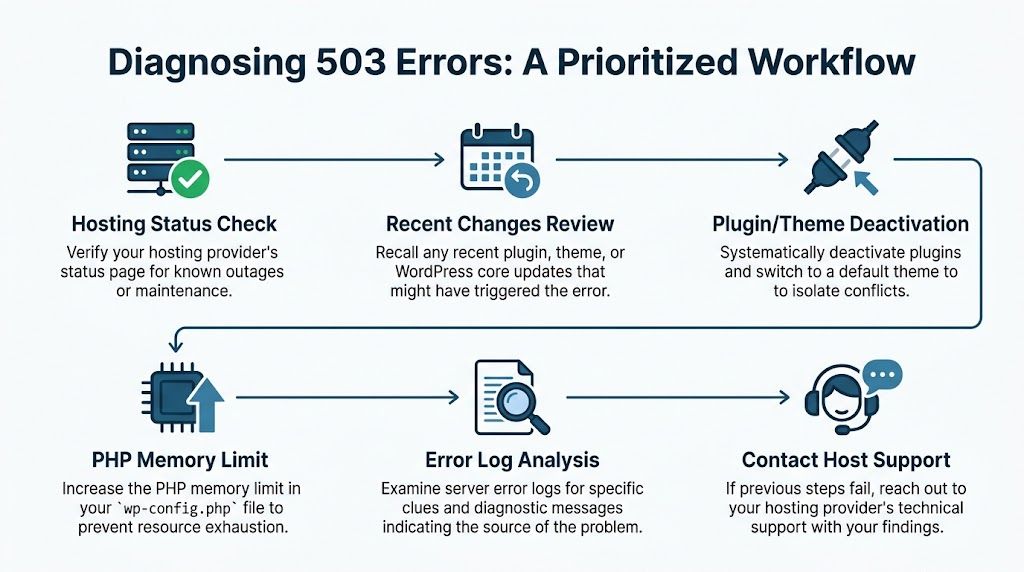
A practical order of operations
Use this sequence in a live incident:
- Check the timing of recent changes
- Isolate plugins
- Test the active theme
- Review PHP workers, memory, CPU, and process limits
- Reduce Heartbeat activity if admin polling is heavy
- Inspect cron and scheduled jobs
- Bypass CDN or firewall layers
- Correlate symptoms with database instability
- Only then make deeper server-level changes
This order works in real outages because it starts with the faults WordPress site owners can confirm quickly and reverses the common habit of blaming hosting first. If you stay disciplined and change one thing at a time, the root cause usually shows itself.
Advanced Troubleshooting Commands and Log Analysis
If the site is still down, you need evidence. Logs and command-line tools tell you what the server is doing, what WordPress is failing on, and whether the fault is application-level or infrastructure-level.
Where to look first
On a WordPress site, start with the logs that are easiest to access:
- WordPress debug log if
WP_DEBUG_LOGis enabled - PHP error log
- Apache error log
- Nginx error log
- hosting control panel error viewer
If you can enable debugging safely, use this in wp-config.php:
define( 'WP_DEBUG', true );
define( 'WP_DEBUG_LOG', true );
define( 'WP_DEBUG_DISPLAY', false );
That records errors without printing them to visitors.
What log lines usually mean
You don't need to read logs like a sysadmin. You need pattern recognition.
| Log message pattern | Likely meaning | Usual next move |
|---|---|---|
Allowed memory size exhausted | PHP memory limit reached | inspect plugin/theme activity and memory usage |
Maximum execution time exceeded | script timed out | review slow tasks, imports, API calls |
upstream timed out | backend didn't answer in time | inspect PHP-FPM, database, or slow app code |
server reached MaxRequestWorkers | all request workers occupied | reduce load, optimise, or increase capacity |
PHP Fatal error | code crashed hard | isolate plugin/theme or custom code |
Example of a fatal plugin error
PHP Fatal error:  Uncaught Error: Call to undefined function ...
in /wp-content/plugins/example-plugin/includes/file.php on line 123
That points you toward one plugin immediately. Disable it at the file-system level or via WP-CLI.
Example of capacity pressure
[error] upstream timed out while reading response header from upstream
That usually means the front-end server waited for PHP or another upstream service and gave up. It doesn't always mean the web server is broken. It often means the app behind it is too slow or overloaded.
Read logs for the first clear failure, not just the loudest one. Later errors are often consequences.
Use WP-CLI when wp-admin is inaccessible
If you have SSH access, WP-CLI is one of the fastest ways to recover a broken WordPress site without clicking around a dead admin area.
Useful commands include:
wp plugin list
wp plugin deactivate --all
wp theme list
wp theme activate twentytwentyfour
wp cache flush
Those let you inspect and disable components cleanly.
You can also target a single suspected plugin:
wp plugin deactivate woocommerce
Use that carefully on live stores. If checkout is already down, isolating the fault may still be the right call, but know the business impact before you pull a core commerce plugin.
Restarting services without making things worse
On VPS or dedicated infrastructure, a restart of PHP-FPM, Apache, or Nginx can clear stuck workers or hung processes. On shared hosting, you usually won't have that control, and trying to fake it through the wrong panel options wastes time.
Use restarts when:
- logs suggest hung or exhausted workers
- the host confirms no platform-wide incident
- you've already captured logs and timestamps
Don't use restarts as your first diagnostic step. They can briefly hide the symptom while leaving the underlying cause untouched.
For comparison, if your server is returning a proxy timeout rather than a direct refusal, the failure pattern may look closer to a 504 gateway timeout issue in WordPress, which usually points to a different handoff problem between layers.
A quick visual walkthrough can help if you're more comfortable seeing the process than reading it.
When to stop DIY troubleshooting
If you’ve reached the point where logs point to database saturation, PHP-FPM pool issues, host-level process limits, or malware suspicion, it's time to escalate with evidence in hand.
At that stage, the best contribution a site owner can make is clarity:
- exact time the outage began
- affected URLs
- recent changes
- screenshots of the error
- relevant log excerpts
- steps already taken
That avoids duplicated effort and gets better support faster.
Communicating and Resolving Issues with Your Host
A lot of delays during a 503 outage aren't technical. They're communication delays. The host asks when it started. You reply later. They ask what changed. You check with marketing. They ask for logs. The cycle repeats.
A strong support request cuts through that.
What your host needs from you
Send a ticket that includes:
- The exact time the 503 started
- Whether it affects the whole site or only certain URLs
- Whether wp-admin is also down
- Recent changes such as plugin updates, theme edits, or campaign launches
- What you've already tested
- Any relevant log snippets
- Whether the issue is intermittent or constant
That gives support a usable starting point. It also signals that you've already ruled out the simplest causes.
A vague message like "my site is broken" almost guarantees slow back-and-forth.
Copy and paste template for your host
Subject: Urgent 503 Service Unavailable on WordPress site
Hello support,
Our WordPress site is currently returning a 503 Service Unavailable error.
Details:
- First noticed: [insert time and timezone]
- Affected URLs: [homepage / checkout / wp-admin / all pages]
- Recent changes: [plugin update, theme update, campaign launch, none known]
- What we've checked: [hard refresh, different network, host status page, .maintenance file, plugin isolation if applicable]
- Behaviour: [constant or intermittent]
- Log details: [paste brief relevant lines if available]
Please confirm whether there is any platform issue, resource limit, PHP service problem, or firewall rule affecting this site, and advise the fastest recovery path.
Thank you.
What to tell customers while you fix it
Silence makes outages feel worse. If customers can’t log in, pay, or contact you, give them a short, calm update.
Status page or social post template
We’re currently investigating a temporary website issue affecting access to parts of our site. Our team is working to restore normal service as quickly as possible. If you need urgent assistance in the meantime, please contact us via [phone/email/social inbox]. Thank you for your patience.
Keep it short. Don't speculate about the cause until you know it.
When to escalate beyond the host
Escalate if:
- the host keeps replying without concrete findings
- the outage is intermittent and they can't reproduce it
- you're seeing plugin, theme, or WooCommerce-level failures they won't troubleshoot
- the business impact is too high to wait through a general support queue
At that point, you need someone who can read WordPress, server behaviour, and customer impact together. That’s usually where an emergency support developer earns their keep.
Proactive Maintenance to Avoid Future 503 Errors
A 503 rarely arrives out of nowhere. In practice, it shows up after weeks or months of pressure building in the background. Updates get rushed. Cron jobs pile up. Traffic spikes hit a server that was already running hot. The site keeps coping until it doesn't.
The businesses that recover fastest usually have two things in place before the outage starts. A controlled change process, and enough monitoring to spot strain early.

Build a safer update workflow
A lot of WordPress 503s are self-inflicted. Not through negligence, but through normal business pressure. Someone needs a plugin updated before a sale starts, a payment fix goes live late in the day, or a theme change gets pushed straight to production because there isn't a staging copy that matches the live site.
A safer workflow is simple, but it needs discipline:
- test changes on staging first
- schedule updates outside trading peaks
- confirm backups can be restored
- check key paths after every update, especially checkout, forms, login, and search
- keep a rollback option ready for plugins, themes, or full-site changes
For WooCommerce stores, lead generation sites, and membership platforms, this is basic operations. It reduces avoidable outages and cuts recovery time when something still breaks.
Choose hosting for the site you run
Hosting decisions cause more 503s than site owners realise. A cheap plan may be fine for a low-traffic brochure site. It becomes expensive fast when the site has logged-in users, heavy plugins, frequent imports, large product catalogues, or busy admin activity.
Good hosting is not just raw speed. You need sensible PHP worker limits, clear visibility on resource usage, support that can identify process bottlenecks, and infrastructure that fits WordPress rather than tolerates it. If you're reviewing providers, this guide to choosing a reliable web hosting service is a useful checklist.
Reduce load before peak traffic exposes it
Prevention is mostly load management. Every unnecessary query, scheduled task, image request, and admin AJAX call adds up. Under normal traffic, you may never notice. During a promotion, after a newsletter send, or during school-hour purchasing spikes common for Australian retailers and service businesses, those small inefficiencies become visible.
The practical work usually includes:
- page caching where the site allows it
- object caching if the host and application stack support it
- image compression and modern formats
- database cleanup
- reviewing Heartbeat activity in wp-admin
- moving heavy scheduled jobs away from peak periods
- checking search, filter, and checkout functions for expensive queries
Caching deserves a deliberate decision, not a random plugin install. Some setups benefit from aggressive full-page caching. Others, especially WooCommerce and membership sites, need more careful exclusions and object cache support. If you're comparing options, this guide to the best WordPress caching plugins for different site setups will help you weigh the trade-offs.
Monitor for warning signs, not just downtime
Uptime checks are only the start. A site can be technically "up" while key journeys are failing, the server is queuing requests, or PHP workers are saturated.
Track signals that give you early warning:
- availability and response failures from Australian locations where possible
- GA4 events that show drop-offs on checkout, login, bookings, or forms
- Google Search Console reports for crawl failures
- server resource trends before and during campaigns
- background job failures, queue growth, or cron delays
As noted earlier, a 503 is defined as temporary unavailability, and the Retry-After header can be used to tell clients when to try again. That distinction changes the job from panic to triage. You are not trying to prove the internet is broken. You are trying to find which layer is overloaded, blocked, or failing to recover cleanly.
Treat maintenance as risk reduction
The goal is not a perfect WordPress site. The goal is fewer preventable outages, shorter incidents, and less guesswork under pressure.
That changes how the site feels to run day to day. Updates become routine. Launches feel more controlled. And if a 503 shows up again, you already know your likely failure points, your host has a cleaner trail to follow, and your business is not making emergency decisions blind. If you need that safety net, this is the kind of maintenance work Webby handles before it turns into a revenue problem.
Frequently Asked Questions About 503 Errors
Will a 503 error hurt SEO
A short outage usually doesn't cause lasting search damage. A long or repeated outage can. Search engines understand that 503 means temporary unavailability, but if they keep finding it, they may treat the site as unreliable.
What's the difference between 500, 502, 503, and 504
A 500 is a generic internal server error. A 502 usually means one server got a bad response from another upstream service. A 503 service unavailable means the server is temporarily unable to handle the request. A 504 usually means an upstream service took too long to respond.
Can a DDoS attack cause a 503
Yes. If malicious traffic overwhelms the server or the protective layer in front of it, legitimate users may start seeing 503 responses. It's not the only cause, but it's one possibility when traffic patterns look abnormal.
Should I restore a backup immediately
Not as your first move. If the issue is a host incident, a stuck .maintenance file, or a plugin conflict, a full restore adds risk and may not fix anything. Restore only when you have evidence that the live site was broken by a change that rollback will reverse.
If your WordPress site is down and you need senior help fast, Webby Website Optimisation provides Australian WordPress help, support, maintenance, and emergency recovery for broken or overloaded sites. If you'd rather have an expert trace the 503, stabilise the site, and put preventative measures in place properly, that's exactly the job.