
You’re probably here because someone asked for your FTP login, and your first thought was, “I run a business, not a server room.”
That’s normal.
A WordPress developer might ask for FTP details when a plugin update has broken the site, when the dashboard won’t load, or when they need to upload files directly to the hosting account. If you’ve only ever logged into WordPress through /wp-admin, that request can sound far more technical than it really is.
The short version is simple. FTP is a way to access the files that make up your website. It sits underneath WordPress itself. That means it’s often the tool people use when the normal admin area isn’t enough.
For Australian business owners, that matters more than it sounds. When your site is your shopfront, booking system, lead source, or online store, file access becomes part of basic business continuity. You don’t need to become a sysadmin, but you do need to know what FTP is, when it’s used, and why standard FTP isn’t the safest option anymore.
That 'FTP Login' Request from Your Web Developer
A common example goes like this. Your site was working in the morning. A plugin update runs, and by lunch your homepage is a blank screen. You email your developer, and they reply: “Can you send through FTP access?”
That request usually means they need to get in at the file level. WordPress itself is built from folders and files on your hosting server. When the dashboard is broken, those files are often still there, and a developer can use file access to disable a faulty plugin, replace a damaged theme file, or upload a clean copy of something that’s gone wrong.
For a small business owner, the confusing part is that FTP sounds like some separate system. It isn’t. It’s just one of the standard ways to reach the website files stored on your host. If you’ve ever had to give someone hosting access, cPanel access, or login details for a site migration, FTP sits in that same family of technical credentials.
If website terms feel like alphabet soup, this plain-English guide to website vocabulary and lingo you need to know helps make sense of the common labels developers and hosts throw around.
Why a developer asks for it
Some jobs are much easier, or only possible, with direct file access:
- Fixing a broken plugin: If a plugin causes a fatal error, the dashboard may stop loading. A developer can rename that plugin folder to deactivate it.
- Uploading files in bulk: Large theme files, backup files, or media libraries are often faster to move outside the WordPress admin.
- Emergency recovery: If the site has been hacked or corrupted, direct access is often part of the cleanup process.
Sometimes businesses also realise they need stronger technical support more broadly, especially when site work spans design, code, integrations, and hosting. In that case, resources that explain how to hire full-stack developers can help you understand the mix of skills involved.
Practical rule: If your developer asks for FTP access, they’re usually trying to solve a problem below the WordPress dashboard, not asking for something unusual.
FTP Explained The Digital Filing Cabinet for Your Website
Your website lives on a server owned by your hosting provider. On that server are the folders and files that make WordPress work, including core files, themes, plugins, images, and uploads.
FTP stands for File Transfer Protocol. It is a standard way for one computer to connect to another and move files between them. Your computer uses an FTP client, and the hosting server listens for that connection so files can be uploaded or downloaded.

The filing cabinet analogy
A filing cabinet works here because it matches how website files are organised.
The WordPress dashboard is where you handle everyday business tasks, like editing pages or publishing posts. FTP gives access to the folders behind that dashboard, the same way a key gives access to the back room where the records are stored. That is why a developer can use FTP to work directly with:
- Theme files that control layout and design
- Plugin folders that add features
- Uploads folders that store media and documents
- Backup files used in migrations or restores
FTP also works both ways. You can send files from your computer to the server, or copy files from the server back to your computer.
What happens during a transfer
When you connect with FTP, there is a small exchange of instructions first. After that, the file itself is transferred. That is why FTP settings can feel more technical than logging into a website through a browser.
You may also see references to active mode and passive mode. Those terms describe how the file-transfer connection is arranged. For Australian WordPress site owners, that matters in practical ways. If you are uploading a large backup over the NBN from an office in Perth, for example, one mode may connect more reliably than the other depending on your router, firewall, and hosting setup.
A simple way to picture it is a postal service. One channel carries the instructions about what parcel is being sent and where it should go. Another channel carries the parcel itself.
Where people get confused
The usual mix-up is between three separate logins:
| Term | What it means |
|---|---|
| WordPress login | Access to the admin dashboard |
| Hosting login | Access to the server account |
| FTP login | Access to website files |
They are connected, but they are not the same thing.
That difference matters if you run a business website. A staff member who can publish blog posts does not automatically need file access. A developer fixing a broken theme may need file access without needing your billing login for the hosting account. Keeping those roles separate is cleaner and safer, which also lines up with the practical security habits recommended by the ACSC.
Another common question is whether you need to use FTP yourself. Often, you do not. What helps is understanding what it does, knowing where the login details are stored, and recognising when your developer should use a safer option instead of standard FTP.
How FTP Powers Your WordPress Website
Your WordPress dashboard is the front counter. FTP access is the key to the stockroom.
That matters most when something breaks. If an update locks you out of wp-admin, your website still exists as files and folders on the server. File access lets a developer work on the site directly instead of waiting for the dashboard to come back.
For a small business owner in Australia, that can save a lot of wasted time. On a slower NBN connection, or during a busy trading day, you want the shortest path to the fix. If a developer can go straight to the file that caused the problem, they can often restore access faster and with less guesswork.
Everyday jobs that rely on file access
A common example is a plugin conflict. A plugin update can trigger a critical error and bring up a white screen. In that case, a developer can open the plugins folder on the server and rename the problem plugin’s directory. WordPress then stops loading that plugin, which often gets the site back online so proper testing can begin.
Another job is a theme upload or replacement. Some custom themes are too large or too fiddly to upload through the admin area. Sending the files directly to the correct theme folder is often cleaner, especially if the theme includes custom templates or needs manual repairs.
File access also helps with practical maintenance work that sits outside normal content editing:
- Restoring backup files after a failed update or server issue
- Uploading large media batches for product catalogues or gallery-heavy pages
- Replacing damaged core files after malware cleanup
- Checking folder structure when a migration has gone wrong
- Comparing live files with a clean copy to spot what changed
Why this matters for WordPress owners
You do not need to use FTP yourself to benefit from understanding it.
What helps is knowing the difference between a WordPress problem and a file-level problem. If the login page is broken but the files are still reachable, your developer still has a path in. That usually means a faster diagnosis and a more controlled repair.
It also affects how you handle backups and recovery. Secure file transfer is often part of how developers move backup archives, replace corrupted files, or restore a working version of the site after an incident. If you want background on how attackers can intercept unprotected traffic, this explanation of Man-in-the-Middle (MITM) attacks is useful context.
For Australian businesses, the security side matters just as much as convenience. The ACSC regularly advises businesses to reduce unnecessary access, protect credentials, and use secure methods for administrative tasks. File access sits right in that category.
WordPress jobs that sit outside the dashboard
The dashboard manages content, settings, and day-to-day admin tasks. File transfer manages the underlying structure WordPress runs on.
That is why developers use it for jobs like these:
Recovering from a failed update
The admin area may be unavailable, but the files can still be repaired or rolled back.Replacing broken plugin or theme files
A clean copy can be uploaded directly to the server.Handling site migrations
Website files need to be copied into the right folders and checked carefully after the move.Restoring a backup manually
Files often need to be put back in place before the site can load properly again.
FTP works like a digital filing cabinet for your website. The dashboard lets you work with the documents inside it. File access lets a technician open the drawers, remove damaged folders, and put the right files back where they belong.
For many business owners, that is the most practical answer to what FTP is. It is the access method your developer uses to maintain, repair, and recover the site when the usual WordPress tools are not enough.
The Hidden Security Risks of Using Standard FTP
A Perth business owner gets an email from a developer asking for “FTP access” to fix a broken plugin after hours. The site is down, customers cannot submit enquiries, and the quickest response is to send over the login. That moment is exactly where a small wording difference matters, because standard FTP and secure file access are not the same thing.
Standard FTP works like sending your website keys and files on a postcard. Anyone who can intercept the trip can read what is written on it. Secure options send the same information in a locked envelope.

Why plain FTP is risky
Plain FTP does not encrypt the connection. Usernames, passwords, and file contents can travel between your computer and the server in readable form.
That matters even more on WordPress sites than many owners expect.
If someone gets those login details, they are not just accessing a media folder. They may be able to change theme files, upload a backdoor, replace plugin code, or tamper with backups. For an ecommerce shop, a membership site, or a lead generation website, that can turn a simple file transfer habit into a much bigger security problem.
If you want a plain-English explanation of interception, this guide to Man-in-the-Middle (MITM) attacks is useful background.
Why this matters for Australian WordPress businesses
A lot of Australian site owners assume the risk only shows up on café Wi-Fi or airport hotspots. Those are obvious examples, but they are not the whole story. Any unencrypted file transfer creates an opening if the network path, device, or access point is compromised.
The practical issue is simple. You might be using standard FTP during a plugin repair, a manual restore, or a migration, which are the exact moments when your site is already under pressure. On some NBN connections, especially during large uploads or unstable sessions, owners and contractors are more likely to retry transfers, reuse saved credentials, or fall back to older host settings just to get the job done. That is efficient in the short term and risky in the long term.
The ACSC’s security guidance consistently pushes businesses toward secure administration practices, stronger access control, and protection of credentials. Plain FTP does the opposite. If your host still lists old FTP protocol port settings for website hosting, treat that as something to review, not as a sign that it is the best option to keep using.
Signs your setup needs review
Your setup deserves a closer look if any of these apply:
- You still use an old FTP login saved in FileZilla or another client
- Several staff or contractors share one file access account
- You are not sure whether your host means FTP, FTPS, or SFTP
- Your developer asked for secure access, but your hosting panel only shows basic FTP details
- You have never rotated file access passwords after a staff change or agency handover
Security note: Hosting companies and support docs often say “FTP” as a catch-all term. Check the actual protocol before sending credentials. Many business owners are told “use FTP” when the safer option available is really FTPS or SFTP.
Choosing a Secure Alternative FTPS, SFTP, and SSH
A Perth business owner gets a message from a developer that says, “Please send SFTP access.” A few minutes later, the hosting panel shows FTP, FTPS, SSH, ports, and usernames. The names are close enough to feel interchangeable, but they are not the same tool.
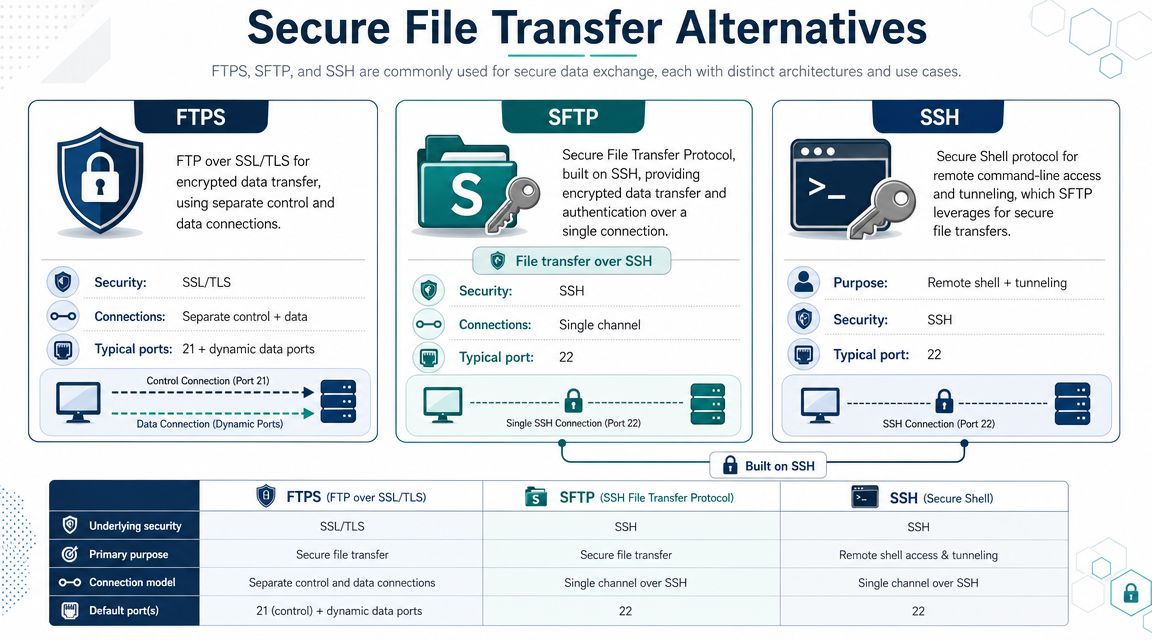
For WordPress sites, the practical choice usually comes down to FTPS or SFTP. SSH sits a level above them and is usually meant for people doing server administration, not routine file uploads.
The simple difference
FTPS works like traditional FTP, but with encryption wrapped around the connection. It often suits older hosting environments that still expect FTP-style behaviour.
SFTP is a different protocol. It runs through SSH, uses a single secure connection, and is often the cleaner option for WordPress maintenance.
SSH is secure shell access. It lets a developer log into the server directly and run commands. That is useful for tasks like WP-CLI updates, log checks, or permission fixes, but it also gives much broader access than a small business owner usually needs to hand out.
A good way to separate them is this:
- FTPS: secure file transfer based on old FTP habits
- SFTP: secure file transfer built on SSH
- SSH: full server access for advanced administration
For teams that want to understand the security principles behind access control and encrypted administration, a structured CISSP Study Guide is a useful reference.
FTP vs FTPS vs SFTP At a Glance
| Feature | FTP (Insecure) | FTPS (Secure) | SFTP (Secure) |
|---|---|---|---|
| Encryption | No | Yes | Yes |
| Typical use | Older legacy file transfer | Secure version of classic FTP workflows | Modern secure file transfer |
| Connection style | Separate command and data behaviour | Similar FTP-style behaviour with security added | Single secure connection approach |
| Common business fit | Generally not recommended | Useful where FTP-style compatibility is needed | Often the preferred option for WordPress support |
| Typical port reference | 21 | Often 21 in explicit setups | 22 |
If you want a clearer explanation of FTP, FTPS, and SFTP port settings for website hosting, this guide to the FTP protocol port fills in the details.
How to choose the right one
Small Australian businesses usually do best with SFTP if the host offers it. It is widely supported, easier to lock down, and simpler for a developer to use safely over mixed office, home, or mobile connections.
Choose FTPS if your host or workflow still depends on FTP-style compatibility. That can happen on older shared hosting setups or with legacy software that has not been updated.
Use SSH only for specific admin work and only for people who require that level of access. Giving SSH to every contractor is like handing out the master key to the whole filing cabinet room instead of giving access to one drawer.
That difference matters on real WordPress jobs. Uploading a plugin, replacing a broken theme file, restoring a backup, or checking wp-content folders usually calls for SFTP. Running commands on the server, editing configuration files carefully, or diagnosing performance problems may call for SSH.
Why secure protocols matter in Australia
For Australian site owners, this is not only about ticking a security box. It affects day-to-day reliability and how you manage risk.
On slower or less stable NBN connections, file transfers can time out, stall, or get retried. A protocol that is easier to configure correctly and protect with proper credentials reduces the chance of workarounds, saved insecure settings, or shared logins. That is one reason many WordPress hosts and developers now default to SFTP for maintenance and backup workflows.
Privacy and security obligations also push businesses toward encrypted access methods. The safer way to frame it is simple. If customer data, backups, or website files move between systems, use a secure protocol and keep access limited to the people responsible for the work. That lines up with the broader direction of ACSC guidance around secure administration, credential protection, and least-privilege access.
For most business websites, the better question is, “Which secure access method should we use, and who should have it?”
A practical recommendation
If you run a standard WordPress site or WooCommerce store, ask for SFTP details first. If your host only offers FTPS, confirm that encryption is enabled and that each person has their own login. If a developer asks for SSH, check what task requires it and whether that access can be temporary.
That approach keeps file access faster to manage, easier to audit, and safer when staff, freelancers, or agencies change.
Connecting to Your Site A Practical Example
When someone sends you file access details, you’ll usually receive four pieces of information. The labels may vary slightly depending on the software, but they mean the same thing.
The four fields you’ll see
Host
This is the server address your file transfer app connects to. It might look like a hosting server name rather than your public website address.Username
This is the file-access account name created by your host or server admin.Password
The password linked to that file-access account.Port
This tells the software which service to use. In many setups, people will see 21 for FTP or explicit FTPS, and 22 for SFTP.
What a normal connection looks like
You open an FTP client such as FileZilla, Cyberduck, or another file-transfer app. You enter the host, username, password, and port. Then you choose the protocol your host told you to use.
After connecting, the app usually shows two panels. One side is your computer. The other side is the server. You drag files between them, or right-click to upload, download, rename, or delete.
If you want a step-by-step walkthrough with screenshots, this guide on how to upload a file over FTP helps translate those fields into a real task.
Common mistakes
Most connection problems come from small mix-ups:
Using the wrong protocol
The login may fail if you choose FTP when the server expects SFTP.Typing the wrong port
Even correct usernames and passwords won’t work if the port doesn’t match the service.Using the wrong host name
Some providers don’t use your domain as the host for file access.
If the details don’t work, don’t keep guessing. Ask the host which protocol they expect and whether the credentials are for FTP, FTPS, or SFTP.
That saves a lot of time.
Frequently Asked Questions About FTP and WordPress
Do I need FTP if I already have WordPress admin access
Not always. The dashboard handles most routine work. FTP or a secure alternative becomes useful when the dashboard is broken, a file must be uploaded manually, or a developer needs direct file access.
Is FTP the same as SFTP
No. People often use the term loosely, but they’re different. Standard FTP is the older insecure method. SFTP is a secure protocol and is usually the better option for business use.
Can I break my website with file access
Yes, if you delete or replace the wrong files. That’s why it’s best to work from a backup and limit access to trusted people.
What should I ask my host for
Ask for SFTP details first. If they only mention FTP, ask whether they support a secure option.
Should I share one file-access login with everyone
No. Keep access limited, documented, and updated when staff or suppliers change.
If you’d like help securing file access, fixing a broken WordPress site, or setting up safer backup and recovery workflows, Webby Website Optimisation provides WordPress help and support for Australian businesses that need practical, experienced technical assistance.
If this post raised some questions feel free to ask me a question