
WordPress website performance is defined by how fast your server responds, how quickly your pages render, and how smoothly users interact with your content. A slow site costs you real money. A single second of improvement in load time lifts conversion rates by approximately 17%. For service businesses in Perth and beyond, that gap between fast and slow is the gap between a lead and a bounce. The standard targets to hit are Core Web Vitals thresholds: LCP at or below 2.5 seconds, INP at or below 200 milliseconds, and CLS at or below 0.1. Tools like Google PageSpeed Insights and DebugBear give you a measurable starting point before you touch a single setting.
How does hosting affect WordPress speed performance?
Your hosting environment is the single biggest lever you have. No amount of plugin tweaking compensates for an underpowered server. Managed WordPress hosts like WP Engine and Kinsta typically deliver 20 to 40 percent faster performance than generic shared hosting, because their server stacks are tuned specifically for WordPress workloads.
The PHP version your server runs matters more than most site owners realize. Upgrading to PHP 8.4 can improve WordPress performance by up to 42 percent, cutting roughly 0.5 seconds from typical load times. That is a free gain available to anyone willing to update a single setting in their hosting control panel.
Beyond PHP version, three server-side configurations deliver the most impact:
- Enable OPcache. PHP OPcache stores compiled bytecode in memory so the server skips recompiling scripts on every request. Most managed hosts enable this by default, but shared hosting often does not.
- Use server-level full-page caching. LiteSpeed Cache and Nginx FastCGI Cache serve pre-built HTML files directly, bypassing PHP and MySQL entirely for anonymous visitors. Full-page caching reduces Time to First Byte from hundreds of milliseconds to single-digit milliseconds on cached requests.
- Audit external HTTP calls. Plugins that ping remote APIs on every page load add latency that stacks directly onto your TTFB. Identify and remove or defer these calls using Query Monitor.
Server location also affects speed. A visitor in Sydney hitting a server in Virginia adds 150 to 200 milliseconds of round-trip latency before a single byte loads. A CDN with edge nodes in Australia solves this without changing your hosting provider.
Pro Tip: Run a TTFB test on your homepage using WebPageTest before and after enabling server-level caching. A TTFB under 200ms with caching active confirms your server stack is working correctly.
How does caching work in WordPress and which layers should you enable?
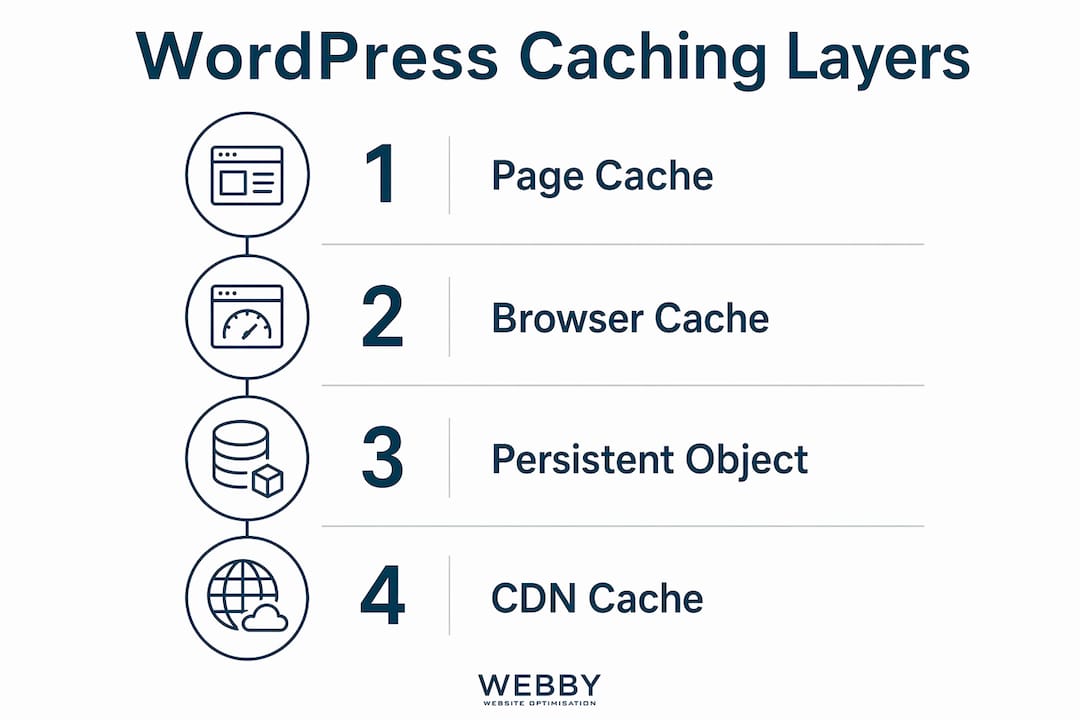
Caching in WordPress operates across four distinct layers, and each layer caches different resources. Page cache stores the full HTML output of a page. Object cache stores the results of database queries. Browser cache saves static assets like CSS, JavaScript, and images on the visitor’s device. CDN edge cache stores copies of your pages and assets on servers geographically close to your visitors.
Most site owners install one caching plugin and assume the job is done. The reality is more layered. WP Rocket handles page caching, browser caching headers, and some CDN integration in one interface. Perfmatters focuses on script management and reducing plugin bloat. Neither replaces a server-level cache, but both complement it well.
| Caching layer | What it stores | Best tool |
|---|---|---|
| Page cache | Full HTML output | WP Rocket, LiteSpeed Cache |
| Object cache | Database query results | Redis, Memcached |
| Browser cache | Static assets (CSS, JS, images) | Hosting headers, WP Rocket |
| CDN edge cache | Pages and assets at edge nodes | Cloudflare, Bunny CDN |
Persistent object caching with Redis or Memcached is the layer most WordPress sites skip. Without it, every page load re-runs the same database queries. With it, query results are stored in memory and retrieved in microseconds. WooCommerce stores and membership sites see the largest gains here.
One critical limitation: caching plugins benefit anonymous page views almost exclusively. Logged-in users, shopping cart pages, and checkout flows bypass page cache entirely. For those users, PHP execution speed and database optimization are the only levers.
Pro Tip: Load your homepage twice in an incognito window and compare the TTFB on each load using Chrome DevTools Network tab. If the second load is dramatically faster, your page cache is working. If both loads are slow, the cache is not serving correctly.
What front-end optimizations quickly improve WordPress load times?
Front-end performance is where most visible speed gains happen for real users. The biggest payload on most WordPress sites is images. Converting images to WebP or AVIF reduces image payload by 30 to 50 percent without visible quality loss, which directly improves LCP scores on mobile and slow connections. Plugins like ShortPixel and Imagify automate this conversion on upload.

Lazy loading defers off-screen images until the user scrolls toward them, reducing initial page weight significantly. One important exception: never lazy load your hero image or LCP element. Doing so forces the browser to delay loading the most important visible image, which hurts your LCP score rather than helping it.
JavaScript management is where sites most often lose points on INP. Complex unminified JavaScript creates long tasks on the main thread that exceed 50 milliseconds and block browser responsiveness. Every interaction a user makes during one of these long tasks is delayed. Profiling with Chrome DevTools Performance tab lets you see exactly which scripts are responsible.
Practical front-end steps that move the needle:
- Minify CSS and JavaScript. WP Rocket and Perfmatters both handle this. Minification removes whitespace and comments, reducing file sizes by 10 to 30 percent.
- Defer non-critical JavaScript. Scripts that do not affect above-the-fold rendering should load after the page is visible. Use the "defer
orasync` attribute, or let WP Rocket manage this automatically. - Audit third-party scripts. Google Tag Manager, Facebook Pixel, chat widgets, and review badges each add HTTP requests and JavaScript execution. Audit them quarterly and remove anything that does not justify its performance cost.
- Enable HTTP/2 or HTTP/3. These protocols allow multiple requests to load in parallel over a single connection. Most modern hosts and CDNs support HTTP/2 by default.
For a deeper look at how mobile load speed interacts with these front-end factors, the considerations around network variability and hardware constraints add another layer to this work.
Pro Tip: Use Chrome DevTools Coverage tab to identify unused CSS and JavaScript on your key pages. Files with 60 percent or more unused code are strong candidates for removal or conditional loading.
How do you measure and maintain WordPress speed long-term?
Measuring performance accurately requires separating lab data from real user data. Google PageSpeed Insights provides both: lab scores from a simulated environment and field data from the Chrome User Experience Report. DebugBear adds continuous monitoring with historical tracking, so you can see exactly when a plugin update or theme change caused a regression.
Mobile-first indexing means Google evaluates your mobile Core Web Vitals scores for ranking purposes. A site that scores well on desktop but poorly on mobile is still at a disadvantage in search results. Test mobile and desktop separately and treat mobile as the primary target.
A practical monitoring routine looks like this:
- Run a baseline test using Google PageSpeed Insights and record your LCP, INP, and CLS scores before making any changes.
- Make one change at a time. Changing multiple variables simultaneously makes it impossible to attribute improvements or regressions to a specific action.
- Re-test after each change and compare against the baseline. Use WebPageTest for more granular waterfall analysis.
- Audit plugins monthly. Excessive plugins extend PHP bootstrap time and increase TTFB. Deactivate and delete plugins you are not actively using.
- Clean your database quarterly. Post revisions, transients, and orphaned metadata accumulate over time and slow down database queries. WP-Optimize automates this cleanup.
Sites that fail Core Web Vitals thresholds risk reduced visibility in AI-driven search results and lower organic traffic. Monitoring is not a one-time task. It is an ongoing practice tied directly to your search rankings and lead volume. For a broader view of how speed connects to your SEO health, a DIY SEO audit covers Core Web Vitals alongside other ranking factors.
Pro Tip: Set up a free DebugBear account and schedule weekly automated tests on your three most important pages. Configure email alerts for any score drop above 10 points so you catch regressions before they affect rankings.
Key takeaways
Faster WordPress load times require layered optimization across hosting, caching, front-end assets, and ongoing monitoring, with no single fix delivering sustained results on its own.
| Point | Details |
|---|---|
| Hosting is the foundation | Managed hosts like WP Engine and Kinsta deliver 20 to 40 percent faster performance than shared hosting. |
| Layer your caching | Combine page cache, object cache with Redis, browser cache, and CDN edge cache for maximum speed gains. |
| Optimize images first | Converting to WebP or AVIF cuts image payload by 30 to 50 percent and directly improves LCP scores. |
| Audit JavaScript regularly | Long tasks over 50ms block INP; use Chrome DevTools to identify and defer or remove offending scripts. |
| Monitor continuously | Use Google PageSpeed Insights and DebugBear to track Core Web Vitals and catch regressions early. |
What I’ve learned optimizing WordPress sites over the years
The most common mistake I see is treating WordPress speed as a one-time project. A site owner installs WP Rocket, runs a PageSpeed test, sees a green score, and considers the job finished. Six months later, three new plugins, a theme update, and an embedded video later, the score is back in the red and nobody noticed.
Hosting quality is where I always start with a new client. I have seen sites on cheap shared hosting that no amount of caching or image compression could rescue. The server was simply too slow to respond. Moving to a managed WordPress host like Kinsta or WP Engine fixed 60 percent of the performance problem before touching a single plugin. That is the highest-leverage change available to most site owners.
Heavy page builders are the second biggest culprit. Elementor and Divi are capable tools, but they load substantial JavaScript and CSS on every page regardless of what elements you actually use. Lightweight themes like GeneratePress or Kadence, paired with a minimal plugin set, consistently outperform bloated page builder setups on raw speed metrics.
The nuance most guides miss is the logged-in user problem. Caching plugins are genuinely powerful for anonymous visitors, but if your site has members, customers, or contributors who log in regularly, those users experience the unoptimized version of your site. PHP execution speed, database indexing, and object caching with Redis are the tools that help them. Ignoring this split means half your audience is still on a slow site even after you have done the work.
My honest recommendation: make incremental changes, test after each one, and treat your Core Web Vitals scores the same way you treat your Google Analytics traffic. They are business metrics, not technical vanity numbers. The connection between website speed and lead generation is direct and measurable for service businesses.
Get expert WordPress speed optimization for your site
If you have worked through this guide and still find your scores stuck in the orange or red, the problem is usually deeper than a plugin can fix. Webby Website Optimisation works with service businesses across Perth, Fremantle, and Melville to diagnose and resolve the specific bottlenecks holding their WordPress sites back.

From hosting migration and server-level caching configuration to image optimization and JavaScript audits, Webby Website Optimisation delivers targeted fixes with measurable results. Every engagement starts with a full performance audit so you know exactly what is slowing your site down before any work begins. If your WordPress site is losing leads because it loads too slowly, get a free audit and find out what it will take to fix it.
FAQ
What is a good WordPress page load time?
A good target is an LCP of 2.5 seconds or less, which Google classifies as “Good” for Core Web Vitals. Aim for a TTFB under 200 milliseconds with caching active as a server-side benchmark.
Do caching plugins fix all WordPress speed problems?
Caching plugins fix speed for anonymous visitors but do not help logged-in users, cart pages, or checkout flows, which bypass page cache entirely. PHP optimization and database tuning are required for those scenarios.
Which is the best caching plugin for WordPress?
WP Rocket is the most widely recommended paid option for its combination of page caching, browser caching, and JavaScript management in a single interface. LiteSpeed Cache is the strongest free option for sites on LiteSpeed servers.
How does PHP version affect WordPress speed?
Upgrading to PHP 8.4 can improve WordPress performance by up to 42 percent compared to older PHP versions. This is one of the fastest free performance gains available through your hosting control panel.
Why does Google prioritize mobile Core Web Vitals?
Google uses mobile-first indexing, meaning it evaluates your mobile site’s performance and content for ranking purposes. Mobile devices face greater performance challenges due to variable network speeds and less processing power than desktop hardware.