
At 9:14 am, a prospective customer submits your contact form asking for a quote. WordPress shows a success message. No notification reaches your inbox. No confirmation reaches the customer. By the time anyone notices, the lead has already called a competitor.
That failure pattern is common on Australian WordPress sites, especially on older hosting, shared servers, and builds still relying on PHP mail. The website appears to be working, but the email path behind it is weak, unauthenticated, or misaligned with the business domain. I see this regularly on sites using Contact Form 7, WPForms, Gravity Forms, WooCommerce, and booking plugins. The front end is fine. The mail delivery is not.
For businesses already using Microsoft 365, the answer is usually to stop treating website email like a hosting feature and start treating it like business infrastructure. That means sending through a properly configured Microsoft 365 mailbox or relay method, with the right authentication method, encryption, sender alignment, and plugin settings. If those pieces are wrong, messages may still appear to send while failing in the background.
The Australian angle matters here. Generic guides often skip over the problems that break WordPress SMTP setups in practice, such as MFA on the mailbox, Basic Auth deprecation, security defaults in Microsoft 365, and hosting environments that block outbound SMTP. Those issues are usually why a plugin test passes one day and form notifications stop the next.
If your site sends quote requests, order emails, password resets, booking confirmations, or admin alerts, office 365 smtp settings directly affect whether those messages arrive. If you are already troubleshooting missing website emails, start with these WordPress email delivery fixes before the problem costs you enquiries or sales.
Why Your WordPress Emails Are Failing and How to Fix Them
Most site owners only notice email problems after something important goes missing. A quote request disappears. A customer says they never received the order confirmation. An enquiry form says “message sent” but nobody in the business can find it.
WordPress itself isn’t a mail server. Out of the box, it tries to hand messages off using the host’s mail function. Sometimes that works. Often it doesn’t, especially on shared hosting, older hosting stacks, or servers with weak mail reputation. Even when the message leaves the site, mailbox providers may treat it with suspicion because the sending path doesn’t match the domain properly.
Why the default setup breaks down
The practical issues tend to look like this:
- Form notifications go nowhere because the server can’t authenticate as your real business mailbox.
- Transactional emails look inconsistent because the “from” address doesn’t align with the sending mailbox.
- Plugins report success even when the destination mailbox never receives the email.
- Spam filtering gets harsher when a site sends through a weak or mismatched path.
Practical rule: If your website sends business-critical email, don’t leave it on PHP mail.
For Australian businesses already using Microsoft 365, SMTP gives WordPress a proper authenticated route out. That means the site sends through an actual mailbox with the right server, port, encryption, and login. It’s far more predictable than hoping your web host’s mail layer behaves itself.
One thing I see often is that business owners assume the form plugin is the problem. Sometimes it is. More often, the form plugin is fine and the mail transport is wrong. Fix the transport first, then test the form again.
If your current setup is patchy, it’s worth reviewing other common email failure patterns in this guide on fixing sending emails from WordPress. The same pattern shows up across contact forms, WooCommerce, bookings, and membership plugins.
What usually fixes it
A reliable setup normally comes down to four things:
- Use Microsoft 365 SMTP instead of the server’s default mail function
- Send through a licensed mailbox
- Use the correct encrypted connection settings
- Handle authentication properly, especially if MFA is enabled
Get those right and most WordPress email headaches stop being mysterious.
Understanding Your Three Microsoft 365 SMTP Options
Not every Microsoft 365 sending method suits a WordPress website. Microsoft gives you three broad ways to send mail, and choosing the wrong one creates avoidable trouble.
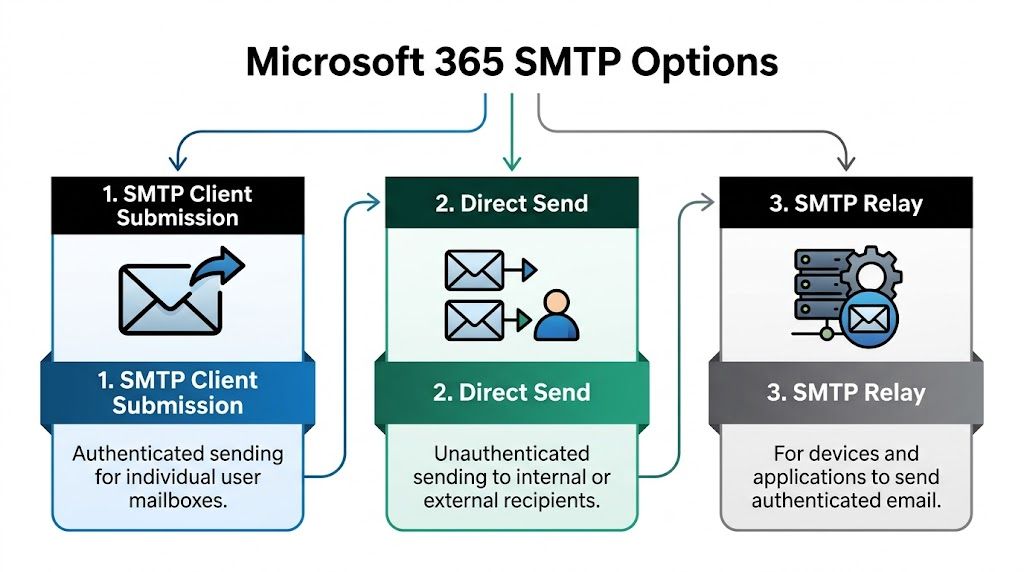
SMTP client submission
This is the option most WordPress sites should use. Your site logs in with a real Microsoft 365 mailbox and sends through Microsoft’s SMTP service using authentication.
It’s the best fit for contact forms, WooCommerce emails, membership plugins, LMS notifications, and general transactional email from a single website. It’s also the simplest path to manage inside a WordPress SMTP plugin.
The practical upside is control. You know exactly which mailbox is sending, which credentials are in use, and where to look when something fails.
Direct send
Direct send is more limited. It’s typically used when a device or application needs to send mail without authenticating in the same way as a user mailbox.
For a standard WordPress website, I rarely recommend it. It’s not the cleanest route for external transactional mail, and it doesn’t give site owners the same clarity around authenticated sending. It can make troubleshooting harder because you lose some of the predictability that comes with mailbox-based submission.
SMTP relay
SMTP relay is the infrastructure option. It’s useful when devices and business applications need to send email through Microsoft 365 and a normal mailbox login isn’t the right fit.
That can suit multifunction printers, scanners, older business systems, or a mixed environment where several applications send through one approved path. It’s powerful, but it’s not the first thing I’d deploy for a normal contact form plugin.
For a single WordPress site, start with SMTP client submission. Move to relay when you have a device, app, or environment that genuinely needs it.
Microsoft 365 SMTP configuration at a glance
| Setting | Value |
|---|---|
| SMTP server | smtp.office365.com |
| Port | 587 |
| Encryption | STARTTLS |
| Authentication | Required |
Those office 365 smtp settings are the baseline for the most common WordPress setup in Australia. They’re the settings most site owners should expect to enter into WP Mail SMTP or a similar plugin when using authenticated Microsoft 365 sending.
If you want to compare plugin capabilities before choosing one, it’s useful to look at tools that focus on robust SMTP integration features, especially around logging, retry behaviour, and connection diagnostics. Those features matter once a site starts sending order emails, account notices, and form submissions every day.
Which option fits your situation
A quick decision filter helps:
- Choose client submission if your WordPress site sends from one mailbox and you want the cleanest setup.
- Choose direct send only when your use case is narrow and you understand its limits.
- Choose SMTP relay for devices, internal applications, or more complex sending environments.
For most Australian WordPress site owners, client submission is the practical answer.
A Step-by-Step Guide to WordPress SMTP Setup
The most reliable way to connect WordPress to Microsoft 365 is through a dedicated SMTP plugin. My usual choice is WP Mail SMTP because it’s clear, stable, and easy to test. Other plugins can work, but the principle is the same. You want WordPress to stop relying on the host’s mail function and send through your Microsoft 365 mailbox instead.
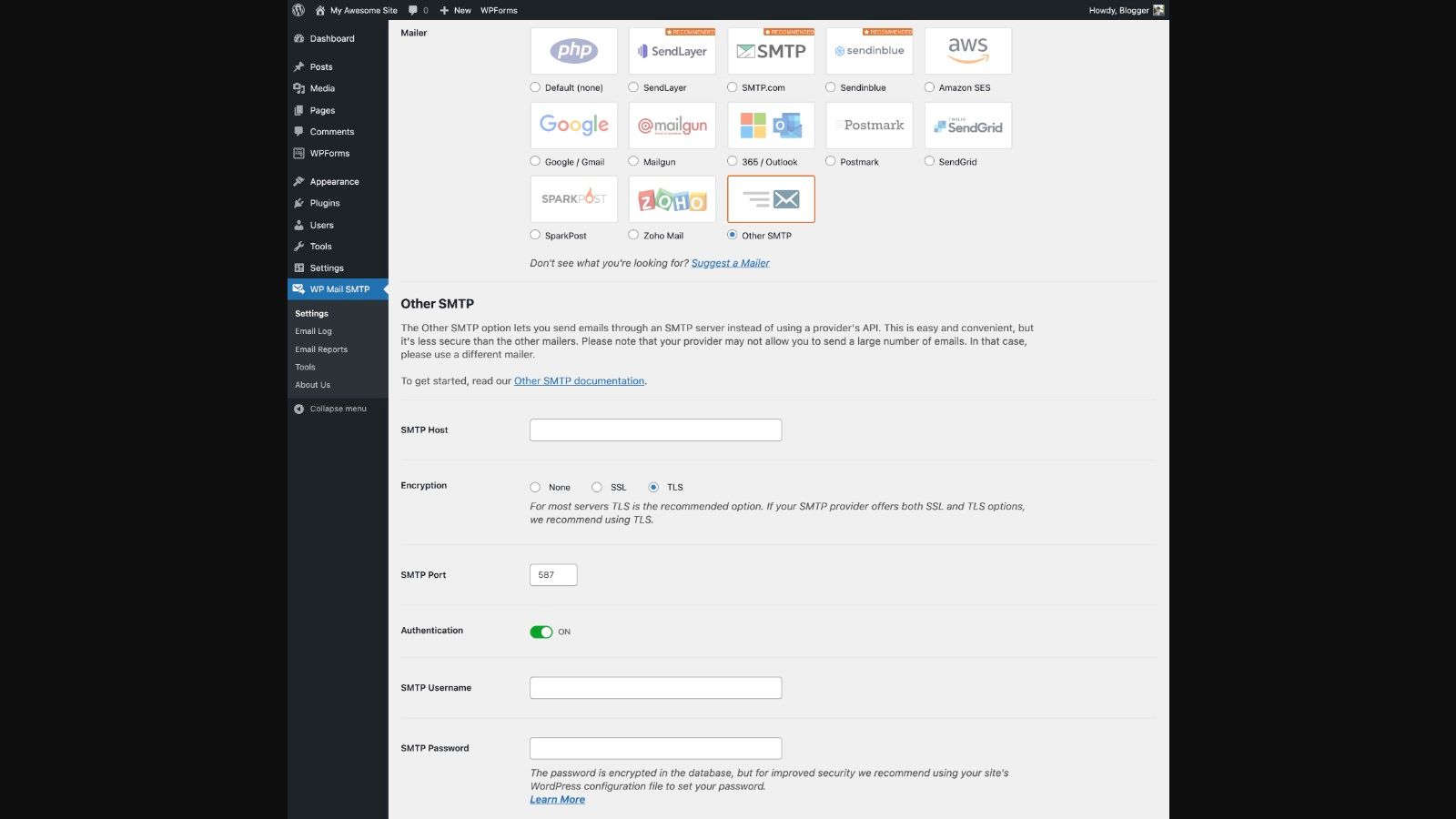
Install the plugin and choose the right mailer
After installing WP Mail SMTP, go into its settings and select Other SMTP if you’re entering the details manually.
You’ll usually fill in:
- SMTP Host with smtp.office365.com
- Encryption as STARTTLS
- SMTP Port as 587
- Authentication as enabled
- SMTP Username as the Microsoft 365 mailbox
- SMTP Password as the mailbox password or app password, depending on your sign-in setup
Use a real mailbox that’s meant to send website email. Don’t recycle a personal mailbox if multiple staff rely on it. A dedicated sending mailbox keeps things cleaner for access control, testing, and future maintenance.
Match your From settings properly
The From Email should normally match the mailbox you’re authenticating with, or at least be approved within the same Microsoft 365 environment. If the site sends as one address while logging in as another unrelated account, delivery can become inconsistent.
The From Name is less critical technically, but keep it recognisable. Customers trust emails that clearly come from your business name rather than a generic server label.
A common issue isn’t SMTP at all. It’s transport security on the hosting environment. If the site can’t complete secure outbound connections cleanly, SMTP plugins can behave erratically. If you suspect server-side TLS problems, this article on GoDaddy TLS certificate issues shows the kind of underlying hosting problem that can interfere with mail and API connections.
The MFA problem most generic guides skip
Many Australian WordPress users encounter a common sticking point. The login details look correct, but the plugin still returns an authentication error.
Microsoft forum analysis highlighted in this Microsoft Answers discussion notes 40% of Australian support queries for Office 365 SMTP involve “authentication failed” errors, largely tied to MFA enforcement and unclear guidance around App Passwords for WordPress plugins.
That’s why an ordinary mailbox password often doesn’t work anymore in plugin-based SMTP setups.
If MFA is enabled on the mailbox, test with the assumption that a normal password may be rejected even when it’s correct.
How to handle app-password-based SMTP setups
When the Microsoft 365 account uses MFA, the practical path is often:
Confirm the mailbox is licensed and active
The mailbox must be a valid Microsoft 365 business mailbox intended for sending.Check whether SMTP AUTH is allowed for that mailbox
If SMTP AUTH is disabled, the plugin can’t authenticate even with the right details.Review the account’s sign-in method
If MFA is enforced, a standard password may fail inside WordPress.Create an App Password if the account supports that path
Use that app password inside the SMTP plugin instead of the normal sign-in password.Save settings and send a test email
Don’t assume it works because the plugin accepted the form fields. Send a live test.
The exact Microsoft 365 menus can vary by tenant and policy, so the important part is the decision logic. If the plugin says “authentication failed” and the username, host, and port are already correct, MFA is one of the first things to check.
For readers who prefer to watch the workflow before touching settings, this walkthrough helps frame the plugin side of the process:
Plugin-specific issues with Contact Form 7 and WooCommerce
Different plugins expose the same SMTP weakness in different ways.
- Contact Form 7 often looks broken when the underlying problem is mail transport. The form submits, but the notification never reaches the inbox.
- WooCommerce makes the issue more visible because customers notice missing order confirmations quickly.
- WPForms, Gravity Forms, and Fluent Forms can all report successful submission while mail fails unacknowledged underneath.
That’s why I always test outside the form first. Send a plugin-level test email. If that fails, don’t waste time rewriting the form plugin settings.
A clean setup checklist
Before you call it done, verify these points:
- Correct server details are entered exactly
- The sending mailbox exists and can sign in
- Authentication is enabled
- MFA has been accounted for
- The From address aligns with the mailbox setup
- A test message reaches the inbox successfully
When those pieces line up, WordPress transactional email becomes much more dependable.
Setting Up SMTP Relay for Devices and Applications
SMTP relay belongs in a different category from normal website sending. It’s useful when the sender isn’t a typical mailbox-driven app, or when you’ve got older systems that need a controlled way to pass mail through Microsoft 365.
That usually includes printers that scan to email, internal line-of-business software, older CRM tools, and utility applications that can’t work neatly with modern mailbox authentication.

When relay makes sense
A relay connector is the right discussion when a business has more than one sender to support and mailbox-level logins become awkward or impossible.
Examples include:
- Multifunction devices that need to email scans or alerts
- Legacy software that can send mail but doesn’t support the preferred sign-in path
- Shared internal systems where several applications need a single approved route
- Higher-complexity environments where IT wants central control over how non-user systems send mail
For a normal WordPress brochure site, relay is usually overkill. For a broader business environment, it can be the cleanest option.
What the connector actually does
Inside Microsoft 365 and Exchange administration, an SMTP relay connector acts as a trust layer. It tells Microsoft 365 which incoming sending path is allowed to relay mail through the service.
The key point is that relay is less about plugin settings and more about business infrastructure. Someone needs to define the trusted sender arrangement correctly, then make sure the application or device is pointing at the right sending path.
Relay is usually an IT-admin task, not a marketing-admin task.
Trade-offs worth knowing
SMTP relay solves some problems well, but it introduces its own management overhead.
| Consideration | What it means in practice |
|---|---|
| Control | Good for centralising sending from multiple devices and apps |
| Complexity | Higher than a standard mailbox-based WordPress SMTP setup |
| Suitability | Better for devices and internal systems than ordinary form plugins |
| Troubleshooting | Often requires checking both Microsoft 365 and the sending application |
Where WordPress fits into this
If your WordPress site is just one sender among several business systems, relay can be part of a larger mail architecture. But if the site is the only application you’re trying to fix, client submission is usually simpler and faster to support.
That distinction matters. I’ve seen businesses spend too long trying to make the website fit an infrastructure pattern designed for scanners and back-office software. In those cases, the cleaner move is often to keep WordPress on authenticated SMTP and let relay serve the devices that need it.
What to line up with your IT team
If you’re working with internal IT or an external Microsoft 365 admin, give them the practical requirements rather than vague symptoms:
- Which applications or devices need to send
- Whether messages go to internal users, external recipients, or both
- Whether the sending system supports authenticated SMTP
- Whether this is a website issue or a broader business mail-flow issue
That saves time and keeps the website from being treated like a printer problem.
How to Test and Troubleshoot Your SMTP Connection
A saved SMTP configuration isn’t proof that email works. It only proves the form fields were filled in. Real testing starts after that.
The first thing I do is send a test email from the SMTP plugin itself. Don’t start with Contact Form 7, WooCommerce, or a booking plugin. Use the plugin’s built-in test tool so you isolate the mail transport from the rest of the site.

What a proper test looks like
A useful test has three parts:
- The plugin connects successfully
- The email arrives in the destination mailbox
- It lands in the inbox or expected folder, not in junk
If the test passes but the actual form still fails, the issue may be in the form plugin, notification settings, or recipient logic. If the plugin test fails, stay at the SMTP layer until that’s resolved.
Common errors and what they usually mean
Here’s the short diagnostic version I use.
Authentication failed
Most often this points to wrong credentials, MFA conflicts, or mailbox-level sign-in restrictions.Client does not have permissions
The mailbox may not be allowed to send the way the plugin expects, or the From address doesn’t align properly with the authenticated account.Connection timed out
The hosting server may be blocking outbound SMTP, or it can’t complete the secure connection cleanly.TLS or encryption error
The plugin settings and server capabilities don’t match, or the host has trouble making secure outbound connections.
A plugin error message is a clue, not a final diagnosis. Always check the mailbox, the plugin settings, and the hosting environment together.
If you’re dealing with low-level outgoing mail connection failures, this guide on how to troubleshoot common outgoing server connection failures is useful as a secondary reference. It helps separate application errors from network or encryption issues.
Why older setups started breaking
Some businesses had SMTP working for ages, then it started failing without any WordPress changes. That’s usually where people get confused.
According to this GMass summary of Microsoft 365 SMTP changes, since September 2025, Microsoft has accelerated the deprecation of Basic Authentication for SMTP in Australian tenants, and Telstra support logs from Q1 2026 showed a 25% spike in SMTP relay failures for SMBs using older apps. In practice, that means a previously tolerated legacy setup may now be rejected.
If a site was built years ago and uses an old app, old plugin, or old authentication pattern, don’t assume the website suddenly “broke itself”. The surrounding Microsoft 365 security posture may have changed.
A practical troubleshooting order
Work through the checks in this order:
- Check the mailbox login details first
- Confirm the SMTP plugin is using the expected server, port, and encryption
- Review MFA and app-password requirements
- Test with the plugin’s email tool
- Verify the From address matches the intended sending mailbox
- Check whether the host blocks or interferes with outbound connections
- Review whether the setup depends on an older authentication method
For users dealing with mail that leaves the app but behaves strangely afterwards, this article on emails stuck in outbox is a helpful adjacent read because it shows how send-state problems can look different from outright SMTP failures.
What works best now
For most WordPress websites, the stable path is modern, authenticated sending through a properly configured Microsoft 365 mailbox. What doesn’t age well is a legacy setup nobody has reviewed in years.
That’s especially true if the site is business-critical. Test after plugin updates, test after hosting changes, and test whenever Microsoft 365 security policies are tightened.
Your Office 365 SMTP Questions Answered
Can I use a free Outlook account for website SMTP
For a business WordPress site in Australia, use a Microsoft 365 business mailbox instead. Free Outlook setups are no longer a reliable option for plugin-based website sending, and they create avoidable support issues when authentication rules change.
What are the correct office 365 smtp settings for WordPress
Use smtp.office365.com, port 587, STARTTLS, and authentication enabled.
That is the baseline. The part that usually breaks the setup is authentication, not the hostname or port.
Is a dedicated mailbox a good idea
Yes. I recommend one for almost every client site.
A mailbox like website@yourdomain.com.au keeps form notifications, WooCommerce emails, membership emails, and system alerts separate from a staff member’s inbox. It also makes handovers easier when someone leaves, MFA is enforced, or the site is rebuilt later.
Why does the plugin say authentication failed even when the password is correct
This usually points to a Microsoft 365 policy issue, not a typo.
Common causes include MFA on the account, SMTP AUTH being disabled for that mailbox, Conditional Access rules, or a plugin still trying to use an older login method. In WordPress, this comes up often with SMTP plugins that were set years ago and never reviewed after Microsoft tightened sign-in rules.
Do I still need SPF, DKIM, and DMARC
Yes. SMTP only handles how the site sends the message.
SPF, DKIM, and DMARC help receiving servers decide whether to trust that message. If those records are missing or misaligned, contact form emails and WooCommerce notifications are more likely to land in junk or get filtered harder than they should.
Should I use SMTP auth or a relay connector for WordPress
For a normal WordPress site, authenticated SMTP with a real Microsoft 365 mailbox is usually the better fit. It is simpler to trace, easier to test in plugins such as WP Mail SMTP or FluentSMTP, and more practical for low-volume transactional mail.
A relay connector makes more sense for devices, line-of-business apps, or cases where sending has to come from fixed server IPs. On shared hosting, that requirement is often the sticking point.
If your WordPress site isn’t reliably sending contact form notifications, WooCommerce emails, or other transactional messages, Webby Website Optimisation can help diagnose the cause and get the setup working properly. That includes plugin-level SMTP configuration, hosting-level checks, WordPress troubleshooting, and the practical fixes that stop email failures from costing you leads and sales.