
It’s a feeling we all know too well. You’ve just sent off an important email, only to discover it’s sitting stubbornly in your outbox, going nowhere. Nine times out of ten, the culprit is something surprisingly simple.
Before you start diving into complex server settings, the problem is usually a lost internet connection, an attachment that’s way too big, or your email program has been accidentally knocked into "Offline Mode". A quick check of these three things solves the issue for most people—we’re talking more than 80% of the time—and gets your messages moving again.
Why Do Emails Get Stuck in the Outbox Anyway?
Think of your outbox as a temporary departure lounge for your emails. When you hit "Send," your email waits there for a moment while your email client (like Outlook or Gmail) shakes hands with the outgoing mail server (known as the SMTP server). If that handshake gets interrupted or fails to connect, your email is left stranded in the lounge.
This little hiccup can be caused by a few common Gremlins in the system. For many of us here in Australia, a dodgy internet connection is often the prime suspect. A file that’s too chunky can also jam up the works, causing the whole process to time out. You can read more about how these issues specifically affect Outlook users in this great guide on fixing send and receive problems.
The Usual Suspects
So, what are the most frequent reasons for this digital traffic jam? Let's quickly run through them.
- Spotty Connection: Your Wi-Fi or mobile data dropped out for just a second, right at the moment you hit send. Classic.
- Chunky Attachments: You’ve tried to send a file that’s bigger than your email provider's limit—usually around 20-25 MB.
- "Work Offline" Mode: It's easy to accidentally click this, especially in Outlook. It basically tells your email client to stop talking to the outside world.
It’s also worth noting that similar issues can lead to a high email bounce rate, where messages are sent but then rejected. Both problems often point back to a breakdown in server communication.
A stuck email isn't just a tech headache; it's a communication breakdown waiting to happen. For any business, that can mean a missed deadline, an unhappy client, or a lost opportunity. Getting it sorted quickly is vital to keeping things on track.
Your First Steps to Unblock Any Email Client
Before you start diving into the nitty-gritty settings of your specific email app, there are a few universal checks that will solve the problem most of the time. Think of these as the basics—your first line of defence when an email stubbornly refuses to leave your outbox. Honestly, nine times out of ten, one of these simple fixes will get things moving again.
The most frequent culprit? A dodgy internet connection. We’ve all been there. You hit "Send," and at that exact moment, your Wi-Fi decides to take a little nap. It’s a classic Australian experience. The quickest way to check is to simply open a new browser tab and try to visit a website. If the page loads, your internet is fine. If not, you’ve found your problem.
Check the Message Causing the Jam
If your internet connection is solid, the next place to look is the outbox itself. It's often not all your emails that are stuck; usually, it’s one single message holding everything else up. The reason is almost always a massive attachment. Most email providers, including popular ones like Gmail and Microsoft 365, cap attachments at around 20-25 MB.
Here’s how to find and fix the jam:
- First, navigate to your Outbox folder and find the oldest email that hasn't sent.
- Try to open it. If you see a huge file attached, that's almost certainly your bottleneck.
- The best solution is to remove the attachment. Instead, upload the file to a cloud service like Google Drive, OneDrive, or Dropbox and simply share a link to it in your email.
- Once the attachment is gone, try sending the email again.
As soon as that one problematic message is dealt with, any other emails that were queued up behind it should send through immediately. It’s a simple action that resolves a surprisingly high number of outbox headaches.
A stuck email can sometimes just be a symptom of a temporary glitch. The message itself might have become corrupted, or maybe the server had a momentary blip when you first tried to send it. Often, the fastest fix is to just delete the stubborn message from the outbox and compose a new one.
This flowchart gives you a great visual path for working through these initial troubleshooting steps, starting with the most likely causes.
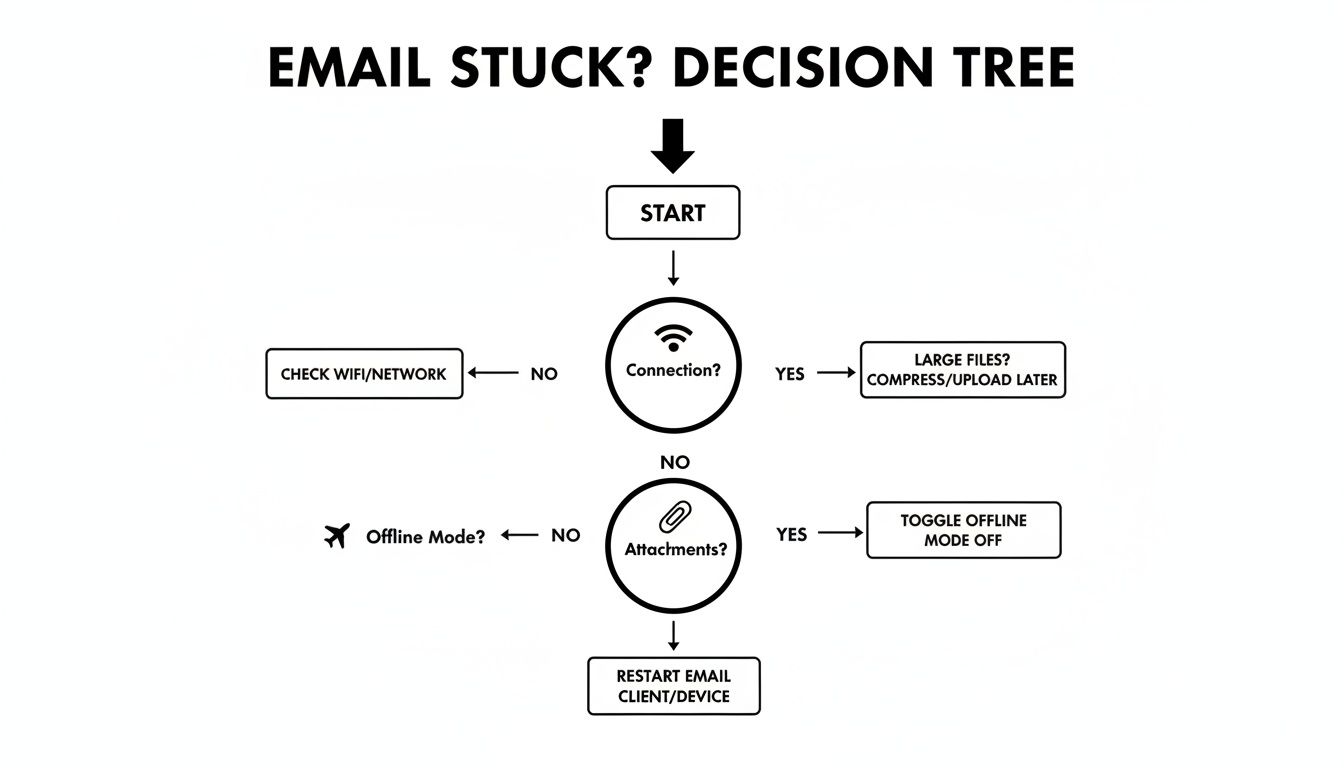
As you can see, the logical path is to always start with the basics—your connection, the attachment size, and any offline settings—before you need to explore more complex fixes.
Force a Manual Send and Receive
Sometimes your email program just needs a little nudge to get back on track. Most desktop clients, like Outlook or Apple Mail, have a built-in function to manually kickstart the sending and receiving process.
In the toolbar, you should find a button that says something like "Send/Receive All Folders". Giving that a click forces the application to reconnect to the mail server and try sending everything in your outbox again. This is especially handy if you've just reconnected to the internet and your email client hasn't caught on yet. It's one click that can instantly clear the logjam.
Platform-Specific Fixes for Outlook, Gmail, and Apple Mail
While the usual suspects often cause a stuck email, sometimes the problem is specific to the app you're using. The way Microsoft Outlook manages its sending process is a world away from how Gmail’s cloud-first system works, or how Apple Mail plugs into macOS and iOS.
Getting your messages moving again often means knowing the specific quirks of your email client. Let's look at the targeted fixes for the platforms most Australian businesses rely on every day.
Unjamming Microsoft Outlook
Outlook is a workhorse, but it has a few unique habits that can trap emails in the outbox. One of the most common culprits I see is a wonky Send/Receive Group setting, which basically tells Outlook how often to check in with your mail server.
Sometimes, all it needs is a manual nudge.
Head to the Send / Receive tab in the main Outlook ribbon and click the Send/Receive All Folders button. This forces an immediate sync and can often clear the jam right away. If you find yourself doing this regularly, you might need to tweak the automatic schedule to sync more frequently.
Another classic Outlook snag is a problem with SMTP authentication. This is just a technical way of saying Outlook isn't logging into your outgoing mail server correctly. If the server doesn't recognise the username and password, it simply won't send your email.
You’ll find these settings tucked away under File > Account Settings > Server Settings > Outgoing mail. Double-check that every detail here is a perfect match for what your email provider has given you. Even a single misplaced letter can bring everything to a halt.
Troubleshooting Gmail and Google Workspace
Because Gmail is web-based, you'll run into fewer issues with the program itself. But when you use a desktop or mobile app to manage your Google Workspace account, things can still go wrong.
If your emails are stuck in the outbox on your phone or computer, the very first thing to do is log into Gmail in your web browser. Can you send an email from there? If it works, you know the problem isn't with Google—it's with the connection between your app and your account.
For business users, a frequent source of trouble is the "Send mail as" feature, which is great for using different email aliases. However, if the SMTP settings for that alias are old or incorrect, any email you try to send from it will go nowhere.
It's also worth remembering that just because an email sends doesn't mean it arrives. Email delivery is a persistent challenge for Australian businesses. Recent research highlighted that around 49% of emails from Gmail hit spam folders in Q3 2024, a number that jumps to nearly 60% for Google Workspace accounts. You can dig into the numbers in this in-depth analysis of Australian email spam statistics.
Fixing Apple Mail on macOS and iOS
Apple Mail is refreshingly simple, but that doesn't make it immune to problems. When emails get stuck, your best first move is to fire up the Connection Doctor. It's a handy little diagnostic tool built right into the app.
- On your Mac, just go to the Mail menu bar and select Window > Connection Doctor.
- You'll see a list of your accounts with either a green or red light. A red light next to the SMTP (outgoing) server is the smoking gun.
Often, the fix is surprisingly simple: just quit and relaunch the Mail app. Whether you're on a Mac or an iPhone, this simple reset is often enough to kickstart the connection and clear the outbox. If that doesn't do the trick, the next step is to re-enter your account password, as a silent authentication failure is one of the top reasons emails get stuck on Apple devices.
Digging Deeper: Advanced Fixes for Emails That Won't Budge
So, you’ve checked the obvious culprits. Your internet is fine, you’re not in offline mode, and there are no monster attachments clogging the pipes. Yet, your emails are still camped out in your outbox, refusing to leave. When the simple fixes don’t work, it’s time to roll up your sleeves and look at some of the more stubborn issues that can trip up your email client.
These problems are often hidden behind the scenes, usually involving a conflict with other software on your computer or a corrupted setting you'd never think to check.
Is Your Security Software a Little Too Eager?
One of the most common, yet overlooked, reasons for sending failures is an overzealous security program. Your antivirus or firewall is designed to protect you, but sometimes it gets a bit too protective and mistakenly blocks your email client from connecting to the outgoing mail server.
Think of it this way: your email program (like Outlook or Thunderbird) needs to use a specific digital doorway, known as a port, to send your message. If your security software has bolted that door shut, your email is trapped. The fix is to head into your antivirus or firewall settings and create an exception for your email client. This essentially tells the security software, "This program is legit, let it through."
When Your Outlook Profile Goes Bad
If you've been using Outlook for years, your user profile has seen a lot of action. This profile stores all your account settings, rules, and configurations. Over time, all that data can become corrupted, leading to all sorts of bizarre behaviour—including emails that just won’t send.
The easiest way to see if this is the problem is to create a fresh Outlook profile. Don't worry, this won't delete your old one; it just gives you a clean slate to test with.
- First, make sure Outlook is completely closed.
- Head to the Control Panel on your PC and find the "Mail" setup.
- Click on "Show Profiles," then "Add." Follow the wizard to set up your email account under a new profile name.
- Once you're done, set the new profile as the default and restart Outlook.
Now, try sending an email. If it goes through without a hitch, you've nailed the problem. Your old profile was the culprit, and you can start moving your important data over to the new, healthy one.
A corrupted profile is like a faulty GPS for your emails. It knows where to go, but the directions it gives are all wrong, leaving your messages stuck at the starting line. A new profile gives Outlook a fresh, reliable map.
Getting Your SMTP Server Settings Spot-On
The Simple Mail Transfer Protocol (SMTP) settings are the precise instructions your email client follows to send mail. If even one tiny detail is wrong—a single digit or a misplaced dot—your emails are going nowhere. This is a particularly common headache when you change internet providers in Australia, as many insist you use their specific SMTP server.
You’ll need to dive into your email client’s account settings and check every single detail manually.
- SMTP Server Name: Is it correct? Something like
smtp.yourprovider.com? - Port Number: This is a big one. It needs to be the right number, usually 465 or 587.
- Encryption Method: Make sure this is set to what your provider requires, typically SSL/TLS or STARTTLS.
- Authentication: Is it set to use your correct username and password? A typo here is a common showstopper.
Double-check, and then triple-check, these details against the official support documentation from your email provider. For a business, where every email counts, getting these configurations right is non-negotiable. If you're constantly fighting with your website or email setup, investing in professional WordPress help and support can save you a lot of time and frustration.
How to Prevent Emails from Getting Stuck Again
Fixing an email jam is one thing, but preventing it from happening again is the real win. By adopting a few proactive habits, you can all but eliminate the frustration of seeing emails pile up in your outbox, ensuring your communication flows smoothly and professionally. It’s all about building a better workflow, not just reacting to problems when they pop up.
A brilliant place to start is by rethinking how you handle large files. Instead of attaching hefty documents directly to your emails, get into the habit of using cloud storage instead.
Services like Google Drive, Dropbox, or OneDrive are perfect for this. Just upload your file, grab a shareable link, and pop it into your email. This keeps your messages incredibly lightweight and drastically reduces the chances of a sending failure.
This one small change makes a massive difference, especially if you regularly share presentations, high-resolution images, or large reports. It guarantees your email will zip out of the outbox instantly.
Maintain Your Digital Tools
Just like a car, your digital tools need regular check-ups to perform reliably. Keeping your email client—whether that's Outlook, Apple Mail, or another app—and your operating system updated is absolutely non-negotiable. Developers are constantly releasing patches that fix bugs, tighten security, and boost performance, many of which directly solve connectivity and sending issues.
These updates often plug security holes that could otherwise disrupt your email service. It’s a serious issue, particularly for Australian businesses. Recent research found that 76% of Australian firms experienced an email security breach in the last year, costing an average of AUD $436,307 per incident. You can read more in this breakdown of Australian email security costs.
Think of software updates as a free tune-up for your digital workspace. Skipping them is like ignoring your car's "check engine" light—sooner or later, you'll end up stranded on the side of the digital highway.
Choose Reliable Email Hosting
For any serious business, relying on a free email service can be a false economy. Professional email hosting brings superior reliability, stronger security, and dedicated support that can be a real lifesaver when things go wrong. A robust hosting provider makes sure their servers are optimised for deliverability, actively managing issues that could cause your emails to get stuck or, worse, land in spam folders.
This kind of professional oversight is crucial for maintaining business continuity. Just as you’d follow a guide for website health, applying the same diligence to your email infrastructure is essential. Many of the same principles in our WordPress best practices checklist apply here: proactive maintenance, a sharp focus on security, and choosing reliable partners.
By investing in these preventative measures, you can transform your email from a potential point of failure into a dependable business asset.
FAQs: Your Lingering Questions Answered
So you’ve managed to clear the outbox jam, but a few nagging questions might still be bouncing around. It’s completely normal. Sometimes, fixing one problem uncovers another, or you just want to understand why it happened in the first place.
Here are the answers to some of the most common follow-up questions I hear.
Why Can't I Delete the Stuck Email?
Ever tried to delete a message from your outbox, only for it to stubbornly refuse? It’s a frustratingly common scenario. This usually happens because your email program is stuck in a loop, actively trying to send that very message. It essentially locks the email, preventing you from deleting it while it's in that "sending" state.
The trick is to interrupt the cycle. The easiest way to do this is to temporarily put your email client into "Work Offline" mode. This simple action cuts the connection and forces the program to give up its sending attempt. Once it's offline, you should be able to pop back into your outbox and delete the message without a fight.
Why Do Emails Send From My Phone but Not My Computer?
This one is a classic, and it's actually a huge clue. If emails are flying out from your phone but getting log-jammed on your desktop, you can breathe a sigh of relief – it’s not a problem with your email account or the server. The issue is almost certainly localised to your computer.
So, where do you start looking on the problematic device?
- Outdated Software: Is your version of Outlook, Apple Mail, or whatever you use up-to-date? An old version can cause all sorts of strange communication errors.
- Security Interference: Aggressive antivirus or firewall software can mistakenly block your email client’s connection to the mail server.
- A Damaged Profile: As we touched on earlier, the data file or user profile within your email client can become corrupted, which often messes with its ability to send mail.
The fact that your phone works is the best troubleshooting hint you can get. It confirms your login details and server settings are correct, letting you zero in on the computer itself.
For more quick fixes to common tech headaches, you’ll find a heap of information in our Webby FAQ section. It's packed with practical solutions.
At Webby Website Optimisation, we understand that solid communication is the engine of any business. If you’re over battling email snags or WordPress quirks, our expert support and maintenance services are designed to take that stress away. We’ll keep your digital operations humming along smoothly, so you can get back to what you do best. Reach out to us at https://www.webby.net.au/services/wordpress-help-support and let's get you sorted.