

Your phone rings. A customer says the website won’t load. You try it yourself and get the same ugly message. dns not responding. Orders pause, enquiry forms stop, and everyone starts asking whether the whole site is down.
In most cases, this error doesn’t mean your website files have vanished. It means the browser can’t translate your domain name into the address it needs to reach the server. DNS is the internet’s phone book. If the lookup fails, the site feels invisible even when the server itself is still running.
For Australian businesses, that’s where generic advice often falls short. Local ISP DNS problems, evening NBN congestion, regional routing, WordPress caching, Cloudflare proxy settings, and expired domain renewals all show up differently here than they do in US-focused help articles. The fix can be simple, but the diagnosis has to be methodical.
That Sinking Feeling When Your Website Disappears
A dns not responding error usually arrives at the worst possible time. It often happens when you’re launching a campaign, checking a product page, or opening the site after a client says they can’t get through. What makes it stressful is the uncertainty. You don’t yet know whether the problem is your laptop, your office network, your registrar, your host, or something much wider.
DNS itself is simple in principle. You type a business-friendly web address. DNS translates that name into the machine-readable destination that browsers and servers use. When that lookup breaks, the browser can’t complete the first step, so the site appears offline even if your hosting is technically fine.
That’s why the first job is not guessing. It’s narrowing the fault down.
Practical rule: Treat dns not responding as a routing and records problem first, not as proof that your WordPress site has crashed.
There’s another wrinkle that catches a lot of owners out. If your domain renewal lapsed, the site can fail in a way that looks like a DNS issue. If that possibility is in play, check this guide on an expired domain name before you touch anything else.
The calm way through this is to start at your desk, then move outward. Check the device. Check the local network. Check the ISP. Then inspect the domain records, nameservers, proxy settings, and WordPress-related DNS layers. That order saves time and avoids making changes in the wrong system.
Your First Port of Call Local Device and Network Fixes
Start with the possibility that the website is fine and your device has stale or broken DNS information cached locally. That’s common, especially after recent website moves, office internet hiccups, or browser updates.
A practical troubleshooting method shows that flushing the local DNS cache on Windows resolves 70% of cache-related cases, and switching to public resolvers such as Cloudflare or Quad9 shows 25 to 50ms lower latency in Australian benchmarks compared with default ISP DNS servers, according to Paessler’s DNS troubleshooting guide.
Confirm whether the fault is local
Before changing settings, do three quick checks:
- Try another browser. If Chrome fails but Safari or Edge loads the site, you may be dealing with a browser cache issue rather than a real DNS outage.
- Use your phone on mobile data. Turn off Wi-Fi and test the site over 4G or 5G. If the site opens there, your office connection or local DNS resolver is the likely culprit.
- Open a second website you trust. If several unrelated sites fail, think network or ISP. If only your domain fails, think records or propagation.
A lot of panic disappears at this step because you stop asking “is the internet broken?” and start asking “where exactly is it broken?”
Flush your DNS cache
Your computer stores DNS answers locally to speed things up. That’s useful until the cached answer is outdated or corrupt. Then the browser keeps trying the wrong route.
Use the command for your operating system:
Windows
- Open Command Prompt
- Run
ipconfig /flushdns
macOS
- Open Terminal
- Run
sudo dscacheutil -flushcache; sudo killall -HUP mDNSResponder
Linux
- Linux varies by distro and DNS service. On many systems, restarting the local resolver service or network manager is the practical approach.
If you want screenshots for the local process, this guide on how to clear your device's DNS cache is a useful companion.
Don’t repeat the command five times and hope for magic. Run it once, restart the browser, and test again.
Restart the browser and the router properly
People often restart the browser but leave the network path unchanged. Or they reboot the router too quickly for it to matter.
Use a simple order:
- Close the browser fully. Don’t just close the tab.
- Restart the computer. That clears a surprising amount of odd behaviour.
- Power-cycle the router. Turn it off, wait briefly, then turn it back on.
- Reconnect and test one website at a time.
Routers can hang onto bad resolver behaviour, especially after a flaky ISP session.
Switch to a public DNS resolver
If your ISP’s default DNS is slow or unresponsive, changing the resolver on your device can get you moving again. For Australian users, public DNS services can return results faster than the resolver supplied by the broadband provider.
Here’s the video version if you prefer to see the process rather than read it:
Two common options are:
Cloudflare
- Primary:
1.1.1.1 - Secondary:
1.0.0.1
- Primary:
Quad9
- Primary:
9.9.9.9 - Secondary:
149.112.112.112
- Primary:
For day-to-day office use, this is one of the safest temporary tests you can make. You’re not changing the website. You’re only changing which directory service your device asks for directions.
Check browser-specific behaviour
Browsers can maintain their own networking quirks even after the operating system cache is cleared.
Look for these signs:
- Only one browser fails. Clear that browser’s cache and restart it.
- Incognito works, normal mode fails. An extension may be interfering.
- VPN or security software changes the result. Temporarily disable it and test again.
This is particularly common on business laptops with endpoint protection or filtering tools installed.
What works and what doesn’t
Some fixes help because they isolate a variable. Others just waste time.
| Action | Usually worth doing | Why |
|---|---|---|
| Flush device DNS cache | Yes | Clears stale local records |
| Test on mobile data | Yes | Separates local network from website issue |
| Swap to public DNS | Yes | Bypasses unreliable ISP resolvers |
| Restart router properly | Yes | Resets local resolver path |
| Randomly editing registrar records | No | Can create a real outage from a local problem |
| Reinstalling WordPress | No | DNS errors happen before WordPress loads |
If the site now loads, the problem was local. If it still fails across devices and networks, stop focusing on your laptop. The next suspect is the internet path between your business and the wider web.
Is It Your ISP Diagnosing Wider Internet Problems
When local fixes don’t change anything, the next question is whether your connection provider is struggling. Australian conditions are a factor. A lot of overseas troubleshooting assumes stable last-mile connectivity and responsive ISP resolvers. That isn't always the case here, especially during busy evening periods on the NBN.
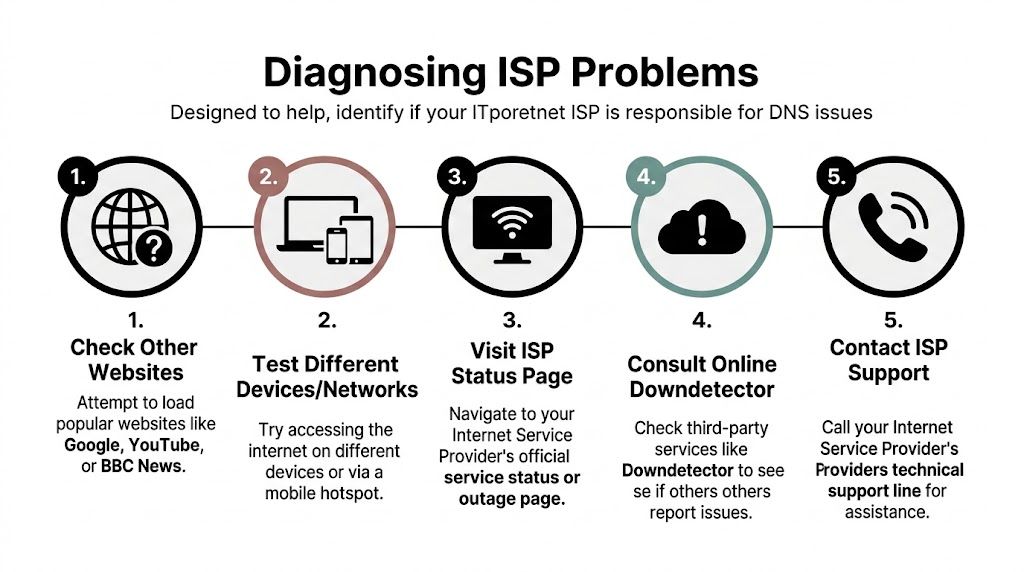
According to the ACCC’s Q4 2025 NBN Performance Report, 28% of fixed-line NBN services in Perth experienced web latency over 100ms during evenings, directly correlating with DNS resolution timeouts as ISP default DNS servers become unresponsive under load. For WordPress e-commerce sites, this leads to 15 to 20% cart abandonment rates during such outages, as cited in this Australian DNS troubleshooting reference.
Signs that the fault is outside your office
The pattern tells you a lot.
If staff on the same internet service all report strange behaviour at once, but mobile connections still reach the site, that points away from your hosting account. If unrelated websites also fail or stall before loading, that points further toward the ISP or upstream network.
Use this checklist:
- Check outage reports. Look at Downdetector and your provider’s status page for Telstra, Optus, TPG, Aussie Broadband, or whoever supplies the line.
- Test from another network. A mobile hotspot is the easiest comparison.
- Ask someone in another suburb or state. If they can open the site instantly, the issue may be regional rather than site-wide.
- Compare office and home access. If both use the same ISP, the pattern may repeat.
Why NBN congestion creates dns not responding errors
A lot of owners assume DNS is always a domain-record problem. Sometimes it isn’t. Sometimes the domain records are fine, but the resolver handling the request is overloaded or timing out.
That distinction matters. If the ISP’s DNS service is struggling during peak load, your website can appear broken to your staff and customers even though the domain, hosting, and WordPress installation are all configured properly.
When evening congestion hits, changing a website setting won’t fix a resolver that isn’t answering.
This is why “my host says the server is up” and “my customers say the site is down” can both be true at the same time.
Use simple network tests
You don’t need to become a network engineer. A few plain checks are enough.
- Ping a known website or service. If the connection is unstable across several destinations, suspect the internet link.
- Run traceroute or tracert. This shows where the connection starts stalling.
- Try a public DNS lookup. If a public resolver returns a result but the default ISP resolver doesn’t, that’s a strong clue.
The value of these tests isn’t perfection. It’s giving you something concrete to tell support instead of saying “the internet seems weird”.
Public DNS options for Australian users
If the issue appears to sit with your ISP’s resolver, changing DNS on your device or router can help. It won’t cure every NBN bottleneck, but it often removes one failing component from the chain.
| Provider | Primary DNS | Secondary DNS | Key Feature |
|---|---|---|---|
| Cloudflare | 1.1.1.1 |
1.0.0.1 |
Popular public resolver with strong AU presence |
| Quad9 | 9.9.9.9 |
149.112.112.112 |
Public resolver focused on security filtering |
| Google Public DNS | 8.8.8.8 |
8.8.4.4 |
Widely used and easy to test with |
The trade-off is straightforward. Public DNS can improve lookup reliability when your ISP’s defaults are under strain. It can’t fix the physical last-mile connection, exchange congestion, or Wi-Fi problems inside your premises.
When to stop blaming the ISP
If the site fails from multiple ISPs, multiple locations, and mobile networks too, the odds shift back toward the domain side. That’s when you start checking nameservers, A records, CNAMEs, registrar status, and proxy settings.
The practical mistake here is getting stuck in one theory. Some owners spend hours changing local network settings when the domain renewal has expired. Others open tickets with the registrar when the office ISP is having a bad night. The fastest path is comparison. Different device, different network, different resolver.
Checking the Source Server Side DNS and WordPress Records
Once you’ve ruled out the device and the provider, look at the domain itself. Persistent dns not responding problems often begin here, especially on WordPress sites that have been migrated, cloned, pointed through third-party services, or left unattended at renewal time.
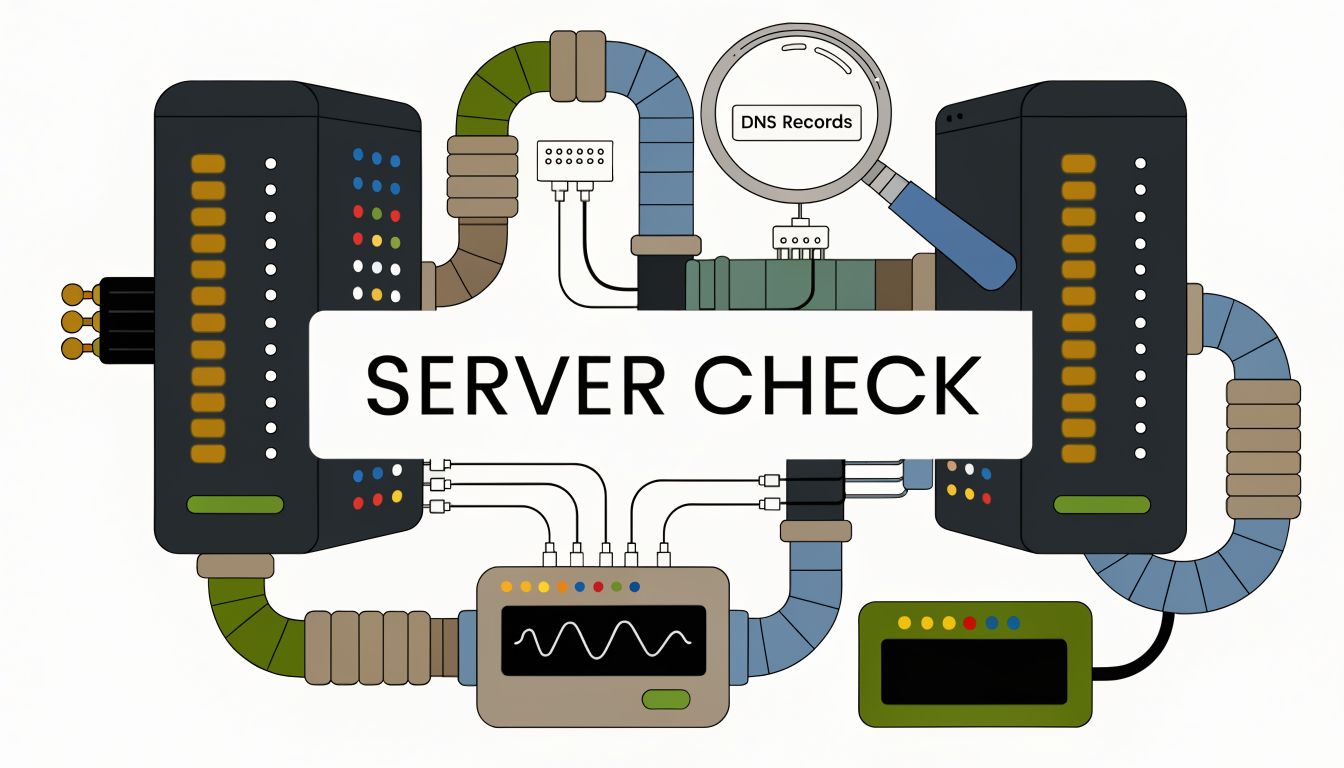
Statistical analysis from APNIC for 2023 to 2025 shows that 52% of dns not responding errors among Australian WordPress sites stem from configuration missteps. Of those, 67% were traced to expired or unrenewed domain registrations at auDA-accredited registrars, with WordPress sites hit hardest due to plugin-induced TTL mismatches, according to this APNIC-based DNS outage summary.
Understand the three records that matter most
You don’t need to memorise the full DNS record set. For most business sites, three record types do the heavy lifting:
A record
This points your main domain to the server destination. If it still points to an old host after a migration, the site won’t resolve correctly.CNAME record
This tells one name to follow another. It’s often used for subdomains such aswww.NS record
This tells the internet which nameservers are authoritative for your domain. If these are wrong, every other record becomes hard to trust.
That last one causes bigger disasters than most owners realise. If the nameservers are incorrect, it doesn’t matter whether the A record in your hosting panel looks perfect. The world may not be looking there at all.
Check what the public internet sees
Open a DNS checker and inspect your domain from outside your own network. You want the external view, not the saved settings you think are active in a dashboard.
Look for these mismatches:
- A recent host migration but old A record still visible
- The
wwwversion works but the root domain fails - Nameservers in the registrar don’t match the DNS provider you are using
- Recent edits not showing because TTL was set too high before the change
A common WordPress pattern is this: the site was moved, the host changed, the content is fine, but the old record or old nameserver is still being served somewhere in the chain.
If you changed hosts recently, assume nothing. Verify the live records from outside your office.
Domain expiry is still one of the biggest culprits
This one is easy to miss because the website itself may look healthy in hosting. The files are there. The database is there. WordPress is there. But if the domain registration expires or fails to renew, visitors can’t find the site.
Check:
- Your registrar renewal status
- Payment method validity
- Registrant contact email
- Whether auto-renew ran
If you use GoDaddy and need a reference point for where DNS settings and nameservers are managed, this guide to GoDaddy DNS server settings helps clarify which panel controls what.
TTL and WordPress plugin side effects
TTL means Time to Live. It tells resolvers how long to cache a DNS answer before asking again. On paper, longer caching reduces repeated lookups. During migrations or urgent fixes, it becomes a liability.
When WordPress sites use aggressive caching setups, owners sometimes change records and then wonder why some customers still reach the old destination. The record was changed correctly, but too many systems were told to hold onto the previous answer for too long.
What usually works:
- Lower TTL before planned changes. Do this ahead of a migration, not after.
- Pause major DNS edits during peak trading. Fewer moving parts means cleaner diagnosis.
- Keep a record of old and new values. This avoids guessing during rollback.
What usually doesn’t work:
- Making repeated edits in frustration
- Changing registrar, host, and proxy settings all at once
- Assuming a plugin setting can’t affect a DNS-related symptom
DNSSEC and reverse DNS edge cases
DNSSEC adds a security layer that helps validate DNS answers. When it’s set correctly, that’s useful. When the trust chain is broken, it can look like the site has disappeared.
Reverse DNS is a separate concept, but it matters for mail, server identity, and technical diagnostics. If your website outage is accompanied by email delivery issues or mail reputation warnings, it’s worth learning how to diagnose and fix reverse DNS mismatches.
These aren’t always the first things to check for a standard business website outage, but they become relevant when the obvious record checks don’t explain the failure.
The WordPress Connection Cloudflare Proxies and SSL
Many Australian WordPress sites sit behind Cloudflare or a similar proxy layer. That setup can improve speed, caching, and security. It also adds another decision point when dns not responding appears.
The important distinction inside Cloudflare is whether a record is proxied or DNS only. In plain terms, the orange cloud means traffic passes through Cloudflare first. The grey cloud means Cloudflare only answers the DNS lookup and sends visitors straight to the origin server. During troubleshooting, that difference matters because it changes where a failure can occur.
When proxy settings create confusion
A proxied record can make a site seem healthier than it is, or more broken than it is, depending on the misconfiguration. If the origin server has SSL issues, redirect problems, or firewall rules blocking the proxy, the browser may show errors that staff interpret as “the DNS is broken”.
This is why a WordPress outage can become messy after a hosting move. The registrar points to one nameserver set, Cloudflare holds the active records, the server has a certificate issue, and the browser only reports a generic failure. Each layer is doing something different.
The Australian outage that proved the point
A widespread DNS outage on 31 October 2024 affected major Australian government websites. The ACSC’s analysis found that 65% of affected sites experienced complete resolution failure due to misconfigured NS records propagated via Cloudflare's global anycast network, highlighting how proxy and DNS interactions can trigger large-scale failures, according to this Australian outage summary.
That event matters because it shows a hard truth. Third-party DNS and proxy services are useful, but they also create dependencies. If nameservers, proxy routing, or related records are wrong, the failure can spread quickly and look bigger than it is.
A proxy is not a problem by default. It’s another layer that has to agree with your registrar, your server, and your SSL setup.
SSL mode and redirect loops
One of the most common WordPress and Cloudflare mistakes is using the wrong SSL mode. If the server certificate and Cloudflare mode don’t match, users can get loops, certificate warnings, or failed requests that feel like DNS trouble because the site never loads cleanly.
Check these points carefully:
- Cloudflare SSL mode matches the server’s real certificate state
- WordPress site URL uses the correct protocol
- Redirect rules aren’t forcing conflicting behaviour
- Caching plugins aren’t preserving old redirect responses
If you’re reviewing certificate coverage across subdomains, this explanation of wildcard SSL certificates is useful background.
TTL, cache, and why changes seem ignored
Cloudflare, browsers, operating systems, and upstream resolvers can all cache outcomes. That’s why owners sometimes make the right change and still see the old result from one device or one suburb.
The practical response is discipline, not speed. Make one change. Confirm where it was made. Wait a reasonable period. Test from a clean device or another network. If you change five things at once, you won’t know which one helped or which one created the next problem.
When You Need an Expert Escalation and Recovery
There’s a point where more tinkering stops being useful. If the site is business-critical, orders are failing, staff are blocked, and you’ve already checked the device, network, registrar, and DNS records, escalation is the smart move.
The main reason is risk. DNS problems reward precision. Random edits to nameservers, proxy settings, SSL modes, or registrar controls can turn a contained outage into a longer one.
What to gather before you hand it over
Support gets faster when you provide clean facts instead of a general description.
Have these ready:
- What exact error appears
- Whether the site fails on one device or multiple
- Whether mobile data can load the site
- Whether other websites fail on the same connection
- Who manages the domain registrar
- Who manages hosting
- Whether Cloudflare or another proxy sits in front
- Any recent changes, such as migration, renewal, plugin updates, or SSL work
That checklist saves time because a developer can immediately narrow the search area.
Why expert help is a business decision
Owners sometimes delay calling in help because they feel they should solve it themselves first. That makes sense for a quick local cache issue. It makes less sense once the outage touches sales, leads, or customer trust.
A senior WordPress support team can usually move faster because they already know where these issues hide. They’ll check the registrar, nameservers, live records, SSL chain, proxy settings, host response, and application behaviour in the right order. They’ll also know when not to touch a setting that only looks suspicious.
The goal isn’t to prove you can fix everything alone. The goal is to get the business reachable again.
If you’ve reached the point where the problem is affecting revenue or reputation, escalation isn’t overreacting. It’s operational discipline.
Frequently Asked Questions About DNS Errors
How long does DNS propagation take
It depends on the record type, the previous TTL, and which resolvers cached the old answer. In practice, some changes appear quickly in one location and much later in another. That’s why a site can work on mobile data but not on office broadband after a change.
The practical lesson is simple. Don’t assume the first successful test means every user sees the same thing. Test from more than one network.
Can malware cause dns not responding errors
Yes, but it’s not the first explanation to jump to. Malware, rogue browser extensions, or security software can interfere with network settings, redirect requests, or change resolver behaviour on a device. That can produce symptoms that look like a DNS outage even when the domain itself is healthy.
If one staff laptop has the issue and no other device does, suspect the machine before the website.
What’s the difference between dns not responding and server not found
They’re related but not identical. dns not responding usually means the lookup process failed before the browser could find the destination. Server not found can mean the same thing, but it can also appear in slightly different browser contexts depending on how the request failed.
The distinction matters less than the testing order. Check whether the problem is local, provider-related, or domain-related before you interpret the wording too strictly.
If your WordPress site is still down, Webby Website Optimisation can step in with practical support, emergency recovery, managed hosting help, and ongoing maintenance for Australian businesses that need their site stable, secure, and back online quickly.
If this post raised some questions feel free to ask me a question
Trackbacks/Pingbacks