
You log into your WordPress site for a quick check, or a customer messages to say they can’t open your homepage, and Chrome throws up “Your connection is not private”. It feels serious because it looks serious. For most Australian business owners, it lands right in the middle of a workday when you don’t have time for browser warnings, certificate jargon, or a hosting panel you only open twice a year.
The good news is that this error is usually fixable with a calm, methodical process. The bad news is that guessing often makes it worse. I’ve seen site owners clear the wrong cache, toggle random CDN settings, or reinstall plugins that had nothing to do with the problem while the actual issue was a certificate renewal that failed unnoticed.
This guide is a practical your connection is not private fix for WordPress sites, written for Australian setups. That means common cPanel hosting, Plesk, Let’s Encrypt, Cloudflare, domain changes between non-www and www, and the kind of WordPress maintenance gaps that happen when the website “just works” until one day it doesn’t.
What 'Your Connection Is Not Private' Really Means
This warning appears when a browser cannot confirm that your site is the site it claims to be. The connection may still reach your server, but the trust check fails, so Chrome, Safari, Edge, and Firefox interrupt the visit before the page loads normally.
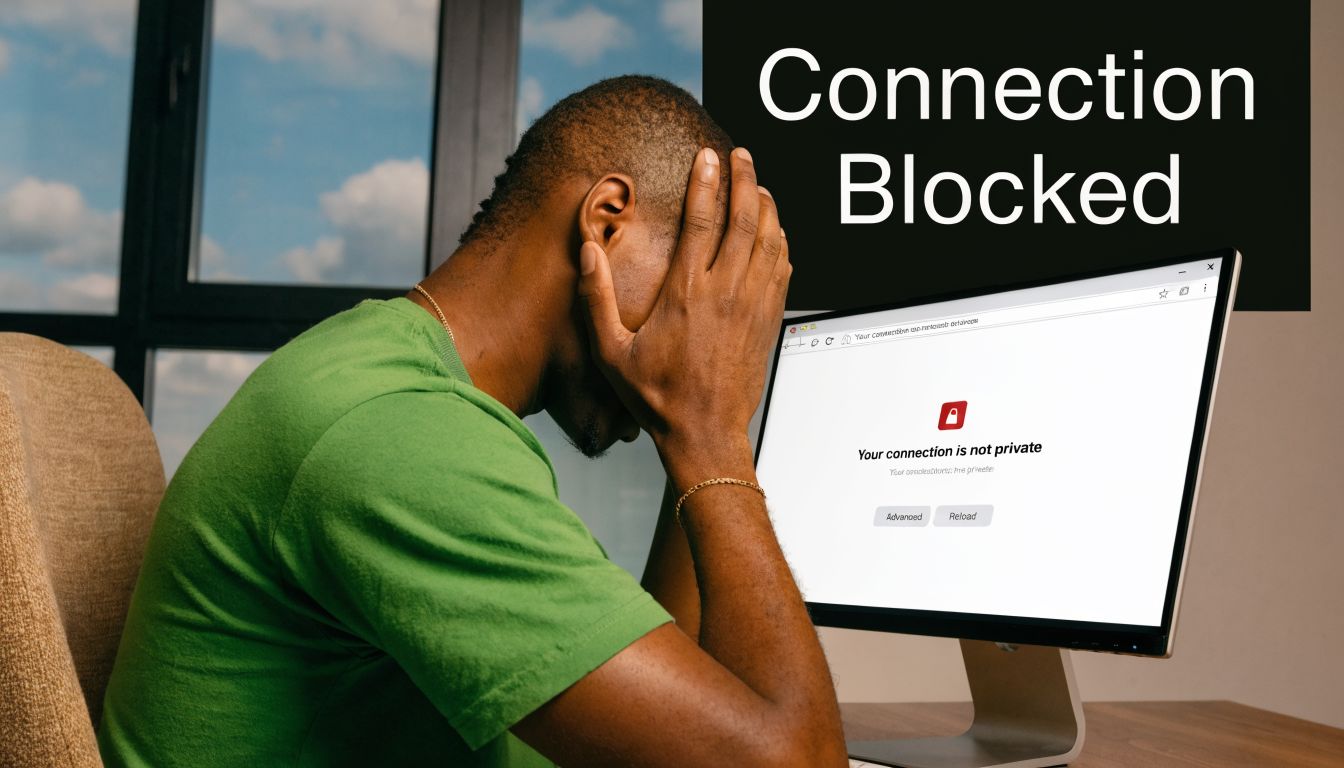
For WordPress site owners, that distinction matters. I see plenty of Perth business owners assume the site has been hacked because the warning looks severe. In practice, the fault is often far less dramatic. An expired certificate, a hostname mismatch, a broken renewal job, or a CDN setting that conflicts with the hosting server will produce the same browser warning.
What the browser is checking
Every HTTPS site depends on an SSL certificate that proves the domain has a valid, trusted identity. When someone visits your site, the browser checks four things:
- The certificate is valid and has not expired
- The domain matches the address being visited
- The certificate chain is trusted by the browser
- The server is presenting the correct certificate for that domain
If one of those checks fails, the browser treats the connection as unsafe and shows the warning page.
What this error usually points to
This is a trust problem first. It is not a reliable sign of malware on its own.
That matters because the fix depends on where trust breaks. On Australian hosting setups, I commonly see this after a site migration between cPanel accounts, a move from non-www to www, a Cloudflare proxy switch, or a Let’s Encrypt renewal that stopped running after a DNS change. On some budget shared hosts, the certificate is valid on the server but not attached to the right virtual host, so one domain shows fine while another throws an error.
A summary published by Uptime Web Hosting notes that unverified HTTPS connections continue to affect Australian small and medium businesses, with Western Australian firms seeing a noticeable increase in reported issues. That lines up with what we deal with at Webby. The websites are rarely beyond repair, but they do lose enquiries and sales fast when visitors hit a red warning screen.
Why WordPress owners run into it so often
WordPress is often adjacent to the problem, not the source of it. The issue usually sits in hosting, DNS, SSL provisioning, or CDN configuration.
| Common trigger | What broke |
|---|---|
| Certificate expiry | The browser no longer trusts the HTTPS connection |
| Wrong domain setup | The certificate does not match the visited address |
| Hosting migration | SSL was not reinstalled or reissued correctly |
| CDN mismatch | Visitors receive conflicting HTTPS behaviour |
| Mixed content | Secure pages still request insecure files |
For Australian business sites, especially WooCommerce stores and lead generation sites, this error is stressful because it blocks trust before a visitor reads a single word. If your site runs through Cloudflare, uses a host like VentraIP or cPanel-based shared hosting, and has changed domains or DNS records in the past year, there is usually a clear technical cause. The job is to isolate it properly, then fix the certificate path, server setup, or HTTPS configuration that failed.
Quick Fixes Every Site Owner Should Try First
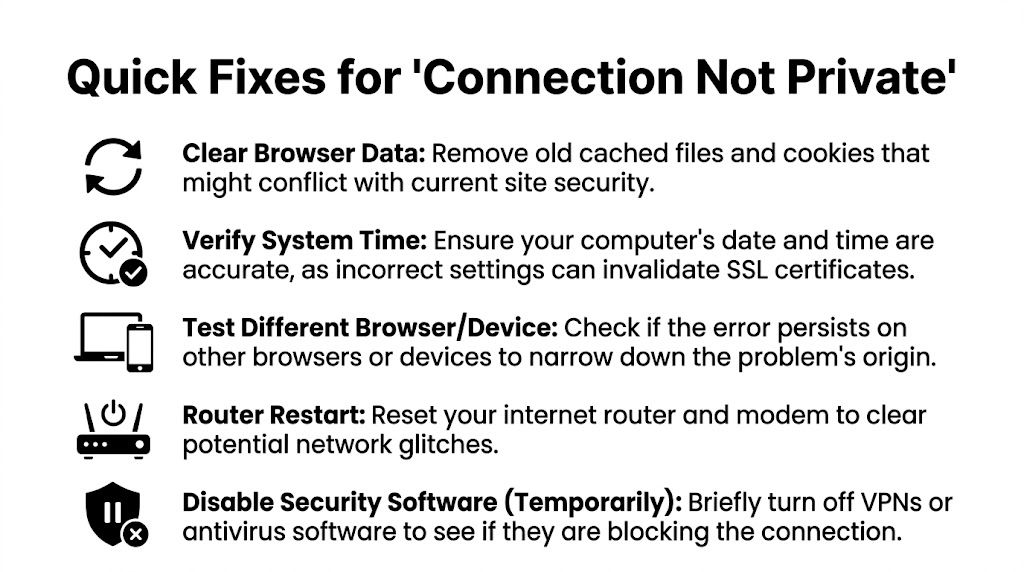
Before touching your hosting account, test whether the problem is on your side. A surprising number of “my site is broken” reports come from one device, one browser profile, one antivirus product, or one office network.
Start with isolation, not repair
The first job isn’t fixing anything. It’s working out where the failure lives. If you skip that step, you can waste an hour inside WordPress when the underlying issue is local.
Run through these checks in order:
Open the site in a private window
Use Incognito in Chrome or Private Browsing in Safari. If the site opens there, cached data, extensions, or browser profile settings are likely involved.Check your device clock
A wrong date, time, or time zone can invalidate certificate checks. This is common on laptops that haven’t synced properly after travel or long sleep periods.Clear browser cache and cookies
Don’t do this first out of habit. Do it after the private window test. If private mode works and the standard browser doesn’t, clearing saved site data is a sensible next step.Try another browser
Test Chrome, Edge, Firefox, or Safari. If one browser fails and another works, the issue may be certificate caching, a browser extension, or browser-specific trust behaviour.Switch networks
Turn off office Wi-Fi and test from mobile data. Public Wi-Fi, business firewalls, VPNs, and content filters can interfere with certificate validation.
What each result tells you
Here, site owners save time. The pattern matters more than the panic.
Only your device shows the warning
The problem is probably local. Focus on the browser, operating system, antivirus, VPN, or date/time settings.Every device on one network shows the warning
Look at the router, office filtering, captive portal, or network inspection software.Different devices on different networks all show it
That points strongly to a server-side or CDN-side SSL problem.
If a customer reports the warning and you can’t reproduce it, ask them what browser and network they’re using before changing anything on the server.
A short triage checklist for business owners
Use this as your quick rule-out list before escalating:
- Private window first: It quickly separates browser-profile issues from wider certificate problems.
- Another device second: A phone on mobile data is often the fastest clean test.
- Disable VPN briefly: Only on a trusted connection, and only long enough to test.
- Restart the router if needed: Small office network gear gets stuck more often than people think.
- Update the browser: An outdated browser can fail on newer certificate chains.
What not to do yet
A few moves often create extra confusion:
| Avoid this early step | Why it’s a bad first move |
|---|---|
| Reinstalling WordPress | The issue usually isn’t in WordPress core |
| Deleting security plugins | Most aren’t causing certificate validation failures |
| Changing random HTTPS settings | You can create redirect loops or mixed-content issues |
| Reissuing certificates blindly | You may replace a working certificate while missing the real cause |
If these quick tests show the issue is broader than one device, stop troubleshooting locally and inspect the certificate on the server itself.
Solving SSL Certificate Problems on Your Server
A server-side SSL fault usually shows up at the worst time. A Perth retailer launches an EOFY campaign, customers click through from Google, and Chrome throws a red warning instead of the product page. In that moment, the problem is rarely WordPress itself. It is the certificate your server is presenting to the browser.
On Australian hosting, I see the same pattern over and over. The certificate was set to auto-renew in cPanel, Plesk, or a managed hosting panel, someone assumed it was handled, and the live site started serving an expired, mismatched, or incomplete certificate. That is why the first job is to inspect the certificate on the public site, not trust what the hosting dashboard says should be there.
Check the certificate before changing anything
Use an SSL checker against the live domain and test both the www and non-www version if your business uses both. The browser only cares about what it receives in real time.
A proper check will usually point to one of these issues:
- Expired certificate
- Wrong hostname on the certificate
- Incomplete certificate chain
- Certificate installed on the wrong virtual host
- A mismatch between
wwwand non-www - A self-signed or untrusted certificate
If you want a plain-English primer first, this overview of understanding SSL/TLS technology explains what the browser and server are validating during a secure connection.
The certificate faults I see most often
Expired certificate
This is still the most common failure. The site looked fine yesterday, then starts failing this morning because the expiry date has passed.
What works:
- Renew the certificate in your hosting panel
- Confirm the renewed certificate is attached to the live domain
- Test the public site again after renewal
What wastes time:
- Waiting for the browser to sort itself out
- Toggling WordPress plugins
- Assuming auto-renew also means auto-install
Domain mismatch
The certificate can be valid and still fail if it covers the wrong hostname. I see this after redesigns, migrations, and rushed DNS changes.
Typical examples include:
- the certificate covers
www, but the site redirects to non-www - the main domain is covered, but a subdomain is not
- the site moved off a staging domain and SSL was never finished properly
The fix is to line up the certificate coverage, WordPress Address, Site Address, and your redirect rules. If one of those points to a hostname the certificate does not cover, the warning stays.
Incomplete or broken chain
This one catches site owners because the certificate can look installed in the panel and still fail in the browser. The server sends the main certificate but misses one or more intermediate certificates required for trust.
That happens more often after manual installs, host migrations, or switching from a paid certificate to Let’s Encrypt. Some browsers are forgiving. Others are not. That is why one customer may report the warning while another says the site loads normally.
Renewing Let’s Encrypt on Australian hosting
Let’s Encrypt is common across cPanel, Plesk, VentraIP-style shared hosting, and managed WordPress platforms used by Australian businesses. It is a good option, but only if renewal and installation both complete properly.
If you’re on cPanel
Open the SSL or security area and check the domain’s current certificate status. Depending on the host, the button may be labelled Run AutoSSL, Renew, or Reissue.
Then verify these points:
- The domain resolves to the right server
- Both
wwwand non-wwware included if both are used - The renewed certificate is bound to the active site
- The live site serves the new certificate, not just the panel record
If you’re on Plesk
Plesk usually stores certificate settings under the domain hosting configuration. Reissue the Let’s Encrypt certificate and make sure it is assigned to the correct domain, aliases, and any active subdomains. Then test the public URL, because Plesk can show a valid certificate while a reverse proxy or old vhost config is still serving the wrong one.
If renewal keeps failing
The cause is usually one of a few practical issues:
- the domain points to old DNS
- the host cannot complete domain validation
- redirect rules interfere with the challenge
- the certificate was issued, but not attached to the live site
- a CDN or proxy is still serving a different certificate
Paid commercial certificates
Some Australian businesses still use paid SSL certificates through GoDaddy, enterprise hosting, or older agency setups. They can work fine, but they do not remove the same failure points. You still need the right hostname coverage, the full certificate chain, and a correct installation on the live server.
If that is your setup, this guide on fixing a GoDaddy SSL certificate on WordPress covers the provider-specific steps. The underlying checks stay the same.
A server-side checklist I’d use before touching WordPress
| Check | Healthy result | Problem result |
|---|---|---|
| Expiry date | Certificate is current | Certificate has expired |
| Hostname | Matches the live domain exactly | Covers a different host |
| Chain | Full trust path is present | Intermediate certificate missing |
| Active install | Live site serves the expected certificate | Panel shows one cert, site serves another |
| Redirect target | Final URL is covered by the cert | Redirect lands on an uncovered hostname |
When a warning appears on multiple devices, this table usually gets you to the cause faster than changing WordPress settings. At Webby, we see site owners lose hours inside plugins and .htaccess when the problem is sitting one layer higher on the server.
Navigating CDN and Cloudflare-Specific Errors
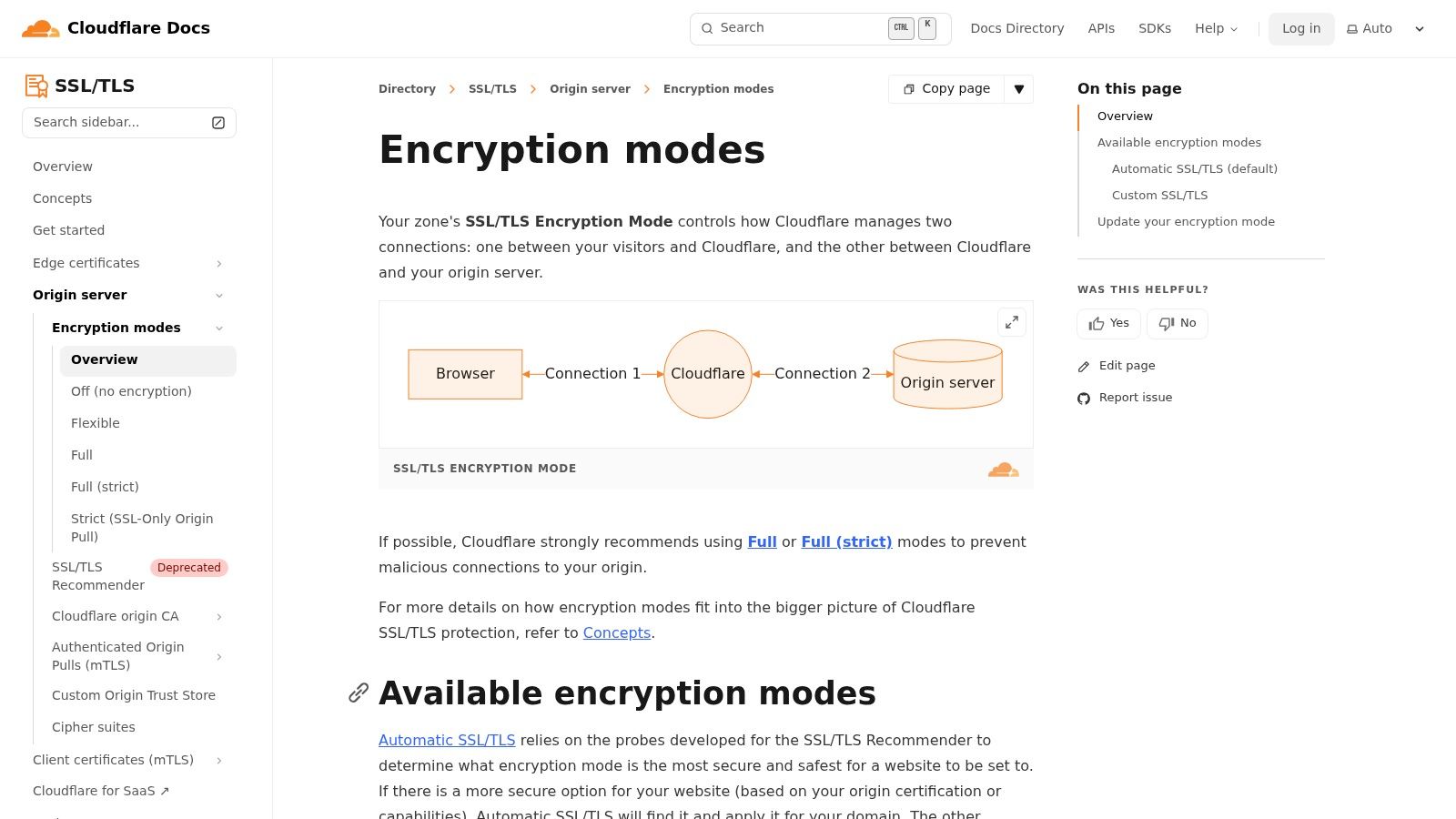
Cloudflare changes the troubleshooting path because there are now two connections to think about. One is between the visitor and Cloudflare. The other is between Cloudflare and your origin server. If those two layers aren’t aligned, your site can produce a browser warning even when the certificate inside your hosting panel looks fine.
Why Cloudflare confuses site owners
A lot of WordPress sites use Cloudflare for caching, basic protection, and faster delivery across Australia. That’s useful, but it adds another settings layer that many owners only touch once during setup. Months later, after a hosting migration or SSL change, the Cloudflare mode is still set for the old environment.
The most common source of trouble is the SSL/TLS encryption mode.
What the encryption modes actually do
Here’s the practical version:
| Cloudflare mode | Visitor to Cloudflare | Cloudflare to origin | Suitability |
|---|---|---|---|
| Flexible | HTTPS | HTTP | Weak for modern WordPress setups |
| Full | HTTPS | HTTPS | Better, but origin cert may still be loosely validated |
| Full (Strict) | HTTPS | HTTPS with valid cert check | Best option for most live business sites |
Flexible causes problems because Cloudflare talks securely to the visitor but not properly to your server. That mismatch can create redirects, insecure requests, and trust issues that are painful to diagnose from the WordPress side.
Full (Strict) is usually the right target. It means Cloudflare expects a valid certificate on the origin server as well, which is how the setup should work on a real production site.
If your site only works when Cloudflare is set to Flexible, that usually means the origin server still has an SSL problem that hasn’t been fixed properly.
How to test whether Cloudflare is the issue
A simple way to isolate the layer is to pause Cloudflare briefly or bypass its proxying for a controlled test. If the warning disappears when traffic goes directly to the host, the CDN layer is involved. If the warning remains, the origin server still has the problem.
Before changing anything, note down:
- current SSL/TLS mode
- any page rules or redirect rules
- whether Always Use HTTPS is enabled
- whether Automatic HTTPS Rewrites is enabled
These settings can interact in messy ways on WordPress sites that already have their own redirect logic.
A practical Cloudflare diagnosis sequence
First check the SSL mode
Go straight to SSL/TLS settings and confirm whether the domain is set to Full (Strict), Full, or Flexible. If the host has a valid certificate and the mode is still Flexible, change that first.
Then inspect redirect behaviour
WordPress, your host, and Cloudflare can all force HTTPS. If more than one layer is doing it badly, you can end up with loops or non-matching hostnames. Test both http and https, with and without www, and watch where each version lands.
Finally review DNS proxying
If only some records are proxied through Cloudflare and others are not, visitors can end up hitting different paths depending on the hostname. That can make the warning seem random.
If DNS behaviour looks suspect, this guide to fixing DNS not responding issues is a useful companion because SSL symptoms and DNS symptoms often arrive together after domain or hosting changes.
What works and what usually doesn’t
What works
- Set Cloudflare to Full (Strict) once the origin certificate is valid
- Keep hostname usage consistent across WordPress, DNS, and redirects
- Pause Cloudflare briefly to isolate the problem layer
- Re-test after each single change
What doesn’t
- Flipping multiple Cloudflare toggles at once
- Leaving Flexible enabled as a permanent workaround
- Assuming a green certificate in hosting means Cloudflare is happy
- Diagnosing from one browser tab without checking redirect paths
A lot of Cloudflare fixes are really about discipline. Change one setting, test, confirm, then move on. The owners who get stuck are usually the ones who alter SSL mode, page rules, HTTPS rewrites, and WordPress URLs all in the same five minutes.
Hunting Down Mixed Content and HSTS Issues
Sometimes the certificate is valid, Cloudflare is configured properly, and the site still behaves as insecure. That’s when I start looking at the page itself rather than the certificate layer.

Mixed content is a page-level trust problem
A page can load over HTTPS and still call insecure assets over HTTP. Common examples are:
- hard-coded image URLs in old page builder content
- script files loaded from an old plugin setting
- CSS or font files pointing to an outdated address
- theme options saved before the site was moved to HTTPS
Browsers don’t like that because the page claims to be secure while parts of it are not.
How to find it in a real WordPress site
Open the page in Chrome, right-click, choose Inspect, then look at the Console tab. Mixed content warnings are usually listed clearly, including the specific file or URL causing the problem.
Work through the findings in this order:
Check WordPress Address and Site Address
They should both use HTTPS and the correct preferred hostname.Inspect theme and plugin settings
Old logos, tracking scripts, custom CSS, and embedded resources often hold stale HTTP links.Run a database search-replace carefully
Better Search Replace is commonly used for this. Search forhttp://yourdomainand replace it withhttps://yourdomain, but always back up first and preview the changes where possible.Check hard-coded template files
Custom themes and older child themes sometimes contain direct HTTP references in header, footer, or template parts.
For businesses that are still standardising their HTTPS setup, this article on whether you should move your WordPress website to HTTPS helps clarify the broader WordPress side of the change.
Mixed content often survives site migrations because the homepage looks fine while product pages, blog posts, or old landing pages still reference insecure assets.
HSTS can keep a bad state alive
HSTS stands for HTTP Strict Transport Security. It tells browsers to only ever use HTTPS for a site. That’s good when the SSL setup is healthy. It’s painful when the setup breaks, because the browser remembers the strict rule and won’t casually fall back.
If you fixed a certificate issue but one browser still insists the site is unsafe, HSTS may be why. The browser could be caching a strict policy from the earlier broken state.
A good walkthrough can help when you want to utilize automated scanning tools like OWASP ZAP to surface insecure requests and header-related issues beyond what you catch manually in DevTools.
Practical HSTS checks
Look for these signs:
- one browser keeps failing while a fresh device works
- the site broke after a certificate expiry and still won’t load normally
- development or staging domains were given strict HTTPS headers by mistake
Use browser security details and response header checks to confirm whether HSTS is being sent. If it is, make sure the live certificate and redirect rules are now fully correct before expecting browsers to trust the site again.
This short video gives a helpful visual overview of diagnosing certificate and browser trust problems:
What usually resolves stubborn cases
| Issue | Best fix |
|---|---|
| Old HTTP media links | Database search-replace and theme setting updates |
| Insecure third-party script | Replace with HTTPS version or remove it |
| HSTS after SSL breakage | Correct SSL first, then retest with fresh browser state |
| Legacy page builder content | Edit affected pages individually if needed |
This is the stage where patience matters. Mixed content and HSTS issues are rarely dramatic. They’re fiddly. One old image path, one script include, or one remembered browser policy can keep the site looking broken after the main certificate issue is already solved.
Proactive Maintenance to Prevent Future Errors
A private connection warning rarely starts on the day it appears. In most cases, the setup has been drifting for weeks. A certificate renewal fails, unnoticed, DNS gets changed during a migration, Cloudflare is updated by one person while hosting is managed by another, or a staging domain is left with live rules. Then a customer in Perth, Sydney, or regional WA opens the site on a Monday morning and gets the browser warning first.
That is why prevention matters. For Australian WordPress site owners, especially those running on cPanel hosting, managed VPS stacks, VentraIP, Digital Pacific, SiteGround, or Cloudflare in front of local hosting, SSL health needs to be part of normal site care, not a once-a-year task.
What prevention looks like in practice
At Webby, we keep this simple. The goal is to reduce the number of moving parts that can fall out of sync.
- Monitor certificate status, not just uptime: A site can load and still present the wrong certificate, an expired certificate, or a hostname mismatch.
- Keep one clear record of DNS, hosting, and CDN settings: SSL problems often show up after domain updates, nameserver changes, or server moves.
- Choose one preferred domain format: If the business uses
www, keep WordPress Address, Site Address, redirects, certificates, and CDN rules aligned towww. The same applies if you use the non-wwwversion. - Check the site after every infrastructure change: New host, new CDN rule, new email routing, new payment gateway, or a copied staging site can all affect HTTPS trust.
- Document who manages what: If the domain is with one provider, DNS with another, hosting somewhere else, and Cloudflare on a separate login, someone needs a clear map of the setup.
Small checks prevent big headaches.
Good hosting helps. It does not remove responsibility.
Many Australian hosts offer free SSL and auto-renewal. That is useful, but it does not guarantee the live site is serving the right certificate on the right hostname. I have seen renewals complete successfully in the control panel while the site still delivered an old certificate chain, or while www worked and the root domain failed.
The risk is bigger on business sites with enquiry forms, bookings, member logins, or WooCommerce checkouts. If the warning appears on a service page, you lose trust. If it appears at checkout, you lose revenue straight away.
The maintenance mindset that works
Proactive maintenance means checking the whole path, not one box in isolation. Certificate validity, DNS records, redirect rules, CDN SSL mode, renewal jobs, and WordPress URL settings all need to agree with each other.
For most business owners, the practical answer is a recurring maintenance process. Monthly checks are usually enough for stable sites. Sites with frequent plugin changes, multiple subdomains, custom DNS rules, or active marketing campaigns need more attention. That is the trade-off. Less oversight costs less in the short term, but it increases the chance that the browser becomes the first alert system.
The better outcome is boring. The certificate renews on time, Cloudflare stays in the right mode, redirects keep working, and customers never see the warning at all.
Frequently Asked Questions
Can this warning hurt SEO
Yes. If search engines or users hit certificate warnings, the site sends poor trust signals and creates access issues. The more immediate problem is user behaviour. People bounce fast when a browser says the site may be unsafe, and that weakens the value of your traffic.
Why does the site work for me but not for customers
Usually because you’re not all seeing the same path. One person may have a cached version, a different DNS result, a different browser trust state, or a different network. That’s why testing across devices and networks matters before assuming the issue is gone.
How long does a proper fix take
It depends on the cause. A simple certificate renewal can be quick. A hostname mismatch, CDN conflict, or mixed content cleanup can take much longer because you need to test each layer properly. The main delay usually comes from diagnosis, not the click that applies the final fix.
Is it safe to click through the warning on my own site
For testing, sometimes site owners do. For normal use, it’s a bad habit. If the browser can’t verify the connection, treat that as a live trust problem until proven otherwise.
Does this always mean the certificate expired
No. Expiry is common, but not the only cause. Domain mismatch, incomplete installation, Cloudflare mode conflicts, mixed content, HSTS, antivirus interception, and local device issues can all trigger similar warnings.
Should I use a plugin to force HTTPS
Only after the certificate and server setup are correct. A plugin can help tidy redirects or URLs, but it won’t fix a broken certificate. Used too early, it can hide the underlying problem or create redirect confusion.
If you’d rather have this fixed properly than spend hours tracing certificates, redirects, and hosting settings, Webby Website Optimisation provides Perth-based WordPress help and support for Australian businesses. If your site is showing a privacy warning, running inconsistently across devices, or you want ongoing maintenance so it doesn’t happen again, Webby can step in, diagnose the actual cause, and get your WordPress setup stable.