
You open your website to check a product page, a contact form, or the morning’s orders, and the whole site is gone. Instead of your homepage, WordPress shows a blunt message: error establishing database connection.
That message feels worse than it looks. It’s vague, it stops everything, and it usually appears when you least need it. If you’re running ads, taking bookings, or relying on WooCommerce sales, every minute offline matters.
That Sinking Feeling When Your Website Disappears
For most business owners, this starts with confusion before panic. The site was working yesterday. Nobody touched anything obvious. Then the homepage vanishes, the admin area won’t load properly, and your first thought is usually, “Has the whole site been hacked?”
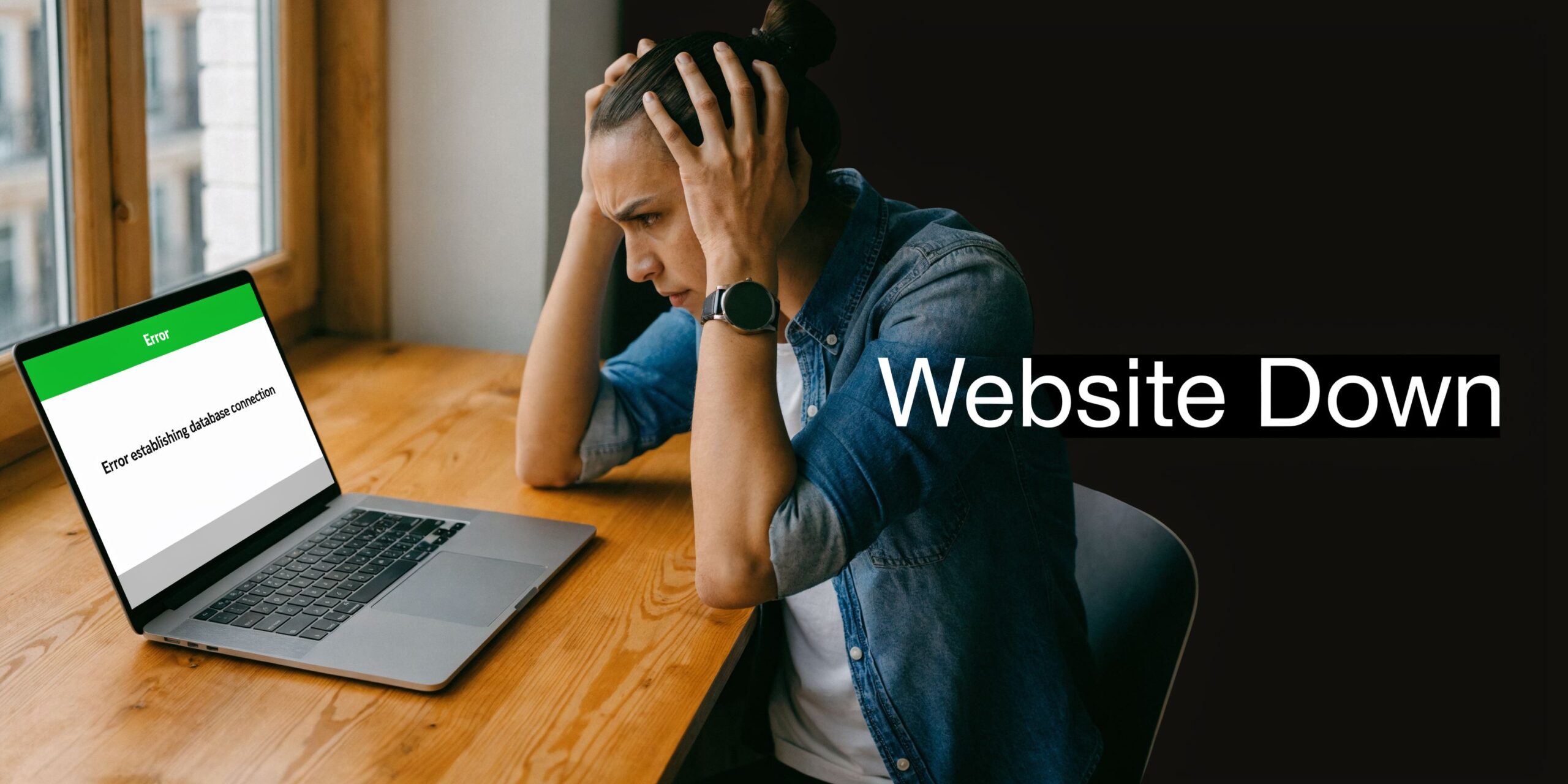
In plain English, WordPress can’t talk to the database that stores your content, settings, users, and shop data. When that connection breaks, WordPress has nothing useful to display.
This isn’t a fringe problem. In Australia, where WordPress powers a significant percentage of websites, the error establishing a database connection is the second most frequent WordPress outage cause for SMBs, affecting 28% of downtime incidents. It also rose 35% year over year in FY2024, alongside a 52% increase in WordPress adoption among e-commerce stores, according to Kinsta’s report on the database connection error.
That matters because this error often appears in very ordinary situations. A hosting migration. A password change. A plugin update. A busy shared server in the middle of the day. Sometimes it’s a database issue. Sometimes it isn’t. The message is the symptom, not the diagnosis.
If you’re in a panic, slow down for a minute. This problem is usually fixable. It’s also easy to make it worse by changing five things at once.
The fastest recoveries usually come from a calm, narrow diagnosis, not frantic guessing.
Also rule out the obvious. I’ve seen owners chase a database problem for an hour when the issue was a separate admin or billing failure, including expired services. If there’s any chance a related service lapsed, check this guide on a domain name expired issue.
Your First Response Quick Checks Before You Panic
Don’t open wp-config.php yet. Don’t reinstall WordPress yet. First, work out whether you’re dealing with a local viewing problem, a host-wide incident, or a genuine site-level fault.
Check what’s broken
Start with three simple checks.
- Load the homepage and one inner page: Try the home page, a product page, and your contact page. If every URL shows the same error, that points to a broader connection failure.
- Open
/wp-admin/: Sometimes the front end and admin behave differently. If the admin area shows a database repair prompt or a related error, that gives you a better lead. - Try another device or network: Use mobile data or ask a colleague in another location. This helps rule out a browser cache, office firewall issue, or local network oddity.
If the site is mission-critical, take screenshots of what you see before making changes. That helps later if you need your host or a specialist to compare symptoms.
Check your hosting account before touching files
Log in to your hosting dashboard and look for anything obvious:
- Service notices: Many hosts post active incidents on a status page or support page.
- Account alerts: Suspensions, failed billing, or exceeded resource limits can trigger messy site failures.
- Backups: Before changing credentials or repairing tables, make sure you know where the latest usable backup lives.
If you don’t already have a backup routine you trust, keep this WordPress backup guide handy. It’s much easier to troubleshoot when you know you can roll back cleanly.
Write down the last change
This matters more than many realise. Ask yourself:
| Question | Why it matters |
|---|---|
| Did the site move hosts recently? | Credential and hostname mismatches are common after migrations. |
| Was a plugin or theme updated? | Some updates trigger file corruption, query problems, or server strain. |
| Did someone change a database password? | A valid site can fail instantly after a credential change. |
| Is the host having a rough day? | Shared hosting outages can present as database errors even when your files are fine. |
Practical rule: If you don’t know the cause yet, make one change at a time and test after each change.
What not to do in the first ten minutes
A few moves regularly turn a manageable outage into a longer one.
- Don’t restore an old backup immediately: You can wipe newer orders, enquiries, or content if the issue is only a credential mismatch.
- Don’t update plugins while the site is down: That adds another variable and can muddy the logs.
- Don’t paste random code from forums: Some snippets are harmless. Some expose repair tools or create a security hole if left in place.
These quick checks won’t fix the issue on their own. What they do is stop you wasting time on the wrong branch of the problem tree.
Diagnosing the Root Cause of the Database Connection Error
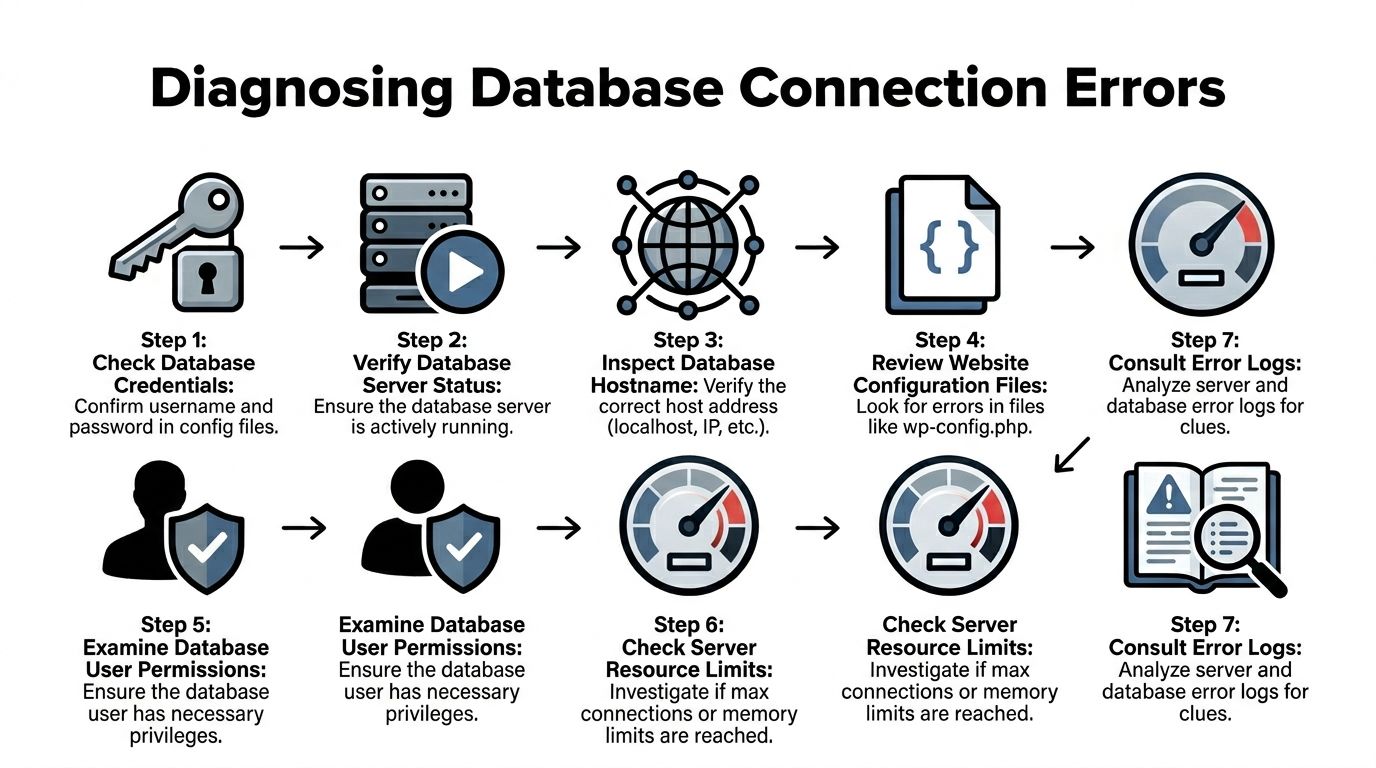
Once the basic checks are done, move into diagnosis. The goal here is simple. Find out whether WordPress has the wrong database details, whether the database server itself is unavailable, whether permissions are broken, or whether the database or core files are damaged.
In Australian shared hosting, the most common culprit is still configuration. The error establishing a database connection comes from incorrect DB credentials in wp-config.php 65% of the time, and a methodical check in cPanel resolves 85% of those cases within 5 minutes, according to this troubleshooting reference on checking WordPress database credentials in Australian hosting environments.
Start with wp-config.php
This file sits in the WordPress root and tells WordPress how to connect to MySQL. You’re checking four values:
- DB_NAME
- DB_USER
- DB_PASSWORD
- DB_HOST
Open wp-config.php in File Manager, SFTP, or your preferred code editor. Then compare those values against what your hosting panel shows in cPanel and phpMyAdmin.
What often goes wrong in Australian hosting setups is DB_HOST. Many site owners assume it must always be localhost. Sometimes it is. Sometimes a migration, a different database server, or a host-specific setup means it isn’t.
If the database name, username, or password differs even slightly, WordPress won’t connect. This includes small mistakes caused by copied values, hidden spaces, or an old password that was changed in cPanel but never updated in WordPress.
Use a clean verification process
Don’t trust memory. Verify every field from the source.
A simple workflow:
- Open cPanel or the host dashboard
- Find MySQL Databases or a similar database management area
- Confirm the database name and assigned user
- Open phpMyAdmin to confirm the database exists
- Compare each value line by line with
wp-config.php - Save the corrected file
- Reload the site and
/wp-admin/
If the password is unknown, reset it in the hosting panel and then update wp-config.php immediately to match.
If a site broke right after a migration, I check credentials before anything else. That’s the shortest path to a fix more often than people expect.
Test whether the database server is reachable
If the credentials look correct, the next question is whether WordPress can reach MySQL at all.
Create a temporary PHP test file using the host’s File Manager or SFTP and use a simple mysqli_connect('localhost', 'user', 'pass') style test with your actual values. If it returns an access denied error, the issue is likely credentials or privileges. If it can’t connect at all, the database service may be down or unreachable.
This step separates a WordPress problem from a database server problem. That distinction saves time.
You can also use phpMyAdmin as a quick clue:
- If phpMyAdmin loads and shows your tables, the database server is likely running.
- If phpMyAdmin won’t connect, the host may have a MySQL service issue.
- If the database exists but the user can’t access it, you may have a permission or assignment problem.
Check database user permissions
A database can exist and still fail if the assigned user no longer has the right privileges.
This happens after migrations, partial restores, or manual account changes. In cPanel, check that the intended database user is attached to the correct database. If the user isn’t assigned, WordPress will keep throwing a connection error no matter how correct the password looks.
Look for obvious mismatches:
| Symptom | Likely issue |
|---|---|
| Database exists, but WordPress won’t connect | Wrong user, wrong password, or missing privileges |
| phpMyAdmin opens, but the expected tables aren’t there | Wrong database selected in wp-config.php |
| Connection test says access denied | Password or permission problem |
| Site failed after a host move | DB host mismatch or migrated credentials not updated |
Check whether the server is overloaded
On shared hosting, a database connection error can be a resource problem disguised as a configuration problem. Busy servers, exhausted connections, or a host-side MySQL restart can all produce the same front-end message.
Look in the hosting panel for:
- Resource usage spikes
- MySQL service notices
- Recent account limitations
- Concurrent connection issues
If you’re on VPS or managed infrastructure, check the MySQL error log and system health. If max_connections is being exhausted, WordPress may fail intermittently, especially under load from WooCommerce, imports, or aggressive plugins.
If you want a deeper background on that side of things, this explainer on mastering database performance tuning is a useful companion once the site is stable again. It helps frame why a database can look fine one hour and then fail under load the next.
Look for corruption and broken files
If credentials and server access are fine, move to integrity checks.
Database corruption does happen. So do damaged core files. A failed update, interrupted write process, plugin conflict, or server interruption can leave WordPress unable to complete normal queries.
Common signs include:
- The front end shows the connection error, but admin shows a database repair message
- The issue started immediately after an update
- Error logs mention specific tables
- The site partly loads, then fails
At that point, check whether the core WordPress files are intact. Re-uploading a clean copy of WordPress core files can help if the issue is file-related rather than database-related. Don’t overwrite wp-content or wp-config.php. Replace only the standard core directories and files.
Read the logs before guessing
Error logs tell you whether you’re dealing with credentials, permissions, overload, or corruption.
On cPanel hosting, check the account’s error log and any MySQL-related log access available. On VPS or managed servers, inspect the web server and MySQL logs directly.
You’re looking for patterns such as:
- access denied
- unknown database
- too many connections
- table marked as crashed
- server has gone away
Those messages change the repair path completely. Guessing from the front-end error alone wastes time.
A practical order that works
When a business site is down, this is the order I’d use:
- Confirm it’s not a local viewing issue
- Check host status and account status
- Verify
wp-config.phpagainst cPanel - Test direct database connectivity
- Confirm the user has the right database privileges
- Inspect resource usage and service health
- Review logs
- Only then move to repair or restore steps
That sequence avoids the two big traps. Restoring too early, and tinkering randomly.
Actionable Fixes and Emergency Recovery Options
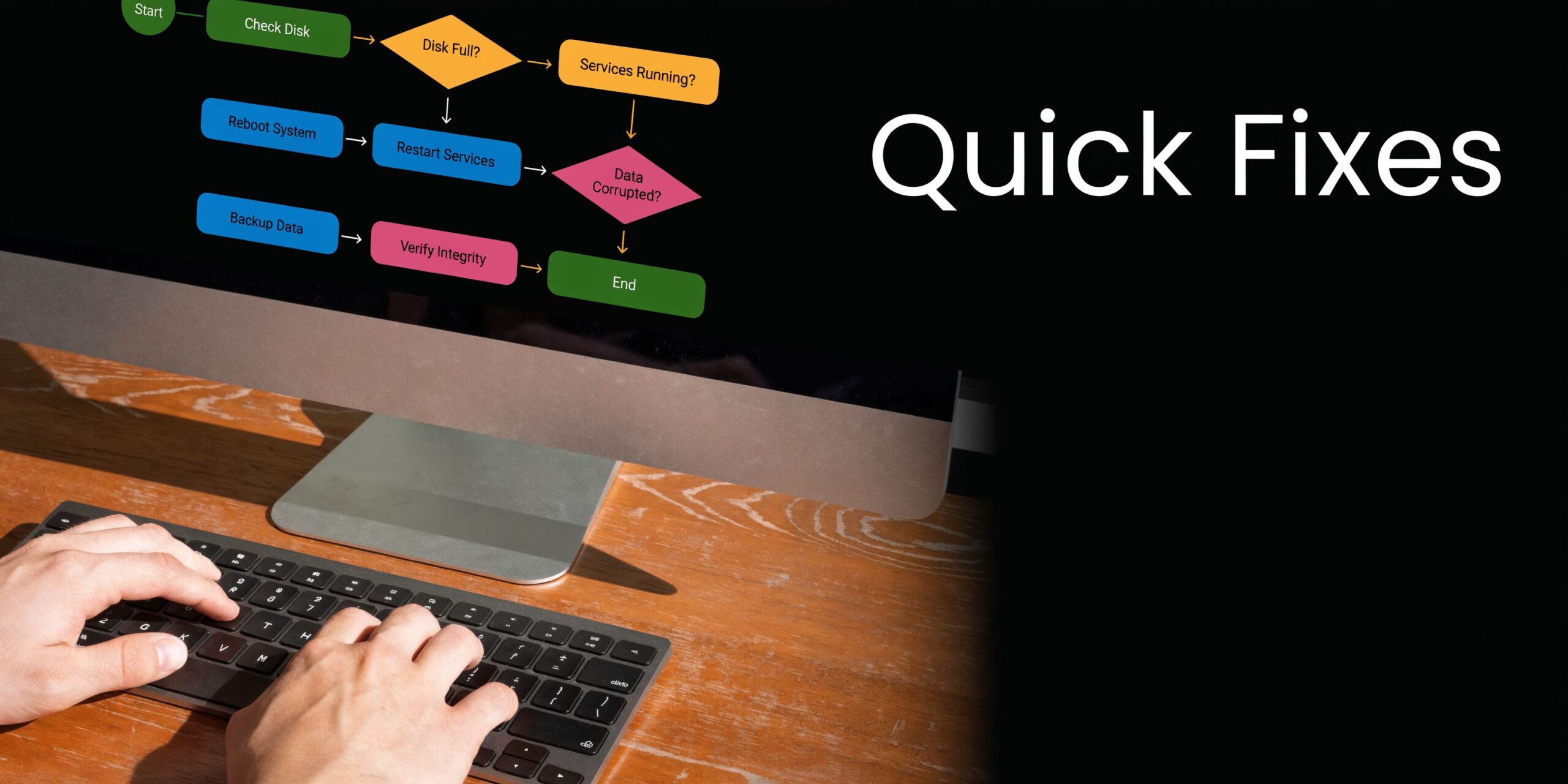
Once you know the likely cause, the repair path gets much clearer. Don’t try every fix. Match the fix to the diagnosis.
Database corruption accounts for 25% of incidents. Adding define('WP_ALLOW_REPAIR', true); to wp-config.php and using the repair utility has an 88% success rate for common table corruption, and restoring from a weekly backup can recover 99.5% of site data in more severe cases, based on this reference on repairing database corruption in WordPress.
Fix the credentials properly
If your diagnosis pointed to wp-config.php, fix that first and nothing else.
Update the file so DB_NAME, DB_USER, DB_PASSWORD, and DB_HOST exactly match the values in your host panel. Save the file, clear any server cache if your host provides that option, and reload both the front end and /wp-admin/.
A few practical notes matter here:
- Use plain text editing only: Don’t edit
wp-config.phpin Word or another rich-text tool. - Keep a copy before changing it: Download the original file first.
- Watch for hidden characters: Copying passwords from password managers can sometimes introduce formatting issues if pasted badly into browser editors.
If the site returns immediately after the update, stop there. Don’t keep “optimising” things while it’s live again.
Repair a corrupted database
If logs or admin prompts suggest corruption, use WordPress’s built-in repair utility.
Add this line to wp-config.php:
define('WP_ALLOW_REPAIR', true);
Then visit /wp-admin/maint/repair.php and run the repair process. If the site uses WooCommerce or a plugin-heavy stack, table-level issues can show up after interrupted updates or host-side instability.
After the repair finishes:
- Test the homepage
- Test
/wp-admin/ - Test checkout, forms, and search if they matter to your business
- Remove the repair line from
wp-config.php
That last step is not optional. Leaving it in place exposes a tool that should only be available during active repair.
A repair utility is a temporary scalpel, not a permanent setting.
Re-upload clean WordPress core files
If the connection issue started after a failed update or file corruption event, replace the WordPress core files with a fresh copy from the same major release branch or the latest stable version if you know the environment supports it.
Use SFTP or File Manager. Replace the standard WordPress core directories and files only. Do not overwrite:
wp-config.phpwp-content- custom uploads
- any custom integration files you know are site-specific
This fix helps when WordPress itself can’t complete the database handshake because core code is damaged.
Roll back a plugin or theme problem
A plugin or theme can trigger this error indirectly. Not always by breaking the database credentials, but by overloading the server, corrupting a query, or colliding with an update process.
If the outage followed a recent change, disable suspects one at a time. When the dashboard is unavailable, use File Manager or SFTP:
- Rename the
pluginsfolder to disable all plugins at once - If needed, rename the active theme folder so WordPress falls back to a default theme
If the site comes back, restore names carefully and reactivate items one by one until the culprit appears.
For server-level diagnostics, it also helps to understand what a low-level refusal looks like outside WordPress. This guide to a connection refused error is useful when you need to separate an application fault from a service-level connectivity block.
Know when to restore from backup
A restore is often the right move, but not the first move in every case.
Restore when:
- multiple repair attempts fail
- database tables remain damaged
- core files are compromised
- the outage followed a bad deployment or destructive update
- you have a recent, known-good backup and the cost of extra downtime is rising
Don’t restore blindly. Check the backup date and think about what data was added after it. Orders, enquiries, bookings, and form entries may need to be recovered separately if they were created after the backup point.
A practical emergency workflow looks like this:
| Situation | Best action |
|---|---|
| Wrong DB credentials | Correct wp-config.php and retest |
| Corrupt tables | Run repair utility, then remove repair flag |
| Broken core files | Re-upload clean WordPress core |
| Recent plugin or theme update caused issue | Disable and isolate the offender |
| Severe unresolved fault | Restore from the latest clean backup |
Protect data before making bigger moves
Before a major restore or rollback, preserve whatever you can still access.
- Export the current database if possible: Even a damaged dump can help recover orders or content later.
- Download current files: Particularly
wp-content/uploads, custom plugins, and bespoke theme work. - Take screenshots of errors and timestamps: Hosts and developers can line these up with service logs.
If the business is taking orders or leads all day, judgment matters. A slightly older, clean version of the site online now is often better than a broken site while everyone debates the perfect fix.
Building a Resilient Website Prevention and Monitoring
The ultimate goal isn’t fixing one outage. It’s making the next one far less likely, and far less painful if it happens anyway.
Unresolved database errors lead to an average 23% traffic loss per incident, which equates to a $4,500 AUD monthly revenue dip for a mid-sized e-commerce store. Maintenance plans that include proactive plugin audits and server monitoring reduce error frequency by 76%, and encrypted offsite backups restore sites in under 45 minutes for 98.7% of clients, according to this analysis of WordPress database connection failures and recovery outcomes.

Hosting quality changes the odds
Cheap shared hosting can work for small brochure sites. It becomes a gamble when the site handles orders, membership logins, or ad traffic.
The issue isn't only uptime. It’s how the host handles database load, support escalation, MySQL restarts, and noisy neighbours on shared infrastructure. Two sites can run the same WordPress build and have very different reliability because one server is crowded and the other is properly resourced.
When reviewing hosting, look for:
- Clear database management tools: cPanel, phpMyAdmin access, and clean credential controls
- Responsive support: You want someone who can confirm MySQL service status quickly
- WordPress-aware environments: Better defaults, safer updates, and easier rollback paths
- Backups you can restore: Not just backup marketing copy
Backups need to be useful, not just present
A surprising number of businesses say they have backups, but can’t answer three simple questions. Where are they stored? How often do they run? Have they ever been tested?
A resilient backup setup should cover:
- Offsite storage so one server issue doesn’t take the site and the backup together
- Regular schedule that matches how often your content or orders change
- Both files and database
- A restore process someone has used before
Weekly backups are better than none. For active business sites, daily backup coverage is much safer. The key point is confidence. When the site is down, uncertainty about backup quality creates a second emergency.
Good backups don’t just save data. They shorten decision-making when pressure is high.
Maintenance beats heroics
Most recurring database failures aren’t lightning strikes. They build up through neglect.
Common contributors include outdated plugins, poor-quality extensions, bloated query loads, long-ignored PHP warnings, and accounts that have been migrated without a proper clean-up. By the time the front-end throws a database error, the warning signs were usually there earlier in logs, admin notices, or performance slowdowns.
A sensible maintenance routine includes:
- Core, plugin, and theme updates
- Plugin reviews to remove dead weight
- Database optimisation
- Malware scanning
- Server monitoring
- Testing after changes, not just before them
That doesn’t mean endless tinkering. It means controlled maintenance on a schedule, with someone watching for patterns before they become outages.
Monitoring should reflect business reality
For some sites, “up or down” monitoring is enough. For a business site, it usually isn’t.
A homepage can load while checkout fails. The admin can work while lead forms break. The site can recover visually while GA4 or conversion tracking stops recording sales. Monitoring should include the parts of the website that affect revenue or operations.
A simple resilience checklist:
| Area | What to watch |
|---|---|
| Site availability | Front-end response and admin access |
| E-commerce flow | Cart, checkout, payment confirmation |
| Form handling | Lead forms, booking forms, quote requests |
| Backups | Successful completion and restore readiness |
| Performance | Slowdowns before outages |
| Security | Malware, suspicious file changes, failed logins |
Prevention is cheaper than prolonged downtime
Business owners sometimes see maintenance as a nice-to-have until the first serious outage. After that, the trade-off becomes obvious.
You’re not paying for random updates. You’re paying to reduce the chance of emergency work, preserve sales continuity, and avoid making rushed technical decisions under stress.
That’s especially true for Australian businesses using local or mixed hosting setups, WooCommerce stores, and lead-generation sites tied to paid traffic. If ads are running and the website falls over, the cost isn’t only technical. It’s marketing spend, lost enquiries, and internal disruption as staff start fielding complaints.
When to Stop and Call a WordPress Specialist
There’s a point where DIY troubleshooting stops being practical and starts becoming expensive. The trick is recognising that point early.
Generic online guides often miss regional hosting details. For Perth businesses and Australian SMBs using local or regional hosting, that gap matters because providers use different control panels, database server configurations, and support workflows. When generic advice fails, specialist help becomes the sensible next step, as noted in this discussion of region-specific WordPress database connection issues.
Clear signs you should stop troubleshooting yourself
If any of these apply, stop and escalate:
- You can’t access the files or hosting panel
- You’ve already tried the credential fix and database repair without success
- The site may have been compromised
- You don’t know which backup is safe to restore
- The website processes sales or leads constantly and downtime is now the bigger risk
- Multiple systems are affected, including email, forms, or analytics
At that point, the technical problem isn’t the only issue. Decision fatigue becomes part of the outage.
What a specialist does differently
A good WordPress specialist won’t just repeat public forum advice. They’ll narrow the fault quickly, preserve data before making destructive changes, and work within the specific environment of your host, your plugin stack, and your business priorities.
That usually means:
| DIY tendency | Specialist approach |
|---|---|
| Try several fixes at once | Isolate one cause at a time |
| Restore too early | Preserve current state first |
| Focus only on homepage recovery | Check admin, forms, checkout, and tracking |
| Assume the host is right | Verify logs, config, and environment independently |
Local context also helps. Australian hosting setups vary more than many guides admit. What works on one host’s dashboard may not map neatly to another. A specialist who deals with these environments regularly will usually get to the answer faster.
Have the right information ready
If you’re handing the job over, gather this first:
- Hosting provider name
- When the problem started
- Any recent site changes
- Whether the site was migrated recently
- What you’ve already tried
- Whether backups exist and where
- Screenshots of the exact error
That shortens the handover and reduces duplicated work.
When revenue is on the line, speed matters. But accurate information matters more than panicked speed.
The business case is straightforward
Extended downtime costs more than most owners estimate in the moment. Staff time disappears into support emails and phone calls. Ads keep spending. Customers lose confidence. Internal teams start making rushed workaround decisions.
If the site is important to daily operations, there’s no prize for fixing it the hard way. The smart move is often to bring in someone who can diagnose the fault cleanly, recover the site safely, and then stabilise the environment so it doesn’t keep happening.
If you’re also reviewing the bigger hosting picture after an incident like this, it’s worth reading about managed WordPress hosting in Australia. The quality of the hosting environment has a direct impact on how often these emergencies show up in the first place.
If your WordPress site is down and you need calm, experienced help, Webby Website Optimisation provides Perth-based emergency WordPress support, recovery, maintenance, backups, and ongoing technical care for Australian businesses. If you’re staring at an error establishing database connection message right now, get a specialist involved before guesswork turns a short outage into a longer one.
If this post raised some questions feel free to ask me a question
Trackbacks/Pingbacks