
Backing up your WordPress site means saving two key things: your files (all your themes, plugins, and uploaded images) and your database (the home of your posts, pages, and user info). You can get this done using an automated plugin, relying on your web host's backup service, or by rolling up your sleeves and doing it manually with cPanel and FTP.
Whichever way you go, the real secret is consistency and making sure you store those backups somewhere safe and separate from your main server.
Why Your WordPress Backup Is Your Business Lifeline
For any Australian business, your WordPress site is far more than just a digital brochure—it’s a critical asset. Figuring out how to back up your site isn't just a box to tick on a tech to-do list; it’s your digital insurance policy. A rock-solid backup strategy is what separates a minor hiccup from a complete business catastrophe that stops sales in their tracks, wipes out your content, and trashes your brand’s reputation.
The threats are always there, and they’re not always the big, dramatic cyber-attacks you see in the news. More often than not, disaster shows up in much quieter ways.
- Plugin or Theme Conflicts: You run a routine update on a plugin, and suddenly it clashes with your theme, taking the whole site offline.
- Human Error: It happens to the best of us. One wrong click can delete pages, products, or user data that you've spent years building.
- Server Failures: Even top-tier hosting providers can have hardware meltdowns, which could potentially erase your site’s data if you don't have a recent copy.
- Malicious Attacks: Hackers are a constant threat. A single weakness can be all they need to deface your site, steal data, or cause even more damage.
The Real Risks Facing Australian Sites
This isn't just talk. Here in Australia, where a huge chunk of the web runs on WordPress, the threats are growing. A typical WordPress site can get hit with thousands of brute-force attacks every single day.
In 2024, known WordPress vulnerabilities jumped by a massive 34%. Over half of those were tied directly to plugins, and—this is the scary part—more than a quarter of them are still unpatched. For Australian businesses, a reliable backup isn't just a good idea; it's an essential lifeline.
A backup plan moves your business from a position of hope to a position of readiness. It transforms a potential crisis into a manageable inconvenience, ensuring business continuity and protecting your bottom line.
Realising just how vital your WordPress backup is for business survival often leads to exploring more robust solutions, like comprehensive Managed IT Backup and Recovery services that safeguard all your business-critical data.
Making the shift from ‘I should probably back up my site’ to ‘I have a reliable, automated backup plan’ is an absolute non-negotiable for modern risk management. For more on this, check out our guide on https://www.webby.net.au/guides/the-wordpress-best-practices-checklist/.
Choosing Your WordPress Backup Method
When it comes to protecting your WordPress site, you've got three main roads you can go down. There isn't a single "best" option—the right choice really boils down to your technical comfort level, your budget, and how much time you can dedicate to it.
You can get your hands dirty with a manual backup, let a plugin handle the heavy lifting automatically, or lean on the systems your web host already has in place. Let’s look at what each of these actually means for a busy Australian business owner.
The Hands-On Control of Manual Backups
Going the manual route is the digital equivalent of rolling up your sleeves. It means you’re directly grabbing a copy of your website's two critical components: its files and its database. This method gives you complete control, which is fantastic for a quick, one-off backup right before you install a major update or switch themes.
To pull this off, you’ll need a couple of tools:
- An FTP Client: Something like FileZilla is perfect. You'll use it to connect to your server and download all the folders containing your themes, plugins, and media uploads.
- phpMyAdmin: You’ll typically find this inside your hosting cPanel. It's the tool for exporting a
.sqlfile of your WordPress database, which is where all your posts, pages, and user data live.
While the control is great, let's be honest—it’s time-consuming and dangerously easy to mess up. Forget a single step, and you could end up with a useless backup. It's a handy skill to have in a pinch, but it’s not a realistic long-term strategy for most businesses.
The Automated Convenience of Backup Plugins
For the vast majority of small and medium businesses, a dedicated backup plugin is the absolute gold standard. Think of it as your "set and forget" insurance policy that works quietly in the background to keep your site safe.
Plugins like UpdraftPlus or Jetpack VaultPress Backup completely automate the process. You can schedule your backups to run daily, weekly, or even in real-time if you're running a busy e-commerce store where every order counts.
The real magic, though, is their ability to send your backups to a secure, offsite location.
Storing your backup on the same server as your website is like keeping the spare key to your house under the front doormat. For a backup to be a true lifesaver, it needs to live somewhere completely separate, like Google Drive, Dropbox, or Amazon S3.
A good plugin turns a complicated job into a few simple clicks. You set the schedule, link your cloud storage, and get a neat little email telling you everything worked. For any business owner who values their time, this automated safety net is a no-brainer.
The Built-In Safety Net of Host-Managed Backups
Many reputable Australian web hosts include backups as part of their service, which can be a fantastic, hands-off solution. The host takes on the full responsibility, often taking daily snapshots of your entire account without you having to lift a finger.
But—and this is a big but—the quality and accessibility of these backups can vary dramatically. Some hosts give you an easy one-click restore button in your dashboard. Others might make you open a support ticket and even charge you a fee to get your site back online. It’s vital you know exactly what you’re getting.
Before you rely solely on your host, you need to ask them a few direct questions:
- How often are backups taken?
- How long do you keep them?
- Where are they stored (is it offsite)?
- Does it cost anything to restore a backup?
- Can I download a copy for myself?
Host-level backups are a brilliant first line of defence, but for real peace of mind, you should always pair them with your own independent, plugin-based backup. This simple flowchart sums up why having a reliable backup plan is a non-negotiable for your business.
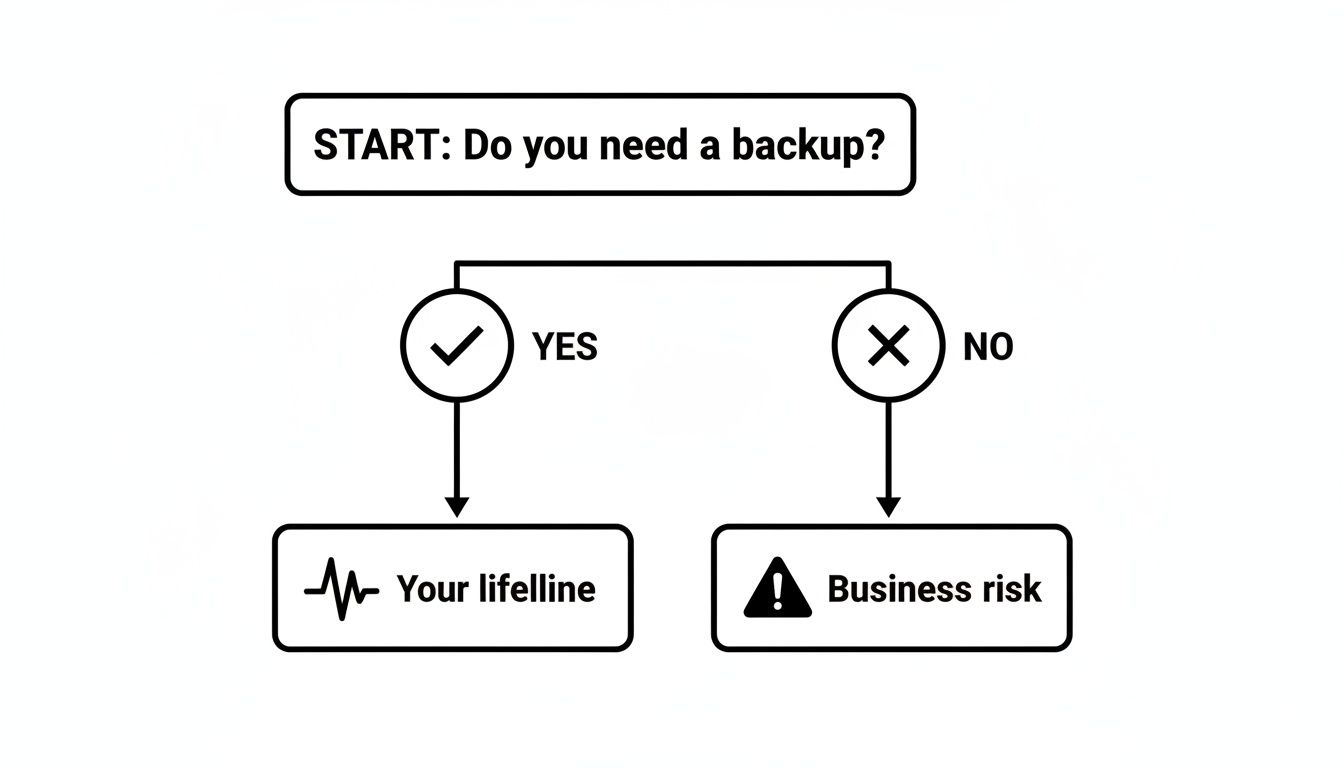
As you can see, making an active choice about your backup strategy is the first step toward safeguarding your hard work. To help you weigh the pros and cons, here’s a quick comparison.
Comparing Your WordPress Backup Options
This table breaks down the key differences between the three main approaches to backing up your WordPress site, helping you decide which one aligns best with your needs.
| Method | Best For | Pros | Cons |
|---|---|---|---|
| Manual (FTP/cPanel) | Tech-savvy users or for one-off backups before making significant site changes. | You have total control over your files and database; no extra software costs. | It’s time-consuming, has a high risk of human error, and requires technical confidence. |
| Plugin (UpdraftPlus) | The majority of businesses, especially active blogs and e-commerce stores. | Offers automated scheduling, easy integration with offsite storage, and simple one-click restores. | Premium features often come with a subscription cost; you're relying on a third-party plugin. |
| Host-Managed | Businesses looking for a hands-off solution, either as a primary or secondary backup layer. | Completely managed by your host, so it requires zero effort on your part. | You have little to no direct control; restore policies and potential fees can be restrictive. |
Ultimately, having any backup is better than having none, but a combination of a trusted plugin and your host's service gives you the most robust protection possible.
The Hands-On Approach to Manual Backups
Sometimes, you just want total control. Whether you're about to make a major site update or simply prefer knowing exactly where your data is, learning how to do a manual backup is a skill every WordPress site owner should have. Think of it as knowing how to change a tyre—it takes a bit of work, but it gives you a deeper understanding of how your website actually operates.
A complete manual backup of any WordPress site is always a two-part job. You need to grab:
- Your WordPress Files: This is the skeleton and skin of your site. It includes your theme files, every plugin you've installed, and all your uploaded media like images and PDFs.
- Your WordPress Database: This is the brain. It's a meticulously organised database holding all your content—posts, pages, user comments, and critical site settings.
To get a full copy of your site, you absolutely must back up both. Missing one is like having a car with no engine; it looks right, but it's not going anywhere.
Backing Up Your WordPress Files with FTP
First things first, let's get a copy of your website's files. The most reliable way to do this is using a File Transfer Protocol (FTP) client. An FTP client is basically a window into your web server, letting you see and manage all the raw files that make up your site.
A great, free option that many people use is FileZilla. After you've installed it, you'll need the FTP login details from your hosting company to connect. Once you're in, you’ll usually find your WordPress files tucked away in a folder called public_html or something similar, often named after your domain.
Your mission is simple: download that entire folder to your computer. Be warned, this can take a while, especially if you have years of images in your media library, so it's a good time to grab a coffee.
My Pro Tip: As soon as the download finishes, compress the whole folder into a single
.zipfile. Give it a sensible name you'll understand later, likemysite-files-25-10-23.zip. This not only saves a heap of space but also keeps everything neatly bundled together, massively reducing the risk of a crucial file going astray.
Exporting Your WordPress Database via phpMyAdmin
With your files safely on your hard drive, it's time for the second critical piece: the database. For this part of the job, you'll need to log in to your hosting account's control panel (this is often called cPanel) and find an application called phpMyAdmin.
phpMyAdmin is a web-based tool that provides direct access to your site's database. I'll admit, it can look a bit intimidating at first glance, but the process is actually very straightforward.
All you really need to do is select the correct database from the list on the left and then click on the "Export" tab at the top to get started.
Once you’re in the export section, here’s what to do:
- Select Your Database: In the left-hand sidebar, click on the name of your WordPress database. If you’re not sure which one it is, the name is defined in your site’s
wp-config.phpfile. - Choose the Export Method: Stick with the "Quick" export method. This option uses default settings that are perfect for creating a complete and reliable backup.
- Select the Format: Double-check that the format is set to "SQL". This generates a
.sqlfile, which is the industry standard for database backups. - Click Go: Hit the "Go" button. Your browser will immediately start downloading the database file to your computer.
Just as you did with your site files, give this database file a clear, date-stamped name (e.g., mysite-db-25-10-23.sql) and pop it into the same folder as your zipped files. That's it! You now have a complete, independent copy of your entire WordPress website. This manual backup is your ultimate safety net, giving you the power to restore your site from scratch if disaster ever strikes.
Automating Backups With a WordPress Plugin
For most business owners in Australia, time is one thing you can't get back. And while knowing how to do a manual backup is a handy skill, it’s not a practical long-term strategy for a busy business. This is where backup plugins really come into their own, giving you a proper ‘set and forget’ system that does all the heavy lifting for you.
When you automate this process, you remove the biggest risk factor of all: human error. It means your site is always protected, without you ever having to remember to log in and kick off a backup yourself. It turns what was a tedious chore into a reliable process humming away in the background.
Setting Up Your Automated Backup System
Let’s run through what a real-world setup looks like using one of the most trusted plugins out there, UpdraftPlus. Its free version is fantastic and has all the essentials most small to medium businesses will ever need.
Getting started is surprisingly straightforward. Once you’ve installed and activated the plugin from your WordPress dashboard, you just need to find its settings panel. This is your command centre, where you'll map out your entire backup strategy in a few minutes.
Here are the key things you'll decide on:
- Backup Schedule: How often does the plugin need to run? This all comes down to how often your site changes.
- Offsite Storage: Where are you sending these precious backup files? This is probably the most critical part of the whole setup.
- Files and Database: What exactly are you backing up? For peace of mind, the answer should almost always be "everything".
Configuring a Sensible Schedule
Picking the right backup frequency is a balancing act. You need to minimise potential data loss, but you don't want to overload your server by running backups constantly. A good rule of thumb is to simply match the schedule to your site's activity.
For example, a busy e-commerce store taking orders every day absolutely needs a daily backup. Losing even a few hours of order data would be a logistical nightmare. On the flip side, a simple portfolio site that you only update once a month can comfortably get by with a weekly backup.
Ask yourself this question: "How much data am I willing to lose and recreate by hand?" For most businesses, the answer is "very little," which makes daily backups the smartest default for any active website.
Connecting to Offsite Cloud Storage
Let's be blunt: storing your backups on the same server as your website is a disaster waiting to happen. If that server fails, you lose both your live site and your "lifeline" copy. This is exactly why connecting to offsite cloud storage is a non-negotiable part of getting your WordPress backup strategy right.
UpdraftPlus makes this ridiculously easy, with seamless integrations for services you probably already have an account with.
Popular Offsite Storage Options:
- Google Drive
- Dropbox
- Amazon S3
- Microsoft OneDrive
Connecting is as simple as clicking an icon and giving the plugin permission to access your account. From that point on, your backups are automatically and securely whisked away to that remote location, giving you true redundancy. It means that even in a worst-case server meltdown, you have a complete, independent copy of your site ready to go.
Finalising Your Setup with Pro Tips
Beyond the basics of schedule and storage, a couple of extra settings can make your life much easier. First up, always enable email notifications. The plugin can pop a quick report into your inbox after each backup, confirming it was successful. This little alert gives you peace of mind, but more importantly, it will warn you the second something goes wrong.
Second, get to know the restore function before you need it. Most quality plugins, including UpdraftPlus, offer a one-click restore feature. It's a powerful tool that can take a backup file and get your entire site back online in minutes, turning a potential catastrophe into a minor hiccup. For busy entrepreneurs who just need reliable protection without the manual grind, this automated approach is the only way to go.
For those looking to deepen their understanding, you can learn more about managing a WordPress site in our other articles.
Weaving a Strong Backup and Recovery Safety Net
Look, simply having a folder stuffed with backup files is a bit like having a fire extinguisher you've never tested. It gives you a false sense of security. The real power comes from having a clear, proven strategy for using those backups when disaster inevitably strikes. A solid recovery plan is what turns a potential business-ending catastrophe into a predictable, manageable task.
This is where we move beyond just clicking the 'backup now' button and start asking, "what if?". A truly resilient strategy isn't just about the how; it’s about defining how often you back up, where you stash those precious files, how long you keep them, and—most importantly—knowing with absolute certainty that you can actually restore your site from them.

Nail Down Your Backup Frequency
First things first, you need a schedule that matches your website's pulse. There’s no magic number here; the right frequency boils down to one simple question: how much data can you really afford to lose?
- E-commerce and Membership Sites: If you're processing transactions, signing up new users, or collecting form submissions, daily backups are non-negotiable. Seriously. Losing even a few hours of order data is a recipe for chaos and a quick way to damage your reputation.
- Active Blogs and Business Sites: Publishing new content a few times a week? Making regular page updates? A daily backup is still your best bet. You might get away with a weekly schedule, but only if you're comfortable with the idea of manually recreating a few days' worth of work.
- Portfolio or 'Brochure' Sites: For static sites where content changes are rare—maybe once a month or less—a weekly or even fortnightly backup is usually plenty.
For Australian small businesses, especially in e-commerce, getting this right is a game-changer. It's why any decent local WordPress maintenance plan, which can run anywhere from $30 to $150 per month, will always include daily offsite backups. The value becomes crystal clear when you realise that a staggering 90% of the 30,000 websites hacked daily are hit because of plugin vulnerabilities—a massive problem for local businesses.
Get Your Backups Offsite and Secured
I can't stress this enough: storing your backups on the same server as your live website is a rookie mistake. If that server gets compromised or suffers a catastrophic failure, you lose everything—your live site and your only lifeline—in one fell swoop.
True disaster recovery is built on redundancy. This means every single backup needs to be sent to a secure, remote location that is completely separate from your web hosting.
Think of it this way: you wouldn't keep the only spare key to your house right next to the front door. Your offsite backup is that spare key, tucked away safely somewhere else, ready for when you inevitably get locked out.
Great, easy-to-use offsite storage options include:
- Google Drive
- Dropbox
- Amazon S3
- Microsoft OneDrive
Nearly every quality backup plugin offers seamless integrations with these services. For those who want ultimate protection against threats like ransomware, you can even look into advanced options like immutable backup solutions, which make it impossible for your backups to be altered or deleted.
Set a Smart Retention Policy
You don’t need to be a digital hoarder, keeping every backup you've ever made. A smart retention policy ensures you have enough restore points to handle different kinds of problems without chewing up terabytes of storage. A tiered, or "grandfather-father-son," policy is a practical and popular approach.
For most active business sites, the 30/4/3 model is a fantastic starting point:
- Keep the last 30 daily backups.
- Keep the last 4 weekly backups.
- Keep the last 3 monthly backups.
This setup gives you fine-grained recovery options for recent mistakes while also providing checkpoints further back in time—invaluable for tracing when a subtle bug or issue first crept in. If you'd rather have an expert handle this, our team provides comprehensive WordPress help and support to get these systems dialled in perfectly.
The Step Everyone Skips: Test Your Restores
This is it. The most overlooked, yet most critical, part of any backup strategy. An untested backup isn't a backup; it's just a hope. You absolutely must verify that your backup files are not corrupt and that you can successfully restore them.
The best and safest way to do this is on a staging site—a private clone of your live website. At least once a quarter, take your latest backup and perform a full restore on your staging environment. This simple, stress-free fire drill confirms two vital things: that your backup process is actually working, and that you know the exact steps to take when a real emergency hits.
It’s what turns sheer panic into a calm, predictable, and documented procedure.
Your WordPress Backup Questions, Answered
Even with the best plan in place, you’re bound to have questions as you get the hang of backing up your WordPress site. That's completely normal. From what to do when a restore goes wrong to figuring out how much storage you’ll actually need, let’s tackle some of the most common queries I hear from fellow Aussie business owners.
Think of this as your practical FAQ for getting your backup strategy just right. I'll skip the jargon and give you straight answers to help you feel confident that your website is properly protected.
How Much Backup Storage Do I Really Need?
Great question. The answer usually surprises people: it's probably less than you think. Your website's total size is a mix of its files (themes, plugins, all those images you've uploaded) and its database. For most small business websites, this is anywhere from a few hundred megabytes to a couple of gigabytes.
A good way to estimate is to check your current disk usage in cPanel. Then, just multiply that by how many backups you want to keep. So, if your site is 1GB and you want to keep 30 daily backups, you'd think you need 30GB.
But here’s the good news: modern backup plugins are smart. They compress your backup files, making them much smaller. You’ll find that the 15GB of free storage you get with a service like Google Drive is often plenty to get started with.
What Do I Do If a Restore Fails?
First things first: don't panic. A failed restore can send your heart racing, but there's almost always a logical fix. The most common culprit is a server timeout. Bigger websites can take a while to restore, and some shared hosting plans can be a bit impatient and cut the process off early.
Here’s what to do if you hit a snag:
- Check the Error Logs: Your backup plugin or cPanel will have error logs. This is your first port of call. It often points you directly to the file or database table that’s causing the trouble.
- Try it Manually: If the one-click restore is failing, you can always go back to basics by uploading the files via FTP and importing the database using phpMyAdmin. It's a solid fallback plan.
- Talk to Your Host: A quick message to your hosting provider's support team can work wonders. They can often increase server resources for a short time, giving the restore process the extra oomph it needs to finish.
Honestly, the best way to avoid restore headaches is to test your backups every now and then. Use a staging site to run a stress-free 'fire drill'. It helps you find any potential problems before a real emergency strikes.
Are My Backups Actually Secure?
Security is non-negotiable, especially when your backups contain customer details or sensitive business information. A genuinely secure backup plan comes down to two things: encryption and off-site storage.
Encryption essentially scrambles your backup files, so they're unreadable to anyone who doesn't have the key. Many premium backup plugins have this built-in, and it’s a layer of protection you really shouldn’t skip.
Storing your backups off-site is just as crucial. The digital world can be a tough place for Australian businesses. With 90% of the 30,000 global website hacks per day stemming from plugin vulnerabilities, just having a backup isn't enough. It has to be stored somewhere completely separate from your web server. This is a must for any Perth-based business or e-commerce store across the country wanting to bounce back from a disaster. You can find more on these web hosting key statistics on Elementor.com.
Can I Just Rely on My Hosting Company’s Backups?
While it's great that most hosts offer backups, relying on them as your only copy is a risky game. You have little to no control over when they're taken, how long they're kept, or where they're even stored. Worse, some hosts will charge you a hefty fee just to restore one.
The smartest play is to have a layered approach. Think of your host’s backup as a handy safety net, but make sure you’re also running your own independent, automated backups with a plugin you trust. This gives you full control and guarantees you always have a recent copy of your site that belongs to you, no matter what happens with your host. It's the gold standard for protecting your online business.
Feeling a bit swamped by updates, security, and backups? Let the experts at Webby Website Optimisation take it off your plate. We provide daily encrypted offsite backups and proactive maintenance so you can focus on running your business, not your website. Get expert WordPress help and support today!