
You’ve probably hit this point already. Your WordPress site is live, the contact form is working some of the time, and you’re still replying to customers from a personal Gmail address because setting up “proper” email keeps getting pushed down the list.
That works until it doesn’t.
A quote request goes missing. A customer gets a form autoresponder from your domain, then a follow-up from a free email address that looks inconsistent. Or worse, your site sends enquiry notifications unreliably because WordPress is using the default mail function and your host is subtly throttling it. For Australian small businesses, email setup isn’t admin. It’s part of sales, support, compliance, and brand trust.
If you’re running WordPress, the right setup is straightforward once you know the sequence. Pick the right provider, connect your domain properly, authenticate the sending domain, create the right mailboxes, and make WordPress send mail through SMTP instead of hoping for the best.
Why Your Business Needs a Professional Email Address
A business address like you@yourdomain.com.au does more than look cleaner than a free inbox. It tells customers your business is organised, reachable, and serious enough to invest in its own systems.
That matters because email is still one of the main ways Australian businesses win work and keep operations moving. In Australia, 81% of SMBs identify email as their top tool for customer acquisition and operations, according to business email statistics published by Stripo. If email carries that much weight, the setup behind it can’t be an afterthought.
The hidden problem is deliverability. Many owners think a business email is just a mailbox. It isn’t. It’s also the DNS records that prove your domain is authorised to send messages. Without that setup, legitimate emails look suspicious to receiving servers.
Practical rule: If your domain doesn’t have SPF, DKIM, and DMARC configured properly, you’re asking inbox providers to trust you without proof.
That’s where small businesses get caught. The email address looks professional on the surface, but the technical layer underneath is weak. The result is missed leads, delayed support replies, and form notifications landing in junk. Stripo’s data notes that improper email setup, such as lacking SPF, DKIM, and DMARC authentication, leads to 15-20% of Australian business emails landing in spam folders in the cited benchmark context.
Trust starts before the customer reads the message
Customers make snap decisions from the sender line alone. If they see a free address, or a mismatch between your website domain and your sender address, trust drops immediately. For trades, health services, consultants, law firms, online shops, and local service businesses, that first impression matters more than most owners realise.
A professional setup also gives you control over:
- Brand consistency so your website, invoices, enquiries, and support emails all come from the same domain
- Team continuity so addresses like
accounts@,support@, andsales@stay with the business even when staff change - Security and recovery because paid business platforms give you stronger admin control than personal mail accounts
- Website reliability when WordPress form submissions and system emails are routed through authenticated SMTP
A business email address isn’t the finishing touch. It’s core infrastructure.
Choosing Your Business Email Provider
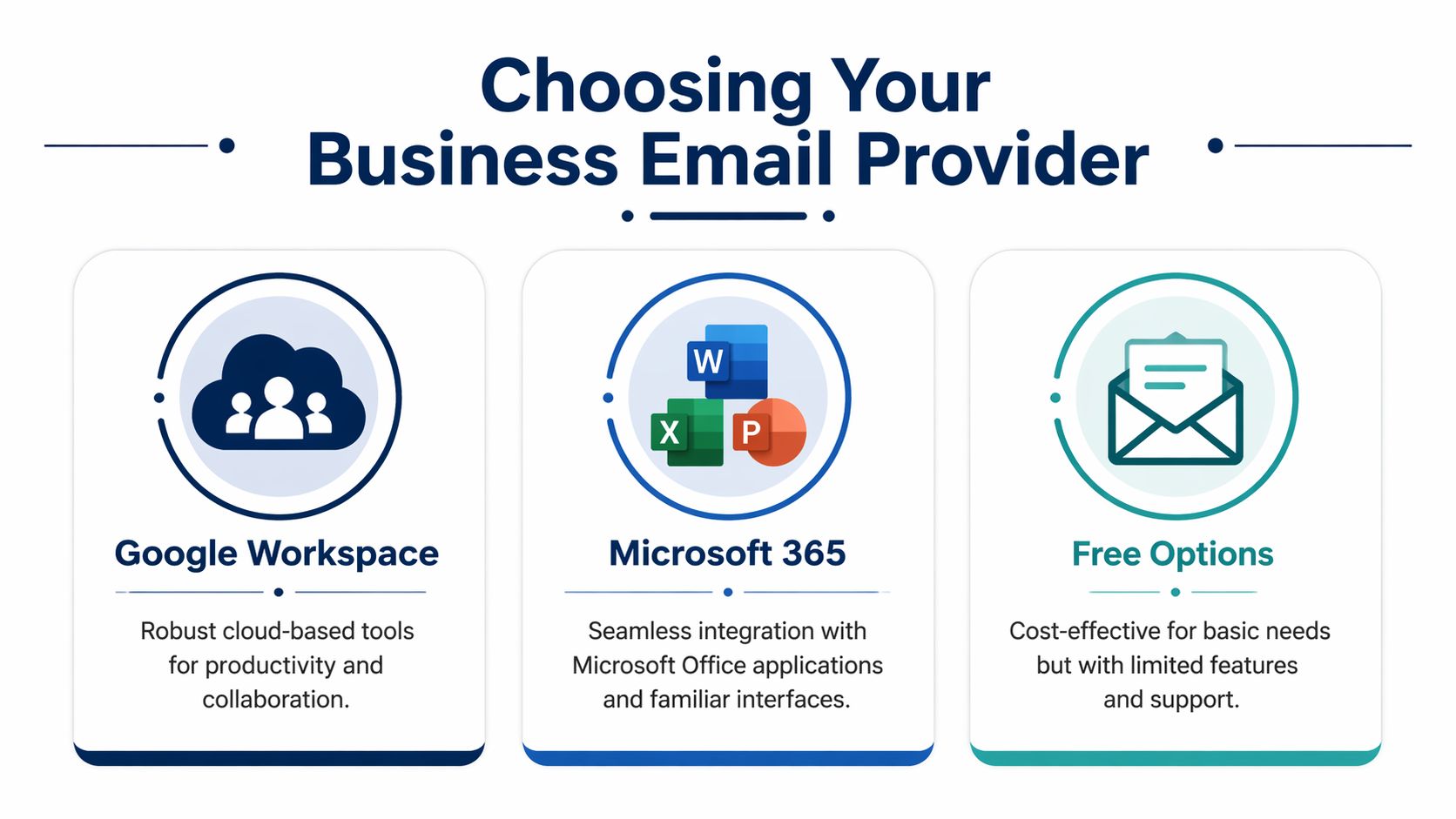
Most Australian WordPress businesses end up choosing between three paths. Google Workspace, Microsoft 365, or the basic mailbox included with web hosting through cPanel or a similar panel.
Each can work. They are not equal.
The short version
If your team already lives in Gmail, Google Calendar, and Google Drive, Google Workspace is usually the cleanest option. If your business runs on Outlook, Word, Excel, Teams, and shared Microsoft workflows, Microsoft 365 is usually the better fit. If cost is your only concern and you only need a very basic inbox, hosting email can do the job, but it’s the option I replace most often.
The big mistake is choosing based on sticker price alone. Cheap email becomes expensive when form notifications fail, mailboxes fill up, spam filtering is weak, or staff can’t access shared calendars and contacts properly.
Business Email Provider Comparison for Australian SMBs
| Provider | Approx. Monthly Cost (AUD) | Key Features | Best For | AU Data Centre |
|---|---|---|---|---|
| Google Workspace | Paid subscription, pricing varies by plan | Gmail interface, strong spam filtering, Google Drive, Calendar, shared collaboration tools, easy SMTP integration for WordPress | Businesses already using Google tools and owners who want a simple admin experience | Not the main selling point in this guide |
| Microsoft 365 | Paid subscription, pricing varies by plan | Outlook, Exchange, Teams, Word, Excel, SharePoint, strong admin controls, broad business adoption | Businesses using Office apps daily or needing tighter Microsoft integration | Yes, AU datacentre option available |
| Hosting email or cPanel email | Often bundled with hosting | Basic mailbox hosting, webmail access, simple setup, minimal collaboration features | Very small operations with low sending needs and no advanced workflow requirements | Depends on host |
Microsoft 365 makes sense for many Australian businesses
For established teams, Microsoft 365 is often the practical choice because staff already know Outlook. That matters. Familiar tools reduce setup friction and support calls.
There’s also an Australian infrastructure angle worth considering. For businesses looking at Microsoft 365, the AU datacentre plan in the Sydney region can provide <50ms latency to major cities like Perth, according to this Microsoft 365 email strategy reference. The same source states that correctly setting up M365 with DMARC and DKIM helps the 78% of AU SMBs using it achieve 35-45% open rates, compared with the 21% global average for free email.
That doesn’t mean M365 is automatically better for everyone. It means a correctly configured business platform performs differently from a free address or a rushed setup.
If your staff keep asking for Outlook, don’t fight that preference. Choose the platform they’ll actually use properly.
Google Workspace is usually easier for lean teams
Google Workspace is usually the easier recommendation for owner-operated businesses, small service teams, and WordPress sites that don’t need heavy Microsoft integration. The admin panel is simpler, mailbox creation is fast, and Gmail is widely recognized even if they’ve never used Workspace before.
It also tends to be cleaner for:
- Small teams that want straightforward user management
- Businesses already using Gmail personally and wanting the same interface on a custom domain
- Remote teams sharing docs, calendars, and Drive folders
- WordPress integrations where SMTP setup and app passwords are common requirements
The trade-off is that some businesses still prefer desktop Outlook workflows, shared Exchange-style behaviour, or Microsoft-native document management. If that’s your environment, Google may feel like the wrong fit even if it’s easier to administer.
Why I rarely recommend free hosting email
“Free” hosting email usually means basic webmail with fewer safeguards, less reliable delivery, and a weaker admin experience. It can be acceptable for a dormant mailbox or a very small business with light usage. It’s usually a poor fit for a business that relies on contact forms, staff turnover, mobile access, and day-to-day customer communication.
Common problems with bundled host email include:
- Poor mailbox management when you need aliases, forwards, or shared handling
- Limited support if DNS and mailbox issues cross over between registrar, host, and provider
- Weak deliverability compared with business-grade platforms
- Messy migrations when you eventually outgrow it
A good provider choice saves future rework. If you’re setting up a business email for a WordPress site you rely on, pick the platform you can keep for years, not the one that only wins on the first month’s cost.
Connecting Your Domain and Email The Core Setup
This is the part that puts most owners off. The jargon sounds worse than it is.
Your email provider hosts the mailbox, but your domain DNS records tell the internet where mail should go and which servers are allowed to send on your behalf. If those records are wrong, the mailbox may exist but mail won’t flow properly.

What the main records actually do
You don’t need to memorise acronyms. You do need to know the job each one performs.
- MX records tell other mail servers where to deliver incoming mail for your domain
- SPF tells receiving servers which systems are allowed to send email for your domain
- DKIM adds a cryptographic signature so receiving servers can verify the message hasn’t been altered
- DMARC tells inbox providers what to do when SPF or DKIM checks fail, and gives you reporting visibility
If you buy Google Workspace or Microsoft 365 but never finish the DNS side, you’ve only done half the job.
The Google Workspace setup sequence
For Google Workspace, the first critical step is domain verification. That usually means adding a TXT record in your domain DNS so Google can confirm you control the domain. After that, you update the MX records so incoming mail routes to Google’s servers.
According to Beehiiv’s business email setup reference, the critical first step is verifying domain ownership with a TXT record, followed by configuring MX records such as ASPMX.L.GOOGLE.COM priority 1. The same source states that incorrect MX setup is responsible for 62% of email blacklisting incidents for Australian SMBs, and that getting this right is key to the 99.9% deliverability benchmark cited there.
That aligns with what goes wrong in practice. Owners add one record, miss another, leave old MX records in place from a previous host, or paste records into the wrong DNS zone because the domain and hosting are with different companies.
Where Australian businesses get stuck
The usual roadblock isn’t Google or Microsoft. It’s figuring out where DNS is managed.
For many Australian small businesses, the domain might be with VentraIP, Crazy Domains, GoDaddy, Synergy Wholesale, or a reseller account someone set up years ago. The website may be hosted somewhere else entirely. If you’re not sure who controls your DNS, sort that out first. If you need help comparing local options, this guide to the best domain name registrar in Australia is a useful starting point.
Old records are one of the biggest causes of email trouble. New provider records and legacy records often get left mixed together.
A clean setup process that works
Use this sequence instead of jumping around between dashboards.
Confirm DNS authority first
Log into the registrar or DNS host that controls your nameservers. Don’t assume it’s your web host.Verify the domain with your email provider
Add the verification TXT record supplied by Google Workspace or Microsoft 365.Replace incoming mail routing
Remove obsolete MX records and add the ones your provider requires.Add SPF and DKIM
These records prove your provider is allowed to send from your domain and sign outgoing messages.Wait for propagation, then test
DNS changes are not instant. Give them time, then test sending and receiving.
A lot of domain dashboards in Australia have clunky interfaces. Some hide advanced DNS behind multiple menus. Others default to simplified records that confuse people further. If the panel offers “Domain Connect” or guided setup, it can help, but always review the final records rather than assuming the automation got everything right.
The walkthrough below gives a visual overview of how domain connection fits together before you start editing records in your own panel.
What works and what does not
What works
- One provider handling the mailbox
- One clear DNS zone with no duplicate MX entries
- SPF set for the services you use
- DKIM enabled at the provider level
- Testing with real sends after propagation finishes
What does not
- Leaving old host MX records in place “just in case”
- Forwarding everything through a personal mailbox and calling it done
- Using multiple plugins or services that all try to send mail from the same domain without reviewing SPF alignment
- Assuming WordPress form email will work just because the mailbox itself works
Domain setup is the hard edge of email. Once this part is right, the rest gets much easier.
Configuring Mailboxes and Integrating with WordPress
Once the domain is connected, create the actual mailboxes people will use. At this stage, the setup becomes practical for staff and customers.
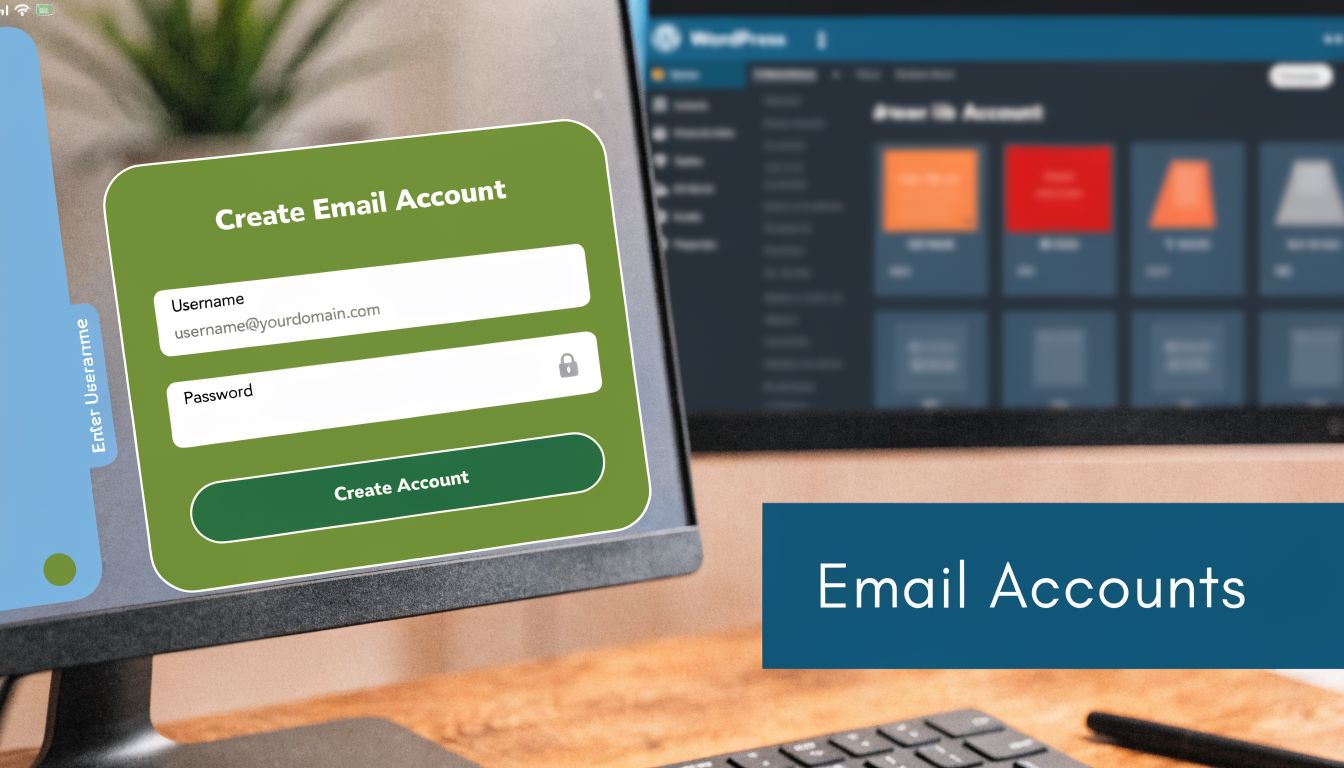
Most businesses only need a handful of addresses to start. One personal mailbox for each team member, then a small set of role-based addresses like info@, sales@, accounts@, or support@. Keep it tidy. Too many addresses create confusion, especially when nobody owns them properly.
Mailbox or alias
A mailbox has its own login, storage, and sent items. An alias is just another address that routes into an existing mailbox.
That difference matters. If accounts@ is handled by one admin person, an alias may be enough. If multiple people need their own access, audit trail, and folders, use a real shared mailbox or separate user mailbox depending on your platform.
A clean starter structure often looks like this:
- Owner mailbox for direct communication and admin access
- Staff mailboxes for anyone who regularly sends customer email
- Front-door aliases like
info@orhello@ - Function addresses such as
accounts@andsupport@
WordPress email is where many setups fail
This is the part many generic email guides skip. Your business mailbox can be configured perfectly and your website can still fail to send email.
By default, WordPress uses the PHP mail function unless you change it. Many hosts restrict or filter that method because it’s frequently abused by spam scripts. Even when it works, it often lacks the authentication and consistency that proper SMTP sending provides. That’s why contact form notifications, password reset emails, WooCommerce order emails, and plugin alerts can behave unpredictably.
A mailbox setup and a WordPress sending setup are two separate jobs. Treating them as one is how form enquiries disappear.
Use SMTP, not default WordPress mail
Install an SMTP plugin and connect WordPress to the same email service you’ve just configured for the domain. Popular options include WP Mail SMTP, FluentSMTP, and Easy WP SMTP. The goal is simple. Every email sent by WordPress should go out through an authenticated mail service, not through the server’s default mail function.
The workflow is straightforward:
- Install the SMTP plugin and keep it as the only mail-routing plugin unless you have a specific reason otherwise
- Choose the mailer that matches your provider, such as Google Workspace or Microsoft 365
- Authenticate properly using the provider’s recommended method
- Set the from address to a real business email on your domain
- Send a test email from inside the plugin before trusting live forms
If you’re using Microsoft 365 for website email, these Office 365 SMTP settings are a practical reference when matching WordPress plugin settings to the mail service.
A few setup decisions that save headaches later
Don’t use a staff member’s personal mailbox as the sending identity for every form on the site. Create a dedicated sender such as website@yourdomain.com.au or route form notifications to a monitored role address.
Also keep forms and destinations aligned. Your contact form can notify sales@, your support form can notify support@, and WooCommerce can use a dedicated operational address. That makes triage cleaner and avoids one overloaded inbox handling everything.
What usually works best is boring on purpose. Fewer mailboxes, clearer ownership, one SMTP path, and test emails after every change.
Securing Your Email and Ensuring Australian Compliance
Technical setup gets email working. Security and compliance stop it becoming a liability.
A proper business email system needs two protections in place from the start. First, it must be difficult for attackers to impersonate your domain or break into staff accounts. Second, your marketing and website forms must comply with Australian rules on consent and unsubscribe handling.

DMARC and 2FA are the baseline
If SPF and DKIM are the proof your domain is legitimate, DMARC is the policy layer that tells receiving servers how seriously to take failed authentication. Without it, criminals can try to spoof your domain more easily. With it, you gain much tighter control over how mailbox providers treat suspicious mail.
Then there’s account security. Turn on two-factor authentication for every mailbox that matters, especially admin users, finance roles, and anyone with access to your provider’s admin console. Password-only protection is weak, particularly when staff reuse passwords or work across multiple devices.
If your team uses Microsoft 365 and needs a practical walkthrough, this guide on how to set up Multi-Factor Authentication in Microsoft 365 is worth following carefully.
The Spam Act matters even if you only send occasional campaigns
A lot of small businesses think anti-spam rules only apply to big brands with automated marketing. They don’t. If you send commercial emails, newsletter updates, promotions, or follow-up campaigns, your setup needs to respect the Spam Act 2003.
According to this reference covering Australian spam compliance, non-compliance can lead to fines of up to AUD 2.22 million per day. The same source states that 40% of spam complaints targeted small businesses, often due to setups lacking compliant opt-in forms or clear unsubscribe links.
That should change how you build forms on a WordPress site.
What compliant setup looks like on WordPress
Your site should separate general contact from marketing consent. A contact form asking for a quote is not the same thing as permission to add someone to a newsletter list.
Use WordPress forms and email tools in a way that makes consent obvious:
- Use explicit opt-in wording for newsletter or promotional signups
- Keep unsubscribe links active in marketing emails
- Don’t pre-tick consent boxes for commercial messaging
- Store consent records where your systems allow it
- Match form purpose to email purpose so customers aren’t surprised later
Security and compliance are linked. If your domain can be spoofed or your forms collect consent badly, the problem shows up in the inbox either way.
A secure business email setup isn’t just about avoiding hacks. It’s about protecting trust. Customers should be able to recognise your mail, believe it came from you, and stop receiving marketing if they choose.
Final Steps Mobile Setup Migration and Testing
Once the domain, mailboxes, and WordPress sending are sorted, make the system usable. At this stage, many owners stop too early. The admin setup is finished, but the daily workflow isn’t.
That matters because email is heavily mobile. In Australia, 46% of all business emails are opened on mobile devices, and smartphone penetration among SMB owners is 92%, according to The Loop Marketing’s email statistics reference. If your staff can’t handle email cleanly on their phones, response time suffers fast.
Set up phones and laptops properly
Add the new mailbox to the apps people already use. For many businesses that means iPhone Mail, Gmail on Android, Outlook on desktop, Apple Mail, or Outlook mobile.
The important part isn’t the specific app. It’s making sure staff log in with the correct provider method instead of trying to force a manual setup copied from an old host. Modern Google Workspace and Microsoft 365 accounts usually work best when added as their own account type rather than as generic IMAP unless there’s a specific reason to do otherwise.
A practical sequence looks like this:
- Add the account on mobile first so owners can reply quickly when away from the desk
- Set up desktop access next for filing, quoting, and longer replies
- Confirm sent mail syncs properly across devices
- Check notifications so urgent enquiries aren’t missed
- Make sure the display name is correct and matches the business brand
If mobile work is a big part of your day, this guide on how to make your iPhone a business and job platform has useful practical ideas beyond just email.
Migration doesn’t need to be dramatic
If you’re moving from a personal Gmail account, old host mailbox, or another provider, don’t rush the cutover. Keep the old system accessible during the transition, migrate the historical mail you need, and update key logins, invoices, website forms, and business profiles to use the new address.
The cleaner approach is staged:
- Create the new mailbox first
- Test sending and receiving
- Migrate historical messages if needed
- Update customer-facing references
- Forward the old address temporarily while contacts adjust
Run an end-to-end test before going live
Don’t assume because one email arrived that everything is working. Test the actual workflow your business depends on.
Use a short checklist:
- Send outbound email to a different domain and confirm it lands in the inbox
- Receive inbound email from a different domain
- Submit every website form and confirm the notification arrives
- Reply from mobile and confirm the sent item appears everywhere
- Check for common sync issues if a device keeps failing, especially if messages are getting stuck in the outbox
The final test isn’t technical. Ask yourself one plain question. If a customer contacts you right now through the website, will that message reach the right person reliably? If the answer isn’t yes, the setup isn’t finished.
Frequently Asked Questions About Business Email
Do I need a separate mailbox for every address
No. Some addresses should be full mailboxes, others can be aliases.
Use a real mailbox when a person needs their own login, storage, sent items, and device access. Use an alias when mail just needs to arrive in an existing inbox. For example, hello@ can point to the owner’s mailbox without needing its own separate account.
Can I keep using the Gmail interface with my own domain
Yes, if you choose Google Workspace. You still use the familiar Gmail interface, but the address is your business domain instead of a free Gmail address.
That’s one reason many small businesses prefer it. Staff get the interface they already know, but the business keeps ownership and control of the domain-based identity.
What’s the difference between an alias and a shared address
An alias forwards mail to another mailbox. It doesn’t usually have its own independent login.
A shared address or shared mailbox is better when multiple team members need to view and manage the same conversation history. That’s often the better fit for accounts, support, or reception-style inboxes.
Why didn’t my DNS changes work immediately
Because DNS changes need time to propagate. Some updates appear quickly, others take longer depending on your registrar, previous records, and local DNS caching.
That delay catches people out. They change records, test straight away, assume the setup failed, then start changing more things and create a bigger mess.
Leave DNS changes alone long enough to take effect before troubleshooting the wrong problem.
Is the email included with web hosting good enough
Sometimes, but usually only for very basic use. If your business relies on website forms, mobile access, consistent deliverability, and shared workflows, a dedicated business email platform is usually the safer choice.
Hosting email tends to be fine until you need it to behave like proper business infrastructure. That’s the point where most businesses move to Google Workspace or Microsoft 365.
Do I need separate email setup for WordPress if the mailbox already works
Yes. A working mailbox does not guarantee WordPress can send form notifications or transactional emails reliably.
Your website should send through authenticated SMTP using the provider you configured for the domain. That’s what makes contact forms, WooCommerce notifications, and password reset emails dependable.
If your WordPress site, forms, and business email setup feel more tangled than they should, Webby Website Optimisation can help untangle it. Webby is a Perth-based WordPress specialist supporting Australian businesses with email troubleshooting, SMTP integration, DNS cleanup, WordPress maintenance, hosting, and urgent fixes when important website systems stop working.