

Pick a lightweight, actively maintained block theme that matches your site’s purpose, and confirm it before activating anything. Five checks decide whether that choice holds up: speed, plugin compatibility, update frequency, ease of customization, and accessibility plus SEO basics. Run those checks in under 30 minutes using the evaluation steps and install workflow below, and you’ll avoid the two most common mistakes: picking something bloated, or picking something abandoned.
TL;DR:
- Most themes require checking speed, plugin compatibility, recent updates, ease of customization, and accessibility within 30 minutes to avoid bloated or abandoned options.
- For block themes, prioritize visual editing capabilities, while classic themes suit those with legacy plugin needs; hybrid themes offer flexible options but may add complexity.
- Use the WordPress.org directory or trusted marketplaces, ensuring the theme shows ongoing maintenance, up-to-date support, and compatibility with your current WordPress version before installation.
- Always preview or test themes on staging first, back up your site, and set up a child theme to prevent loss of customizations during updates or switches.
- Run performance and SEO tests such as PageSpeed and Lighthouse, confirm semantic HTML, and check accessibility features before fully committing to a theme.
Table of Contents
- What to Check Before You Choose a WordPress Theme
- Block, Classic, Hybrid, or Universal: Which Type Fits You?
- Where Can You Find a Safe WordPress Theme?
- How Do You Test a Theme Before Committing to It?
- How Do You Install and Activate a Theme Safely?
- Which Performance and SEO Checks Actually Matter?
- Should You Pay for a Premium WordPress Theme?
- How Do You Maintain a Theme Once It’s Live?
- How Agencies Approach the Same Decision
- Want Someone Else to Handle the Theme Decision?
- Sources
What to Check Before You Choose a WordPress Theme
Most people choose a WordPress theme the way they pick a restaurant: by the photos. That’s how you end up with a beautiful demo site that loads in six seconds and breaks the moment you install WooCommerce. Judge candidates against this list instead, in this order.
- Speed and code weight. Lightweight themes ship less CSS and JavaScript, which typically means faster load times and better SEO outcomes. Check the theme’s demo with a speed tool before you fall for the layout.
- Plugin and WooCommerce compatibility. If you sell online, verify the theme plays well with WooCommerce, your SEO plugin (Yoast or Rank Math), and your form or booking plugin. A theme that fights your page builder costs you hours later.
- Update cadence and developer support. Open the changelog. A theme updated within the last few months, with a developer who responds to support threads, is a safer bet than one that hasn’t shipped an update in a year.
- Customization needs. Decide whether you want block-based editing, a classic page builder, or a starter template you can just fill in.
- Accessibility and responsive behavior. A theme with clean semantic markup and real mobile responsiveness converts better and keeps you out of legal trouble.
Pro Tip: Before you compare a single theme, write down the five features your site actually needs (booking form, product grid, testimonial slider) and ignore every theme that doesn’t support them out of the box. It’s faster than browsing hundreds of demos hoping something jumps out.
Answering three quick questions, what kind of site you’re building, how comfortable you are editing code, and what you’re willing to spend, tends to narrow thousands of themes down to a handful worth testing.
Block, Classic, Hybrid, or Universal: Which Type Fits You?
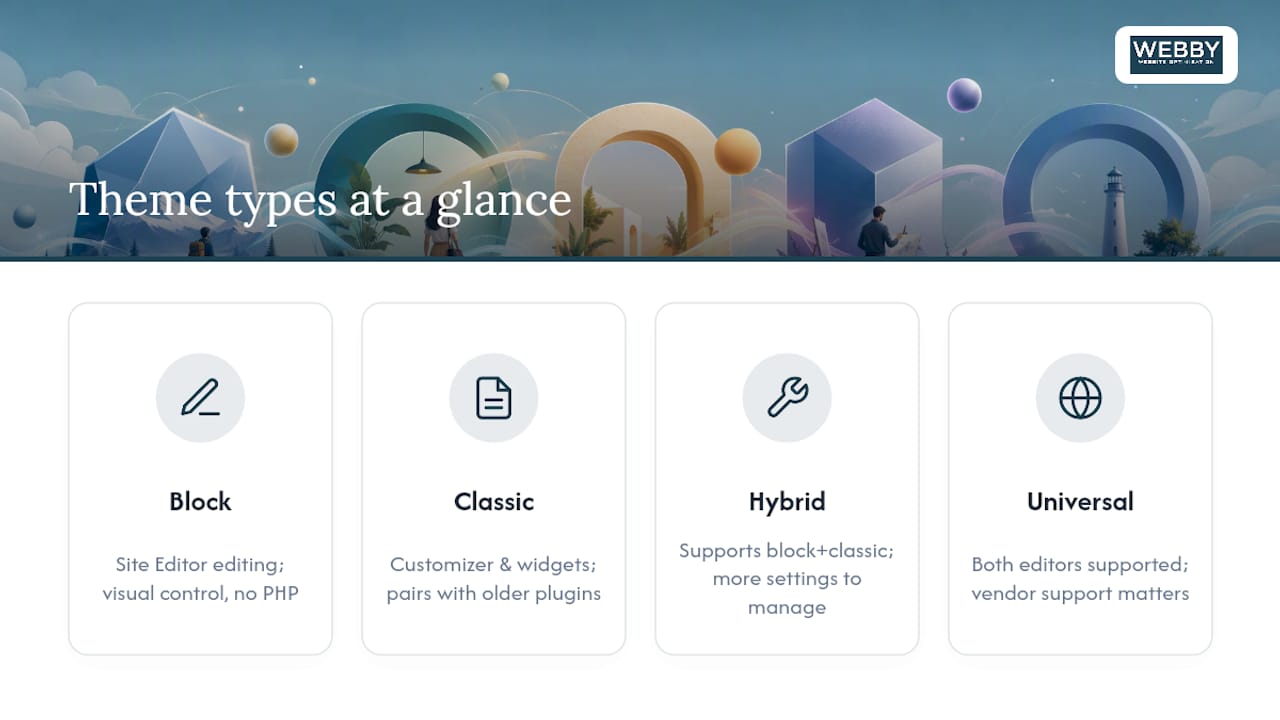
Block themes let you edit headers, footers, and full templates inside the Site Editor with no code, which is why Learn WordPress treats the block versus classic decision as foundational. If you want visual control without touching PHP, start here.
Classic themes rely on the older Customizer and widgets system. They’re not going away. Classic themes still make up the majority of the WordPress.org library by sheer volume, and they tend to pair more predictably with older plugins.
Hybrid and universal themes split the difference, supporting both block editing and classic hooks, but that flexibility sometimes means more settings to untangle. For a simple blog or portfolio, pick a block theme. For a small business site with specific plugin needs, a classic theme with strong documentation might serve you better. For e-commerce, lean toward whichever type your WooCommerce theme vendor actively supports.
Where Can You Find a Safe WordPress Theme?
Stick to sources that show maintenance history, not just screenshots.
- The WordPress.org theme directory. Every listing here goes through volunteer review and shows last updated date, active installations, and rating data right on the page, which makes it the easiest place to judge developer support at a glance.
- Established marketplaces and vendor sites. These often bundle starter templates and demo content you can import directly, saving setup time, but quality varies more than on the official directory.
- Host-bundled theme packs. Convenient, but sometimes tied to a specific hosting plan; check whether the theme still works if you switch hosts later.
Whichever source you use, confirm the theme lists compatibility with your current WordPress version and PHP requirement before downloading anything.
How Do You Test a Theme Before Committing to It?
Never activate a new theme cold on a live site. Follow this sequence instead.
- Back up your site first. Non-negotiable, no matter how minor the change feels.
- Use Live Preview or a staging copy. WordPress documentation recommends previewing a theme or testing it on staging before activation so you never lose existing customizations.
- Check the theme’s detail page. Look at last updated date, active installations, star rating, and the changelog. A theme like Kadence shows exactly this kind of maintenance data, which is the pattern you want to see on any candidate.
- Run Theme Check and a speed test. The Theme Check plugin flags coding problems before they reach production, and a quick PageSpeed or Lighthouse pass tells you if the demo speed holds up on your own content.
- Click through your core pages and test plugin interactions. Homepage, contact form, checkout if you have one.
- Write down what broke. The theme requiring the fewest manual fixes wins.
WP Engine’s own guidance echoes this: make your feature list first, then eliminate bloated themes that promise everything and deliver a slow homepage.
How Do You Install and Activate a Theme Safely?
- Go to Appearance > Themes > Add New, search or upload a
.zipfile, and use Live Preview before activating anything. - If you’re working on a live site, clone it to staging, activate the theme there, test everything, then push to production during low-traffic hours.
- Set up a child theme before making any code edits, so theme updates don’t wipe out your customizations.
- Back up before every update, and test your site again after any major WordPress core upgrade.
Pro Tip: Turn on auto-updates for the theme itself, but check your site manually within 48 hours of any WordPress core update. That’s usually when a compatibility issue surfaces, not months later.
Which Performance and SEO Checks Actually Matter?
- Run PageSpeed or Lighthouse and watch three numbers: initial render time, total CSS/JS weight, and Cumulative Layout Shift. A theme that scores poorly here tends to hurt both user experience and search rankings.
- Test keyboard navigation and color contrast. If you can’t tab through your own menu, neither can a screen reader user.
- Confirm the theme outputs semantic HTML and doesn’t conflict with your SEO plugin’s schema markup.
- If a theme fails these checks but you love the design, ask whether a good caching setup and image optimization will fix it, or whether you’re better off picking a different theme entirely.
Should You Pay for a Premium WordPress Theme?
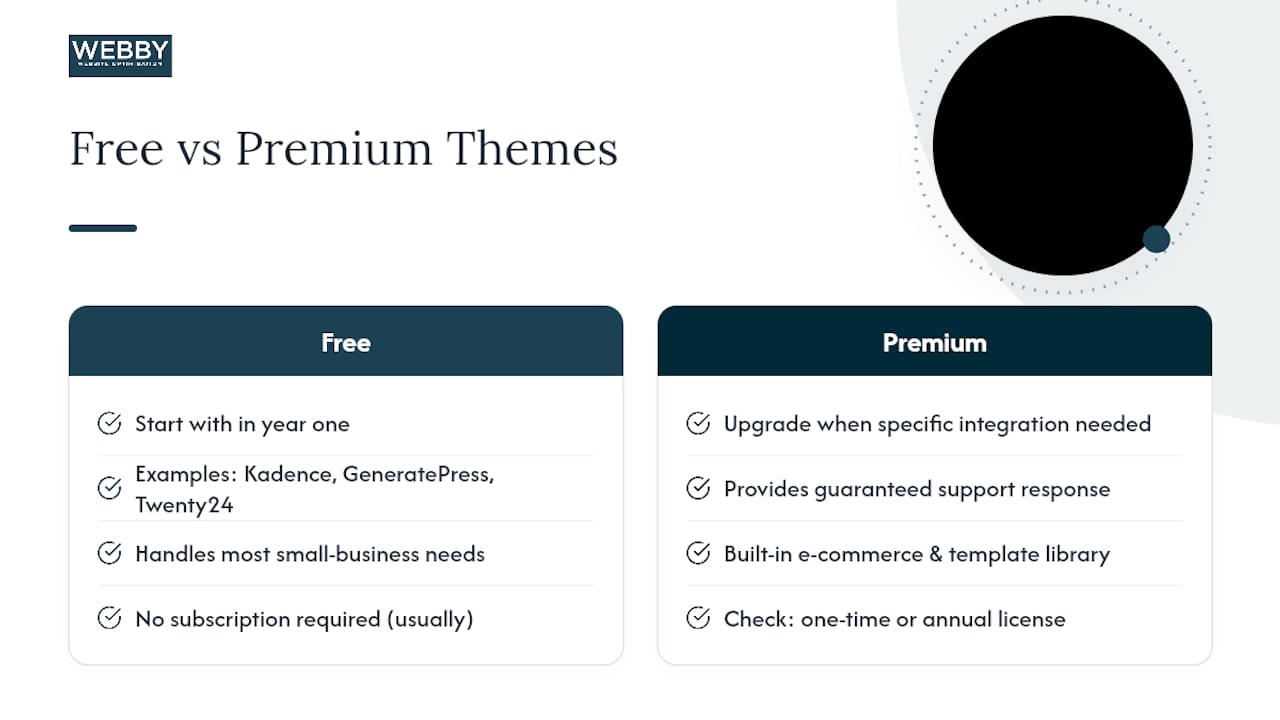
Start with a strong free option in year one unless you need a specific integration a free theme can’t offer. A well-built free theme like Kadence, GeneratePress, or the default Twenty Twenty-Four handles most small business needs without a subscription. Upgrade to premium when you need guaranteed support response times, built-in e-commerce features, or a template library you can’t replicate for free. Check whether the license is one-time or annual. Switching later costs real setup time either way.
How Do You Maintain a Theme Once It’s Live?
Check the changelog every few months, and drop any theme that stops receiving updates. Test updates on staging before pushing them live. When something breaks and you’re stuck, official support forums and developer documentation solve most issues, but a web professional in Australia can save hours on anything unusual.
How Agencies Approach the Same Decision
An agency workflow looks the same as yours, just more disciplined about the order. Baseline speed testing, a plugin compatibility map, and a staging rollout plan happen before a theme ever touches a live site. That sequence is what prevents the classic post-launch scramble: a broken template, a missing widget, a checkout that stopped working. For a small business owner juggling everything else, that discipline is often the actual time savings, not the theme pick itself.
— Steve Doig
Want Someone Else to Handle the Theme Decision?
Getting it fast, compatible with your plugins, and stable after every WordPress update is the part that eats a weekend. Some agencies run that whole process for small business clients: theme selection against your actual feature list, speed tuning so the demo speed matches reality on your content, a staging rollout so nothing breaks live, and ongoing maintenance so updates don’t turn into emergencies.

If you’d rather hand off the theme decision and the setup that follows it, look at Webby’s website design and development service, or check the website built in a day option if you need something running fast. Either way, get in touch and describe your site goals to receive guidance on which theme approach fits before you spend a weekend testing candidates yourself.
Sources
- WordPress Theme Directory
- Choosing and installing a theme — Learn WordPress
- WordPress Themes: How to Choose the Right One – DreamHost
- WordPress
Recommended
- The 10 most common WordPress SEO challenges and how to solve them
- Why WordPress Suits Small Businesses: 2026 Guide
- 10 Free image sources for your WordPress website or blog
- 10 Free image sources for your WordPress website or blog
If this post raised some questions feel free to ask me a question