

Claim or create your Apple Maps place card in Apple Business Connect, verify it, and fill in the key fields. It’s free, and Apple’s own data shows claimed listings get more views than unclaimed ones, plus your business surfaces in Siri, Wallet, and Spotlight, not just the Maps app.
TL;DR:
- Claim and verify your Apple Maps listing at least a week before any promotional event to account for verification delays, especially if submitting documents.
- Use a dedicated Apple Business Connect account to manage multiple locations efficiently with bulk upload options for larger portfolios.
- Fill out all key profile fields accurately, including specific categories and consistent NAP data, to improve visibility and search relevance on Maps and Siri.
- Add high-quality photos, clear business descriptions, and actionable links that direct users to mobile-optimized pages to maximize customer engagement.
- Monitor discovery metrics in the dashboard regularly and update your listing seasonally or quarterly to prevent data from becoming outdated or less effective.
Table of Contents
- How Do You Add a Business to Apple Maps?
- Optimize Your Apple Maps Business Listing for Discovery
- What Apple-Specific Features Can Businesses Use on Maps?
- What Analytics Does Apple Business Connect Provide?
- Should You Advertise on Apple Maps?
- Fixing Common Apple Maps Problems
- An Agency Checklist for Getting Live Fast
- Why Claiming Your Place Card Should Be Priority One
- Get Your Apple Maps Listing Live Without the DIY Guesswork
- Official Apple Resources Worth Bookmarking
- Sources
How Do You Add a Business to Apple Maps?
Getting your business onto Apple Maps runs through one hub: Apple Business Connect. You don’t need a developer or a marketing agency to start. You need about 20 minutes, an Apple ID, and whatever documents prove you run the place.
Here’s the actual sequence:
- Sign in with an Apple ID. If you don’t have one tied to your business, create it at business.apple.com. Personal Apple IDs work fine, but a dedicated business ID keeps things cleaner if you ever hand off management to staff.
- Set up your brand profile first. Apple Business Connect separates “brand” from “location.” The brand is your umbrella (business name, logo, industry), and each physical or service address becomes a location under it. If you’re a single-location shop, this still applies, you just have one location under one brand.
- Add or claim your location. Search the address. If a place card already exists (Apple often builds these from public data or Yelp-style sources), you’ll see a claim option. If nothing exists, you create a new location from scratch, entering the name, address, phone number, category, and hours.
- Choose your verification method. Apple offers a few paths: a phone call or text with a PIN code sent to the listed business number, a document review process where you upload something like a business license or utility bill, or domain validation if your business email matches your website’s domain. Phone verification is usually fastest. Document review takes longer because a human checks it.
- Submit and wait. Verification typically takes several business days, depending on the method and how backed up Apple’s review queue is. Domain and document methods run slower than phone PINs.
- Publish once verified. Your place card goes live on Maps, and the same data starts feeding Siri responses and Spotlight search results.
Plan your launch date around the verification wait, not the other way around. If you’re timing a grand opening or a promotion around your Apple Maps debut, submit for verification at least a week ahead. Document review can occasionally stretch past that if Apple needs more information, so build in slack.
One detail people miss: if a location already shows up as “managed” by another entity, perhaps a former owner, a franchise parent company, or a data aggregator, you can’t just create a fresh listing. You have to file a management transfer request instead, which involves its own document check and adds days to the timeline. More on that in the troubleshooting section below.
Multi-location businesses can bulk-upload locations using a spreadsheet template inside Business Connect, which saves serious time if you’re managing five or fifty storefronts. For a single shopfront or service business, the manual entry process takes only a few minutes per field.
Optimize Your Apple Maps Business Listing for Discovery
A verified place card with blank fields is barely better than no place card at all. The fields you fill in determine whether Apple Maps surfaces you for the right searches and whether a searcher actually converts once they find you.
Start with these:
- Primary category. Pick the most specific option available, “Italian Restaurant” instead of just “Restaurant,” or “Plumber” instead of “Contractor.” Apple lets you add secondary categories too, so use them for services you genuinely offer, not every tangential thing you could do.
- Name, address, phone (NAP) consistency. Your business name, address, and phone number on Apple Maps need to match your Google Business Profile and your website exactly, down to abbreviations like “St.” versus “Street.” Mismatched NAP data confuses both searchers and Apple’s own confidence in your listing.
- Hours, including exceptions. Set your standard weekly hours, then add special hours for holidays or one-off closures. A wrong “open” status when someone shows up to a locked door does real damage to trust, and it happens constantly with businesses that never touch their listing after initial setup.
- Photos and logo. Upload a clean, high-resolution logo and at least five to ten photos, storefront exterior, interior, product shots, or the team at work. A café that shows its espresso bar and pastry case converts browsers into visitors far better than a card with a stock photo or nothing at all.
- Description. Write two or three plain sentences describing what you do and who you serve. Since Siri reads from this data for voice queries, write it the way you’d say it out loud, not like ad copy stuffed with keywords.
- Action links. Add a “Call,” “Order,” “Book,” or “Get Directions” link tied to a real, mobile-friendly destination. A landing page that loads slowly or isn’t built for a phone screen will bleed conversions right at the moment someone’s ready to act.
Pro Tip: If you run a service business, point your “Book” action link straight to your booking calendar rather than your homepage. Every extra tap between the Maps card and the booking form loses you a percentage of interested customers.
If your website itself is the weak link, whether it’s a slow load time or a layout that breaks on mobile, that’s worth fixing before you drive traffic to it. A responsive design makes the difference between someone tapping “Call” and someone bouncing off a page that doesn’t render properly on their phone.
What Apple-Specific Features Can Businesses Use on Maps?
Apple Business Connect isn’t just a digital listing form. A handful of features exist specifically to help you engage customers beyond a static address and phone number.
- Showcases. These are curated cards you attach to your place card, useful for spotlighting a seasonal menu, a new product line, or a limited-time offer. A retail shop might rotate a showcase for a holiday sale; a salon might use one to promote a new service.
- Wallet and Tap to Pay integration. If your business issues loyalty cards, gift cards, or accepts Tap to Pay on iPhone, that data connects to your Apple Business profile, reinforcing brand recognition every time a customer taps to pay or pulls up a loyalty card.
- Cross-surface updates. Every edit you make in Business Connect cascades automatically to Siri, Spotlight, and Wallet, not just the Maps app. Change your hours once, and Siri stops telling callers you’re open when you’re not.
- Action links as conversion tools. A restaurant’s “Order” link routing directly to an online ordering system converts far better than a generic website link. A dentist’s office using “Book” instead of “Call” removes a phone-tag step for patients who’d rather just grab an appointment slot online.
Retail, hospitality, and service businesses each get value from different corners of this toolkit. A boutique leans on showcases and photos; a home-services company leans harder on the “Call” and “Book” action links, since most of its customers convert over the phone or through a quick form, not a storefront visit.
What Analytics Does Apple Business Connect Provide?
Apple Business Connect gives you a dashboard, not a black box. It reports discovery sources, place card views, and action clicks, meaning you can see whether people found you through a direct search, a category browse, or a Siri query, and what they did once they landed on your card.
Track these three numbers first:
- Place card views over time. A steady climb after you optimize fields tells you the changes are working. A flat line despite edits usually points to a category or NAP mismatch.
- Action clicks by type. Directions, calls, and website visits each tell a different story. A high “Directions” count with low “Call” clicks might mean people prefer walking in, useful intel for staffing your front desk versus your phone line.
- Busiest days and times. This data helps you schedule staff and time promotions. If Saturday afternoon consistently spikes, that’s when a showcase promoting a weekend special will get the most eyes.
None of this exists in isolation. Feed the busiest-day data into your staffing schedule, and feed the action-click data into decisions about whether your local SEO push or your paid campaigns need adjustment. A business seeing strong “Directions” clicks but weak “Call” clicks might have a phone number typo worth double-checking against its local SEO listings elsewhere.
Should You Advertise on Apple Maps?
Apple Maps ads exist, but availability currently sits limited to the US and Canada.
For eligible businesses, setup involves:
- Creating an advertising organization inside Business Connect and linking it to your verified place card.
- Uploading creative assets and setting a budget, campaigns run on a cost-per-action basis tied to searches near your listed category or location.
- Locking in currency and time zone settings early. These are difficult to change after your campaign launches, so get them right the first time.
Paid Maps ads make sense once your organic card is fully optimized and you’re seeing steady action clicks already, ads amplify a strong foundation. They don’t fix a weak one.
Fixing Common Apple Maps Problems
A wrong pin location, a stuck verification, or a listing controlled by someone else are the three issues that come up most. Here’s how to clear each one:
- Wrong pin placement. Inside Business Connect, edit the location’s address and drag the pin to the correct spot on the map preview before resubmitting. Apple reviews pin corrections faster than full verification requests.
- Listing managed by another organization. File a management transfer request through the dashboard, supported by documents like a business license, lease agreement, or utility bill in your name.
- Verification running long. Give phone verification a day or two before escalating. Document and domain methods can take longer, so if you’re past a week with no update, contact Apple Support directly through the Business Connect help panel rather than resubmitting.
- Persistent issues. Escalate through Apple Support’s business guides, which cover edge cases like duplicate listings or disputed ownership that the standard dashboard flow doesn’t resolve.
An Agency Checklist for Getting Live Fast
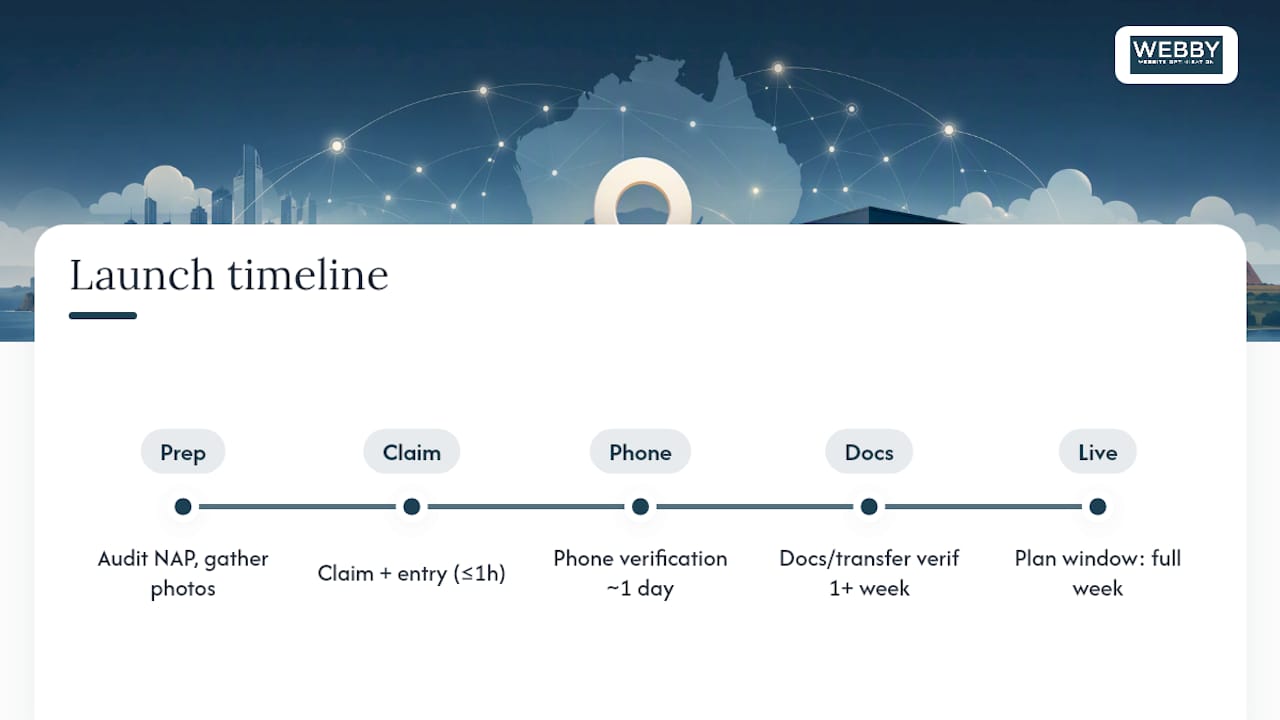
Run a quick audit before you touch Business Connect: confirm your NAP data matches across your website and other directories, gather your verification documents in advance, and shortlist five to ten photos worth uploading. That prep alone saves a full day of back-and-forth.
Typical timeline: claim and data entry take under an hour; verification adds anywhere from one day (phone) to a week or more (documents, transfers). Budget a full week from start to live if you’re not in a rush.
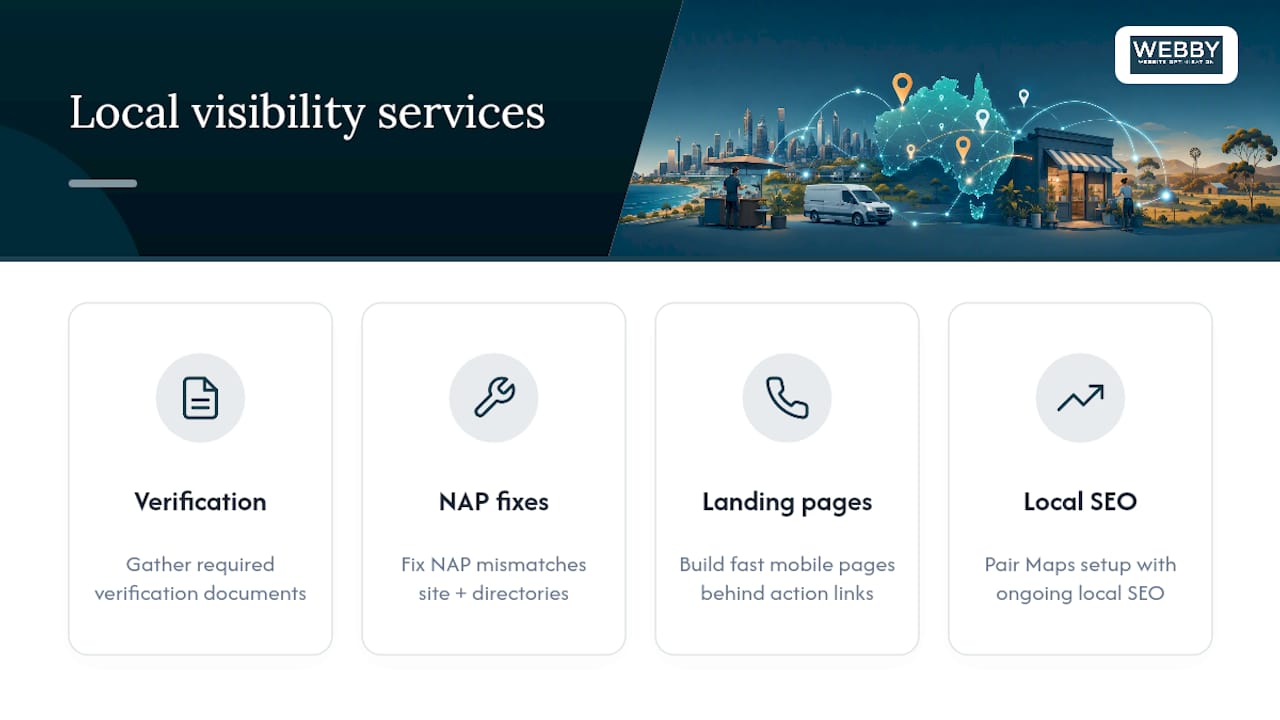
Three tasks an agency handles well: catching NAP mismatches before they trigger a rejection, writing descriptions that read naturally for Siri instead of like keyword-stuffed ad copy, and setting up action links that actually route to mobile-optimized pages instead of a generic homepage. The most common pitfall is treating this as a one-time task instead of a living listing that needs quarterly checks.
Pro Tip: Set a recurring calendar reminder every three months to check your hours, photos, and action links. Listings go stale fast, especially around holidays.
Why Claiming Your Place Card Should Be Priority One
Most small business owners treat Apple Maps as an afterthought behind Google Business Profile, and that’s a mistake I’d push back on directly. A claimed, verified place card costs nothing and takes less time than most owners spend on a single social media post, yet it feeds Siri, Wallet, and Spotlight simultaneously.
The priority order is straightforward: claim first, verify second, then optimize action links and photos, then measure. Skipping straight to optimization before verification is a common trap, since Apple won’t fully surface an unverified card no matter how good the description reads.
Where I’d tell a business owner to bring in outside help is the moment NAP inconsistencies pile up across multiple platforms, or when verification stalls past a week with no clear reason. That’s a signal the underlying data (website, other directories, business registration) needs a cleanup pass, not just another form resubmission.
— Steve Doig
Get Your Apple Maps Listing Live Without the DIY Guesswork
Webby Website Optimisation handles the parts of this process that eat the most time: gathering the right verification documents, fixing NAP mismatches across your website and directories, and building action-link landing pages that actually convert once someone taps “Book” or “Call” from your Maps card.

Setting up a place card is free through Apple, but making it work, correct categories, consistent data, fast mobile pages behind every action link, is where most small businesses lose the thread. Webby’s local visibility work pairs Apple Maps setup with ongoing local SEO for small business, so your listing doesn’t just go live, it keeps performing. If your current site can’t handle the traffic a well-optimized Maps card sends its way, a rebuilt landing page fixes that bottleneck directly.
Book a free audit with Webby Website Optimisation to see exactly where your current listing and website are losing potential customers, and get a clear plan to fix both.
Official Apple Resources Worth Bookmarking
Start with Apple Business Connect’s overview page for the full feature set, then check Apple Support’s Maps promotion guide for verification and ads details. For a walkthrough with screenshots, Shopify’s step-by-step guide mirrors Apple’s own process closely.
Sources
- How To Add Your Retail Business to Apple Maps in 2025 – Shopify
- Grow your business – Apple Business
- Promote your business on Apple Maps with Apple Business – Apple Support
- How to use Apple Business Connect to manage Apple Maps listings – MacObserver
Recommended
If this post raised some questions feel free to ask me a question