
Upload authentic JPG or PNG images that meet Google’s size and resolution rules, then verify your Business Profile so those photos actually go live. Set a clear cover photo and logo, cover exterior, interior, product, and team shots, and expect review to take about 24 to 48 hours. Skip the filters and stock images. Google rewards real, current photos and quietly buries the rest.
TL;DR:
- Using natural light and avoiding filters or stock images helps ensure Google favors your photos and increases the likelihood of approval.
- Upload at least three category-specific photos, including exterior, interior, product shots, and a clear logo, to maximize profile engagement.
- Regularly update photos every month or quarter, focusing on recent images that reflect any business changes, to maintain visibility and relevance.
- Verify your Business Profile fully and ensure all files meet Google’s size and resolution requirements before uploading to prevent rejection or delays.
- Prioritize initial improvements like a well-lit exterior shot, an updated logo, and recent product photos, which often produce the highest engagement gains.
Table of Contents
- What Are Google’s Photo and Video Guidelines?
- Which Types of Photos Should You Add?
- How Do You Add Photos to Your Business Profile?
- Why Do Photos Get Rejected or Stuck Pending?
- How Do You Optimize Photos for Better Engagement?
- How Do You Track Whether Your Photos Are Working?
- What Do Agencies Actually Fix First?
- What I’d Tell Business Owners to Stop Overthinking
- Get Help Optimizing Your Google Business Photos
- Sources
- FAQ
What Are Google’s Photo and Video Guidelines?
Google accepts JPG or PNG files between 10 KB and 5 MB, with a recommended resolution of 720×720 pixels and a minimum of 250×250 pixels, according to Google’s own Business Profile guidance. Video uploads max out at 30 seconds, 75 MB, and 720p resolution.
Once uploaded, a photo lands in one of three states:
- Live — visible to anyone viewing your profile.
- Pending — under review, not yet visible.
- Not approved — rejected for violating content policy or because your profile isn’t verified.
Google flags heavy filters, misleading overlays, and AI-generated edits as authenticity violations. A photo that looks staged or altered gets rejected more often than a slightly imperfect real one. If your profile isn’t verified yet, none of your uploads will display no matter how clean they are.
Which Types of Photos Should You Add?
Google recommends category-specific images and suggests at least three photos for most categories, according to its tips for business-specific photos. The categories that matter most:
- Exterior — storefront, signage, parking, entrance visible from the street.
- Interior — the space customers actually walk into.
- Product — what you sell, shot clean and well-lit.
- Service-in-action — staff doing the work, not posing for it.
- Team — faces build trust faster than any other photo type.
- Cover photo — your best wide shot, often shown around a 1024×576 aspect ratio.
- Logo — square, ideally 720×720, with the mark centered so it doesn’t crop awkwardly.
Shoot in natural light when you can, frame subjects with breathing room on all sides, and skip text overlays entirely. Google crops cover and logo images differently across Search and Maps, so anything crammed into the corners risks getting cut off.
How Do You Add Photos to Your Business Profile?
The path differs slightly by device, but the steps are simple:
- Desktop (Business Profile manager). Sign in, select your profile, click “Photos,” then choose the category you’re uploading to. To change your cover photo or logo, hover over the current image and select “Set as cover” or “Set as logo.” To remove an owner-uploaded photo, open it and click the three-dot menu.
- Google Maps mobile app. Open your business listing, tap “Add photo,” and select the category. Owner uploads appear under the “By owner” tab; customer-submitted photos show up separately and you can’t delete those directly.
- Bulk upload for multiple locations. Businesses managing 10 or more locations can upload via spreadsheet rather than one by one, a workflow Google documents directly.
Before you upload anything, rename files descriptively, compress them to stay under 5 MB without wrecking quality, and keep a backup folder. If you’re still setting up your listing, our guide on how to set up a Google Business Profile covers verification first, which has to happen before photos will show.
Why Do Photos Get Rejected or Stuck Pending?
Most rejections trace back to a handful of causes: policy violations (filters, misleading edits), an unverified profile, duplicate uploads, or images that just don’t match what’s on the ground. Google is explicit that flagged content simply won’t display until it’s fixed, per its photo management documentation.
If a photo sits pending for an extended period:
- Check that your profile is fully verified.
- Confirm the file meets format and size specs.
- Replace it rather than resubmitting the same file.
If your chosen cover photo isn’t the one showing up, that’s not a bug. Google can override your selection with a different image, including a customer-submitted one, if it decides that photo is more relevant or recent. Uploading consistently across categories is the best way to keep influence over what displays.
To flag an inappropriate customer photo, open it on Maps or Search and use the “Report” option under the three-dot menu. Removal isn’t guaranteed and can take time, so treat it as a request, not a switch you flip.
Pro Tip: Upload a fresh batch of owner photos right after any renovation or menu change. Google tends to favor recent uploads over older ones when it decides what to surface, so recency alone can push a stale customer photo out of the spotlight.
How Do You Optimize Photos for Better Engagement?
Getting photos live is step one. Making them work harder is a separate job, and it’s the one most business owners skip.
Name files descriptively before upload, something like “downtown-cafe-exterior-storefront.jpg” instead of “IMG4821.jpg,” and write concise alt text where your website embeds the same images. Google’s developer guidance on image discoverability confirms that descriptive filenames, alt text, and standard HTML image elements help Google find and index images correctly. Stuffing location keywords into every filename doesn’t help. Skip it.
Compositionally, center your subject and leave margin around the edges. Google crops differently across placements, and a tight, edge-to-edge shot often loses its subject entirely on mobile.
A few more things worth building into a routine:
- Refresh photos monthly if your business runs seasonal promotions or changes displays often; quarterly is a reasonable baseline otherwise.
- Encourage customers to post their own photos rather than relying only on owner uploads.
- Add a virtual tour if your space benefits from it. Google’s Business Photos program supports 360 tours and recommends refreshing them after any remodel.
Businesses that keep photos current tend to see more profile engagement than those that upload once and forget about it, though the size of that lift depends heavily on category and competition. Watch views and customer actions, not just photo count, to know whether an update actually moved anything.
How Do You Track Whether Your Photos Are Working?
Business Profile Insights shows photo views and the customer actions tied to them, calls, direction requests, website clicks, broken out separately from your overall profile traffic. Compare your photo count and freshness against competitors in your category; a listing with three stale photos next to one with twenty recent ones is an easy contrast for customers to notice.
Run a simple test: swap your cover photo or add three new product shots, then track views and actions for 30 to 90 days before judging the result. Shorter windows produce noisy, unreliable signals.
A workable audit checklist:
- Review photo counts by category quarterly.
- Replace anything outdated, blurry, or off-brand.
- Refresh monthly if you’re running seasonal offers.
- Check for any photos stuck in “Pending” or “Not approved.”
What Do Agencies Actually Fix First?
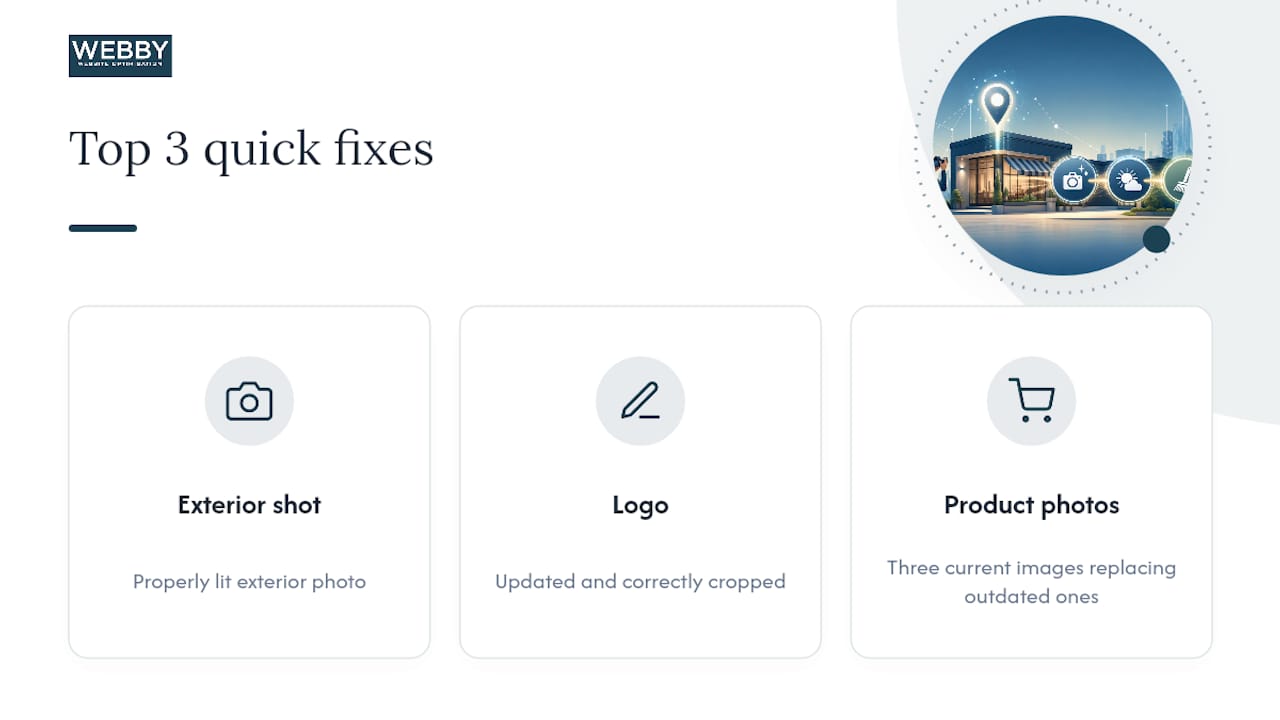
The recurring low-effort wins we see across client audits: a properly lit exterior shot, an updated logo that doesn’t get cropped weird, and three current product photos replacing images that predate a menu or service change. Those three fixes alone often move engagement more than a full rebrand of the profile.
Professional photography earns its cost when the physical space is the sales pitch, restaurants, salons, showrooms, or when you’re competing in a crowded local market where every listing already looks decent. If your storefront looks like everyone else’s on Maps, a $200 photo shoot is cheap insurance.
What I’d Tell Business Owners to Stop Overthinking
Most advice on this topic obsesses over technical specs, exact pixel counts, file size ceilings, and treats them like the whole game. They’re table stakes. The real leverage is authenticity and frequency, not precision.
A profile that uploads three real, current photos every month will out-perform one that uploaded twenty perfectly-cropped images once and never touched them again. Google’s own systems favor recency and relevance over polish, which means the owner who updates a logo and swaps in a new exterior shot after repainting the storefront is doing more for their visibility than the one agonizing over whether their cover photo is exactly 1024×576.
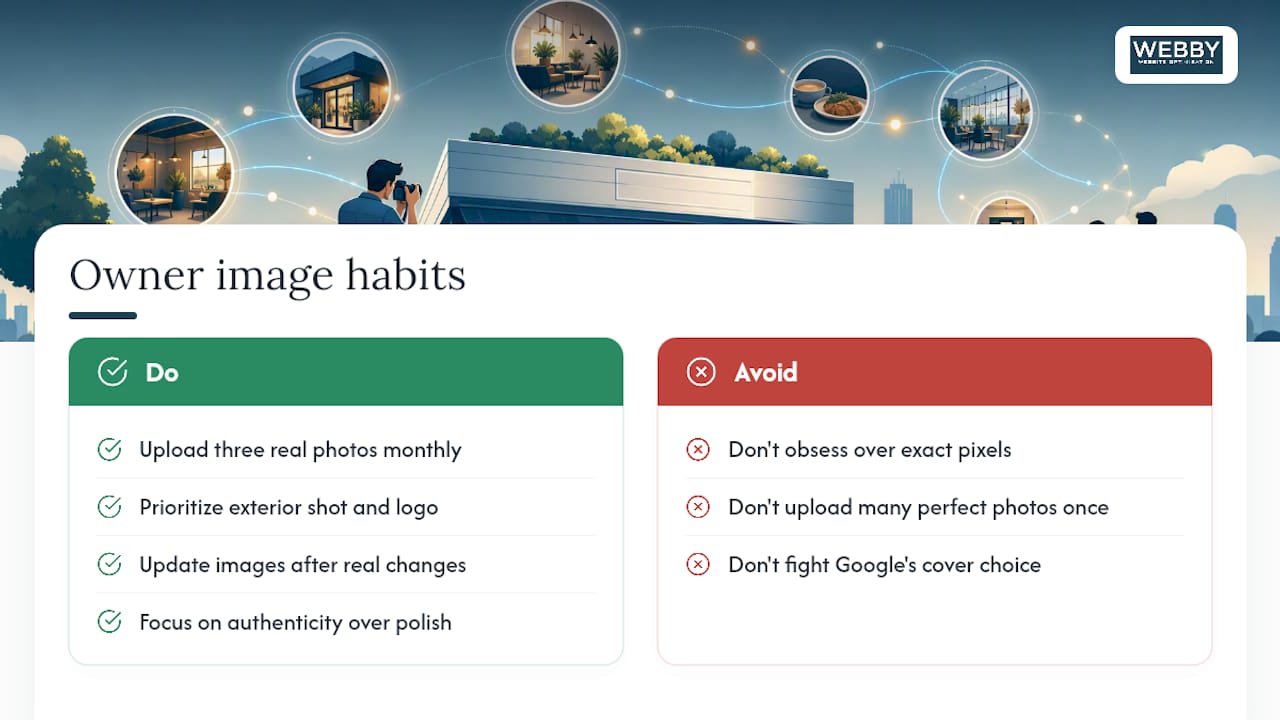
The other overlooked point: you don’t fully control what displays. Google can and will override your chosen cover image with a customer photo it judges more relevant. Fighting that is a waste of energy. Building a habit of consistent, authentic uploads across every category is how you keep influence over the result, not how you win a single upload.
Prioritize the exterior shot and the logo first. Everything else compounds from there.
— Steve Doig
Get Help Optimizing Your Google Business Photos
An alternative to guessing your way through Google’s photo rules is a service that provides a prioritized fix list built from an actual audit of your profile and website together.

A photo optimization pass under our Website Audit looks at your exterior, interior, and product shots against Google’s own approval patterns, then flags exactly which images are hurting engagement and which categories are thin. For businesses that want ongoing attention, not just a one-time fix, the Business Website Optimisation Campaign folds photo upkeep into broader local visibility work, so your profile and your website move together instead of pulling in different directions.
If a listing has been running on the same photos for a long time, updating them should be a priority. Free audits may be available to identify where profiles are losing engagement, starting with the images customers see first.
Sources
- Manage photos & videos for your Business Profile – Computer – Google Business Profile Help
- Google Images: best practices for adding images
- Street View | Business Photos
FAQ
How Do I Set a Google Business Photo?
Sign in to your Business Profile manager, click “Photos,” choose a category, and upload a JPG or PNG between 10 KB and 5 MB. To set a specific image as your cover or logo, hover over it and select that option directly.
What Is the Disadvantage of Google Photos on a Business Profile?
Google can override your chosen cover photo with a different image, including a customer-submitted one, if its systems judge that photo more relevant or current. Consistent, frequent owner uploads across categories are the best way to keep influence over what actually displays.
Why Are Photos Not Approved for Google Business?
The most common causes are content policy violations like heavy filters or AI-generated edits, an unverified Business Profile, or images that don’t meet format and size requirements. Fixing the underlying issue and re-uploading, rather than resubmitting the same file, is the right move.
How Long Does It Take for Google to Upload Business Photos?
Review typically takes about one to two days, though it can sometimes take longer during busy periods. If a photo stays pending well beyond that, check your verification status and file specs before assuming it’s stuck.