
Your web developer isn’t answering, but your website isn’t gone
Emails bouncing back. Phone going to voicemail. Invoices unpaid or business closed with no warning. This happens to small business owners more often than you’d think, and it’s rarely as bad as it feels in the moment.
Your website itself is still sitting on a server somewhere, your domain is still registered to someone, and your content still exists. What you’re missing is access, not the asset itself. That’s a fixable problem in almost every case.
This guide walks through it in order: your domain, your hosting account, your CMS and code, and what to do if backups or documentation are missing entirely. Then we’ll cover when it makes sense to bring in a new developer and how to set things up so a disappearing act like this can’t happen again.
Work through the steps in sequence. Each one narrows down exactly what you have, what you’re missing, and what needs recovering.

Find out who controls your domain
Start with your domain, because if you lose that, you lose everything else that points to it.
- Run a WHOIS lookup. Go to Whois.com or the ICANN lookup tool, type in your domain name, and check the result. Personal registrant details are often redacted under privacy rules that took full effect across most domains in August 2025, but the fields that matter most to you, the registrar name, expiry date, and nameservers, are usually still visible.
- Note the registrar and expiry date. Look for a field called “Registrar” or “Registrar of Record”, and one called “Expiration Date” or “Registry Expiry Date”. Write both down. If the domain is close to expiring, that’s your most urgent problem.
[Image failed: WHOIS results graphic highlighting Registrar and Expiration Date fields, with Creation Date, Status, and Registrant shown as]
- Check who’s listed as the registrant. If it’s your business name, you’re in good shape, you just need account access. If it’s your developer’s name or agency, you’ll need their cooperation to transfer it, since ICANN’s Transfer Policy only lets the registered name holder or an authorised representative approve a change.
- Contact the registrar directly. If you can’t reach your developer, the registrar’s support or abuse channel is your next call. Bring proof you’re the business owner, such as invoices, bank statements, or business registration, since changing a registrant has to go through the current registrar.
Find out who is hosting your site and get back in
Once your domain is sorted, the next question is where your website actually lives.
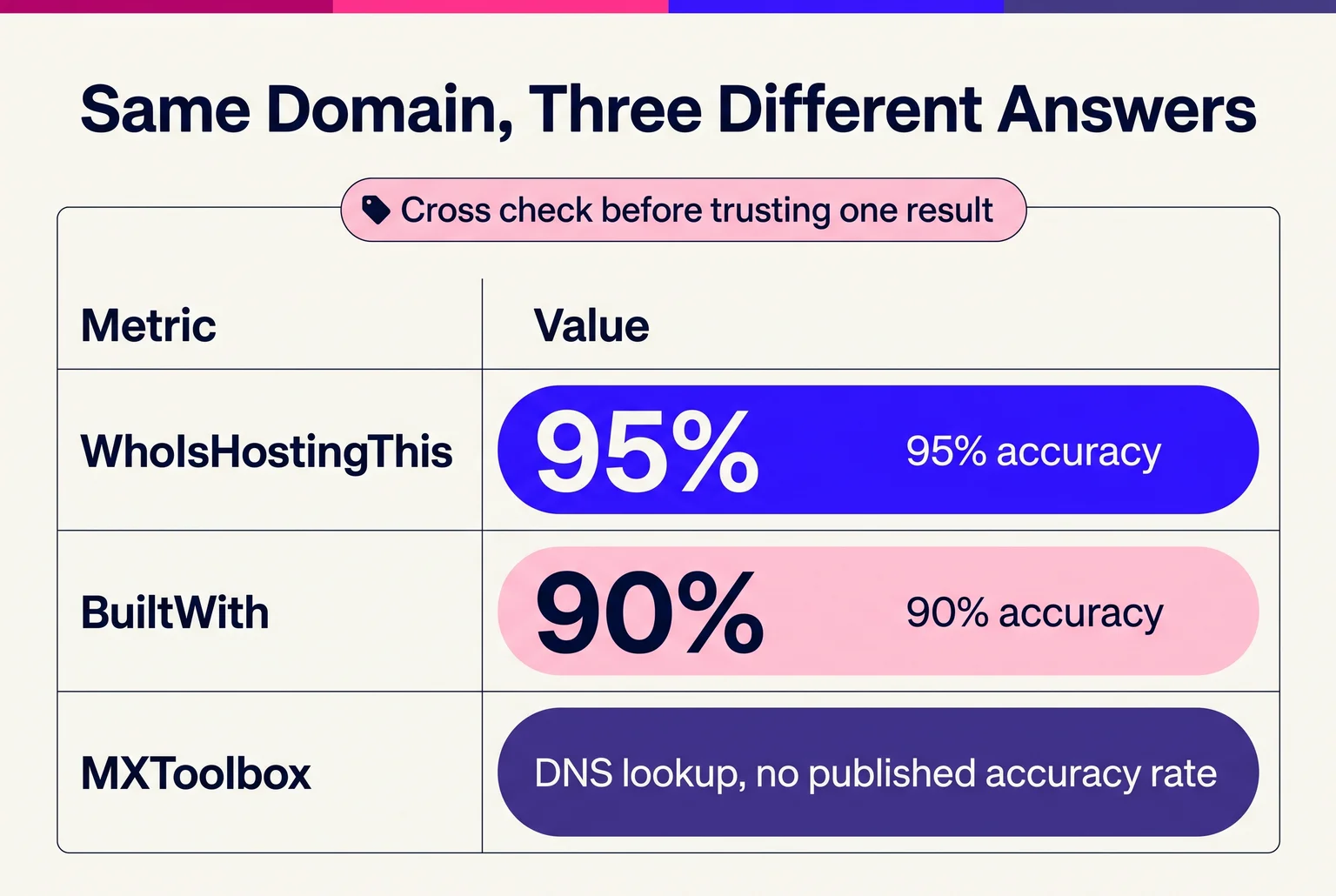
- Identify your host if you don’t already know. Run your domain through a dedicated hosting checker tool, which reads DNS, IP, and nameserver data to work out who is hosting the site. Geekflare’s checker resolves your domain to an IP address and cross-references it against ASN and geolocation data, while WhoIsHostingThis claims around 95% accuracy and BuiltWith around 90%. If you’re comfortable with a command line, running
nslookup -type=NS yourdomain.comshows the nameservers, which often point straight to the host. - Cross-check the result. CDNs and separate DNS providers can obscure the real host, so treat any single tool’s answer as a clue, not a certainty. Running two or three checkers and comparing results gives you more confidence.
- Try logging in. Once you know the host, check whether you have login details saved anywhere, in old emails, a password manager, or invoices from setup.
- Contact the host’s support team if you’re locked out. Most providers have an account recovery process built around proving ownership. GoDaddy, for example, asks for a colour copy of government-issued photo ID showing your name, signature, date of birth, and expiry date, and may ask for business documentation too. Expect a similar process wherever your site is hosted, and have your business registration details ready before you call.
Working out what platform your site runs on and where the code lives
Domain and hosting are only part of the picture. You also need to know what your site is built on and who can actually get into the code.
Many web development contracts never spell out who owns the finished CMS setup, the theme files, or custom code. If your agreement is silent on this, ownership is genuinely unclear, and it’s worth checking rather than assuming either way.
Start by identifying your platform. Run your domain through a technology lookup tool like Wappalyzer, which reads a site’s code and can name the CMS, ecommerce platform, and other tools in use. If that’s inconclusive, view your page source and search for a generator tag, or look for tell-tale signs: WordPress sites often expose /wp-content/ or /wp-includes/ in file paths, while Shopify sites reference cdn.shopify.com or load Shopify-specific scripts.

Once you know the platform, try logging into its admin dashboard using any saved credentials. If you’re on WordPress, check whether a backup plugin like UpdraftPlus is installed. It typically stores backups either locally in wp-content/updraft, in your hosting account’s cPanel storage, or in a connected Dropbox or Google Drive folder. Finding backups doesn’t confirm you own them. It just tells you they exist and where to look next.
Salvaging a site with no backup and no working access
If you have no login, no backup file, and no way to reach your old developer, you still have options. Your live site’s front end can be pulled down and rebuilt as a static copy, even if you can’t get into the original code.
A free tool called HTTrack can crawl your live website and save a working local copy, including HTML, images, CSS, and JavaScript files, while rewriting links so it browses correctly offline. It works well for straightforward brochure-style sites where content loads directly in the page. It struggles with anything JavaScript-heavy, like a React-built site, because it can’t run scripts to render content the way a browser does. It also won’t recover databases, server-side code, contact forms, logins, or search functionality. What you get is a visual snapshot, not a working replica.
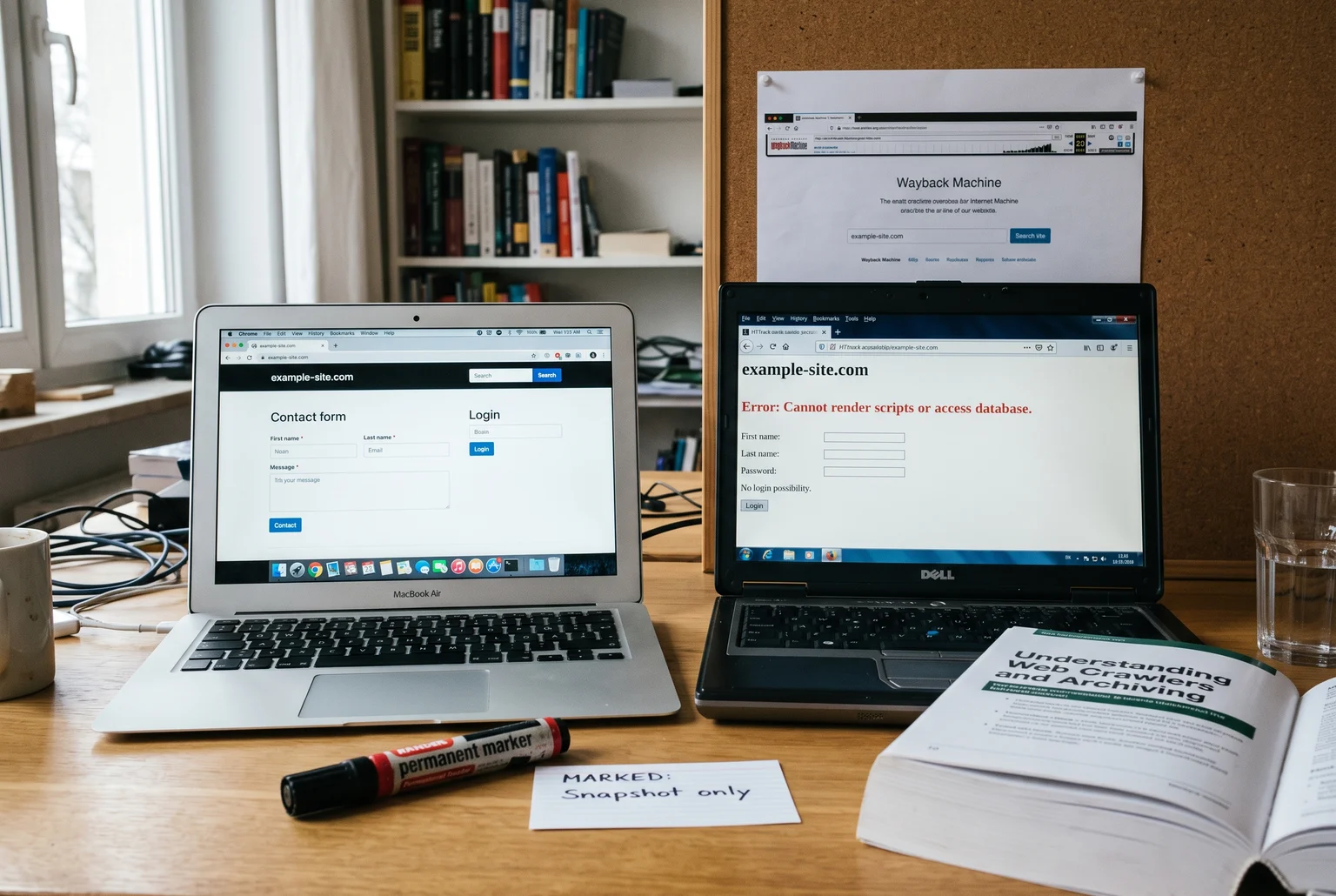
If your site has been live for a while, the Wayback Machine at web.archive.org may hold older crawled versions. This only captures what its crawler found and saved, so dynamic features and databases are still gone.
Either method gives a new developer something concrete to rebuild from, rather than starting from nothing.
Deciding whether to move on, and briefing whoever takes over
Two weeks of silence with no calls, emails, or texts answered is a reasonable line for treating your old developer as gone rather than just busy. Pair that with a pattern of missed deadlines, vague answers about what work was actually done, or repeated refusal to hand over login access, and you have enough to justify hiring someone new.
Once you’ve decided, brief the new developer with what you’ve gathered from the earlier steps:
- Give them domain registrar access and any transfer or EPP code needed for domain management.
- Provide full CMS administrator credentials, not an editor login. They need to manage plugins, themes, and settings.
- Hand over hosting or server access, including control panel logins and SFTP or SSH details.
- Pass on database credentials and any exported backup you found.
- List every paid theme, plugin, font, or stock image, with license and renewal details, so nothing lapses or breaks after handover.
If some of this is missing, say so upfront. A competent developer will assess what exists, quote based on what needs rebuilding, and tell you plainly if a piece can’t be recovered.
Ownership habits that stop this from happening twice
- Register your domain in your business’s name, using your own email and payment details. Your developer should appear only as a technical contact, not the registrant.
- Open your hosting account in your business’s name too, even if your developer manages it day to day.
- Give developers role-based access rather than full ownership. They can build and maintain the site without holding the keys to it.
- Put it in writing. Your contract should state the work is done for hire, with IP rights assigned to you, and that domain, hosting, and code belong to your business.
- Set scheduled backup exports and confirm where they’re stored.
- Keep a master document listing every login, registrar, host, CMS, plugin license, and renewal date, stored somewhere your team can reach without the developer.

You don’t have to sort this out alone
Most of this is solvable with patience and the checks covered above. Domains get recovered, hosting gets transferred, sites get rebuilt from a Wayback Machine copy or an old backup, more often than owners expect.
If you’d rather hand the whole thing to someone else, that’s a reasonable call too. There are specialists who deal with exactly this: recovering domain and hosting access into accounts you own, assessing what’s broken, and taking on ongoing maintenance once the site is stable again.
If you want a second pair of hands on your own site, feel free to get in touch with me, Steve, at Webby Website Optimisation. No pressure either way. Getting your site back under your own control is the main thing.
Sources
- WHOIS Lookup — Whois.com
- ICANN Registration Data Lookup — ICANN
- About Change of Registrant – ICANN — ICANN
- Technology Lookup — Wappalyzer
- Your Freelancer Didn’t Finish the Project – What to Do Next | Zovintra Blog | Zovintra — Zovintra
- Net