
If your WordPress site is infected, the order of work decides whether the cleanup sticks: save a copy, lock every door, replace the WordPress files with clean ones, check the database and users, then ask Google to remove its warning. Skip the database or leave one password unchanged and the malware usually comes back. This guide walks a business owner through each step, shows where cleanups go wrong, and explains when it is cheaper to hand the job to us.
TL;DR
- Document what you see, back up the site as it is, and change every password before you touch anything else.
- Replace WordPress core, plugins and themes with clean copies of the same versions, then check the database, users and scheduled tasks. Files alone are not enough.
- Ask Google for a review once the site is clean. Google says that warnings are removed within 72 hours if the review passes.
- Find the entry point (usually outdated software or a stolen password) or you will be cleaning again within weeks.
- Our Monthly Maintenance plan is $59 per month (AUD), and Emergency Services are $120 per hour.
Table of Contents
- How to tell your site really is infected
- First hour: contain the damage
- Cleaning the files
- Cleaning the database and users
- Restoring from a backup instead
- Fix the way in, or it happens again
- Getting Google to lift the warning
- When to do it yourself and when to get help
- Our perspective
- What we can do for you
- FAQ
- Sources
How to tell your site really is infected
Before you start a cleanup, confirm there is something to clean. WordPress.org’s own documentation lists the signs of a hacked site: Google or Bing blacklisting, your host disabling the site, a warning that the site distributes malware, customers saying their antivirus flags it, new users you did not create, or a site that looks defaced when you open it.
For a local service business the early signs are often quieter:
- Your enquiry form emails stop, or a competitor’s phone number appears on your contact page.
- Your homepage looks fine, but a search for your business name shows pages selling products you have never stocked.
- The site redirects to a gambling or pharmacy page, but only on mobile or only when someone arrives from Google.
- You cannot log in to the dashboard, or an admin account you do not recognise exists.
That third one matters. Many infections check whether you are logged in as an administrator and show you a clean page, while visitors and search engines see spam. WordPress security vendors advise opening the site in a private window and arriving from a search result rather than typing the address, so you see what a customer sees.
If a staff member or your web developer has recently made changes, ask them first. Odd content sometimes has an innocent explanation. If nobody can account for it, treat it as an infection.
First hour: contain the damage
The first moves are about not losing evidence and not spreading harm. Do them in this order.
1. Write down what you see
WordPress.org advises documenting what you are seeing, when you noticed it and in what timezone, and what you did recently. Take screenshots of the spam, the warnings and any unknown users. This becomes your incident record, and it helps whoever cleans the site work out how the attacker got in.
2. Take a copy before you clean
Save all the files and the database exactly as they are, using your host’s backup tool, SFTP or a backup plugin. It feels odd to back up an infected site, but some hosts delete a site outright once malware is reported, and a cleanup that goes wrong is then recoverable. Label this copy as infected so it is never restored by accident.
3. Limit public access if visitors are at risk
If the site is redirecting customers or showing a browser warning, ask your host to restrict public traffic or switch on maintenance mode while you work. A few hours offline costs less than a customer’s laptop getting infected through your website.
4. Scan your own computer
WordPress.org points out that many hacks begin on the owner’s own machine, where a trojan captures FTP and wp-admin logins. Run a full antivirus scan on every computer that has logged in to the site before you change a single password. Otherwise the new passwords are stolen as well.
5. Change every credential
Change passwords for your hosting account, WordPress admins, FTP/SFTP, database and the email addresses linked to them. Then replace the secret keys (the “salts”) in the wp-config.php file, which logs every user out, including the attacker. This is the step most often half done, and one forgotten login is enough for reinfection.
Cleaning the files
The safest cleanup does not try to hunt for infected lines in files. It replaces everything that should be replaced with known-good copies.
- Reinstall WordPress core. WordPress.org recommends installing the same version your site runs by copying the files across with your SFTP application, rather than using the reinstall button in the dashboard. The dashboard installer often only overwrites existing files, while hacks tend to add new ones.
- Replace plugins and themes. Delete each one and upload a fresh copy from the official source. Remove any you no longer use. An inactive plugin with a known vulnerability is still reachable if its files are on the server.
- Inspect what is left. Your uploads folder should hold images and documents, not PHP files. Look for unfamiliar files in the main directories and for files with recent modification dates that match no update you ran.
- Check permissions. Files owned by the wrong user or folders anyone can write to are a common way malware gets written in the first place.
- Remove anything that is not yours. If you have premium themes or plugins, download them again from the vendor, never from a bundle of unknown origin. Pirated themes are a classic source of backdoors.
Keep your own content: the wp-content/uploads folder and your database hold your pages, posts and media, so they need checking rather than replacing.
Cleaning the database and users
This is where most DIY cleanups fail. Malware is not only in files. Injected scripts, spam links and rogue administrators live in the database, and a clean file set will simply be reinfected from it.
Check these in order:
- Users. Go to Users, filter by Administrator, and delete any account you do not recognise. Reset the password of every legitimate one.
- Site address settings. In Settings, General, confirm that the WordPress Address and Site Address are your real domain. Attackers sometimes change them to redirect traffic.
- Posts and pages. Open key pages in the text editor view rather than the visual one and look for script tags, hidden iframes or strange links you did not write.
- Options table. Security researchers describe this table as a favourite hiding place, because entries set to load automatically run on every page view. Searching for terms such as eval, base64_decode or iframe in an exported copy of the database shows what is hiding there. Do this on the exported copy, then fix the live site through the dashboard or a careful database edit, not by guessing.
- Scheduled tasks. A malicious scheduled job can download the malware again minutes after you delete it. If the infection returns soon after cleaning, this is the first place to look.
If reading database tables is not something you do, that is normal. This is the stage where a mistake can break your site or leave the infection behind, so it is the stage most owners hand over.
Restoring from a backup instead
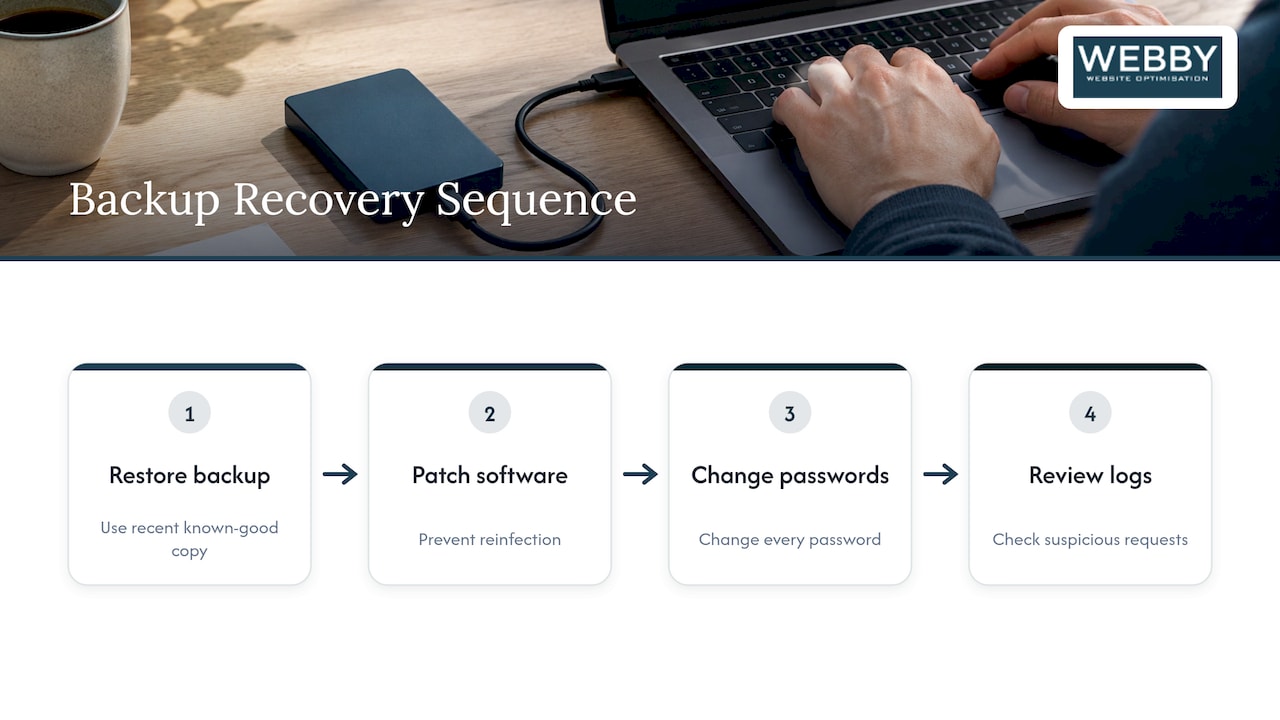
If you have a recent backup from before the infection, restoring it can be quicker than a manual cleanup. Australia’s national cyber agency, the ACSC, advised in July 2026 that owners should restore affected websites from a recent known-good backup where compromise is suspected, patch the vulnerable systems to prevent reinfection, and check access logs for suspicious requests.
The catch is that a backup restores the vulnerability along with the content. If the cause was an outdated plugin, restoring then leaves you with the same outdated plugin. Restore, then update everything and change every password straight away. And if you do not know when the infection started, you do not know which backup is clean, which is why the log review matters.
Fix the way in, or it happens again
An infection is a symptom. Before you call the job done, work out how the attacker arrived. The usual routes:
| Entry point | How to check | Fix |
|---|---|---|
| Outdated plugin, theme or WordPress core | Compare installed versions against the latest releases | Update, or remove what you do not need |
| Stolen or weak password | Look for logins at odd hours or from unknown places | Strong unique passwords, two-factor login for every admin |
| Infected computer | Full antivirus scan of every machine that uses the site | Clean the computer first |
| Pirated or abandoned theme or plugin | Check where it was downloaded and when it was last updated | Replace with a maintained version |
| Old admin accounts of former staff or developers | List all users and hosting logins | Delete what is not in use |
The ACSC’s July 2026 advice also covers prevention measures: keep software and plugins up to date, consider automatic patching, disable plugins with actively exploited vulnerabilities until they are fixed, and restrict or monitor the creation of files in web directories. Our own guide on securing your WordPress website from hackers covers the everyday settings, and the WordPress best practices checklist is a good way to review the rest of the site while you are in there.
Getting Google to lift the warning
A cleaned site does not clear itself from Google. If your site was flagged, Google’s documentation says you need to request a review in Search Console after verifying ownership, cleaning the site, fixing the vulnerability and putting the clean site back online. Malware reviews take a few days, and if Google finds the site clean, warnings in browsers and search results are removed within 72 hours.
The review is only the start of the search side of recovery, particularly for a local business whose leads come from Google. Hackers often create hundreds of spam pages that stay in the index after the server is cleaned. A practical after-cleanup routine:
- Open the Security Issues report in Search Console, but treat the list of URLs as a sample, not the full picture.
- Search Google for your domain with words like “cheap”, “casino” or “pills” to spot spam pages the report missed.
- Make sure attacker-created addresses return a proper error (a “gone” or “not found” response) rather than redirecting to your homepage.
- Regenerate your sitemap, submit it, and check that only your real pages are in it.
- Watch your search performance report over the following weeks for impressions on queries that have nothing to do with your business.
If your rankings dropped during the infection, expect a recovery period rather than an overnight return. This is where our search engine optimisation work picks up after the cleanup.
When to do it yourself and when to get help
A small brochure site with a recent backup, one admin and a clear entry point can be cleaned by a careful owner in an afternoon using the steps above. The job gets harder, and the risk to your business higher, when any of these apply:
- The infection returns within hours or days.
- Your site takes bookings, quotes or payments.
- Google or your host has already flagged the domain.
- You cannot tell which backup is clean.
- You do not have SFTP or database access, or have never used them.
Every hour a flagged site stays up costs enquiries, and every failed cleanup extends it. Time spent learning database tables is time not spent on jobs and customers, which is the real cost for a tradesperson or clinic owner.
Our perspective
Most hacked sites we see in principle come down to the same few causes: software that was not updated, a password that was reused, or a plugin nobody remembered installing. The cleanup is the visible part, but it is the least valuable part. The value is in closing the door.
That is why we think of a hack as a maintenance problem first. A site that has its core, plugins and themes updated regularly, unused extras removed and logins controlled is a much harder target. For a local service business, the bill for a hack is not the cleanup invoice. It is the week of missed enquiries and the weeks of lower rankings that follow.
Our approach is to treat the site as part of the lead engine, not a brochure. Cleaning the malware, fixing the entry point, handling the Google review and repairing the search visibility belong in one plan, owned by one person who answers the phone.
Steve Doig
What we can do for you
If your site is down or flagged right now, our Emergency Services are listed at $120 per hour (AUD) on our WordPress Help & Support page. Once the site is clean, the same page lists ongoing plans: Monthly Maintenance at $59 per month, Monthly Updates at $123 per month and Monthly Development at $600 per month. Keeping updates on a schedule is the most direct way to avoid repeating this week.
If you would like to understand the wider state of your site, including speed, search visibility and security, our Website Audit is a one-off $1,250 (AUD). It gives you a clear list of what to fix, whether or not the site has been hacked.
FAQ
How long does a WordPress malware cleanup take?
A small, simple site can take a few hours, longer if the database is infected or the entry point is not obvious. Then allow a few days for Google to process a review request, according to Google’s documentation. Rankings can take longer than that to settle.
Can I just restore a backup and be done?
Only if the backup predates the infection. A restore also brings back whatever weakness let the attacker in, so update every plugin, theme and WordPress itself, and change all passwords straight after. The ACSC’s July 2026 advice pairs restoring with patching for exactly this reason.
Why does the malware keep coming back?
The usual causes are an infected database, a malicious scheduled task, a password that was not changed, or a vulnerable plugin that is still installed. Work through the database and users section above, then the entry point table. If it still returns, stop and get the site professionally checked.
Will my Google rankings recover after cleanup?
Once Google confirms the site is clean, warnings come off within 72 hours, per Google’s guidance. Spam pages already in the index need removing separately, and your rankings then rebuild over the following weeks. Submitting a clean sitemap speeds the process.
Sources
- FAQ My site was hacked, WordPress.org documentation
- Request a review, web.dev
- ACSC warns of large-scale campaign exploiting CMS vulnerabilities in Australia, Australian Cyber Security Magazine