
A good XML sitemap lists only the pages you want people to find on Google: canonical, indexable, live URLs, each with an accurate last-modified date. It stays under the size limits, sits at a predictable address, is submitted in Search Console and is checked every few months. It does not force Google to index anything. It helps search engines find and re-crawl your pages efficiently, and your internal links still do most of the work.
This guide is written for owners and managers of Australian service businesses, such as trades, clinics, accountants and consultants. Most of you run a WordPress site with somewhere between 10 and 300 pages. The advice is practical, and every technical claim links to the page that states it.
TL;DR
- List only canonical, indexable URLs that return a 200 status. Leave out redirects, noindex pages, thank-you pages, tag archives and duplicates.
- Keep
lastmodhonest and ignorepriorityandchangefreq, which Google does not use. - One file is fine up to 50,000 URLs or 50MB uncompressed. Past that, or if you want cleaner reporting, use a sitemap index with separate files for pages, posts and images.
- Submit the sitemap in Google Search Console, reference it in robots.txt, and recheck it after any redesign, migration or plugin change.
- A sitemap supports good navigation and internal linking. It never replaces them.
Table of Contents
- What a sitemap does and what it does not
- What belongs in your sitemap
- Technical rules that make a sitemap valid
- Lastmod: the one optional tag worth getting right
- Size, structure and sitemap index files
- Setting it up on WordPress
- Submit it, then monitor it
- Common mistakes we see
- A five-minute sitemap health check
- Our perspective
- When it is worth getting help
- FAQ
- Sources
What a sitemap does and what it does not
A sitemap is a file where you give search engines information about the pages, videos and other files on your site and how they relate. Google’s sitemap overview explains that crawlers read it to crawl your site more efficiently.
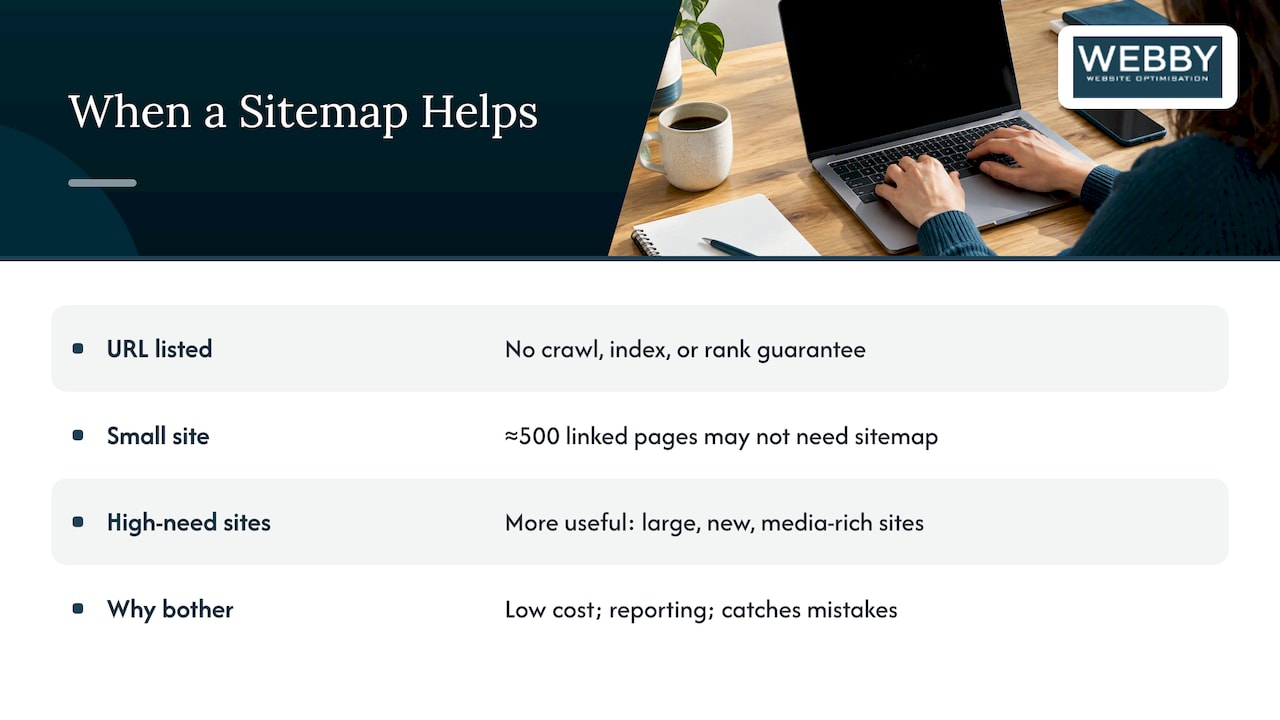
The word to hold onto is hint. Adding a URL to your sitemap does not guarantee it will be crawled, and it certainly does not guarantee it will be indexed or ranked. Google may skip pages that look thin, duplicated or poorly linked. Plenty of owners tell us a page “is in the sitemap but not on Google”. The sitemap is almost never the problem in that case. The page is.
Google also says that a small site with good internal linking may not need a sitemap at all. Its overview describes a site of roughly 500 pages or fewer, where every page is reachable from the navigation, as one that may not need one. A sitemap matters more for larger sites, new sites with few external links, and sites with lots of video or image content.
So why bother if you have 40 pages? Because it costs almost nothing, it gives you a reporting window in Search Console, and it catches mistakes. A page that exists but is missing from the sitemap often turns out to be an orphan with no internal links.
What belongs in your sitemap
The rule is simple: include the URLs you would be happy to see as a search result. For a typical service business that means:
- The home page.
- Each service page.
- Location or service-area pages that carry real, unique content.
- Blog posts and guides worth ranking.
- Case studies, about and contact pages.
And it excludes:
- Pages marked
noindex. - URLs that redirect somewhere else.
- Pages that return a 404 or a server error.
- Thank-you and checkout confirmation pages.
- Internal search results, filtered URLs and parameter variations.
- Tag, author and date archives that duplicate your posts.
- Staging or test pages.
If a page is in the sitemap and also carries a noindex tag, you are sending two opposite signals. Search Console will flag it, and it makes your sitemap harder to trust.
Canonical URLs only
Google’s guidance on build and submit a sitemap says the sitemap should contain the URLs you consider canonical. Pick one version of each page and list only that one: https rather than http, with or without www (matching your live site), and with or without a trailing slash (matching your canonical tags).
A sitemap is not the way to set a canonical preference. Google’s page on specifying a canonical lists redirects and rel="canonical" as stronger signals, and sitemap inclusion as a weaker one. Decide the canonical first, using redirects and canonical tags. Then let the sitemap reinforce that choice.
Watch your service-area pages
Many Perth, Fremantle and Melville businesses publish a page for each suburb. If those pages are near-copies with only the suburb name swapped, putting them all in your sitemap does not make them any more valuable. It advertises thin content in bulk. We cover the risk in our guide to service area pages and doorway penalties. Fix the pages first, then list them.
Technical rules that make a sitemap valid
These points are not matters of taste. A file that breaks them can be rejected or partly ignored.
- Use absolute URLs. Google’s build-a-sitemap page states that URLs must be fully qualified, including the protocol.
/about/is wrong.https://www.example.com.au/about/is right. - Encode the file as UTF-8 and escape special characters. The sitemaps.org protocol requires UTF-8 and entity-escaped values. An ampersand in a URL must be written as
&. - Respect the size caps. A single sitemap can hold up to 50,000 URLs and be up to 50MB uncompressed, per the same Google documentation.
- Keep it on your own domain. A sitemap should list URLs from the host it lives on, and it works best at the root, such as
/sitemap.xmlor/sitemap_index.xml. - Serve it as a clean XML file. It should return a 200 status, not redirect to a login or a 404 page that looks like a page.
A minimal valid file looks like this:
<?xml version="1.0" encoding="UTF-8"?>
<urlset xmlns="http://www.sitemaps.org/schemas/sitemap/0.9">
  <url>
    <loc>https://www.example.com.au/services/seo/</loc>
    <lastmod>2026-09-12</lastmod>
  </url>
</urlset>
The two tags that matter are loc and lastmod. That is all you need.
Lastmod: the one optional tag worth getting right
The protocol allows priority and changefreq, and many plugins still output them. Google does not use them, so you can ignore them. Hand-setting every page to priority 1.0 achieves nothing.
lastmod is different. Google uses it when the dates prove reliable over time. Bing has published a post on setting the lastmod tag and recommends it as a signal for when a page last changed.
The trap is that many sites update lastmod to today’s date on every page, every time anything changes, or on every cache flush. Once crawlers learn that your dates are noise, they stop trusting them. Only change lastmod when the content of the page meaningfully changes: new text, new pricing, a new section. Fixing a typo or changing a footer link does not count.
A quick way to check yours: open the sitemap, pick three pages you have not touched in a year, and see whether their dates are old. If every date is from this week, your plugin is stamping them automatically.
Size, structure and sitemap index files
Most small business sites fit comfortably in one file. Still, there is a good argument for splitting by type once you have more than a handful of content types. Google’s guide to sitemap index files explains that you can submit one index that points to the child files, and that you must split when you pass the limits.
A sensible structure for a service business:
| File | What it holds | Why separate it |
|---|---|---|
sitemap-pages.xml | Home, services, locations, about, contact | Shows how many core pages are indexed |
sitemap-posts.xml | Blog posts and guides | Lets you see whether content is being picked up |
sitemap-case-studies.xml | Case studies and portfolio | Tracks proof pages on their own |
sitemap-images.xml | Images not easily found otherwise | Helps with image discovery |
The real benefit is diagnostic. Search Console reports on each sitemap you submit, so if 90% of your service pages are indexed but only 40% of your posts are, you know where to look. With one giant file, that signal is blurred.
Images, video and news
If you rely on galleries or before-and-after photos loaded with JavaScript, Google’s image sitemap documentation says they are a way to tell Google about images it might not otherwise find. For a plumber or cleaner with ordinary images in the page HTML, that is usually unnecessary. Video and news sitemaps are specialist tools. Most local service sites do not need them.
Setting it up on WordPress
If your site runs on WordPress, you very likely have a sitemap already. Yoast notes that since WordPress 5.5 every installation generates an XML sitemap automatically. SEO plugins replace that default with their own, usually at /sitemap_index.xml.
Do not run two at once. We often see sites with the core WordPress sitemap, an SEO plugin sitemap and a third from a caching or performance plugin, all live at different addresses and listing different URLs. Pick one, disable the others, and check that the old addresses redirect or return nothing.
Then walk through these settings:
- Post types. Include pages, posts and any custom type that holds real content, such as case studies or services. Exclude types that do not, like testimonials or slider items.
- Taxonomies. Hide tag archives unless they are genuinely useful landing pages. Category archives can stay if they carry real copy.
- Author and date archives. On a single-author business blog, switch them off.
- Noindex handling. Confirm the plugin drops any page set to noindex from the sitemap automatically. Test with one page.
- Attachment pages. Make sure media attachment URLs are not listed.
Our WordPress SEO tips go deeper on the rest of the plugin setup.
Submit it, then monitor it
Submit in Search Console
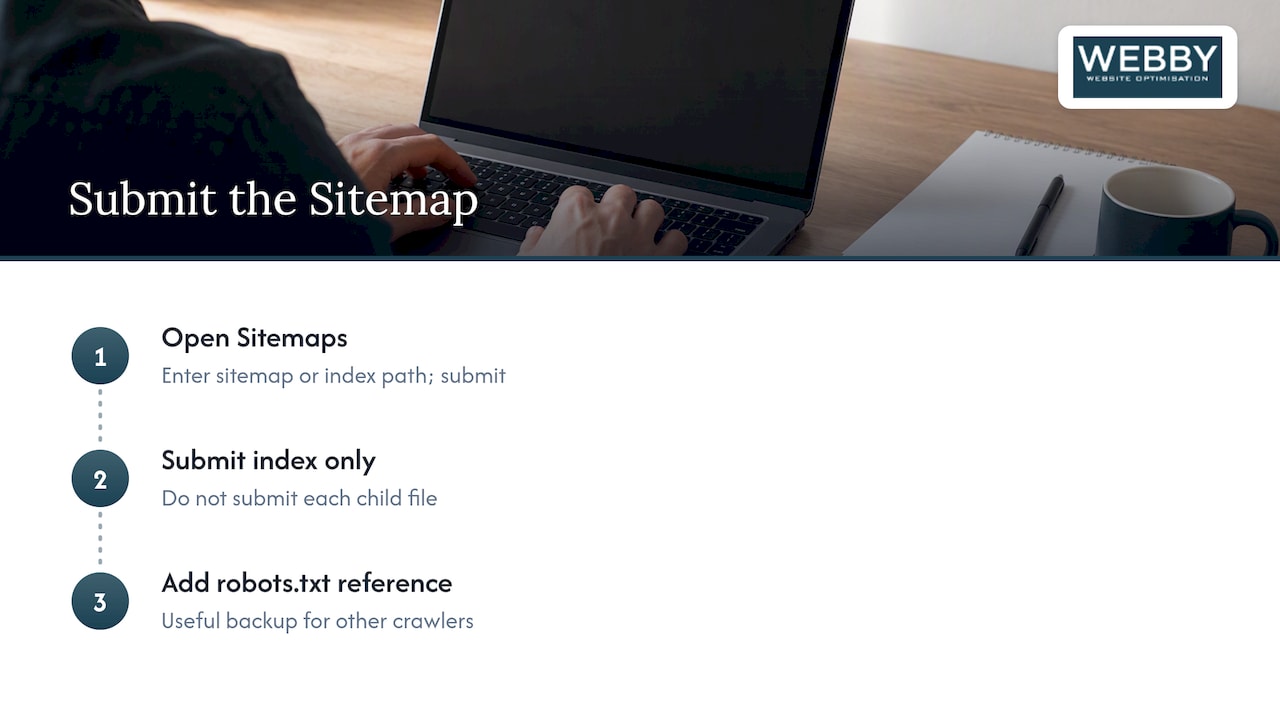
In Google Search Console, open Sitemaps, enter the path of your sitemap or index (for example sitemap_index.xml) and submit. Submit the index only, not each child file as well. Google also lets you reference the sitemap with a Sitemap: line in robots.txt, which is a useful backup for other crawlers.
Read the report like a mechanic
Check the sitemap report for three things:
- Status. It should read Success. “Couldn’t fetch” usually means the file is blocked, redirecting or returning an error.
- Discovered URLs. The number should roughly match the pages you expect. If you have 60 pages and it says 600, something is generating junk URLs.
- Page indexing. Filter the Page indexing report by your sitemap. Pages that are submitted but not indexed deserve a manual look: are they thin, duplicated, or poorly linked?
Google’s crawling troubleshooting guide covers what to check when new pages are not being crawled in a reasonable time. The causes include Google not knowing about them, blocked content and limits on crawl capacity.
Consider IndexNow for Bing
Bing supports IndexNow, a protocol that lets you tell participating search engines when a URL has been added, changed or removed. Google does not use it, so it does not replace a sitemap. For a service business that changes prices or publishes often, it is a cheap extra, and some WordPress SEO plugins include it.
Common mistakes we see
- Treating the sitemap as the fix for poor internal links. Pages that appear only in the sitemap are weakly connected to the rest of the site. Link to them from relevant pages.
- Listing redirected URLs. After a redesign, old URLs 301 to new ones, but the sitemap still names the old ones. Regenerate it.
- Leaving staging URLs in. A migration sometimes carries the test domain into the file. Open the XML and scan the domain on every line.
- Blocking the sitemap or its pages in robots.txt. You cannot ask Google to crawl a URL and block it in the same breath.
- Not updating after changes. Sitemaps from a static generator go stale the day you publish a new service page.
- Hand-editing a static file. Dynamic generation, through your CMS or SEO plugin, keeps the list in step with the site.
A five-minute sitemap health check
Run this once a quarter, and after any major site change:
- Open
yourdomain.com.au/sitemap.xmlor your index. Does it load and show clean XML? - Skim for any URL that should not be there: staging, parameters, thank-you pages, tags.
- Click five random URLs. Each should load directly with no redirect.
- Confirm Search Console shows a Success status and a sensible URL count.
- Compare submitted pages against indexed pages, and investigate the gap.
- Check that
lastmoddates look like real edit dates.
If you want a quick outside view of on-page basics, our free SEO Inspector is a handy starting point.
Our perspective
We work with local service businesses in Perth, Fremantle and Melville, and the sitemap is almost never what holds a site back. What holds it back is a thin service page, a missing internal link, a slow template or a site that no longer matches what customers search for. A sitemap with 400 messy URLs on a 40-page site is a symptom of that, not the cause.
So we treat the sitemap as a hygiene item and a diagnostic tool. We make sure it is clean, split sensibly and submitted. Then we use the Search Console reports to see which pages Google has chosen not to index, because those pages tell you where the real work is. If the fix is a better page, we say so rather than hiding behind technical tweaks.
Our advice to an owner is to spend an hour on the sitemap and the rest of the month on pages your customers actually read. Search engines reward sites that are clear, fast and useful, and a tidy sitemap is how you let them see that quickly.
— Steve Doig
When it is worth getting help
If your sitemap lists hundreds of unexpected URLs, your pages show as submitted but not indexed, or you have just rebuilt the site, a technical review pays for itself quickly. Our Website Audit is a one-off service at 1,250 AUD that looks at the technical and on-page issues holding a site back, including how it is crawled. If you would rather have someone keep the site healthy month to month, our WordPress help and support plans start with Monthly Maintenance at 59 AUD per month. For ranking work beyond the technical basics, see our search engine optimisation service.
FAQ
Do I need an XML sitemap if my site only has 20 pages?
Not strictly. Google says small sites that are well linked may not need one. It is still worth having, because it costs nothing on WordPress and gives you indexing data in Search Console. Just make sure it is clean.
What is the difference between an HTML and an XML sitemap?
An XML sitemap is written for search engine crawlers and submitted through tools like Search Console. An HTML sitemap is an ordinary page for human visitors, usually linked in the footer. Most small sites only need the XML version. An HTML one helps only if your navigation is large or confusing.
How often should I update my sitemap?
It should update itself whenever you publish, change or remove a page, which any CMS or SEO plugin can do automatically. You do not need to resubmit it each time. Check it manually once a quarter and after a redesign or migration.
Will adding a page to my sitemap get it indexed?
No. A sitemap tells Google the page exists, but indexing depends on quality, uniqueness and how well the page is linked from the rest of your site. If a page stays unindexed, improve the content and add internal links to it before changing anything in the sitemap.
Should I include noindex pages or redirects?
No. List only canonical URLs that return a 200 status and that you want in search results. Noindex pages and redirected URLs send conflicting signals and make the sitemap less useful.
Sources
- What Is a Sitemap, Google Search Central
- Build and Submit a Sitemap, Google Search Central
- Manage Your Sitemaps With Sitemap Index Files, Google Search Central
- Image Sitemaps, Google Search Central
- How to Specify a Canonical, Google Search Central
- Troubleshoot Google Search Crawling Errors, Google Search Central
- Sitemaps.org Protocol
- The Importance of Setting the lastmod Tag in Your Sitemap, Bing Webmaster Blog
- IndexNow, Bing Webmaster Tools
- XML Sitemaps, Yoast SEO Features