

Why Launch Order Matters More Than a Long List
Does your new site look finished but not actually work yet? It can sit there looking perfect while a single leftover setting hides it from Google, old links lead nowhere, the quote form sends emails into the void, and nobody notices because analytics was never switched on.
This happens to bigger teams too. In August 2019, a deployment added a noindex, nofollow directive across Moz, and the site lost 33.2% of its search traffic and took several weeks to recover. In June 2025, AiSDR’s homepage disappeared from Google for nearly nine days after a staging noindex tag stayed on the live site.
A long website launch checklist treats a missing favicon and a blocked homepage as equals. They are not. So this guide ranks tasks by what can break the launch.
Tier 1, blockers: indexing, redirects, forms, tracking, privacy and accessibility basics.
Tier 2, essentials: speed, mobile, content accuracy, security and backups.
Tier 3, polish: everything that can wait until the site is live and earning.
After that comes a 30-day monitoring plan, because Google gives no fixed date for rankings to settle after a site move.
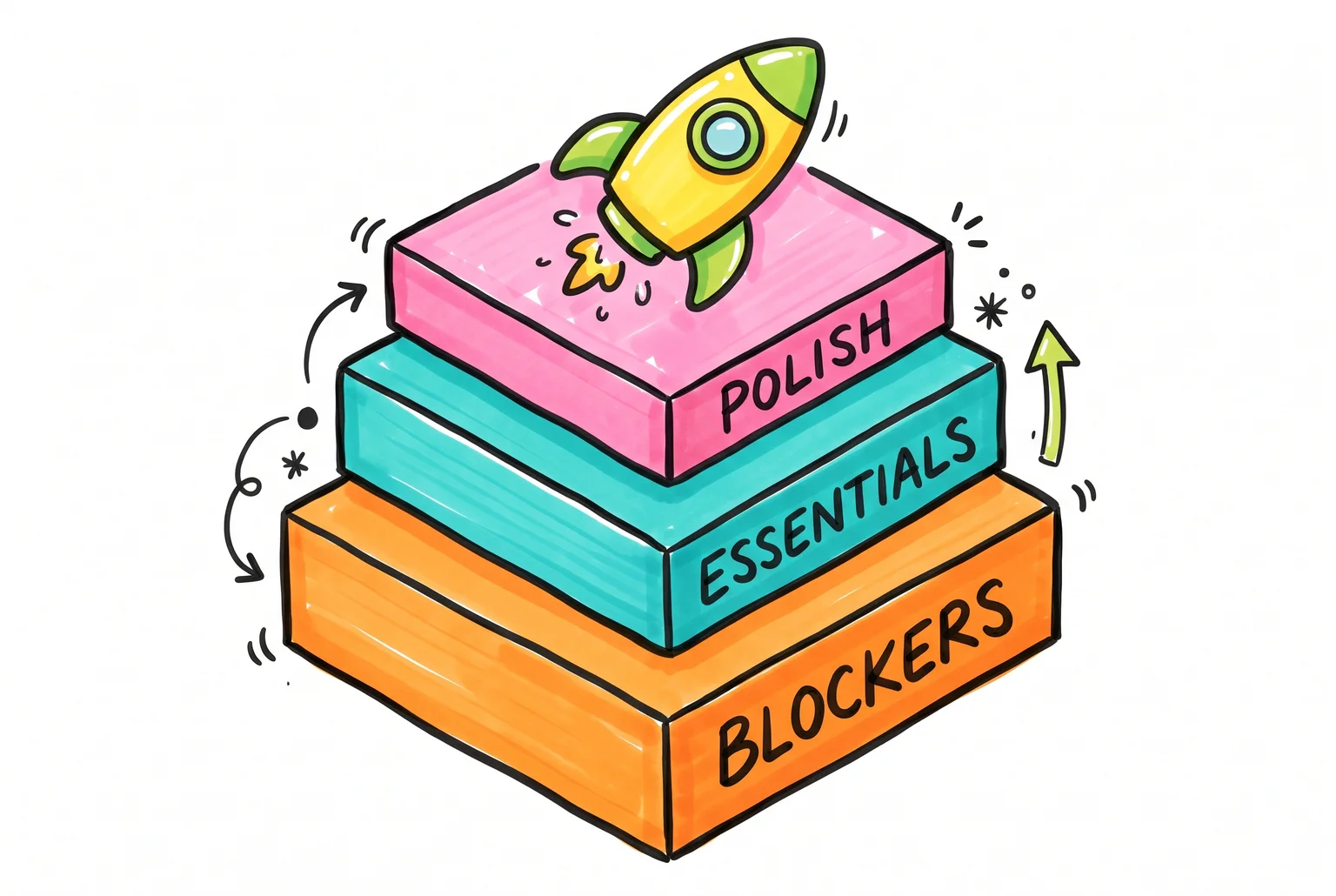
Fix what can break the launch first, and leave the polish until the site is live.
To keep this concrete, the later sections follow a hypothetical business: a small Perth electrical contractor replacing an old site with a new one. It is an illustration, not a real client. The old site has a few years of Google history and a phone that rings from it. Every tier gets applied to that site.
Tier 1: Make Sure Google Can Find the Site
Staging setups often carry a “keep out of Google” setting into the live site. Work through these in order, because the first ones can hide the whole site.
- Remove noindex tags and headers. A noindex tag tells Google not to list a page. It can sit in the page code or in a server header. Check the homepage source and your SEO plugin’s visibility setting.
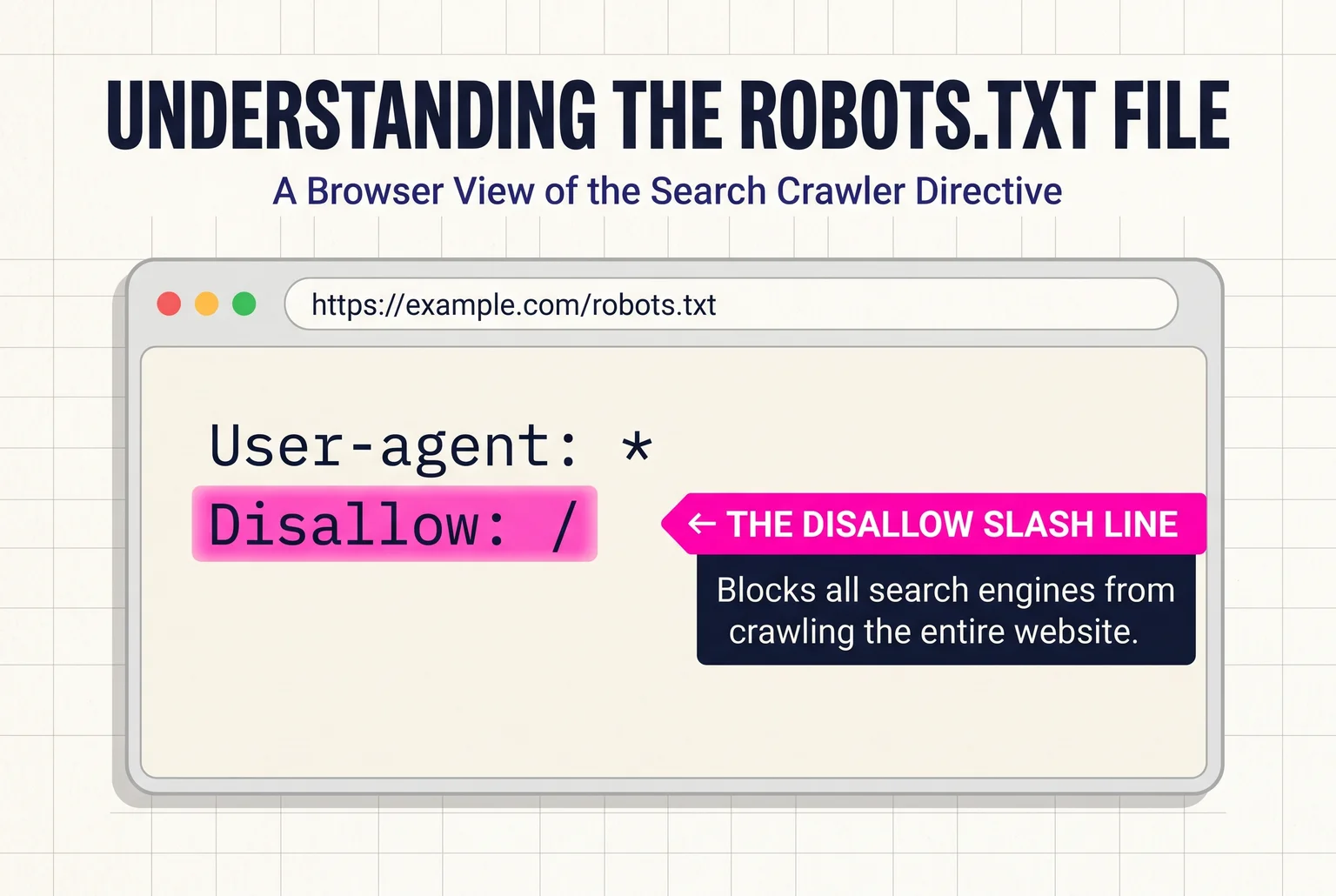
- Check robots.txt. This file tells crawlers which parts of a site to stay out of. Open yourdomain.com.au/robots.txt. If it says
User-agent: *andDisallow: /, it blocks crawling across the whole site. Delete that rule.
- Lock down staging. Use a password on the staging site. Robots.txt alone doesn’t reliably keep a URL out of results. Also check that live pages don’t name a staging address as their canonical version.
- Pick one address. Choose www or non-www, and HTTPS, then redirect the others to it.
- Verify the site in Search Console. A Domain property uses DNS verification and covers subdomains and protocol variations.
- Submit the XML sitemap. Publish it on the live site first. Submitting tells Google where to find it.
- Inspect key URLs. URL Inspection can test whether the live page is accessible and eligible for indexing. A pass doesn’t guarantee indexing. Repeat requests for one URL won’t speed up crawling.
- Write titles and descriptions. Give priority pages unique, concise titles and page-specific descriptions.
For the Perth electrician, inspect the services and contact pages first, since those bring in the calls. Each service page needs its own title, such as “Switchboard Upgrades in Perth”, rather than a copied homepage title.
Tier 1: Redirects, Forms and Tracking
Will old links send visitors to a dead end? Map each old URL to its closest new page with a permanent 301 or 308 redirect. If a page has no real replacement, return a 404. Redirecting it to the homepage can be treated as a soft 404. Our site migration SEO checklist covers mapping in more depth.
- [ ] Old top pages land on the matching new page
- [ ] No redirect chains, each old URL jumps once
- [ ] Missing pages show a proper 404
Does your form actually deliver? A form that fails silently looks like a quiet week. Submit the quote form on the live site, from a real phone.
- [ ] Confirmation message appears
- [ ] Notification arrives in the inbox, and you’ve checked spam
- [ ] Spam protection is on
- [ ] SPF and DKIM are set up, with DMARC added, so legitimate senders are authorised. This helps trust but doesn’t guarantee inbox placement.

Will you know a lead happened? Install GA4, open Realtime and click around the live site. For the electrician, track the form submission (a generate_lead event), not page_view as a key event. Phone taps can use a GTM click trigger that fires only when the link URL starts with tel:.
- [ ] Quote form and call button each send an event in Realtime
- [ ] Both are marked as key events
- [ ] Search Console connected, plus Google Ads or Bing conversion tags if you run ads
Do the links work? Click through the menu, footer and buttons like a customer, from the homepage to the quote form.
- [ ] No broken menu or footer links
- [ ] Call button dials on a phone
Tier 1: Privacy, Cookie Consent and Accessibility Basics
Do you need a privacy policy? The Privacy Act 1988 generally does not apply to small businesses with annual turnover of $3 million or less, with some exceptions. Smaller businesses are mostly exempt, unless they trade in personal information or provide a health service. If the Act covers you, a notice should appear at or before collection, beside the form or behind a prominent link. Even if it doesn’t, a short privacy page naming your analytics and ad tags is sensible. This is general information, not legal advice.
- [ ] Quote form has a collection notice next to the submit button
- [ ] Privacy policy is linked in the footer and lists analytics and ad tags
Do you need a cookie banner? For Australian-only audiences, the Privacy Act doesn’t ban tracking pixels. EU guidance expects consent before non-essential cookies, and the GDPR can reach an Australian site that offers services to people in the EU or monitors their behaviour. Being viewable there isn’t enough. A Perth electrician serving Perth suburbs probably doesn’t need one.
Can everyone use the form? The Disability Discrimination Act names no technical standard, but guidance points to WCAG, and our accessibility guide for Australian businesses covers the legal side. Aim for WCAG 2.2 Levels A and AA. Run an automated checker, then tab through the quote form without a mouse.
- [ ] Text contrast is at least 4.5:1 (3:1 for large text)
- [ ] Images have alt text
- [ ] Every form field has a visible label
- [ ] Headings run in order, one H1 per page
- [ ] Tab reaches every link and button, with a visible focus outline
- [ ] Buttons are at least 24 × 24 CSS pixels
Tier 2: Speed, Core Web Vitals and Mobile
A 5 MB hero image on a services page is a launch problem. Run your homepage, services page and contact page through PageSpeed Insights, which shows Lighthouse lab data alongside real-user field data. Aim to pass on key pages, not to hit 100.
A page passes Core Web Vitals when each measure is good for 75% of real visits:
- LCP: how long the biggest element takes to appear, good at 2.5 seconds or less.
- INP: how quickly the page responds to taps and clicks, good at 200 ms or less.
- CLS: how much the layout jumps while loading, good at 0.1 or less.
Field data covers a rolling 28-day period, so a new site won’t show it at launch. Use lab results now and check field data later.
For the Perth trades example, resize the hero image, save it as WebP or AVIF, and keep it out of lazy-loading. Lazy-load the gallery below it, and set width and height on every image. Drop heavy sliders and extra scripts. If scores stay poor, check hosting and caching.

Then pick up a real phone. Check that text is readable without zooming, nothing scrolls sideways, buttons are easy to tap, and the quote form works with a thumb.
Tier 2: Content, Security and Backups
These sit below the Tier 1 blockers, but a missing SSL certificate or a backup that doesn’t exist can stop a launch just as fast.
Content
- [ ] Proofread every page. Replace lorem ipsum, placeholder text and stock images, starting with the Perth trades example’s service pages.
- [ ] Make business name, phone and address identical on every page, the footer and Google Business Profile. If you display an ABN, match it to the ABR record. ABN holders must update changes within 28 days.
- [ ] Click every footer and legal link.
Security and backups
- [ ] Open the site over HTTP and confirm it redirects to HTTPS. Check the browser console for mixed-content warnings, such as images or scripts loading from http:// addresses.
- [ ] Remove the default “admin” username. Use unique passphrases and two-factor authentication.
- [ ] Update the CMS and plugins.
- [ ] Run an automated backup, restore it as a test, and keep one copy off-site.
- [ ] Turn on domain auto-renewal and confirm SPF and DKIM for your email.
Tier 3: What Can Wait Until After Launch
Animations, extra blog posts, social profile updates, favicon and share-image refinements, A/B tests, secondary page tweaks and further design adjustments can all wait. So can advanced schema. Structured data can enable richer search appearances, but it adds nothing if the site isn’t indexed or the form is dead.
Keep a “later” list with a date beside each item, such as “share image, 14 days” or “blog post two, 30 days”.
If you want early visibility while SEO builds, Google or Bing ads can run from launch day.
If an item can’t stop visitors finding the site, contacting you or being tracked, or create legal risk, it goes on the list.
Your First 30 Days After Launch
- Day 0-1: Check the live site, submit a test enquiry, and confirm GA4 records the event. A sitemap marked Success means Google read the sitemap and queued its URLs, not that they’re indexed.
- Week 1: Check Search Console for errors, excluded pages, 404s and redirect problems. Retest a form and confirm uptime.
- Weeks 2-3: Review queries and impressions, fix the top broken links, and recheck mobile. Core Web Vitals field data uses a rolling 28-day window, so fixes take about four weeks to show.
- Day 30: Compare leads with the old site, update the “later” list and book monthly checks.
Normal: ranking movement and slow indexing. Warning signs: a persistent traffic drop, key pages not indexed, or enquiries falling to zero.
Summary: blockers first, essentials second, polish last. For a second pair of eyes, contact Steve on steve@webby.net.au or 0422 949 434.
Sources
- Accidental Site De-Index from Google and Long Road to Recovery: Moz Case Study | Organic SEO | Local Search Forum — Local Search Forum
- 5 Lessons Learned from an Accidental No-Index Tag | AiSDR — AiSDR
- Site moves with URL changes — Google Search Central
- robots.txt — Google Search Central
- Introduction to robots.txt — Google Search Central
- Verify your site ownership — Google Search Console Help
- Sitemaps report — Google Search Console Help
- Ask Google to recrawl your URLs — Google Search Central
- SEO Starter Guide — Google Search Central
- Redirects and Google Search — Google Search Central
- Email sender guidelines — Google Workspace Admin Help
- Mark events as key events — Google Analytics Help
- Small business | OAIC — Office of the Australian Information Commissioner (OAIC)
- APP Guidelines, Chapter 5 — Office of the Australian Information Commissioner
- Online privacy — European Union
- Guidelines 3/2018 on the territorial scope of the GDPR (Article 3) — European Data Protection Board
- Website Accessibility in Australia: A Practical Guide — Net
- About PageSpeed Insights — Google for Developers
- PageSpeed Insights and the Chrome UX Report — Chrome for Developers
- Image performance — web.dev
- Optimize Largest Contentful Paint | Articles | web.dev — web.dev
- Update your ABN details | Australian Business Register — Australian Business Register
- Fixing mixed content — web.dev
- SMALL BUSINESS CYBER SECURITY GUIDE – Australian Cyber … — Australian Cyber Security Centre
- Introduction to structured data — Google Search Central
- Sitemaps report — Google Search Console Help
- Debugging drops in Google Search traffic — Google Search Central