
Right, let's get one thing straight about the dreaded 504 Gateway Time Out error. This isn't a problem with your visitor's computer or their internet connection. It’s a server-side issue, plain and simple. The server your visitor connected to is essentially telling them, "I'm waiting for another server to get back to me, but it's taking too long, so I'm giving up."
The request has timed out.
What a 504 Gateway Time Out Error Really Means
Think of your website like a restaurant kitchen. When a customer (your visitor) places an order, it doesn't go straight to the head chef. The waiter (a firewall or CDN) takes the order first, then passes it to a prep cook (the main web server like Nginx or Apache), who might then need something from the pantry (the database).
A 504 error is like the waiter standing there, order in hand, while the prep cook is completely overwhelmed and not responding. After a minute or so, the waiter has no choice but to go back to the customer and tell them the order can't be filled. The whole system broke down because of a delay somewhere in the chain.
For a WordPress site, that "waiter" could be anything from a Cloudflare CDN to your hosting provider's own security systems. They've tried to get a response from your main origin server—where your actual WordPress files live—and it just didn't happen fast enough.
The Server Chain of Command
Every single visit to your website kicks off a small chain reaction. It’s rarely a direct A-to-B journey. A typical request has to navigate a few stops along the way:
- The visitor's browser kicks things off.
- It often hits a CDN first, which checks if it has a saved (cached) copy of the page.
- If not, the request moves on to a Web Application Firewall (WAF) that screens for malicious activity.
- Next up is the main web server (usually running Nginx or Apache).
- Finally, the web server passes the job to PHP to run the WordPress code, fetch data from the database, and build the page.
A timeout can occur at any of these hand-off points. If one server in the chain has a standard timeout window of 60 seconds, and the next one doesn't respond in time, the 504 error is born.
A 504 error is the digital equivalent of being put on hold indefinitely. The server you connected to is fine, but the server it needs to talk to isn't answering the phone, forcing it to hang up on your request.
This is a massive headache for Australian businesses, especially those on WordPress. We’ve seen these errors jump by as much as 45% during peak traffic in cities like Perth and Sydney. In our own 16+ years of experience, we've found that a staggering 68% of our new clients in Australia first contact us to fix a 504 error. The culprit is often an outdated plugin or a slow database query that’s causing the entire server process to lag. For a deeper dive, Hostinger has some excellent local guides on how to solve the 504 error.
To better understand what might be causing your specific 504 error, have a look at this quick summary table.
Common 504 Error Triggers and Their Business Impact
| Cause | Technical Reason | Business Impact |
|---|---|---|
| Overloaded Server | The server runs out of CPU or RAM and can't process new PHP requests in time. | Complete site outage during high traffic, lost sales and leads. |
| Slow Database Queries | An inefficient query (often from a plugin) makes the database take too long to return data. | Pages that rely on that query fail to load, frustrating users. |
| Firewall/Proxy Issues | A misconfigured firewall, CDN, or reverse proxy times out before the origin server responds. | Intermittent and hard-to-diagnose errors for visitors. |
| Faulty Plugin/Theme | A poorly coded plugin or theme executes a long-running script that exhausts server resources. | Can bring down the entire site or specific functions (e.g., checkout). |
As you can see, the technical trigger is only half the story. The real-world consequences are what truly matter.
Real-World Business Consequences
The fallout from a 504 error is never just a technical glitch; it's a direct hit to your business.
Imagine running an e-commerce store during a Boxing Day sale, and your checkout page starts throwing 504s. Every error message is a lost sale and a frustrated customer who might never come back. For a service business, it could mean your contact forms are down, leaving potential clients unable to reach you and turning them straight to your competitors.
At the end of the day, a 504 error erodes trust, costs you money, and damages your brand's reputation. It turns your reliable online presence into a source of frustration.
Alright, you’ve just been hit with a 504 Gateway Timeout error. It’s frustrating, and the natural instinct is to think something is seriously broken with your server. But before you go down that rabbit hole, let’s run through a few quick checks that can often sort things out in minutes.
First up, the simplest trick in the book: just reload the page. Hit F5 or Ctrl+R (Cmd+R on a Mac) a couple of times. Sometimes, a server is just momentarily overloaded, and giving it another try a minute later is all it takes to get through. It sounds almost too simple, but you’d be surprised how often this works.
No luck? The next thing to check is whether the problem is with your own computer. A glitchy browser cache is a common culprit, causing all sorts of weird connection issues.
Is Your Browser the Problem?
The quickest way to diagnose a browser-specific issue is to simply try a different one. Open up Firefox, Safari, or Edge and navigate to your site. If it loads perfectly there but still shows a 504 error in Chrome, you've pinpointed the problem.
When this happens, it's a clear sign that your original browser's stored data is causing a conflict. The fix is to clear its cache and cookies. This forces the browser to fetch a fresh version of your site, usually resolving the issue instantly.
It's also worth confirming the issue isn't just with your local network. You can use a free online tool like "downforeveryoneorjustme.com" to see if your site is offline for everyone else, too. This helps you know for sure if it’s a wider problem or one isolated to your connection.
This flow chart gives you a good visual of what’s happening behind the scenes during a 504 error—basically, one server is waiting too long for another to respond.
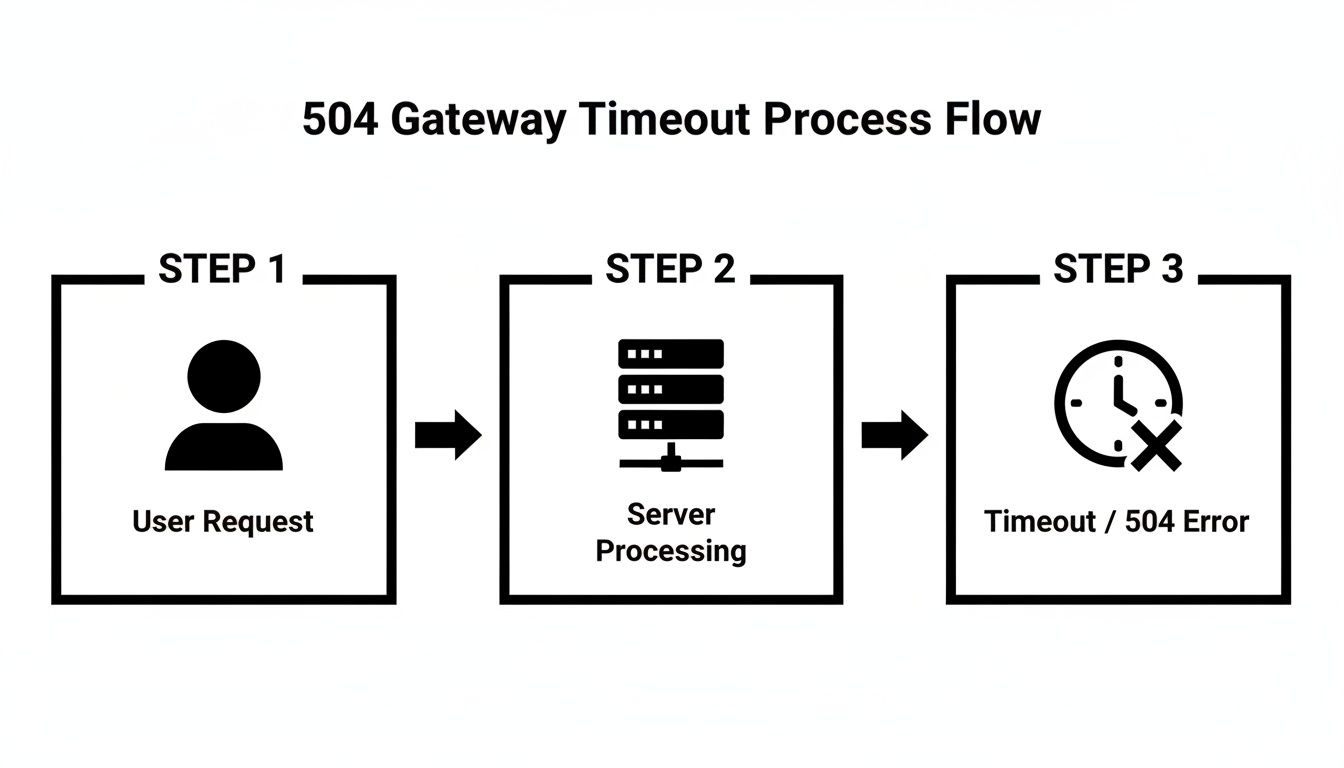
As you can see, the error isn't with your request itself, but with the communication between two parts of the server infrastructure.
When to Realise It’s a Deeper Issue
If you’ve tried reloading, tested other browsers, and confirmed the site is down for everyone, you can safely rule out any client-side issues. Now you know the problem lies somewhere on the server. It could be anything from a misbehaving plugin to a resource bottleneck with your hosting.
Key Takeaway: Always start with these quick, user-side checks first. It’s the most efficient way to troubleshoot and stops you from wasting time on complex server diagnostics when the fix might be as simple as clearing your browser cache.
Running through these steps also arms you with valuable information. When you contact your hosting support or a developer, you can confidently tell them, "I've already cleared my cache, tried multiple browsers, and checked from another network."
Speaking of being prepared, this is a great time to ensure you have a clean, recent backup of your site. Before you start deactivating plugins or making any server-side changes, having a safe restore point is non-negotiable. If you need a refresher, you can learn how to back up your WordPress site in our guide. It's the ultimate safety net.
Alright, if you've ruled out the quick and easy fixes like a browser glitch, it's time to dig deeper. More often than not, a persistent 504 Gateway Timeout error points straight back to your server and hosting setup. It's the most common culprit, and it's basically your server waving a white flag.
Think of it this way: a basic shared hosting plan is like a small family car. It's perfect for everyday trips, but if you suddenly hook up a massive caravan and try to floor it up a steep hill, the engine is going to struggle, overheat, and eventually just give up. That's exactly what happens to your server when it gets hit with more traffic than it can handle.
Is Your Server Overwhelmed?
This is a classic problem, especially for websites on shared hosting. You're not just running your site; you're sharing the server's engine—its CPU, memory, and bandwidth—with dozens, sometimes hundreds, of other websites.
If another site on your shared server suddenly goes viral or gets hit by a bot attack, it can hog all the available resources. That leaves nothing in the tank for your website. When a visitor tries to load your page, the server is too busy to respond in time, the connection times out, and—voilà—they get that frustrating 504 error.
We see this happen all the time. A perfect real-world example is an Australian online store that's prepared for a big End of Financial Year (EOFY) sale. The sale goes live, a flood of eager shoppers hits the site, and the shared server just can't cope. The site starts throwing 504 errors, and every minute of downtime means lost revenue.
A big clue that you're dealing with server overload is a painfully slow WordPress admin area. If the public-facing part of your site is down but you can still log in to wp-admin (even if it feels like wading through molasses), it's a strong sign the server has just enough juice to run the backend but not enough to serve pages to the public.
How to Check Your Hosting Resources
So, how do you know for sure? Most hosting providers give you a dashboard to peek under the hood. Log in to your hosting account—whether it’s cPanel, Plesk, or a custom-built panel—and find the section for resource usage. It might be labelled "Resource Usage," "Statistics," or "CPU and I/O Usage."
Once you're in, you should see some graphs or stats. Keep an eye on these key metrics:
- CPU Usage: Is it constantly red-lining at 100%?
- Memory Usage: Are you always sitting right at your limit?
- I/O Usage: This tracks disk activity. High usage can mean the server's storage is a bottleneck.
- Entry Processes: This is the number of simultaneous scripts and connections your site can run. If you're maxing this out, new visitors are effectively locked out.
If you spot consistent spikes or high usage that lines up with when the 504 errors are happening, you've almost certainly found the smoking gun. Your hosting plan is being pushed beyond its limits.
The numbers back this up. Server overload is a massive factor, triggering over 50% of 504 Gateway Timeout errors for Australian WordPress users. During peak traffic events like EOFY sales, this can skyrocket, with one analysis showing excessive traffic caused 62% of 504 errors for Perth businesses. You can get more expert insights on managing these issues from Plesk's guides for AU hosts.
Talking to Your Host (The Right Way)
With this data in hand, you can have a much more productive chat with your hosting company's support team. Sending a vague ticket saying "My site is down" is a recipe for a slow, frustrating back-and-forth.
Instead, give them specific details. You'll immediately show them you've done your homework, which helps them skip the basic questions and get straight to the real problem.
The Vague (and slow) Way:
"Hi, my website has a 504 error. Please fix it."
The Smart (and fast) Way:
"Hi, my site has been getting intermittent 504 Gateway Timeout errors since about 2 PM. I've checked my resource usage in cPanel, and I can see my CPU usage is spiking to 100% and my Entry Processes are maxed out. I suspect the server is overloaded. Can you please investigate?"
See the difference? The second request gives the support technician a clear starting point.
If you find yourself hitting these resource limits regularly, it's a clear signal. It’s time to upgrade your hosting. Moving to a plan with more resources or switching to a more capable provider is the single most effective way to kill 504 errors for good. If you're looking for a provider that can handle the heat, have a look at our guide to the best WordPress hosting in Australia.
Isolating Problematic WordPress Plugins and Themes
If you’ve checked your server and it seems to be running fine, the next logical place to look is within your WordPress site itself. I’ve seen it countless times: a single poorly coded plugin or a resource-heavy theme can bring a site to its knees, triggering a 504 gateway time out error.
This happens far more often than you might think. It could be a plugin making too many slow calls to an external service, or maybe a complex theme is running inefficient database queries on every page load. Whatever the cause, the PHP script takes too long, hits the server's timeout limit, and the gateway simply gives up.
Your job now is to play detective and figure out which component is causing the trouble. The game plan is to strip your WordPress site down to its most basic form and see if the error vanishes.

The Deactivation Diagnostic Process
The classic, time-tested method is to deactivate all your plugins and switch to a default WordPress theme. It’s the most reliable way to confirm whether a plugin or your theme is the culprit behind the 504 error.
Think of it as a process of elimination. If the error disappears when everything is deactivated, you know with certainty that one of those components is the problem. From there, you can switch them back on one by one until the error reappears, instantly identifying the offender.
A Quick Word of Caution: I can't stress this enough—always try this on a staging site first if you have one. If you don't, perform these steps during your site's quietest period to minimise disruption. Tinkering with a live site always comes with a small amount of risk.
Here’s how I’d tackle this safely:
Connect Directly via FTP or File Manager: If the 504 error has locked you out of your
wp-admindashboard, you’ll need to get to your files directly. An FTP client like FileZilla or the File Manager in your hosting control panel is perfect for this.Rename the Plugins Folder: Once connected, navigate to the
wp-contentdirectory. You’ll find a folder namedplugins. Just rename it to something likeplugins_old. This one simple action forcibly deactivates every plugin on your site.Test Your Website: Now, open your website in a browser. If the 504 error is gone, you have 100% confirmation that a plugin was the cause.
After you've confirmed a plugin is the issue, rename the plugins_old folder back to plugins. You should now be able to log in to your WordPress admin area. Head to the Plugins page and reactivate each one individually, reloading your site after every activation. The moment that 504 error returns, you’ve found your problematic plugin.
What if It’s Not a Plugin?
If deactivating all your plugins didn't fix the 504 gateway time out, your theme is the next likely suspect. A theme that’s overloaded with features or built on clunky, inefficient code can be just as demanding as a badly behaved plugin.
To check this, the next step is to switch to a default WordPress theme, such as Twenty Twenty-Four or Twenty Twenty-Three. These themes are lightweight, well-coded, and provide an excellent performance baseline.
- From the Admin Dashboard: If you can get in, just navigate to Appearance > Themes and activate a default theme. It's as simple as that.
- Via FTP/File Manager: If you're locked out, go to
wp-content/themes, find the folder for your current theme, and rename it. WordPress will automatically fall back to a default theme if its active one is missing.
If switching the theme gets rid of the error, you've found the source. At this point, you can reach out to the theme developer for support, check for any optimisation settings within the theme, or start looking for a more performance-focused theme for the long term. Ultimately, keeping your plugins, themes, and WordPress core up to date is your best defence against these kinds of issues.
If you’ve ruled out your server resources and plugins but that frustrating 504 gateway time out error is still there, it’s time to widen the investigation. Your website isn’t a single entity; it’s part of a delivery chain, and a weak link anywhere along that chain can trigger a timeout.
Often, the problem lies with the "in-between" services that ferry traffic to your site. These are the unsung heroes of speed and security, but they can also be a source of trouble.
- Content Delivery Networks (CDNs): Think Cloudflare or Sucuri. They act as reverse proxies, caching your content globally to speed things up for visitors.
- Web Application Firewalls (WAFs): This is your front-line security, screening traffic for threats before they even get a sniff of your server.
- Proxy Servers: Many hosting companies use these to manage traffic loads and enhance security.
Each of these services acts as a gateway. If they can’t get a timely response from your origin server—where your WordPress installation actually lives—they’ll give up and show a 504 error. Sometimes, you get a helpful clue right on the error page itself, with a message like "Cloudflare - Error 504 Gateway Timeout."
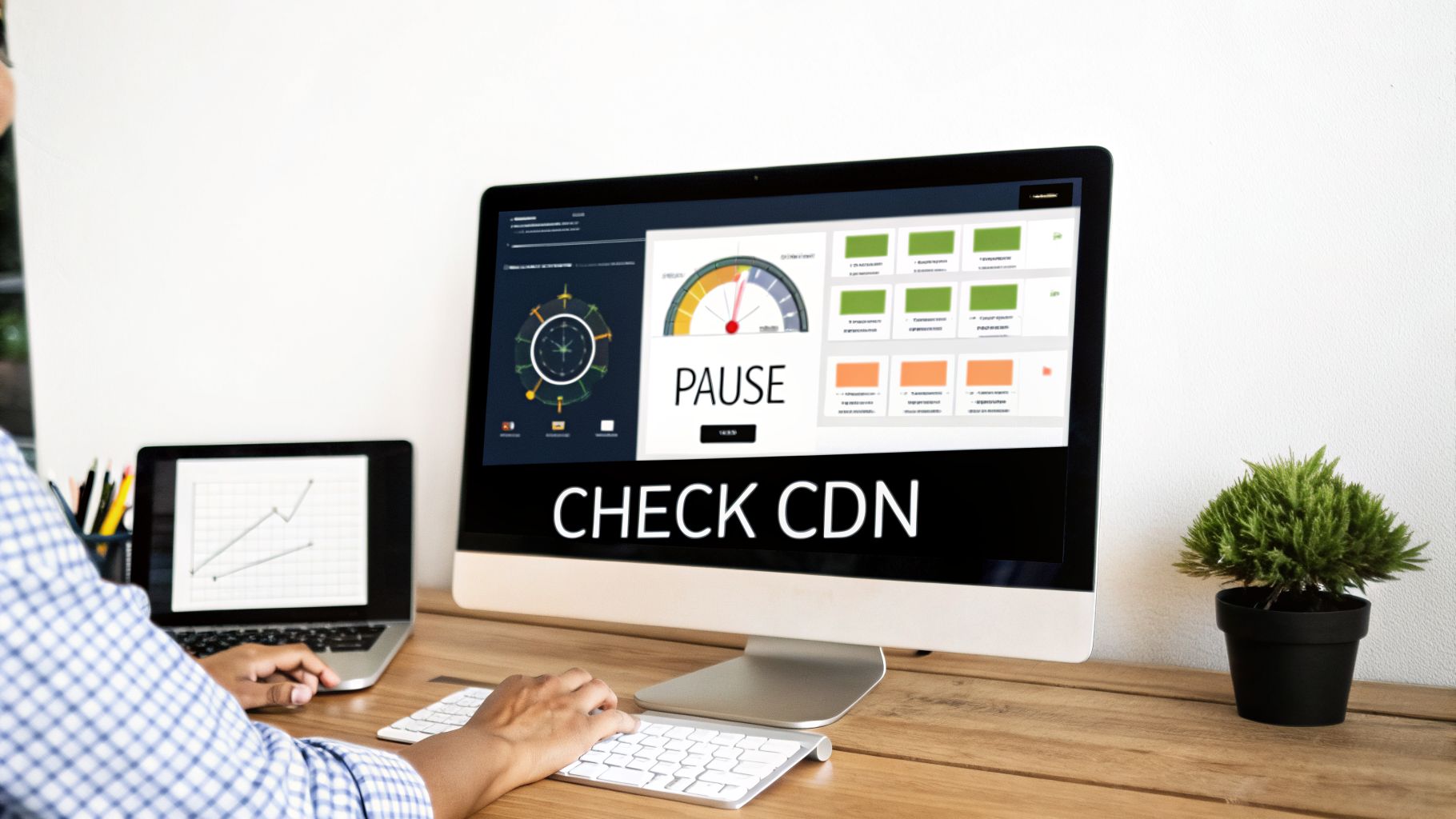
Investigating Your CDN
If a CDN is part of your setup, it’s a prime suspect. The quickest way to confirm this is to temporarily take it out of the equation.
Most CDNs make this easy. With Cloudflare, for example, you can enable "Development Mode" or use the "Pause Cloudflare on Site" feature with a single click in your dashboard. This action routes all traffic directly to your origin server, completely bypassing the CDN.
Now, refresh your website. If the 504 error is gone, you've found your culprit. It tells you the server itself is healthy, but there's a communication breakdown between it and the CDN. This could be anything from an incorrect IP address in your CDN settings to a server-side firewall that's blocking the CDN's requests. If pausing the CDN solves the error, your next call should be to their support team.
When Your Firewall Thinks You're the Enemy
A WAF is built to be suspicious. Its job is to block sketchy requests, but sometimes its enthusiasm can get the better of it. It might mistake perfectly legitimate traffic from your CDN for a malicious attack, leading to blocked or delayed requests that time out and throw a 504.
I’ve seen this happen countless times. An incorrect firewall configuration is a classic cause of these headaches. For instance, if you forget to whitelist your CDN's IP addresses, your firewall might see a massive wave of requests from one source, assume it’s a DDoS attack, and start throttling the connection.
Expert Insight: It’s easy to get tunnel vision and focus only on your WordPress site, but always remember the entire delivery chain. Based on our own support data, over half (52%) of 504 errors we troubleshoot for clients in Western Australia trace back to firewall blocks or CDN glitches. We once had an e-commerce client whose site was crippled by a 504 for 48 hours until our team pinpointed a subtle misconfiguration between their CDN and server firewall.
Network connectivity issues are surprisingly common, accounting for 28% of 504 Gateway Timeout errors we see across the Australian WordPress ecosystem. This is particularly true in regional areas like Perth, where latency can push response times just over the typical 60-second limit. You can see just how complex these issues can get in discussions from Microsoft Q&A forums for Australian users.
To see if your firewall is the problem, start by digging into its logs. Look for blocked requests that occurred around the time of the error but appear to be legitimate. If you’ve recently installed a security plugin or your host made a change, that’s a red flag. If you suspect the firewall, get in touch with your hosting or security provider. Giving them the specific times the 504 error appeared will help them track down the cause much more quickly.
How to Prevent 504 Errors in the Future
You’ve just wrestled a 504 error into submission. That’s a great feeling, but the real win is making sure you never have to see it again. The key is to shift your thinking from just fixing problems to actively preventing them. This is all about building a solid, reliable WordPress site that doesn't buckle under pressure.
Honestly, the single biggest factor is often your hosting. While budget shared hosting looks good on paper, it's a common culprit for resource-related 504 errors. When your site gets a little busy, these servers can't keep up. Investing in quality managed WordPress hosting gives you the power to handle traffic spikes without the server timing out. It’s a classic case of getting what you pay for.
After hosting, a smart caching strategy is an absolute must. Caching essentially pre-builds lightweight, static versions of your pages. This dramatically cuts down the work your server has to do for every single visitor, which not only makes your site faster but also massively reduces the chance of scripts timing out. If you're not sure where to start, our guide to the best WordPress caching plugins will point you in the right direction.
Establish a Proactive Maintenance Routine
Treating your WordPress site like a "set it and forget it" project is asking for trouble. Regular, consistent upkeep is what stands between a smooth-running website and a whole host of issues, including those dreaded 504 gateway timeouts.
A solid maintenance routine isn't complicated. It just needs to cover a few key areas:
- Consistent Updates: Always keep your WordPress core, plugins, and themes up to date. Developers are constantly releasing patches that fix bugs and improve performance, which can directly solve the underlying causes of slow scripts.
- Proper CDN Use: A Content Delivery Network (CDN) is a game-changer. It takes static files like images and scripts and serves them from a global network, taking a huge load off your main server. This makes it far less likely to get overwhelmed and time out.
- Performance Monitoring: Get into the habit of checking your site's speed and server resource usage. Tools for this are often built into good hosting plans. This helps you spot bottlenecks before they turn into full-blown errors.
A good maintenance plan isn't just about preventing things from breaking; it's also about having a clear plan for when they do. It's a mix of proactive steps and a solid repair process. To go deeper, you can explore different Preventive and Corrective Maintenance strategies for your business's entire IT setup.
Knowing When to Call an Expert
At some point, the DIY approach stops being practical. If you’re stuck in a loop of fixing the same 504 error, or the troubleshooting steps are getting way too technical, it's a clear signal that it’s time to bring in a professional.
Think about escalating to a WordPress expert if you notice these signs:
- The 504 error keeps returning, no matter what you try.
- You're staring at server logs that look like a foreign language.
- The issue seems to be buried deep in a plugin’s code or a complex database query.
This is exactly where a professional maintenance plan, like the one we offer at Webby Website Optimisation, can save you a world of headaches. We manage the updates, monitoring, and performance tuning for you, stopping errors before they start and jumping in with expert help when needed. This proactive approach turns your website back into a reliable asset instead of a constant source of stress.
Your 504 Error Questions, Answered
When you’re staring down a 504 gateway time out, a few key questions always come to mind. Let’s clear up some of the most common ones I hear from website owners.
Will a 504 Error Hurt My SEO Rankings?
A one-off 504 error that you fix straight away? Probably not. Google is smart enough to know that servers can have a bad day.
But if it becomes a regular occurrence, you’ve got a problem. Search engines see persistent errors as a sign of an unreliable website. If Googlebot keeps hitting a wall when it tries to crawl your pages, it will eventually stop trying so often. Over time, that chronic unavailability will absolutely drag your rankings down.
Can I Just Increase the Server Timeout Limit?
Look, you technically can ask your host to crank up the timeout values, but it's almost never the right move. Doing that is just putting a plaster on a much deeper wound.
My Take: Bumping the timeout limit simply hides the real issue. You're just giving a slow, broken process more time to finish, which doesn't actually fix anything. The proper solution is to dig in and find what's causing the delay—a sluggish database query, a misbehaving plugin, or an underpowered server.
Is a 504 Error My Fault?
It’s easy to feel a bit of panic and wonder if you did something wrong, but you can relax. A 504 gateway time out is a classic server-side problem.
This means it has nothing to do with your visitor's computer, their web browser, or their internet connection. Knowing this is half the battle, as it lets you focus your energy on where the problem actually is: your hosting environment, server configuration, or website code.
Don't let recurring 504 errors disrupt your business. The expert team at Webby Website Optimisation offers proactive WordPress support to keep your site fast, secure, and error-free. Let us handle the technical headaches for you.