
For most WordPress sites, the right move is Cloudflare’s free tier plus HTML edge caching, which usually cuts time to first byte dramatically and speeds up load times noticeably. Media-heavy sites do better with a split setup: edge HTML caching for pages, plus a cheap per-gigabyte CDN like Bunny.net for images and video. Busy WooCommerce stores or enterprise sites need a managed host with built-in edge caching or a carefully configured CDN with the right bypass rules. Expect the caching layer itself to be free or cheap; the real cost is usually the optional HTML caching add-on.
TL;DR:
- Full-page HTML edge caching is essential for maximum speed improvements, especially on dynamic WordPress pages, and often requires a paid add-on like Cloudflare’s APO.
- Verifying cache effectiveness involves checking response headers for cache-hit indicators and measuring reduced time to first byte in speed tests.
- Proper cache purge setup is crucial to prevent stale content, requiring automatic purge triggers tied to post updates or API calls.
- WooCommerce stores need specific exclusion rules for cart, checkout, and logged-in sessions to prevent data leaks and session conflicts.
- Media-heavy sites benefit from combining HTML caching with a low-cost CDN for bandwidth, rather than relying solely on expensive premium caching services.
Table of Contents
- How a CDN for WordPress Actually Speeds Things Up
- Key Features to Look for in a CDN for WordPress
- Which CDN Setup Fits Your Site
- Setting Up a CDN for WordPress: A Step-by-Step Checklist
- Plugins and Image Workflows That Make CDN Setup Easier
- Making WooCommerce Play Nice With a CDN
- Troubleshooting Common CDN Problems in WordPress
- How Webby Approaches CDN and Speed Projects for Clients
- Author Perspective: Trade-offs and Final Recommendations
- Get Professional Help Setting Up Your WordPress CDN
- Sources
- FAQ
How a CDN for WordPress Actually Speeds Things Up
A CDN for WordPress works on two separate levels, and mixing them up is where most site owners go wrong. The first level is static asset caching: images, CSS, JavaScript, and fonts get copied to servers scattered around the world, so a visitor in Perth doesn’t wait on a server in Virginia to send a stylesheet. This is what almost every free CDN does out of the box.
The second level, and the one that actually moves the needle on speed scores, is HTML edge caching. Instead of just caching the pictures on a page, the CDN caches the entire rendered HTML document and serves it directly from the edge, bypassing your WordPress server, your database, and PHP entirely. Cloudflare’s own documentation makes this distinction clear: a CDN speeds up WordPress by caching content close to users while also adding security layers like DDoS mitigation and web application firewall protection.
Without full-page HTML caching, a static-asset CDN does relatively little for time to first byte on dynamic WordPress pages, because your server still has to build the page from scratch on every visit, according to WP Depth’s 2026 review of WordPress CDN options. That’s the single most important thing to understand before you pick a provider.
Beyond speed, a CDN buys you resilience you don’t get from your hosting plan alone:
- DDoS mitigation absorbs traffic spikes and attack floods before they reach your origin server.
- Web application firewall rules block common exploit attempts (SQL injection, bad bots, brute-force login attacks) at the edge.
- Origin offload means a traffic surge, whether from a viral post or a bot swarm, hits the CDN’s infrastructure instead of your hosting account.
- Failover routing can keep serving cached pages even if your origin server briefly goes down.
Verifying it actually works matters more than installing it. Check your response headers in Chrome DevTools or curl for a cf-cache-status: HIT header (Cloudflare) or the equivalent header your provider uses. Run a before-and-after comparison in WebPageTest or GTmetrix and watch the time to first byte specifically, not just the overall score. A properly configured HTML edge cache typically drops TTFB into the double digits or low hundreds of milliseconds, down from several hundred milliseconds or more on an uncached dynamic page.
Key Features to Look for in a CDN for WordPress
Not every CDN feature matters equally. Here’s the priority order, ranked by actual impact on a WordPress site:
- Full-page HTML edge caching. This is the feature that determines whether you get a marginal improvement or a dramatic one. Cloudflare calls its version Automatic Platform Optimization (APO), a paid add-on running about $5 a month that caches entire WordPress pages at the edge, according to Cloudflare’s own product documentation. QUIC.cloud takes a different approach, offering CDN-level caching that can handle dynamic WordPress content and pairs with LiteSpeed Cache for accurate cache purging, per Quic.
- Automatic cache purge tied to publishing. A cache that doesn’t clear itself when you hit “Update” on a post is worse than no cache at all, because readers see stale content and you won’t know why. Purge hooks that fire automatically on publish are what separate a genuinely useful setup from a maintenance headache.
- WAF and DDoS protection tiers. Free tiers typically cover basic bot filtering and volumetric attack absorption. Paid tiers add custom firewall rules, rate limiting, and managed rulesets tuned for WordPress specifically, useful if you’ve ever dealt with a login brute-force attempt hammering
wp-login.php. - Image format conversion and modern protocols. Look for automatic WebP or AVIF conversion, Brotli compression, and HTTP/3 support. These stack with HTML caching rather than replace it, and they matter most on image-heavy pages.
- Integration mode: DNS/proxy versus plugin. A DNS-level CDN like Cloudflare sits in front of your entire domain and needs a nameserver or CNAME change at your registrar. A plugin-based CDN, or one bundled into hosting, rewrites asset URLs without touching DNS. DNS-level setups give you WAF and full-page caching; plugin-based setups are faster to install but usually only handle static assets.
Pro Tip: Before you commit to any CDN, check its purge method first, not its price. A cheap CDN with no reliable auto-purge will cost you more in support headaches than a slightly pricier one that clears itself the moment you publish.
Cache rule granularity deserves its own mention here. You want a provider that lets you write rules like “cache everything except /wp-admin/* and any request carrying a wordpress_logged_in cookie,” with separate, aggressive TTLs for static files (weeks or months) versus HTML (minutes to hours, refreshed on purge). If a provider only offers an all-or-nothing caching toggle, you’ll either break your dashboard or barely cache anything.
Which CDN Setup Fits Your Site
The right configuration depends on what kind of WordPress site you’re running, not on chasing whichever provider ranks highest in a roundup.
- Brochure sites and blogs. A free CDN with APO-style HTML caching, or your host’s built-in page caching, is usually enough. Jetpack’s free CDN for images and static files is a common starting point for smaller sites, according to Jetpack’s performance feature page, though it doesn’t handle full-page HTML caching on its own.
- Media-heavy sites (photography, video, large image galleries). Split the roles: HTML edge caching for your pages, and a low-cost per-gigabyte CDN for the heavy files. Bunny.net’s pay-as-you-go pricing starts at $0.01 per gigabyte, which makes it a practical choice for sites pushing large volumes of image or video traffic without paying flat enterprise rates. A split-role approach like this often delivers the best performance for the money on media-heavy WordPress sites, since you’re not paying premium HTML-caching rates for bandwidth you don’t need cached that way.
- WooCommerce and other ecommerce sites. This is where generic CDN advice breaks down fastest. You need either a managed host with edge caching that already understands WooCommerce’s dynamic pages, or an external CDN configured with precise bypass rules for cart, checkout, and account pages. Get this wrong and customers see each other’s carts.
- Enterprise and high-traffic sites. Prioritize WAF sophistication, guaranteed uptime commitments, and support responsiveness over raw price. At this scale, a few minutes of downtime during a traffic spike costs more than the difference between CDN tiers.
Setting Up a CDN for WordPress: A Step-by-Step Checklist
Getting a CDN for WordPress running correctly is less about the provider and more about the order you do things in. Skip a step here and you’ll spend an afternoon debugging a redirect loop instead of enjoying faster load times.
- Choose your integration path. Decide between a nameserver change (full DNS-level proxy, needed for WAF and HTML caching) or a CNAME/plugin approach (lighter touch, static assets only). Update this at your domain registrar if you’re going the nameserver route.
- Set SSL/TLS mode to Full (Strict). This is the single most common setup mistake. Using “Flexible” SSL mode causes redirect loops because the CDN and your origin server disagree about how the connection was encrypted.
- Enable Always Use HTTPS and Automatic HTTPS Rewrites. This forces every request to secure connections and fixes mixed-content warnings caused by old
http://links buried in your database. - Write your cache rules. A safe baseline pattern:
- Bypass cache entirely for
/wp-admin/*,/wp-login.php, and any request with a logged-in session cookie. - Cache everything for public-facing pages with a TTL of a few hours.
- Set aggressive, long TTLs (weeks or months) for static files like images, CSS, and JavaScript, since these rarely change and can be purged individually when they do.
- Bypass cache entirely for
- Connect automatic purge on publish. Whether through a plugin hook or the provider’s API, confirm that hitting “Update” on a post actually clears the cached version within seconds, not hours.
- Test before you trust it. Check response headers for a cache-hit confirmation, run WebPageTest or GTmetrix comparisons before and after, and click through your site looking for mixed-content warnings or unexpected redirect loops.
Do these in order and you avoid the two failure modes that generate the most support tickets: a broken SSL chain and a cache that never updates.
Plugins and Image Workflows That Make CDN Setup Easier
You don’t need to hand-edit every asset URL on your site. Plugins handle the rewriting, and several also handle image conversion at the same time, especially when combined with advanced caching plugins Elementor supporting smooth integration and caching strategies.
- URL rewriting plugins like CDN Enabler automatically rewrite theme and media URLs to point at your CDN, and support cache purging when paired with providers like KeyCDN.
- Combined delivery and conversion plugins such as StaticDelivr rewrite theme and plugin assets to a CDN while also offering automatic WebP conversion for many file types, which saves you a separate optimization step.
- Host-integrated options, where your hosting provider bundles CDN delivery directly into the platform, skip the plugin layer entirely but give you less control over cache rules.
For WebP images in WordPress specifically, check whether your server has the Imagick or GD library installed, since most conversion plugins depend on one of them to do the actual format switching. If you’re running multisite, verify that the CDN plugin rewrites subsite media paths correctly. Some rewrite plugins get confused by multisite’s /wp-content/uploads/sites/2/ structure and silently fail to rewrite those URLs.
To confirm assets are actually loading from your CDN rather than your origin, open DevTools, check the Network tab, and look at the domain each image or script request hits. It should point to your CDN’s hostname, not your WordPress domain, and the response headers should carry the CDN’s cache-status indicator.
Making WooCommerce Play Nice With a CDN
Caching a WooCommerce store the same way you’d cache a blog will break carts and leak customer data between sessions. The fix is a specific, non-negotiable exclusion list.
- Bypass
/wp-admin/*and/wp-login.phpcompletely. These pages should never be served from cache. - Bypass any request carrying a
wordpress_logged_incookie. This is the cookie that identifies a signed-in user, and caching their page for the next visitor is how one customer ends up seeing another customer’s account dashboard. - Bypass cart and checkout indicators, specifically the
woocommerce_cart_hashandwoocommerce_items_in_cartcookies, along with any URL containing?add-to-cart=. These signal an active shopping session that must always hit the origin server fresh. - Run a full test flow after enabling the CDN: add a product to cart, proceed to checkout, log in as a test customer, and confirm the cart total and contents are accurate at every step.
Caching these pages doesn’t just create a visual glitch. It leaks session-specific data to the wrong visitor, which is a genuine privacy and trust problem, not a cosmetic bug. If configuring these exclusions by hand feels risky, a managed WordPress host with WooCommerce-aware caching built in, one that already knows to exclude these paths, is often the safer choice over hand-rolling the rules on a general-purpose CDN.
Troubleshooting Common CDN Problems in WordPress
Most CDN issues on WordPress trace back to one of a handful of causes, and diagnosing them is faster than most site owners expect.
- Redirect loops right after setup almost always mean your SSL mode is set to “Flexible” instead of “Full (Strict).” Switch the mode and the loop usually clears within a minute.
- Stale content after publishing an update means your purge hook isn’t firing. Check the plugin or API connection, and in the meantime, trigger a manual purge from your CDN dashboard.
- Missing images or blocked assets are often caused by your origin server’s firewall rejecting the CDN’s pull requests. Check for CORS restrictions, referrer-based blocking, or an IP allow-list on your host that doesn’t include the CDN’s ranges; some origins reject the CDN’s pull requests outright, so an asset can 404 at the edge even though it loads fine when you hit the origin directly.
Pro Tip: When you contact support about a CDN issue, screenshot the exact response headers alongside the failing URL. Support teams can usually diagnose a cache or origin problem in minutes from headers alone, versus a back-and-forth that drags on for days without them.
How Webby Approaches CDN and Speed Projects for Clients
A typical engagement starts with a Website Audit to see exactly where a site is losing time, whether that’s an uncached HTML response, unoptimized images, or a plugin conflict blocking CDN delivery. From there, configuration follows the same sequence covered above: DNS or plugin setup, SSL mode correction, cache rules, and purge verification, followed by testing to confirm the gains actually show up in TTFB and load time.
DIY setup works fine for a straightforward brochure site or blog. Where it gets genuinely risky is a WooCommerce store with custom checkout logic, a multisite network serving several regions, or any site where a caching mistake means leaked customer data or a compliance problem. Those situations tend to call for a second set of eyes, delivered through WordPress Help & Support or a broader optimization campaign, rather than trial and error on a live store.
Author Perspective: Trade-offs and Final Recommendations
Most guides oversell how much a CDN alone will fix. Static asset caching without HTML edge caching is a modest upgrade at best; the real gain comes from caching full pages, which is why I keep steering readers toward the APO-style approach rather than whatever provider has the flashiest marketing.
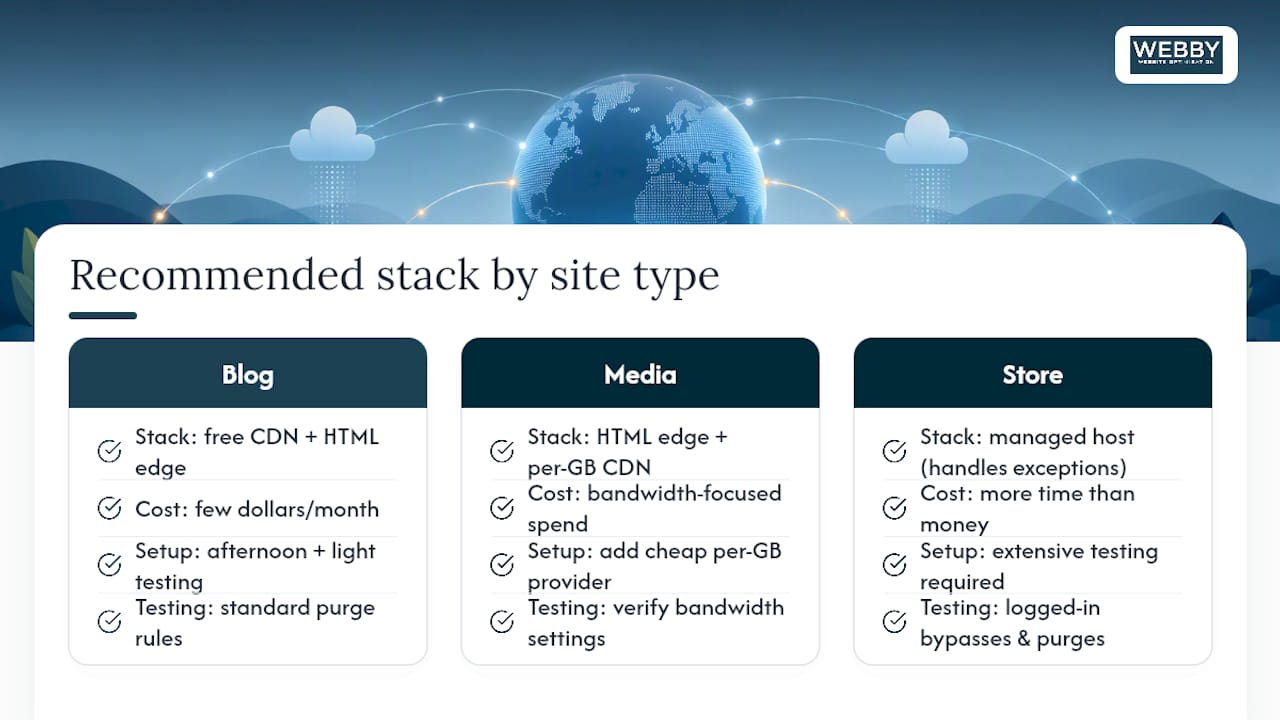
Cost and complexity trade off in a predictable way. Free static caching costs nothing and takes an afternoon; HTML edge caching costs a few dollars a month and takes real testing discipline, especially around purge rules and logged-in bypasses. Media-heavy sites get more value from spending on bandwidth than on premium HTML caching tiers they don’t need. WooCommerce sites should budget more time for testing than for money spent on the CDN itself.
If I had to hand someone a single stack per profile: blogs get free CDN plus HTML edge caching, media sites get that same HTML caching paired with a cheap per-gigabyte provider, and stores get a managed host that already handles the exceptions correctly.
Get Professional Help Setting Up Your WordPress CDN
Webby Website Optimisation is the alternative to guessing your way through DNS settings and cache rules: instead of piecing together plugin documentation and CDN help articles on your own, you get someone who’s configured this exact stack before and knows where the mistakes usually happen.

A typical engagement starts with a Website Audit to identify exactly what’s slowing your site down, whether that’s missing HTML caching, unoptimized images, or a plugin quietly blocking CDN delivery. From there, the work covers CDN configuration, cache rule setup, image optimization, and verification that the gains actually hold up in real-world testing, not just a single speed test screenshot. If your site needs continuing attention rather than a one-time fix, the Monthly Maintenance plan at $59 AUD per month keeps things running correctly as your site grows and your traffic patterns change.
For stores or larger sites that need a broader pass, the Business Website Optimisation Campaign covers performance work alongside conversion improvements in a single project. Start with a Website Audit to see exactly where your site stands before deciding which path fits.
Sources
FAQ
Which CDN Is Best for WordPress?
There’s no single best CDN for every site; it depends on whether you need full-page HTML caching or just static asset delivery. Cloudflare’s free tier plus its paid Automatic Platform Optimization add-on, priced around $5 a month, covers most brochure and blog sites well, while media-heavy sites often do better pairing HTML caching with a low-cost provider like Bunny.net for bandwidth.
Are There Free CDNs Available for WordPress?
Yes, several free options exist, including Cloudflare’s free tier for static assets and security features, and Jetpack’s built-in free CDN for images and static files. Free tiers generally handle static asset delivery well but rarely include full-page HTML edge caching, which is usually a paid add-on.
Is WordPress Outdated in 2026?
No, WordPress remains one of the most widely used content management systems, and most of the speed complaints leveled at it come from unoptimized hosting and missing caching layers rather than the software itself. A properly configured CDN with HTML edge caching resolves most of the performance gaps that fuel this criticism.
Why Are Some Site Owners Moving Away from WordPress?
Frustration usually centers on perceived slowness, plugin conflicts, or maintenance overhead rather than fundamental platform limitations. Most of these issues trace back to missing performance layers, like the HTML edge caching and CDN setup covered above, rather than a flaw in WordPress itself.
Do I Need a Developer to Set Up a CDN for WordPress?
Basic static asset caching is manageable through a plugin without technical help, but full HTML edge caching with correct WooCommerce bypass rules involves enough risk of misconfiguration that many site owners bring in support. A Website Audit is a practical starting point if you want an expert to confirm your setup before or after you configure it.